Workshops
Create workshops, masterclasses and bootcamps, put them on your website, take payments, tell the people who sign up and run them with other spaces.
Detailed step-by-step guide
What workshops are and what you need to sell them
An event is an activity with a date: a workshop, a masterclass or a bootcamp. You create it in your panel, in Your workshops. It shows on your website, and people sign up there. If the event has a price, they pay by card at that moment.
The three types work the same way. You choose one in What it is (Workshop, Masterclass or Bootcamp) and only the word shown on its card and its page changes.
There are two ways to set up an event:
- Normal. You organise it and you get paid, in your Stripe. This is the usual one and takes up most of this guide.
- Collaborative. Several ADLANTE spaces organise it together: one poster, one programme of classes and one pass. Each space sells it with its own link and ADLANTE shares out the money at the end. It starts at What a collaborative workshop is.
What you need to sell it:
- An event with a date. Without a date it cannot show on your website.
- The Intensivos (Workshops) section on your published website. It is added only once, from the editor: Add the “Workshops” section to your website. Without it, the event’s link opens nothing.
- Your website open, not on “Coming soon”.
- To take card payments, your Stripe account connected in Your payments: Card payments. A free event does not need it.
- The workshops tool turned on in Your plan, but only when you are going to really use it (show the event on your website or copy its link). To set it up and try it out, you do not need it. In Your plan this tool is called “Workshops, masterclasses and bootcamps manager”.
Setting up is free; really using it is paid. What the tool costs each month is in Your plan. Also, on every ticket paid by card ADLANTE keeps its commission (you see it in Your plan, under On each sale). This guide does not write prices: ADLANTE sets them and they change.
The whole path, from start to finish:
Create the event with its title: Create an event.
Give it a date, a place, a price and places, and press Save: Fill in the event and Set the places.
Make it show on your website: Show it on your website.
Add the Intensivos (Workshops) section to your website and publish it, only once: Add the “Workshops” section to your website.
Copy the event’s link and share it: Copy the link and share it.
See who signs up and tell them things: See and contact the people who signed up.
Your list of events
It opens with Your workshops, in your panel’s menu. On a computer, the menu is on the left. On a phone it is one of the things on the first page of your panel; to go back, tap Your panel at the top left.
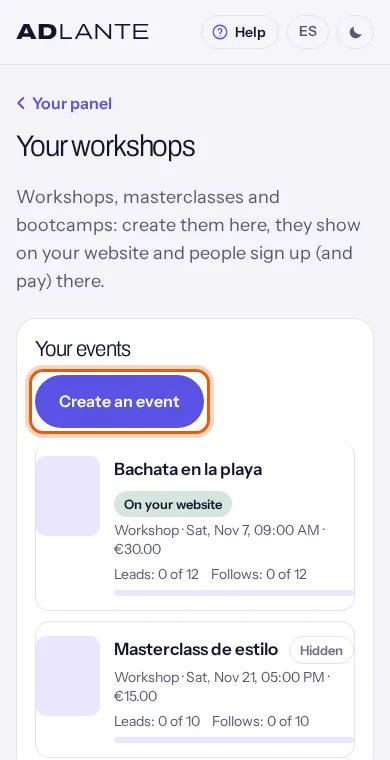
From top to bottom, the page has:
- The title Your workshops. If you have not turned the tool on yet and it has a price, the label Paid · (its price) a month shows under it. It is only a notice: you can set up events anyway.
- Your events: the Create an event button and your list of events. If there are none, it says “You have no events yet. Create the first one: start with its title.”
- Collaborative workshops from other spaces: the collaborative workshops you are invited to or already part of. More in If you are invited to a collaborative workshop.
- The section on your website: the main poster and what you call the places. More in The section on your website: posters and names for the places.
Each event in the list shows:
- Its small poster (an empty square if it has none) and its title. Tap the title to open the event.
- A status label, explained below.
- A line with the type, the date and the price, for example “Workshop · Sat, Oct 18, 05:00 PM · Free”. If it has a price, the price shows instead of “Free”.
- The places taken: “Leads: 3 of 10” and “Follows: 2 of 10” (in pairs), “5 of 20 places” (a total), “Follows only: 3 of 10” or “No limit on places”.
- A bar that fills up with the places taken. If the event has no limit, it does not show.
The status labels:
- On your website: the event already shows on your website.
- Hidden: it has a date, but does not show on your website yet.
- No date: it has no date. Without a date it cannot show on your website.
- Sold out: no places left, or you marked it as sold out. This label wins over the others: a sold-out event says Sold out even if it is on your website.
- Past: it has already happened or you archived it. You only see it in Past events.
At the end of the list, small, there is a link See past events (3). It only shows if you have past events. More in Duplicate, archive and delete.
On a computer, this page uses more width and puts its sections in two columns. On a phone and a tablet, everything is in a single column, one thing under another.
If instead of the list you see “The workshops manager is not available right now.”, the tool is switched off for all spaces. It is nothing you did: come back later. Your collaborative workshops from other spaces still show underneath.
Create an event
To create an event you only need its title. Everything else is filled in afterwards, on the event’s page.
In Your workshops, tap Create an event. A form opens underneath and the button disappears.
Write Its title, up to 120 characters. The field shows “Bachata workshop” as an example. The event’s address on your website will be made from this title.
Look at How are you organising it?: Normal (you organise it and you get paid, in your Stripe) or Collaborative (several spaces). For a normal event, leave Normal. The collaborative one is explained later in this guide.
Tap Create. The event’s page opens, with its title at the top and the label No date. If you do not want to create it, tap Cancel: the form closes and nothing is saved.
A new event starts like this: type Workshop, free, In pairs with ten places for leads and ten for follows, no date, no poster and hidden. Nothing shows on your website until you decide. You change everything on the event’s page.
If the title is missing, or too long, you get “The title must have between 1 and 120 characters.” If you already have the maximum number of events, you get “You have reached the maximum of 500 events. Delete one with nobody signed up.”
To create and set up an event you do not need the workshops tool turned on, or Stripe connected. They are asked for when you really use it: when you show it on your website or copy its link.
Fill in the event
The event’s page opens when you create it or when you tap its title in the list. From top to bottom it has: the event’s title with its label, How it is going (places and money, with the Copy the link button), the form The event and, at the end, Who signed up. What you fill in is in The event.
In How it is going you see how many places taken there are (for example, “4 of 20”); if the event is in pairs, how many are on each side, under “Leads · Follows”; and, if it has a price, how much has been collected so far.
The fields, one by one:
- What it is: Workshop, Masterclass or Bootcamp.
- The title: up to 120 characters.
- Starts: the day and time. It is required for the event to show on your website. When you tap the field, your device opens its calendar.
- Ends (optional): the day and time it finishes. It is optional. If you set it, it must be after the start and no more than a month later. With it, the event moves to Past events when it ends; without it, the start time is used.
- Where: the room or the address, up to 200 characters. Optional.
- What you will do: the description people will see. Up to 5,000 characters; a blank line separates one paragraph from the next.
- Its poster: the event’s photo. Explained below.
- The price: explained below.
- The places: how many people fit. It has its own section: Set the places.
- Mark it as sold out (even if there are places left) and Show it on your website: they also have their own section.
An event stops showing on your website, and stops accepting people, as soon as it starts. What has already happened never shows again: “Past or archived events never show.”
Times are saved using the clock of the device you write them on, and your website shows them in your space’s time. If you write the event from a device set to another time (for example, while travelling), check the card on your website afterwards to make sure the time is the one you meant.
The poster. It is optional. Tap Upload a photo and choose an image (JPG, PNG or WebP). The photo is uploaded to “Your photos and videos”, the page reloads and the poster appears, with the buttons Change and Remove. If the event has no poster, your website shows the section’s main poster; if there is no main one either, it draws one with the type, the title and the date. If you get “That photo is not yours or is not ready yet. Upload it again.”, upload it again.
When you upload or remove the poster, the page reloads and whatever you wrote without pressing Save is lost. The same happens with Duplicate, Archive and Move back to active. Press Save first.
The price. Write only the number, with a comma or a full stop for decimals. 0 = free: people sign up without paying. With a price, they pay by card in your Stripe, with ADLANTE’s commission. If the price is not understood, a notice that starts with “Write a price…” appears (and tells you the maximum allowed).
If the event has a price and you have not connected Stripe yet, a box shows under Copy the link: “To sell it by card, connect your payments.” and “Until then, it cannot be paid by card on your website.”, with the button Go to «Your payments». How to connect it: Card payments.
Fill in the fields you want.
Press Save, at the end of the form. The page reloads, at the very top.
Check that it was saved by looking at the form’s data and the label at the top (for example, from No date to Hidden). On a normal event no green “Saved” notice appears.
If something is not valid, nothing is saved and a red notice appears, right above Save, and the cursor goes to the field with the problem. The most common notices:
- “The title must have between 1 and 120 characters.”
- “That date is not valid.”
- “It must end after it starts (and last one month at most).”
- “Give it a date before it shows on your website.” (you ticked Show it on your website and Starts is empty).
- “This event has already happened: it cannot show on your website.” (the start date has passed).
- “The places must be a whole number…” (with In pairs you must fill in both numbers, and with A total, the total).
- “There are already more people signed up than those places. Set at least the ones already taken.”
- “Something went wrong on our side. Please try again in a moment.”
Set the places
In The places you choose how many people fit and how they are counted. There are five ways; you pick one (circle) and write the number it asks for:
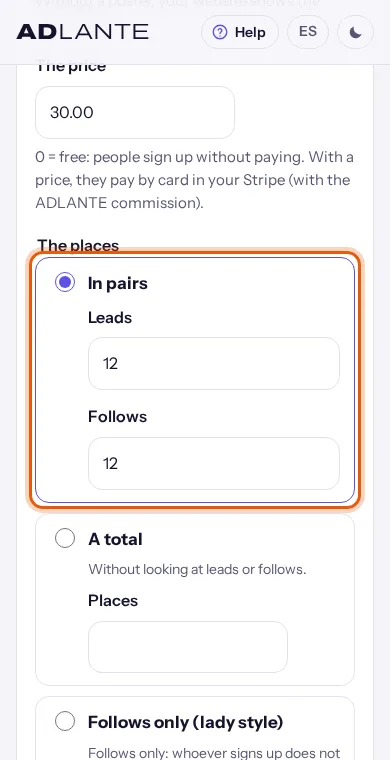
- In pairs: you set how many places there are for Leads and how many for Follows (your own names for them, if you changed them). Whoever signs up chooses how they are joining, in “You are joining as”. When one side runs out, that side closes and the other keeps going. You must fill in both numbers.
- A total: a single number of places, without looking at leads or follows. You write it in Places.
- Follows only (lady style) and Leads only (men style): for an event of a single role. Whoever signs up does not choose a role. On your website it says, for example, “Follows only · 8 left”. You write the places in Places; if you leave it empty (“Empty: no limit”), there is no limit.
- No limit: places are not counted.
Closing it by hand. Mark it as sold out (even if there are places left) closes sign-ups: on your website the event says Sold out. Untick it and press Save to open it again.
To change the names “Leads” and “Follows” (for example, to “Leaders” and “Followers”), see The section on your website: posters and names for the places. It applies to all your events.
You can never sell more than you have: ADLANTE counts the places one by one each time someone signs up. If two people tap for the last place at the same time, one gets in and the other sees “Sold out”.
While someone is paying, their place counts as taken (about 30 minutes). That is why an event can show Sold out for a while even if nobody has paid yet. If that person does not pay in time, the place comes back by itself.
You cannot set fewer places than are already taken: you get “There are already more people signed up than those places. Set at least the ones already taken.”
Show it on your website
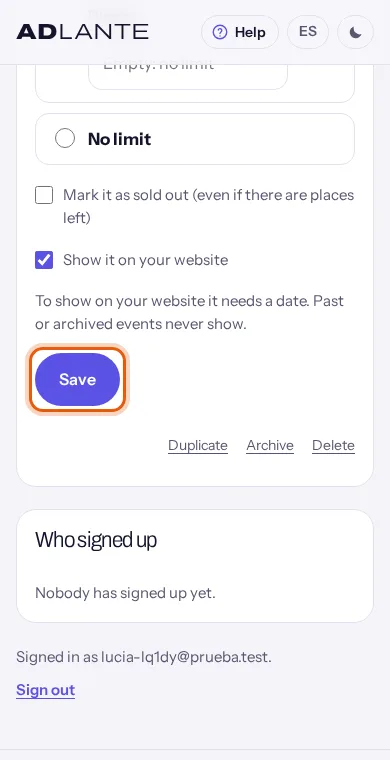
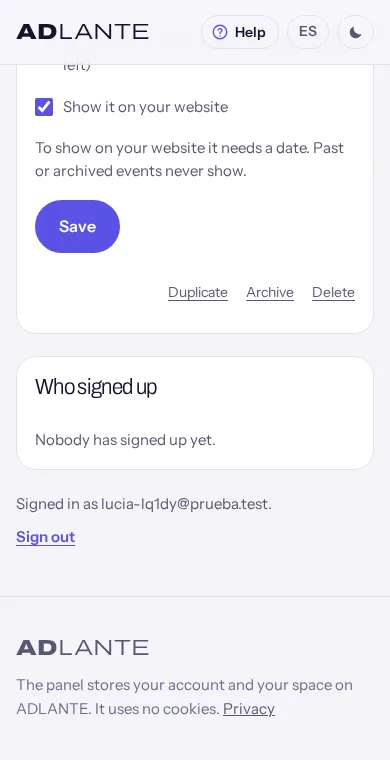
The box Show it on your website, in the form The event, decides whether the event can be seen on your website. A new event has it unticked. Under it, it says: “To show on your website it needs a date. Past or archived events never show.”
For an event to really show on your website, all of these have to be true:
- It has a date in Starts and it has not started yet.
- The box Show it on your website is ticked and you have pressed Save.
- The workshops tool is turned on in Your plan.
- Your published website has the Intensivos (Workshops) section: Add the “Workshops” section to your website.
- Your website is Abierta (Open), not Próximamente (Coming soon). You change it when you publish.
When everything is true, the event’s label becomes On your website.
Set the date in Starts.
Tick Show it on your website.
Press Save. If your space already has the tool turned on, the page reloads and the event becomes On your website.
If your space does not have the tool turned on yet, the rest of the event is saved anyway, but the box stays unticked and a window opens: “To use intensives: (its price) a month”. If the tool is free for you, it says “To use intensives: free”. It has two buttons: Turn it on in “Your plan” and Not now.
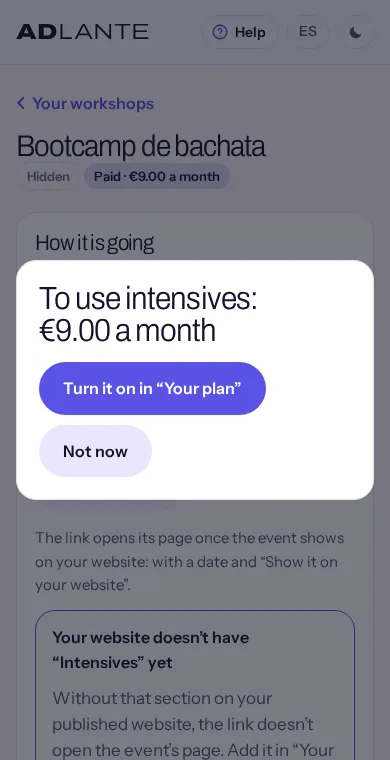
With Turn it on in “Your plan” you go to Your plan, where you turn it on. There it says “Turned on. Taking you back…” and, as soon as you have it, the page takes you back to the event by itself and finishes ticking the box: it says “Done: it now shows on your website.” With Not now everything stays as it was and you are not pushed.
How to turn it on and what it costs each month: Your plan.
The question when copying the link. If you tap Copy the link on an event that is still hidden, a window shows before copying: Show it on your website now?, with the text “The link only opens its page once the event shows on your website.” and two buttons: Show it and copy the link and Not now.
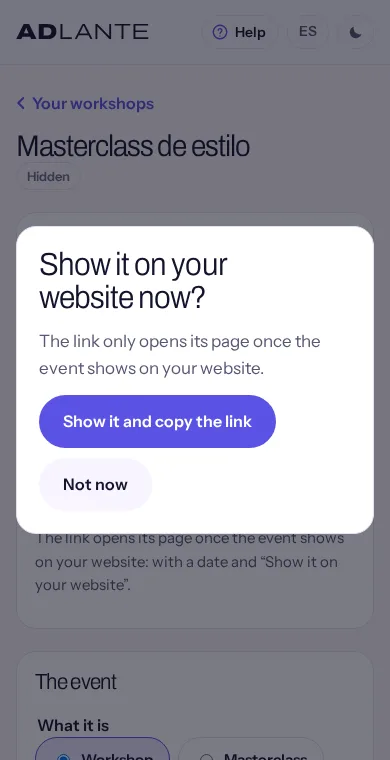
- Show it and copy the link: it ticks the event for your website, copies the link and says so: “Done: it now shows on your website and the link is copied.” If your published website does not have the Intensivos (Workshops) section yet, it says “Done: the event is ready and the link is copied. Your website still needs the “Intensives” section.” If the event has no date, you get in red “Give it a date before it shows on your website.”
- Not now: it copies the link anyway and says “Link copied.” The event stays hidden, and that page does not ask again.
To take an event off your website, untick Show it on your website and press Save: it becomes Hidden and its link stops opening it: whoever opens it sees “This page doesn’t exist.”
If you ticked the box and the event does not show on your website, go through the list above. The most common reasons: the Intensivos (Workshops) section is missing in the editor, or you did not press Publicar (Publish) after adding it.
Add the “Workshops” section to your website
You do this only once, in the editor. Without the section on your published website, the event has no page and its link opens nothing.
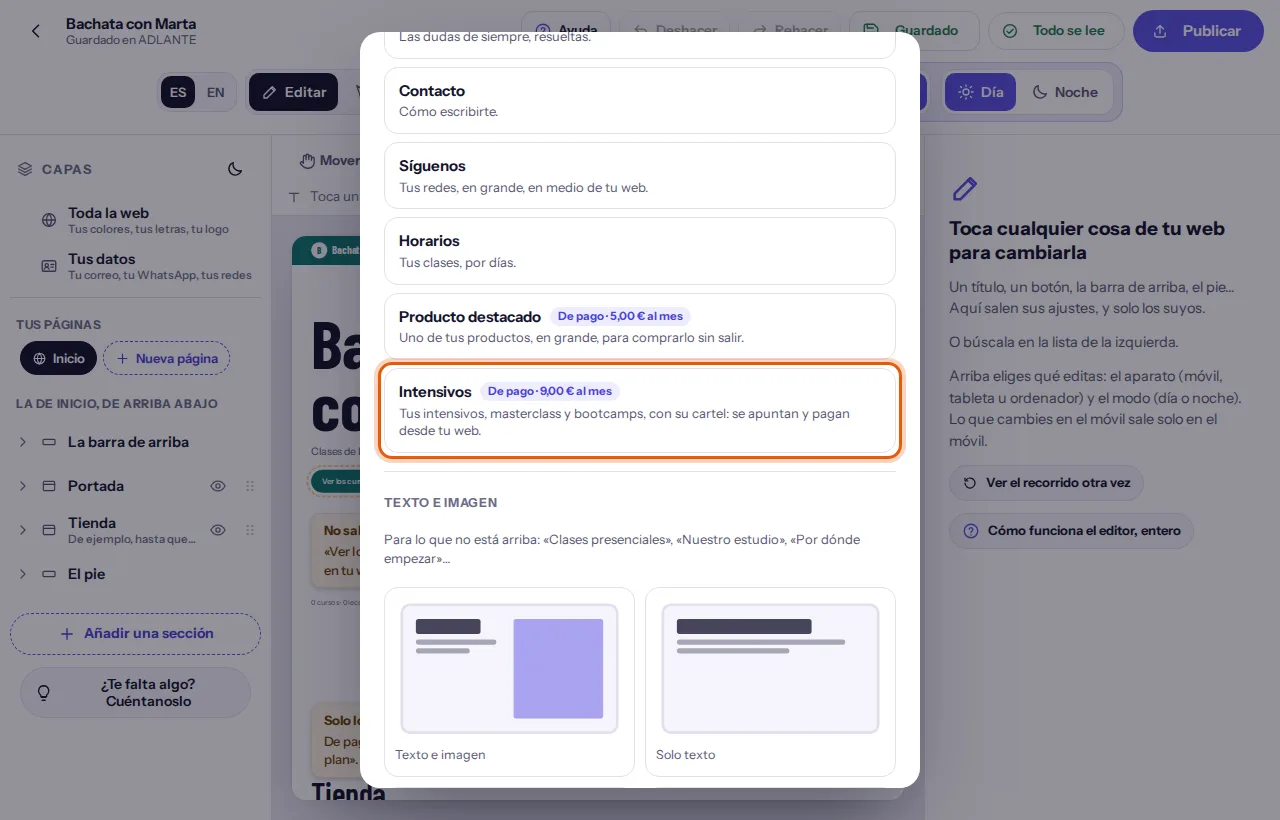
In your panel, open Your website: it is the editor. How to find your way around it: The whole editor. The editor is only in Spanish for now, so its buttons are shown in Spanish with their translation.
In the list of sections, at the end, tap Añadir una sección (Add a section). A window opens with the sections you do not have yet.
Tap Intensivos (Workshops). Its description says: “Your workshops, masterclasses and bootcamps, with their poster: people sign up and pay from your website.” If your space has not turned the tool on yet and it has a price, the button carries a label that says “De pago · (its price) al mes” (Paid · (its price) a month); if you already have it and it is an extra, it says “Extra”. In both cases it is added anyway, because setting up is free.
The section goes at the end of your website and stays selected. If you want it somewhere else, move it with the arrows in the list of sections. Open Más opciones (More options): in Dónde sale (Where it shows) you choose En la página de inicio (On the home page) or En su propia página (On its own page). On its own page it shows in the top menu, with its own address.
Press Publicar (Publish). If your space has not turned the tool on, the publish window first shows a group called “Herramientas de pago” (Paid tools) and lets you choose between the buttons “Activarla” (Turn it on; it takes you to Your plan) and “Publicar sin ella” (Publish without it). If you publish without it nothing is deleted: your website goes out without the section and, when you turn the tool on, it shows again.
While you have not turned the tool on, in the editor the section carries the mark “Solo lo ves tú.” (Only you can see this) and on your published website it does not show.
What the section shows. At the top, the section’s title and text and the main poster (if you set one). Under it, one card for each event that shows on your website, with its poster, its date, its place, the places left, the price and a button. Its texts are changed like those of any section: tap them in the view of your website, or choose them in Lo que lleva dentro (What it contains):
- El título (The title) (by default, “Workshops and masterclasses”) and El texto (The text) (by default, “Limited places. Sign up and pay here.”).
- El botón de cada evento (The button on each event) (by default, “See and sign up”).
- Lo que dice si no hay ninguno (What it says if there are none) (by default, “We will announce the next ones soon.”), in the group Lo que dice (What it says).
- Its name in the menu (by default, “Workshops”), in En el menú (In the menu).
To change the cards’ photo, choose Las tarjetas de los eventos (The event cards) in Lo que lleva dentro (What it contains). In the group “La foto” (The photo) you choose La forma de la foto (The photo’s shape) (Horizontal (Landscape), Cuadrada (Square) or Vertical (Portrait); by default it is portrait, because posters usually are) and El fondo de la foto (The photo’s background), which shows around a photo that does not fill its space.
In the section’s group “Cómo va en…” (How it looks on…; it says “el ordenador”, “el móvil” or “la tableta”, depending on the device you are previewing) you choose how the events look: Tarjetas (Cards) or En lista, con el cartel a un lado (As a list, with the poster on the side). In the section’s group Tus intensivos (Your workshops) there is a button Abrir «Tus intensivos» (Open “Your workshops”) that opens your panel in another tab.
While you have no events on your website, the editor shows three example events (nobody can sign up to them) and your published website says “We will announce the next ones soon.” In Probar (Preview), the sign-up form shows in full but does not sign anyone up: “In “Preview” nobody really signs up: the form works on your published site.”
If you remove it with “Quitarla de tu web” (Remove it from your website), it is not lost: you get it back in Añadir una sección (Add a section), with what it had written.
The section on your website: posters and names for the places
In Your workshops, under the list of events and Collaborative workshops from other spaces, there is the section The section on your website. It says: “The main poster shows above your events on your website: portrait on mobile and landscape on computers. Each event also has its own.”
The main poster. There are two spots, Portrait (mobile) and Landscape (computer). If you have uploaded nothing, they say No poster.
Under the spot you want, tap Upload a photo and choose an image (JPG, PNG or WebP). The button says Uploading… for a moment.
The page reloads and the poster appears. Now the buttons are Change (to put another one) and Remove (to take it off here).
If something fails, the notice shows under that poster’s buttons.
- On a phone the portrait one shows and, on wide screens, the landscape one.
- If you upload only one, it is used on every device.
- If you upload none, the section shows no main poster.
- An event without its own poster uses the main one. If there is none, your website draws one with the type, the title and the date.
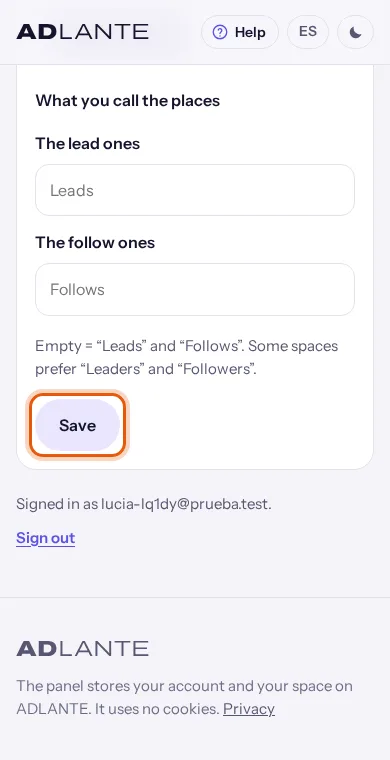
What you call the places. Under them are the two boxes of What you call the places: The lead ones and The follow ones. If you leave them empty, the places are called Leads and Follows. Some spaces prefer “Leaders” and “Followers”. Each name can have up to 30 characters.
Write the name you want in one or both boxes.
Press Save. “Saved.” shows underneath in green.
The names are used everywhere: in the panel, in “You are joining as” on your website, in “4 left”, in the places of a collaborative workshop’s classes. The event option “Follows only…” keeps that name in your panel, but your website uses your names.
Copy the link and share it
Each event has its own address on your website, with its sign-up form. It looks like yourname.adlante.com/intensivos/bachata-workshop. It is the one you share on WhatsApp, on your social media or wherever you like.
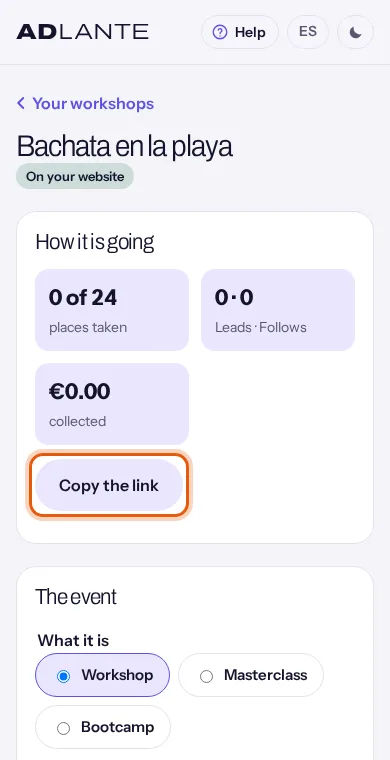
Open the event and look at How it is going. Tap Copy the link.
If the event already shows on your website, the link is copied and “Link copied.” shows under the button. Paste it wherever you like.
If the event is still hidden, the question Show it on your website now? comes up: Show it on your website.
If your space has not turned the tool on, the window “To use intensives…” comes up first: Show it on your website.
If your browser does not let it copy by itself, you get “You can copy the link now.” and the cursor stays on the button: tap it again.
While the event does not show on your website, there is a note under the button: “The link opens its page once the event shows on your website: with a date and “Show it on your website”.”
If the section is missing. When your published website does not have the Intensivos (Workshops) section yet, the box Your website doesn’t have “Intensives” yet shows underneath: “Without that section on your published website, the link doesn’t open the event’s page. Add it in “Your website” and publish it.” Its button Go to your website takes you to the editor. What to do there: Add the “Workshops” section to your website.
The event’s address is made from its title. While the event is hidden and nobody has signed up, if you change the title the link changes too. Once it shows on your website, or someone signs up, the link does not change even if you change the title. Set the final title before sharing the link.
Whoever opens the link of an event that has already happened, that is hidden or that you took off sees “This page doesn’t exist.”, with your bar, your colours and a button to go to your website’s home page. If your website is on “Coming soon”, the link takes them to the home page.
How people sign up and pay
People who sign up do not need an account. This is their path, told as if you were doing it yourself, so you know what to explain to them:
On your website, tap the event’s card or See and sign up. (Or open directly the link they were sent.) You reach the event’s page: the poster, the type and date, the title, the place, the description, the price (Free or the price) and the form.
If the event is in pairs, choose You are joining as, Leads or Follows (or the names the space has set), and see how many places are left on each side. If it is for a single role, you see “Follows only · 8 left” and choose nothing.
Write Your name, Your email and, if you want, Your phone (the field says “(optional)”).
Tick the conditions box (below).
Tap Sign up, if it is free, or Pay (the price) and sign up, if it has a price.
The notices they get if something is missing: “Choose how you are joining.”, “Write your name.”, “Write an email that works (name@something.com).”, “That phone number is not valid: only numbers, spaces and +.” and “To continue, tick the box.”
If it is free. The person is signed up at once. Under the button it says “It is free: with your name and your email, your place is booked.” They then see the “thank you” page: “Your place is booked”, their eight-character code, and the notice “Keep your code. On this device, this page stays saved: come back to it whenever you like.”
If it has a price. Their place is held for about 30 minutes while they pay (the website tells them: “You pay by card on Stripe; the money goes to (your space). We keep your place for 30 minutes while you pay.”; and, below it, that you are selling it to them, not ADLANTE, with your space’s contact email for questions or refunds). They pay by card on Stripe: if their browser allows it, the payment opens in a window over your website; if not, on Stripe’s page. The money goes to your Stripe account, minus ADLANTE’s commission. When they finish they return to your website’s “thank you” page, with their code. If your Stripe account is not connected, they cannot pay and see “This space cannot take card payments yet.”
If they come back without paying, they see “The payment was not completed. Your place is kept until (time).” with the button Back to the payment. If the time runs out without paying, they see “The time to pay ran out and the place was released. If there are any left, sign up again.” and the place is free again.
If they open their “thank you” page on another device, where their private link is not saved, the page asks “Write the email you signed up with and you will see your place.” and has the button See my place.
When no places are left. Instead of the form it says “Sold out: there are no places left.” and on the card the button changes to Sold out. If one side of an event in pairs runs out and they try it, they see “There are none of those left. Check the other one.”
The conditions. On a paid event, the box says: “I understand this is an activity on a set date: there are no 14 days to withdraw. If it is cancelled, I get back what I paid; and if the date changes and I cannot go on the new one, too.” That is, for an activity on a set date, they are told before paying that the usual 14 days to change their mind do not apply. If you cancel the event, or change its date and someone cannot go on the new one, you have to refund them (Refund a ticket). On a free event, the box is about using their details only for this event. If what you teach is more training than leisure and you are unsure how this affects you, ask your accountant.
ADLANTE does not send its own confirmation email for the place: the person sees their place and their code on screen. If you want to write to them, you do it yourself from See and contact the people who signed up.
See and contact the people who signed up
At the end of the event’s page there is Who signed up: everyone, in order of arrival. If nobody has signed up, it says “Nobody has signed up yet.”
For each person you see their name and, under it, a line with how they are joining (for example Leads), their status, what they paid and their code with #. The statuses:
- Paying… (place held): they opened the payment and have not finished yet. Their place counts as taken.
- Paid: they paid by card.
- Signed up (free): they signed up to a free event.
- Did not pay in time: they did not pay within the time their place was held; the place was released. After a day, it leaves the list.
- Cancelled: you cancelled it.
- Refunded: you refunded their money.
Each person has these buttons:
- WhatsApp: only if they left their phone. It opens the chat with a message already written (on a phone, in the WhatsApp app; on a computer, in WhatsApp Web).
- Email: it opens your email program with a message already written and the event’s title as the subject.
- Cancel their place: only on Signed up (free) and Paying… (place held). Explained below.
- Refund (in “Your payments”): only on Paid. It takes you to Your payments: Refund a ticket.
- The box Came: only on Paid and Signed up (free).
The message is already written: it greets them by first name and names your space and the event. You can change it before sending.
The WhatsApp button uses the phone as the person wrote it, with only the digits. If they wrote it without their country prefix, WhatsApp may not open the chat properly. In that case, use Email.
Marking who came. Tap the Came box next to the person. It is saved at once, with no save button. If it could not be saved, the box goes back and a notice appears in their row.
Contacting everyone. Above the list there are two buttons:
- Email everyone: it opens your email program with a new message, the event’s title as the subject and everyone who has a place in blind copy (nobody sees anyone else’s email). On a phone it opens your email app; on a computer, whichever email program you have set up.
- Copy the phone numbers: it copies the phone numbers of the people with a place, one per line, and says “Copied.” Paste them wherever you make your WhatsApp group. If your browser does not allow copying, a notice appears.
People with a place are counted: Paid, Signed up (free) and Paying… (place held).
Cancelling someone’s place.
In their row, tap Cancel their place. The window “Cancel their place?” shows with “Their place becomes free again.”
Tap Cancel their place to confirm, or Cancel to leave it as it was.
The person becomes Cancelled and their place is free. ADLANTE does not tell them: write to them yourself.
Refund a ticket
A ticket paid by card is not refunded from the event, but from Your payments, which is where the payment is.
In the event, in Who signed up, tap Refund (in “Your payments”) on the person. It takes you to Your payments.
In the list of payments find theirs: it carries the event’s title and the code, and the type “Event ticket”. Tap Refund. (With See the event you go back to the event.)
The window “Refund (the amount) to the buyer?” shows with the text “The money goes back to their card within a few days. The ADLANTE commission is not refunded. This cannot be undone.”
Tap Refund to confirm, or Cancel. “Refunded.” shows on the payment.
When Stripe confirms the full refund, the person becomes Refunded in Who signed up and their place is free by itself.
A sign-up to a free event has no payment to refund: you remove it with Cancel their place.
If you cancel the whole event, the website promises those who paid that you will refund them. Do this, in this order: refund each paid ticket from Your payments, write to everyone with Email everyone, untick Show it on your website so nobody else signs up and, if you want, Archive the event. A normal event has no button that does it all at once.
How Your payments works, with its payments and commissions: Card payments.
Duplicate, archive and delete; past events
These buttons are at the end of the form The event, small, under Save: Duplicate, Archive and Delete. On a phone you have to scroll down to the end of the form.
Past events. An event moves by itself to Past events when it ends (or when it starts, if you did not set an end time). You can also send it there yourself with Archive. From that moment it stops showing in your list and on your website. Nothing is deleted: its texts, its poster, who signed up and who came.
To see them, tap See past events (3), at the end of the list in Your workshops. The Past events page says “The ones that have already happened, or that you archived. Nothing is deleted: their texts, their poster, who signed up and who came. They do not show on your website.” If there are none: “There are no past events yet.” Tap an event’s title to open it and see who signed up and who came. A past collaborative workshop also shows in this list, but without Duplicate or Move back to active in its row: you open it with its title.
Archive.
Open the event and scroll to the end of the form. Press Archive. It does not ask for confirmation.
It reloads with the notice “Archived: it is in “Past events”.” It no longer shows on your website.
To undo it, open the event and press Move back to active (it replaces Archive). It says “It is active again.”
Moving an event back to active does not make it show on your website if its date has already passed: “Past or archived events never show.” To repeat it, use Duplicate and give it a new date.
Duplicate. It lets you repeat an event without writing everything again. It works on an active event and on a past one.
On the event (or in Past events, in its row), tap Duplicate.
The new event opens with the notice “Duplicated: now give it its date.” It carries the type, the title, the description, the place, the poster, the price and the places. It has no date and nobody signed up, and it is hidden.
Change the title if you want (it has the same one, but its own address), set the new date, tick Show it on your website and press Save.
Delete. Delete only appears if the Who signed up list is empty.
Press Delete. The window “Delete this event?” shows with “It is deleted completely. Only possible if nobody ever signed up (otherwise, archive it: everything is kept).”
Tap Delete to confirm, or Cancel. Once deleted, you go back to Your workshops.
If Delete shows but answers “This event has people signed up: it cannot be deleted. Archive it and everything is kept.”, someone signed up at some point, even if they no longer show in the list (for example, a place that expired more than a day ago). In that case use Archive.
What a collaborative workshop is
A collaborative workshop is a workshop set up by several ADLANTE spaces (also couples or independent teachers with their own account). There is one poster, one programme of classes and one pass. Each space sells it on its website, with its own link, and ADLANTE shares out the money at the end, as you agreed.
Whoever buys sees “Organised by A, B and C”.
There are two roles:
- Organiser. The space that creates the workshop. It edits everything: dates, price, rules, classes and spaces. Its name shows on every buyer’s receipt.
- Participant. The invited spaces. They see everything, accept the rules, add their classes, take attendance in their own and sell with their link.
To join one, each space has to be signed up to ADLANTE and have active Stripe payments (Your payments): that is where its share arrives. The organiser also needs the workshops tool; a participant does not need it.
For now, collaborative workshops only work between spaces in one specific country, with a Stripe account in that country. If yours is not included, a notice says so when you create, invite or join.
People can buy:
- The Full pass: all the classes. With it they book the classes they want and can change them until each one starts.
- The One-day ticket: a single class. Optional: if you give it no price, only the pass is sold.
The path, from start to finish:
The organiser creates the workshop choosing Collaborative: Set up a collaborative workshop.
It invites the other spaces: Invite other spaces and share the links. Each space accepts: If you are invited to a collaborative workshop.
Each space adds its classes: The programme: the classes.
The organiser sets the price and the split, and everyone accepts the rules: The rules: price, split and minimum.
Show it on everyone’s websites is turned on, it is sold and attendance is taken: Sell it and see how it is going and Take attendance in a class.
Three days after the last class, ADLANTE shares out the money: How the money is shared out and the statement.
The workshop’s state shows at the top, next to the label Collaborative: Not on sale yet, On sale, Cancelled, Sharing out or Shared out. It moves by itself from Not on sale yet to On sale when everything needed is there.
Set up a collaborative workshop
The organising space does this.
In Your workshops, tap Create an event and write Its title.
In How are you organising it? choose Collaborative. A note shows underneath: “Next: invite the others, set the rules for sharing the money and the programme. Nothing is sold until everyone accepts the rules.”
Tap Create. It takes you to the workshop’s page, with six tabs: How it is going, Programme, Spaces, Rules, Sign-ups and Payout. At the top, the labels Collaborative and Not on sale yet.
In the How it is going tab, at the bottom, is the form The event: What it is, The title, Starts, Ends (optional), Where, What you will do, Its poster and the box Show it on everyone’s websites. Press Save. On a collaborative workshop a green notice does show: “Saved.”
Even though the field says Ends (optional), on a collaborative workshop both dates are required to sell: “Give the workshop its dates (start and end).”
There is no price or places here. The price is set in Rules and the places in each class of Programme.
What is missing before it can be sold. While anything is missing, a box It cannot be sold yet shows at the top of How it is going with the first thing missing and a button that takes you to fix it:
- “Give the workshop its dates (start and end).” → Set the dates
- “Give the pass a price.” → Go to “Rules”
- “Invite at least one other space and wait for it to join.” → Go to “Spaces”
- “There are unanswered invitations: let them join or remove them before selling.” → Go to “Spaces”
- “The programme is missing: add at least one class.” → Go to “Programme”
- “Not every space has accepted the rules yet.” → Go to “Rules”
- “A space in the workshop does not have active Stripe payments.” → Go to “Spaces”
When nothing is missing, the label becomes On sale by itself.
Under the form there are small buttons. Cancel the workshop is only there while it is Not on sale yet or On sale; Archive (or Move back to active); and Delete, which is only there while the workshop is unused and has no other spaces in it. When deleting, “Delete the workshop?” shows and you have to confirm.
A collaborative workshop cannot be duplicated: “A collaborative workshop cannot be duplicated (its spaces and rules belong to it). Create a new one.” Nor can a normal event be turned into a collaborative one, or the other way round: it is chosen when you create it.
Invite other spaces and share the links
All of this is in the Spaces tab. At the top, “The spaces”: each one with its initials, its name (and “· you” if it is you), a label and a line with its role (“Organiser: its name shows on every student’s receipt” or “Participant”), its link, whether it accepted the current rules and whether its payments are not active.
The labels for each space: Organiser, In, Waiting (invited, not answered), Said no and Out.
Inviting another space (organiser only):
In Invite another one, write its name or its ADLANTE address (at least two letters).
Tap Search (or press Enter). Up to eight spaces show, with their name and address. With fewer than two letters: “Type at least two letters.” If there is nobody: “We did not find a space like that on ADLANTE.”
On the one you want, tap Invite. If it does not have active payments yet, it says so (“payments not active yet: it can join once they are”) and you can still invite it.
A green notice shows “Invitation sent. They will join when they accept it.” and the space appears in the list as Waiting.
ADLANTE does not send an email with the invitation. The other space sees it in its panel, in Your workshops → Collaborative workshops from other spaces, with the label You are invited. Tell them yourself, by WhatsApp or however you talk to them.
Every time you invite or remove a space the rules change, and the others have to accept them again. Nothing is sold in the meantime.
Removing a space or withdrawing its invitation. In its row, tap Withdraw the invitation (if it is Waiting) or Remove (if it is In). A confirmation window shows; confirm with the same button. There are conditions: if the space teaches classes in the programme, you get “That space teaches classes in the programme: give them to another one (or delete them) before removing it.”; if it already sold through its link, “That space has already sold through its link: it cannot be removed (its share is due).”
The links. Below there is The links: “People can only buy through a link: that is how we know who brought each student. The workshop shows on each space’s website, with its link already in place.” Each space has its own, shaped like yourname.adlante.com/intensivos/name-of-the-workshop. Tap Copy and “Link copied.” shows. If the browser does not allow it, “It could not be copied: select it and copy it by hand.”
By default, each space has its own link and what it brings is for itself. The organiser can join links: spaces that share a link split in half what they bring between them.
Tap Change who shares a link. Each space shows a selector: Link 1, “Link 2”…
Give the same number to the spaces you want to join. Those with the same number share a link.
Tap Save the links. To close without changing, Cancel.
Once there are sales, the links can no longer change: “Once there are sales, the links can no longer change (they are part of the rules).”
The workshop’s card shows on each space’s website when that space has the Intensivos (Workshops) section on it. Even if it does not, the link in its row opens the workshop’s page and it can be bought, as long as its website is Abierta (Open).
If you are invited to a collaborative workshop
You do not need the workshops tool. In Your workshops, at the bottom, there is Collaborative workshops from other spaces. While you have none, it says “When another space invites you to a collaborative workshop, you will see it here.”
Each workshop in the list shows its title, a label (for invitations, You are invited) and a line with the type, the date and “Organised by (name)”. On invitations, a button See the invitation.
The invitation is titled “You are invited to a collaborative workshop” and says “(The organiser) wants to organise “(title)” with you.” It has these parts:
- What it is: when it is, who is doing it, the price and what happens if the minimum is not reached.
- Your classes: the ones they put for you in the programme. “Once you join, you change them yourself.”
- What you get: the sharing rules put into sentences, and an example of what you would get for each pass.
- How it is shared out and If someone cannot teach their class: the full rules, so you read them before accepting.
- To join: the accept box and the buttons.
Read the rules.
Tick the box “I have read the rules and I accept them. I know that, once there are sales, they only change if we all accept it.” Under it you are told that the workshop’s spaces will see the students’ details only to organise it.
Tap Accept and join. If you did not tick the box, you get “To join, tick that you have read the rules and accept them.” If you prefer not to join, tap Not now: you go back to Your workshops and the organiser will see Said no.
When you join, it says “You are in. Add your classes in “Programme”.”
If the rules change while you are reading them, you get “The rules changed while you were reading them. Read them again before accepting.”
If your space does not have active Stripe payments, in To join the box You need to turn on your payments shows: “To join, your space needs active Stripe payments: that is where your share arrives.”, with the button Go to “Your payments”. How to do it: Card payments.
Once in, you see the six tabs. You can look at everything, add your classes in Programme, copy your link in Spaces, take attendance in your classes (Take attendance in a class) and, when the rules change, tap Accept the rules in Rules. You cannot change the rules, the spaces or the other spaces’ classes.
The programme: the classes
In the Programme tab there is “The programme”: “Each class with its day, its time, who teaches it, where and its places. You change yours; the organiser, all of them.” Classes are listed by week (“Week 1”, “Week 2”…), with the dates of each. While there are none: “There are no classes in the programme yet.”
Adding a class. The organiser can, and so can any space that is in. As long as the workshop is not cancelled or shared out.
Tap Add a class. The form A new class opens.
Fill in Which class it is (for example, “Sensual bachata, in pairs”), Starts, Ends and Where. The class has to fall within the workshop’s dates and end after it starts.
The organiser also sees Who teaches it, to choose the space that teaches it. By default, you. The other spaces only add their own.
In The places choose In pairs (with Leads and Follows), A total or No limit, as on a normal event.
Tap Add (or Cancel to close). You get “Saved: the class is in the programme.”
If something is not valid, it shows in red, for example “The class must be within the workshop dates.”
Each class shows its day, its time, who teaches it, where, its places and a bar. Its labels: Full; Low (less than half booked: you still have time to promote it on your social media); Change (a different space from the agreed one teaches it: “(one) teaches it, instead of (another)”); Cancelled. Each class’s buttons:
- Change: opens the form Change the class. Only on your classes, or on all of them if you organise.
- Who teaches it: organiser only. If someone cannot teach their class, you choose another space in the workshop and press Save. You get “Done: that class’s share goes to whoever teaches it.”
- Take attendance: Take attendance in a class.
- Delete: only if nobody has booked the class. “Delete this class?” shows and you have to confirm.
- Cancel the class: organiser only, and when there are already bookings. “Cancel this class?” shows: “Nobody will teach “(class)”: those who booked it get that class refunded. This cannot be undone.” When you confirm, it says how many people were refunded.
Once there are sales, adding, removing or lengthening classes changes the split, so only the organiser does it and everyone accepts again: “There are already sales: adding, removing or lengthening classes changes the split. The organising space does it (and everyone accepts the change).” A class that has already started cannot be changed or cancelled (the only thing you can still change is who teaches it): “That class has already started or ended.” And the last class left cannot be deleted: “This is the last class left: if none is taught, cancel the whole workshop (everyone gets everything back).”
On the websites, the programme shows with the “Horarios” (Timetable) section, by day, with who teaches each class and how many places are left.
The rules: price, split and minimum
The Rules tab sets the price and how the money is shared out. The organiser edits them; the others read them and accept.
Every change to the rules makes every space accept them again. While anyone has not accepted them, nothing is sold or shared out. ADLANTE checks this behind the scenes, not just on the screen.
The price.
- Full pass: the price of the pass. Required. It says: “All the classes: they book the ones they want.”
- One-day ticket: the price of a single class. Optional. “A single class. Empty: only the pass is sold.”
How it is shared out. From each sale, one part is for whoever brought the person (the space whose link they bought through) and the rest is for those who teach the classes.
- For whoever brings them: a percentage. Next to it the rest is calculated by itself, “for those who teach”. Under it, a bar with two ends: The left end: everything split equally and The right end: each link keeps its own.
- The teaching share: In equal parts (each space that teaches gets the same, and within each one, each class is worth its part) or By hours taught (according to the class hours each one teaches).
- A one-day ticket follows another rule: the bringing share is the same as always; the teaching share goes to whoever teaches that class.
Before sharing out, the ADLANTE commission and the Stripe fee (what Stripe charges on each payment) are taken from everyone in the same proportion.
Shared expenses. It is a switch.
- On: what you pay together (the room, the sound…) comes out of the total before sharing out and goes back to whoever paid it.
- Off: each one teaches in its own room and pays its own costs.
- If all the classes are in the same place, ADLANTE suggests turning it on.
Turn the switch on and press Save and ask them to accept (the switch is not saved until then).
In Add an expense, write What it is (for example, “The room, both days”), How much and Who paid it, and tap Add an expense. You get “Expense added.”
To remove one, Remove in its row. “Remove “(expense)”?” shows and you confirm.
If you try to add an expense with the switch off, you get “Turn on shared expenses before adding one.”
If it does not reach the minimum. Two fields, Minimum passes and By (a date). If that day not that many passes have been sold, the workshop is cancelled by itself and everyone who paid is refunded. You set both or neither: both empty means no minimum (“No minimum: it goes ahead with whoever signs up.”). The date has to be before the start and not in the past: “The deadline must be before the workshop starts (and cannot be in the past).” Once there are sales, the minimum can no longer change.
If someone cannot teach their class. Always the same, in three sentences: the organiser chooses another space in the workshop; that class’s share goes to whoever actually teaches it; if nobody teaches it, whoever booked it gets that class refunded.
How it works out. An example written with your price and your rules: how much each space would get from one pass, depending on which link brings it. It redraws itself as you type. It is only a guide and comes before the commissions; it says so. The real split is done by ADLANTE at the end, with what was actually collected. Cents that cannot be split go one by one, which is why one sometimes gets one cent more. If you have not set the price yet: “Set the price of the pass to see an example.”
Who has accepted them. The list of spaces with a ✓ or “…”. To sell, everyone is needed.
The organiser: tap Save and ask them to accept. If you changed nothing, you get “You have not changed anything.” If it saved, you get “Rules saved. Now the others have to accept them again.” This button also saves the price, the split, the expenses and the minimum: there is no other.
The other spaces: tap Accept the rules. You get “You have accepted the rules.” Once you have accepted, it says “You have accepted these rules.”
When everyone has accepted them and everything else is there, the workshop becomes On sale.
Sell it and see how it is going
Showing it on the websites. The organiser ticks Show it on everyone’s websites in How it is going and presses Save. It shows on the website of each space that is in once it can be sold (with dates, everyone in, the rules accepted and a programme) and the box is ticked. Without the workshops tool turned on, the usual window comes up: Show it on your website.
What the buyer sees. The workshop’s card on each space’s website, “With (other spaces)”, the pass price (or “From” the price of a day) and the number of classes. On its page: “Organised by A, B and C”, the programme by day, and a form with three decisions: the full pass or one class; with a pass, which classes they book; and “You are joining as”, if any class is in pairs. They tick the conditions (no 14 days to withdraw; if they miss a class it is not refunded; if it is cancelled, they get it back) and the privacy box, which is required: the workshop’s spaces see their details to organise it. There is also one box per space, unticked, for that space to write to them with its news.
With a paid pass they can change their classes afterwards, on their “thank you” page, with Change my classes, until each class starts. Full classes close.
How it is going, for all spaces: “Every space sees the same.” It has:
- The numbers: the passes (and the minimum, if there is one), one-day tickets if you sell them, what was collected and the payout date.
- By link: how many passes, tickets and how much money each link brought.
- The classes: bookings and who came: the classes by week, with their bookings, how many came and the labels Low and Full. A Full class no longer sells tickets for that day.
Sign-ups. “Every purchase, with the link it came through.” For each purchase: what they bought (“Full pass (4 classes booked)” or “One day: …”), how they are joining, their status, the link they came through and their code. If that person gave you permission to write to them with your news, it says so: “Lets you write to them with your news.” It has WhatsApp, Email, Email everyone and Copy the phone numbers, like the sign-ups of a normal event (See and contact the people who signed up). Use them to organise; to send news, only to whoever gave you permission.
The organiser also sees a Refund button on the paid purchases in Sign-ups. It opens the same “Are you sure?” window as Your payments, with a sentence of its own: “The money goes back to their card within a few days, from the ADLANTE account. It belongs to a collaborative workshop: when it is shared out, the refunded amount counts for nobody (not for the ADLANTE commission either). This cannot be undone.” When it finishes, “Refunded.” shows. Once the money has been shared out it can no longer be refunded from here, because it is already in the spaces’ accounts: you get “This payment belongs to a collaborative workshop that has already been shared out among its spaces: it can no longer be refunded from here.”
Cancelling everything. The organiser taps Cancel the workshop (at the end of How it is going, while it is Not on sale yet or On sale). “Cancel the workshop?” shows: “It is cancelled for every space and everyone who paid is refunded. This cannot be undone.” Confirm with Cancel the workshop or go back with Go back. You get “Workshop cancelled. Everyone who paid has been refunded (n).” and the label becomes Cancelled. It is also cancelled by itself if it does not reach the minimum by the deadline.
Take attendance in a class
Attendance for a class is taken by the space that actually teaches it and the organiser. Each space in its own classes (and in those it teaches instead of another); the organiser, in all of them.
In the Programme tab, on the class, tap Take attendance. It does not show on a cancelled class or to someone who cannot take it.
The class’s page opens, with its day, its time and its place. At the top it says Who teaches it: “(One) teaches it.” or, if it changed, “(One) teaches it, instead of (another). This class’s share goes to whoever teaches it.”
Under it there are three numbers: bookings, one-day tickets and have arrived.
In the Take attendance list, each person shows their name, whether they come with a Pass or a One-day ticket, how they are joining, which link they came through and their code. Tick the Came box for whoever has arrived. It is saved at once and the “have arrived” number goes up.
Each person also has WhatsApp and Email, with a message already written, and above are Email everyone and Copy the phone numbers. If the class has no bookings: “Nobody has booked this class yet.”
If a box could not be saved, it goes back and a notice appears in its row.
At the bottom there is a reminder: “Each space takes attendance in its own classes (and in those it teaches instead of another); the organiser, in all of them. Whoever did not come does not get the class back: they accepted that when buying.” To go back, tap the arrow at the top, with the workshop’s title.
How the money is shared out and the statement
This is how the money of a collaborative workshop works, without numbers:
It is charged once. The person pays by card. The payment is taken in ADLANTE’s account, in the name of the organising space (that is why its name shows on the receipt).
The money waits. It does not go straight to any space: it is held until the payout. That way, if someone asks for a refund, it is settled before sharing out.
Three days after the last class, ADLANTE does the sums and sends each space’s share to its Stripe account.
Each space has its statement, a document to print or save as a PDF, for its accountant.
The sums are always done in this order, and the Payout tab shows them with these words:
- Collected: everything people paid.
- Refunded: what was refunded. What is refunded counts for nobody (not for the ADLANTE commission either).
- Stripe: what Stripe actually charged on each payment (Stripe is asked).
- ADLANTE: ADLANTE’s commission on what was sold and not refunded. It is the organising space’s.
- Shared expenses: if they are on, what you paid together comes out now.
- Shared out: what is left, which is what is shared between the spaces.
That remainder is shared out with the Rules you accepted. From each sale:
- The “bringing” share goes to the link of the website where it was bought. If several spaces share that link, in equal parts between them.
- The “classes” share goes to those who teach the classes in the programme, in equal parts or by hours, as you chose. Each class is for whoever actually teaches it. On a one-day ticket, the classes share is for whoever teaches that class.
- Shared expenses go back to whoever paid them.
Cents are neither lost nor invented: what cannot be split exactly goes one by one.
The Payout tab. Until it has been shared out, it shows The forecast today: “With the sales so far. It is shared out on (date), three days after the last class: that is when the real figures come out.” It can change until then (more sales, refunds or a change of teacher). Afterwards it shows The payout: “Shared out on (date).” If the workshop was cancelled: “Cancelled: everyone who paid was refunded and there is nothing to share out.” If there are no sales yet: “No sales yet: each space’s share will show here.”
Below, To each one: each space’s card with “For bringing: (passes) and (tickets) with its link”, “For its classes (n)”, the expenses it paid if there were any, and its Total. Under the total, where that money stands:
- “It will reach its Stripe at the payout.” (it has not been shared out yet)
- “On its way to its Stripe.” (it has been shared out and the transfer is on its way)
- “It reached its Stripe on (date).”
- “It has not reached its Stripe: we are looking into it.”
- “Nothing is due.”
Every space sees it. The note says so: “Everyone sees it. The statement is for each space’s accountant: what was collected, what was deducted and what it received.”
Each space’s statement.
On the space’s card, tap Print its statement. The page Statement opens.
At the top, “Statement for “(title)”” (or “Forecast statement for…” if it has not been shared out yet), with the workshop’s data: Dates, who organised and sold it, and when it was shared out (or the planned date).
Then, “(The space)’s share”: its lines (for bringing, for its classes, expenses) and its total; and “The workshop’s total”: the sums from above.
Tap Print or save as PDF. Your browser’s print window opens: there you choose to print or save as a PDF.
It carries a note: “Information document from ADLANTE for each space’s accounts. It is not an invoice.” If a space has nothing in the payout, the page says “This space has nothing in this workshop’s payout.”
What you see before the payout is a forecast made with what has sold so far. The real sum is done at the end. If a transfer does not arrive on time (for example, because someone still has to accept the rules), the status on its card says so and ADLANTE looks into it; there is no button to force it.
Frequently asked questions
What is the workshops tool and how much does it cost?
It is the tool for creating your workshops, masterclasses and bootcamps, showing them on your website and letting people sign up (and pay by card) there. Setting up is free. You turn it on in Your plan when you are going to really use it. What it costs each month is in Your plan (ADLANTE sets it; this guide does not write prices). Also, on every ticket paid by card ADLANTE keeps its commission: you see it in Your plan, under On each sale.
What does “Minimum… months” mean on a tool in “Your plan”?
Some tools have a minimum number of months, which is said before you turn them on, with the date (Minimum (number) months). If you turn it off before completing them, it is not turned off now: it stays on and is charged until that date and that day it turns itself off. In the meantime, Keep it on leaves it as it was. If ADLANTE raises the minimum later, yours does not change: you keep the one you had when you turned it on. More in Your plan.
How do I sell a workshop on my website?
In your panel, Your workshops → Create an event. Give it a date, a price and places, and a poster if you like; tick Show it on your website and Save. In the editor, Añadir una sección (Add a section) → Intensivos (Workshops) (once) and Publicar (Publish). To take card payments, your Stripe has to be connected in Your payments. With price 0, people sign up without paying. Everything, step by step, is in this guide: start at What workshops are.
Where do my workshops show on my website?
In the Intensivos (Workshops) section: your main poster at the top (portrait on a phone, landscape on a computer) and one card per event, with its date, its places and its price. Each event has its own page, with the form to sign up and pay; that is the link you share. The section can go on your home page or on its own page, like any other. If you have no events on your website yet, it says “We will announce the next ones soon.”
In “Añadir una sección” the workshops carry a label: “Extra” or “Paid”. What about the shop?
The Shop, the Featured product and the Workshops are separate tools. If your space has not turned them on yet, the button carries the label “Paid · (its price) a month”. If you already have them and they are an extra, it carries the label “Extra”. Setting up the section is always free; the price is paid when you really use it, and you turn it on in Your plan.
The website example shows a shop (or workshops) and my website does not.
In the examples they show so you can see how they look. On your website they show when your space has the tool turned on and you have added the section and published. While you have not turned it on, in the editor the section carries “Only you can see this.” and on your published website it does not show.
My workshop is only lady style (or only men style): how do I stop it asking for leads and follows?
In the event, in The places, choose Follows only (lady style) or Leads only (men style) and write how many places there are (empty, no limit). On your website it shows, for example, “Follows only · 8 left” and whoever signs up does not have to choose a role. To get pairs, In pairs; to not look at who is who, A total; and to not count places, No limit.
What are the places “in pairs”?
You set how many places there are for leads and how many for follows, so that pairs come out. Whoever signs up says how they are joining. If one side runs out, nobody can sign up on that side any more, but they can on the other. You change the names “Leads” and “Follows” in What you call the places (some spaces say “Leaders” and “Followers”).
Can more places be sold than I have?
No. ADLANTE counts the places one by one on every sign-up: if two people tap for the last place at the same time, one gets in and the other sees “Sold out”. While someone is paying, their place is held for about 30 minutes; if they do not pay, it becomes free again by itself.
My event says “Sold out” and nobody has paid yet.
While someone is paying, their place counts as taken (about 30 minutes). If it was the last one, the event says “Sold out” until that person pays or their time runs out; if they do not pay, the place comes back by itself and the event opens again. Also check that you have not ticked Mark it as sold out (even if there are places left).
I uploaded the poster (or tapped “Duplicate”) and what I had written disappeared.
Uploading or removing the poster, Duplicate, Archive and Move back to active reload the page, and whatever you wrote without pressing Save is lost. Press Save before tapping any of them.
I pressed “Save” and nothing happened. Was it saved?
On a normal event, when you save, the page reloads, at the very top, and no green “Saved” notice appears. Look at the form’s data and the label at the top: if they changed, it was saved. If there is an error, it shows in red, above Save, and nothing is saved. On a collaborative workshop “Saved.” does show in green.
I ticked “Show it on your website” and my event does not show.
Go through the five things in Show it on your website: that it has a date and has not started, that you pressed Save, that the tool is turned on in Your plan, that your published website has the Intensivos (Workshops) section and that your website is Abierta (Open). The most common reason is not having pressed Publicar (Publish) after adding the section.
What happens to workshops that have already happened?
When they end (or when they start, if you did not set an end time), they move by themselves to Past events: the small link at the end of your list. Nothing is deleted: their texts, their poster, who signed up and who came. You can also archive them earlier with Archive and bring them back with Move back to active. Past events never show on your website.
How do I repeat a workshop I already ran?
Open it (in Past events if it has happened) and press Duplicate. A new one appears with its texts, its poster, its price and its places, with no date and hidden: you give it the new date, tick Show it on your website and Save.
Can I delete a workshop?
Only if nobody ever signed up, and with a question first (“Delete this event?”). If someone ever signed up, it is archived: that way who paid is not lost.
How do I refund a ticket?
In Your payments, on that ticket’s payment, Refund (or from the event, Refund (in “Your payments”)). Its place becomes free again. A free sign-up you remove from the list of people who signed up with Cancel their place.
Can someone who buys a ticket withdraw within 14 days?
For an activity on a set date, the website tells them before paying that they do not have that period, and asks them to tick a box. If you cancel the event, you have to refund the money. If what you teach is more training than leisure and you are unsure, ask your accountant.
How do I contact the people who signed up? Does ADLANTE send them an email?
In the event, in Who signed up: each one by WhatsApp or Email, or everyone with Email everyone and Copy the phone numbers. ADLANTE does not send a confirmation email on its own when someone signs up: they see their place and their code on screen.
How do I mark who came?
In that event’s list of people who signed up, the Came box next to each person: one tap, and it is saved at once. Only people who are Paid or Signed up (free) have it.
Do my buyers leave my website to pay? Does my brand show?
People pay by card on Stripe. If their browser allows it, the payment opens in a window over your website, with your name, your fonts and your colours. If it cannot open like that, they go to Stripe’s usual page, with your name. The payment works the same. The name and the icon shown inside are those of your Stripe account.
Someone trying to sign up to my paid event sees “This space cannot take card payments yet.”
Your Stripe account is not connected or still needs to finish signing up. Check it in Your payments: Card payments. Until then, nobody can pay by card on your website; a free event does work.
Can I set up a collaborative workshop with someone who is not on ADLANTE?
No. You can only invite spaces that are already on ADLANTE (also couples or independent teachers with their account) and that have active Stripe payments. You search by name or address in Invite another one.
I have been invited to a collaborative workshop. Do I need the workshops tool?
No. Only the organiser needs it. You join from Your workshops → Collaborative workshops from other spaces → See the invitation → Accept and join. You do need active Stripe payments in Your payments, because that is where your share arrives.
When is the money of a collaborative workshop shared out? And if the minimum is not reached?
It is shared out three days after the last class. Until then the money waits in ADLANTE’s account. If by the deadline the minimum number of passes has not been sold, the workshop is cancelled by itself and everyone who paid is refunded. The Payout tab shows a forecast from the start.
Can I change the rules of a collaborative workshop once there are sales?
Only the organiser, and all spaces have to accept the change again. The minimum number of passes and the links can no longer change once there are sales. Adding, removing or lengthening classes also changes the split and follows the same rule.