Your photos and videos, the bin, languages and “Missing something?”
What you have uploaded and where it is used, deleting and recovering, photo sizes, your website in two languages, light or dark, and how to tell us what is missing.
Detailed step-by-step guide
Open “Your photos and videos” and read the page
Your photos and videos is the list of everything you have uploaded to ADLANTE: your website photos, your logo, your videos, and the photos and videos of your courses and your shop. For each one it tells you where it is used and what you can delete. You do not upload anything here: photos are uploaded from the editor, from each course or from each product.
On a computer, tap Your photos and videos in the menu on the left, right under Your website. On a tablet it is among the tabs under the header.
On a phone, open the first page of your panel. In the box Your space, next to Open the editor, there is the button Your photos and videos.
You also get there from the first page of your panel when some photos are about to move to the bin, or already have: a box called “Your photos and videos” appears at the top, with the button Review them.
The page has the same order on a phone and on a computer, from top to bottom. Only the sections that have something show up:
- What you do not use. A notice, only when needed: which photos will move to the bin on their own, what is already in it, and how many videos you are not using.
- Four numbers. How many photos of your website you have, how much space they take, how many videos of your website you have, and how many minutes of video. Each one says what you have “of” what fits.
- Not in use: what is not shown anywhere. This is where the Delete button is.
- On your website: what is shown on your website right now.
- In your courses · 3 and In your shop · 3: what belongs to your courses and your shop, folded away.
- The bin: what is about to be deleted for good.
What changes between a phone and a computer is only the layout: on a wide screen, the four numbers sit in a single row and what is folded away for your courses and your shop comes out in two columns; on a phone, everything goes in one column and the photos come out a few per row. The buttons and the notices are the same.
If you have not uploaded anything yet, the page says “You have not uploaded anything yet” and has an Open the editor button. If it does not load, you see “What you have uploaded could not be loaded. Check your connection and try again.” with the button Try again.
What is in use and where it shows
On your website gathers the photos and videos that are shown on your website right now. Each one has the label In use and a sentence saying where. The name of the section appears in bold, in quotation marks. These are the sentences you can find:
- “Your logo.” and “Your night logo.”
- “The background of your website.”
- “Top section” · the background. Or “Top section” · the background video.
- “About us” · the photo. Or “Introduction video” · the video.
- “Gallery” · photo 2.
- “The browser tab icon.” and “Your sharing card.”
- “Courses” · its sharing card.
Nothing is changed here. Above the list there is an Open the editor link, because a photo of your website is removed or changed in the editor.
If a photo is no longer in the website you have saved in the editor but it is still in the published website, the page says so: “Only on your published website: … It stops being used when you publish your changes.” Until you tap Publicar (Publish), it stays in use and cannot be deleted.
What belongs to your courses and your shop is folded away, so it does not get mixed up with your website. Tap In your courses · 3 or In your shop · 3 to open it.
- In your courses: covers, trailers and lesson videos. Each row says which course, module or lesson it belongs to and what it is (“The cover”, “The vertical trailer”, “The video”…), plus the length if it is a video. If the course is archived, it says “(archived)”.
- In your shop: the photos of your products. Each row says the product and which photo it is (“Photo 2”).
- Each row is a link: it takes you to that course, module, lesson or product, which is where you change it.
To change a photo that is in use:
Look in On your website to see where it is used.
If it belongs to your website, tap Open the editor and change it there. If it belongs to a course or the shop, tap its row and change it in the course or the product.
Once it is no longer used (and, if it was in your published website, you have tapped Publicar (Publish)), the old photo moves to Not in use.
What you do not use, and how to delete it
Not in use gathers what is shown nowhere: not on your website, not on the published one, not in your courses and not in your shop. Each photo has the label Not in use, a sentence saying what happened and, below it, the day it will move to the bin on its own (“To the bin on …”). Photos that stay like this for 30 days move to the bin on their own. If you want to keep one, put it back on your website.
The sentence on each photo reminds you where it came from:
- “It was the background of “Top section”, which now has no background.”
- “It was in “Gallery”, where it is no longer shown.”
- “It was in “Gallery”, a section that is no longer on your website.”
- “It was photo 2 of “Gallery”, which no longer shows your photos.”
- “It was the background of your website, which now has another background.”
- “A logo you no longer use.”
- “It was in one of your courses and is no longer used.”
- “It is not on your website.” One you uploaded and never used.
To delete a photo or a video you are not using:
Find the photo in Not in use. Under each one there is a Delete button.
Tap Delete. It always asks first: “Delete this photo?” (for a video, “Delete this video?”). It says: “It is deleted from ADLANTE for good. Your website does not change.” If the photo was saved in your website without being shown, it first tells you where (“It was the background of “Top section”…”) and adds that, if you ever want to use it again, you will have to upload it again.
To confirm, tap Delete. To leave it as it is, tap Cancel. The window opens with the cursor already on Cancel, so you do not delete by accident.
The button says “Deleting…” and, when it finishes, the photo disappears from the list. Your website does not change.
Deleting from here is for good: it does not go through the bin. The bin is only for what moves there on its own after 30 days without use.
If something goes wrong:
- If, while you were looking at the page, you put that photo on your website (for example, from another tab), it is not deleted and you see: “It can no longer be deleted: it is now shown in “Top section”. Change it there first.” The photo moves to On your website.
- If your connection fails or ADLANTE does not answer, a red notice appears under that photo and the photo stays in the list. Tap Delete again.
- If a photo has no Delete button, it is a video that is still uploading (“It is still uploading.”). Wait for it to finish.
Videos you do not use and your video space
Videos work differently from photos: they are never deleted on their own and never move to the bin on their own. In Not in use they say so: “Videos never move to the bin on their own.” While they stay there, they take up room in your video space, which is measured in minutes.
The last two of the four numbers at the top are the video ones: how many videos of your website you have and how many minutes of video, each one “of” what fits. A video you do not use counts in those numbers until you delete it.
When you have some you do not use, at the top, in What you do not use, you see a sentence like “You have 2 videos you are not using, taking up 12 min of your video space. Videos are never deleted on their own: if you are not going to use them, delete them yourself.”
To free up room:
Tap See the videos you are not using (if there is only one, the link says See the video you are not using). The page scrolls down to the first video in Not in use.
Look at each video: the thumbnail shows its length in a corner (for example, 0:24).
Tap Delete, read the question “Delete this video?” and confirm with Delete. If you do not want to delete it, tap Cancel.
- “A video that did not finish uploading.” It can be deleted.
- “It is still uploading.” It has no Delete button until it finishes or fails.
The videos of your course lessons are not in Not in use while they are used: they are in In your courses · 3, with their length. They are changed from each course.
The bin: what goes there, for how long and how to recover it
There are three bins, one for each place: the one for your photos (this page), the one in Your courses and the one in Your shop. In all three, what goes in stays for 30 days and is then deleted for good.
The bin for your photos. Photos that go 30 days without being used move on their own to The bin. They stay there another 30 days and are then deleted for good. Videos do not go in. You find out in two ways:
- At the top of the page, in What you do not use: “1 photo that is not shown anywhere will move to the bin on its own on …” and “There is 1 photo in the bin. You can recover it until …; after that it is deleted for good.” with the link See the bin.
- On the first page of your panel, the box “Your photos and videos”: “1 photo you were not using has moved to the bin. You can recover it until …” with the button Review them.
Each photo in the bin has the label In the bin, the day it is deleted for good (“Deleted for good on …”) and two buttons.
To recover a photo:
In The bin, tap Recover under the photo. It says “Recovering…”.
The photo goes back to Not in use, first in the list, and you see “Recovered: it is back in your photos. If you put it on your website, it will not go back to the bin.” Under the photo, the day it would go back to the bin if it is still not used.
To use it, put it on your website from the editor. Recovering does not put it on your website: it only takes it out of the bin.
To delete it before its time:
Tap Delete now under the photo.
You see “Delete this photo now?”: “It is in the bin. If you delete it now, it cannot be recovered.”
Delete deletes it; Cancel leaves it in the bin.
When the 30 days in the bin are up, the photo is deleted on its own and can no longer be recovered: you would have to upload it again.
The bin for your courses and your shop. When you delete a course (in Your courses) or a product (in Your shop), it does not disappear: it goes to its The bin, stops showing on your website, and you can recover it for 30 days. After that it is deleted for good, with its videos and photos. Each row has Restore and Delete now (note that here the first button is called “Restore”, not “Recover”); the second one asks first (“Delete “the name” for good?”) and warns that it cannot be recovered. A course that already has students cannot be deleted: it is archived, and its students keep seeing it. More in Courses and The shop.
Photo sizes: they are prepared for you
You do not have to resize any photo before uploading it. When you choose one, ADLANTE prepares it on your own phone or computer, before sending it. It is the same for the photos of your website, your courses and your shop. This is what it does:
- It makes it smaller, if needed: 1,920 pixels along the long side at most.
- It keeps three sizes: besides the big one, two narrower copies (480 and 960 pixels wide). Each device downloads the smallest one that works for it: a phone, the small one; a big screen, the big one. Your website loads fast and does not look worse.
- It uses a light format: WebP; if your browser cannot do that, JPEG.
- It removes what is hidden inside: some photos carry the place where they were taken (the GPS) or the phone brand. That is not uploaded.
- Logos are separate: they are saved as PNG, without losing quality or changing any colour, at 800 pixels wide and without the empty borders. They have no small copies.
- A photo with transparent parts stays as PNG (in JPEG the transparent parts would turn black), as long as it is no more than 3.5 MB.
Photos you uploaded before the copies existed stay as they were: your website uses the big one until you change them.
What to upload. The editor tells you under each upload button: for the top section and backgrounds, “JPG or PNG, landscape, 1,920 px” (the editor says this in Spanish); for “Text and image” and the gallery, “JPG or PNG, at least 1,200 px”; for the logo, “PNG with a transparent background, at least 800 px”; for the browser tab icon, a square of 192 × 192 pixels or more. The card that appears when you share your link, ADLANTE makes 1,200 × 630 and under 300 KB.
If the editor does not accept a file, it tells you at the bottom (in Spanish):
- “Ese archivo no es una imagen (PNG, JPG, WebP o SVG).” That file is not an image.
- “La imagen pesa demasiado: como mucho, 15 MB.” The image is too heavy.
- “No se ha podido leer el archivo.” The file could not be read. Try another copy of the photo.
- “Ese archivo no es un vídeo (MP4, WebM o MOV).” and “El vídeo pesa demasiado: como mucho, 30 GB.” That file is not a video; the video is too heavy.
- “Tu web pesa demasiado para guardarla en ADLANTE. Quita alguna foto grande.” Your website is too heavy to save: it happens when everything together weighs too much.
Your website in Spanish and English
Your website exists in Spanish and English at the same time. You choose which one shows first; you write the other one yourself, box by box.
When you create your space, the form asks The main language of your website: “Your website is in Spanish and English; this is the one shown first.” The language of the page you are on comes pre-selected. Today the panel has no button to change it afterwards.
In the editor, your website opens in that language. At the top there are two buttons,
ESandEN, with the main one first. Tap them to see and write each version.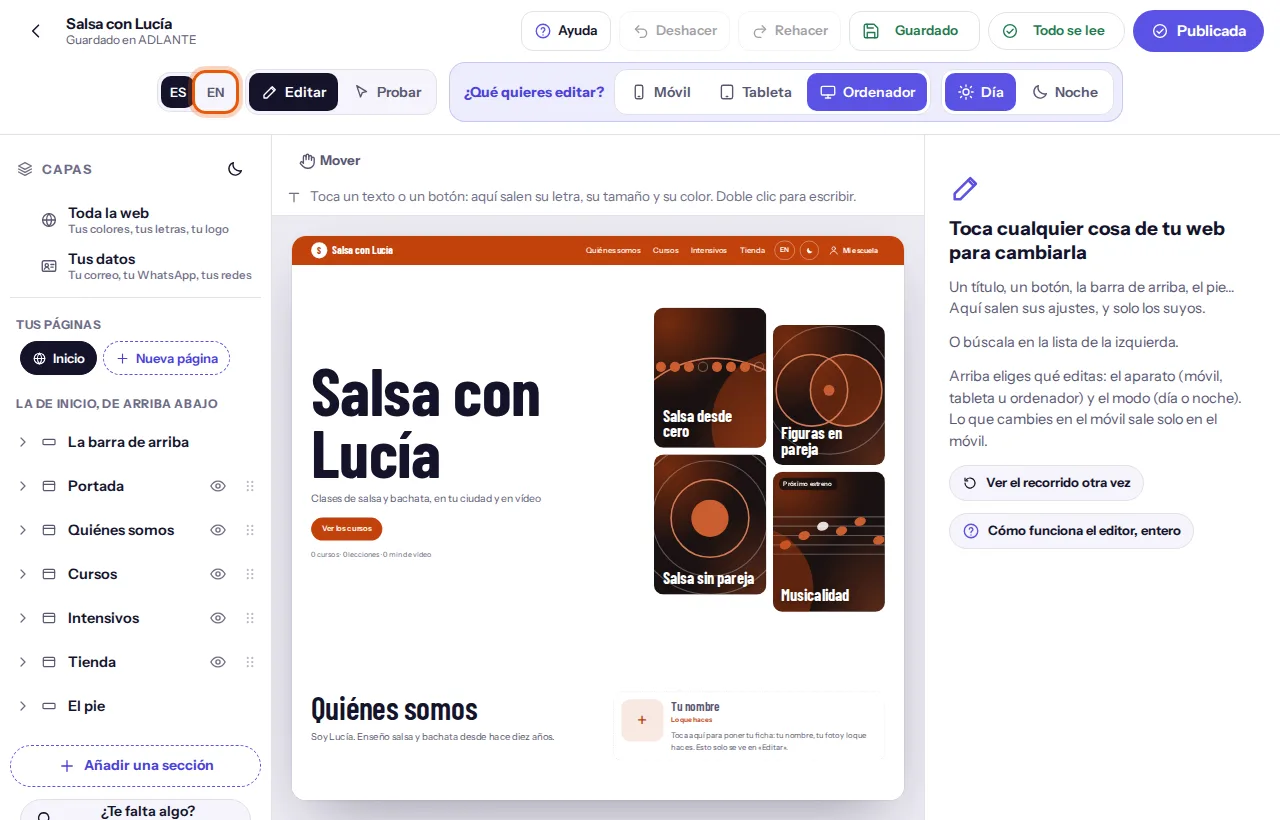
Each text (a title, a sentence, the text of a button…) has two boxes, one per language: Español and English. The one for the main language comes first. Write in both.
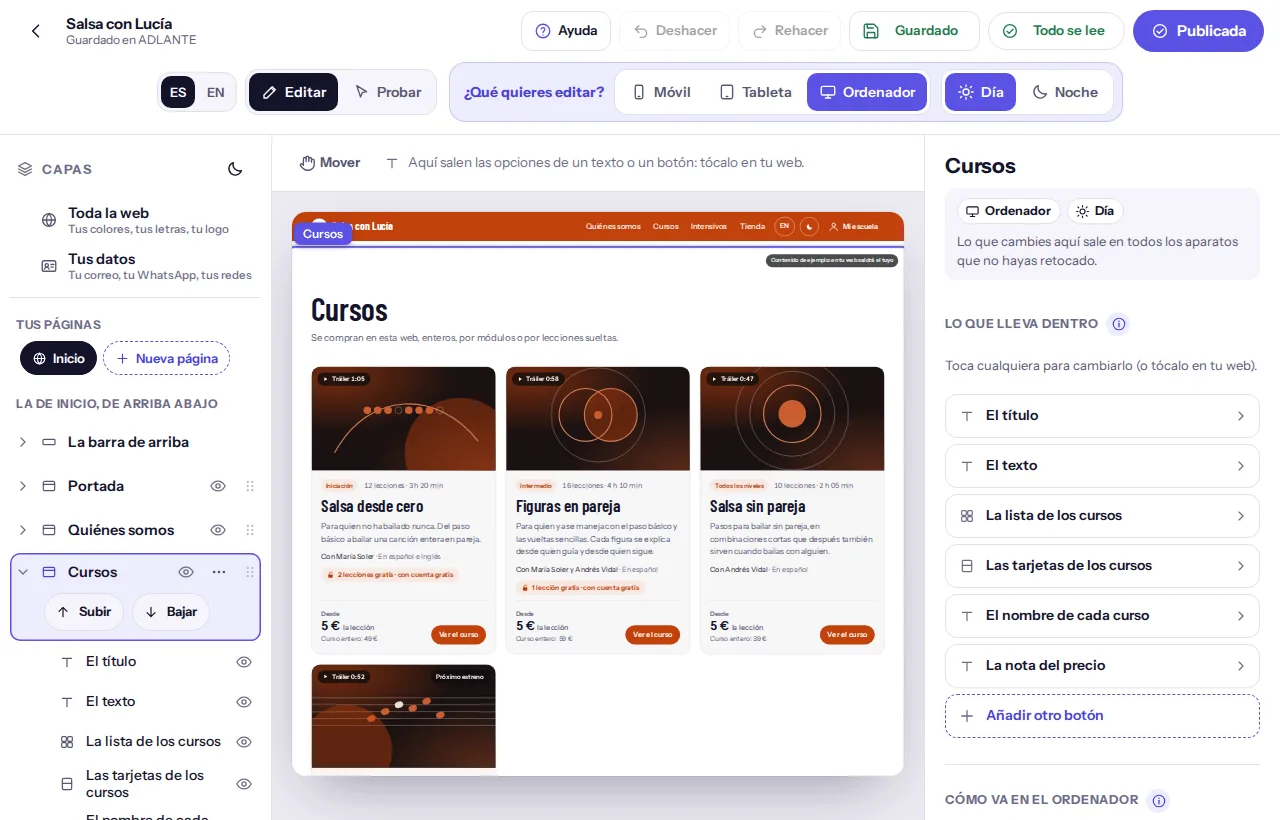
Tap Publicar (Publish). Your main language appears at the usual address, and the other one after
/en/(or/es/, if your main language is English).People who visit your website can switch language from its menu (the ☰) and, on a wide screen, with the
EN(orES) button in the top bar.
What happens if you do not translate something:
- The other box is empty: in the other version of your website, your text shows, in your main language. The sample text does not show, and no gap is left.
- You already had a translation and you change the main text: next to the box of the other language you see “se ha quedado atrás: revísalo” (it has fallen behind: check it). Meanwhile, that version shows your main text, not the old translation. The notice goes away as soon as you write something in that box.
- You have written nothing in either language: ADLANTE’s sample text shows, in each language. You see it in grey inside the box.
- When you publish: the Publicar (Publish) window warns you: “El inglés se ha quedado atrás en: Portada, Cursos. Hasta que lo traduzcas, ahí sale en español.” (English has fallen behind in: Top section, Courses. Until you translate it, Spanish shows there.) The notice does not stop you from publishing.
- In Probar (Try it): with the other language chosen, you see your website as people will see it, with what is missing shown in your main language.
The ES and EN buttons in the editor change what you see and write. They do not change the main language or the language of your published website.
For now, the editor is only in Spanish, even if your panel is in English. What your website says to people, on the other hand, shows in both languages.
Your panel in Spanish or English, in light or dark mode
This only changes how you see the panel. It does not change your website or what your people see.
To switch your panel to Spanish:
At the top right, next to the moon or sun button, tap ES. On a computer it is also in the top bar, next to See your website.
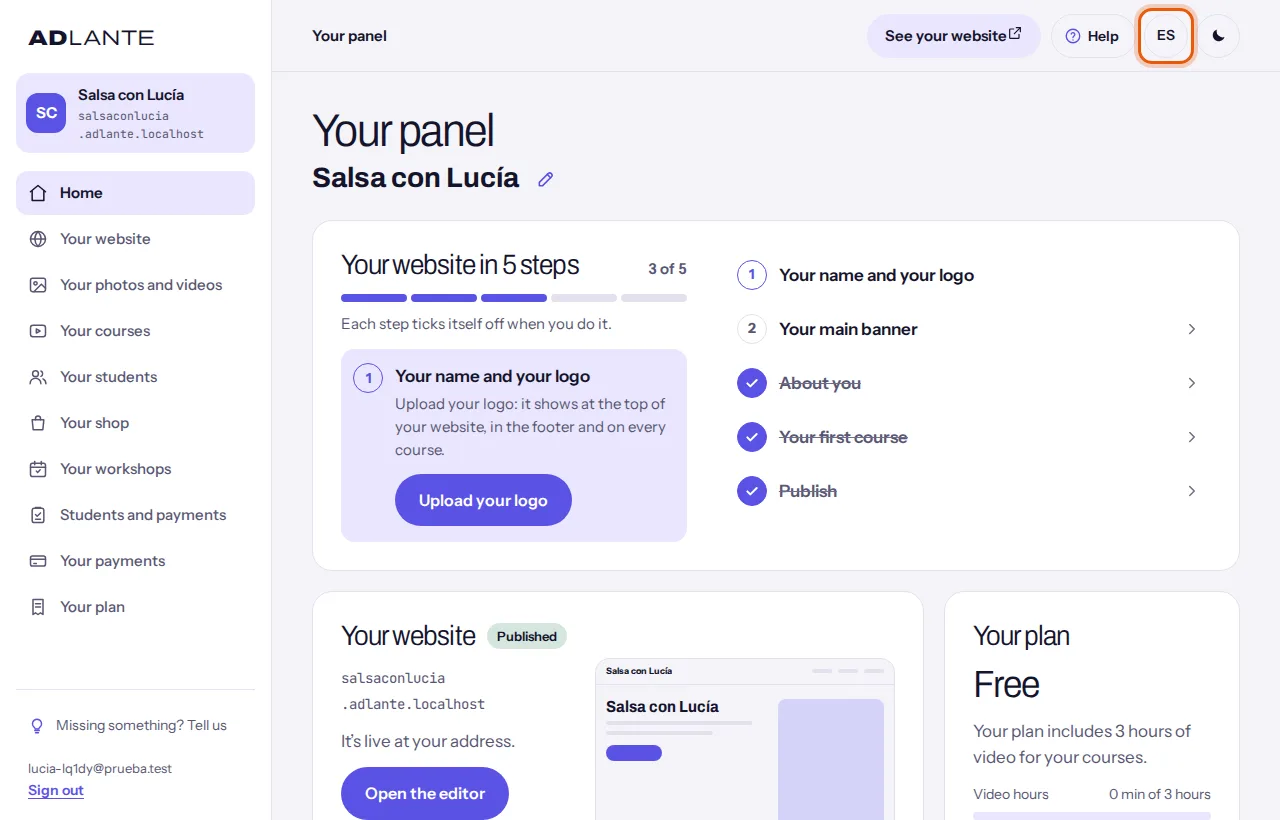
It takes you to the same page, in Spanish. The English panel’s address starts with
adlante.com/en/panel/.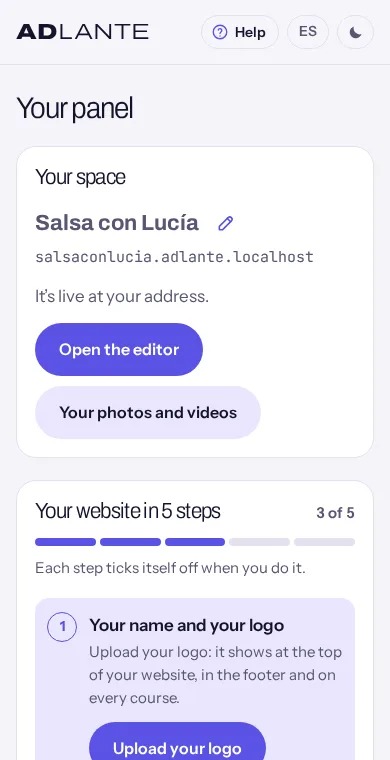
To come back to English, tap the
ENbutton that appears in the same place.
To switch between light and dark:
Tap the round button with a moon or a sun, at the top right. Its name is Switch to dark mode (or Switch to light mode, if you are already in dark), although on screen you only see the drawing.
It changes at once, across the whole panel.
The first time, the panel follows what your phone or computer is set to. What you choose with the button is remembered in that browser; on another device you have to choose it again.
Do not mix it up with Día | Noche (Day | Night) in the editor: that one only changes how you see your website while you edit it, to check it reads well by day and by night. It does not change the panel either. People who visit your website choose light or dark in your website’s menu.
“Missing something? Tell us”: ask for what you need
It is the mailbox for asking for a tool or a feature you miss. You write a title and a description, and we read them. It is not a chat: your idea reaches ADLANTE, and we will build the ones that help most.
Where the button is:
- On a computer (with a wide screen), at the bottom of the menu on the left, above your email: Missing something? Tell us.
- In the editor, at the end of the Capas (Layers) list, under Añadir una sección (Add a section): the same button.
- On a phone and on a tablet, the panel does not show it: use it from the editor.
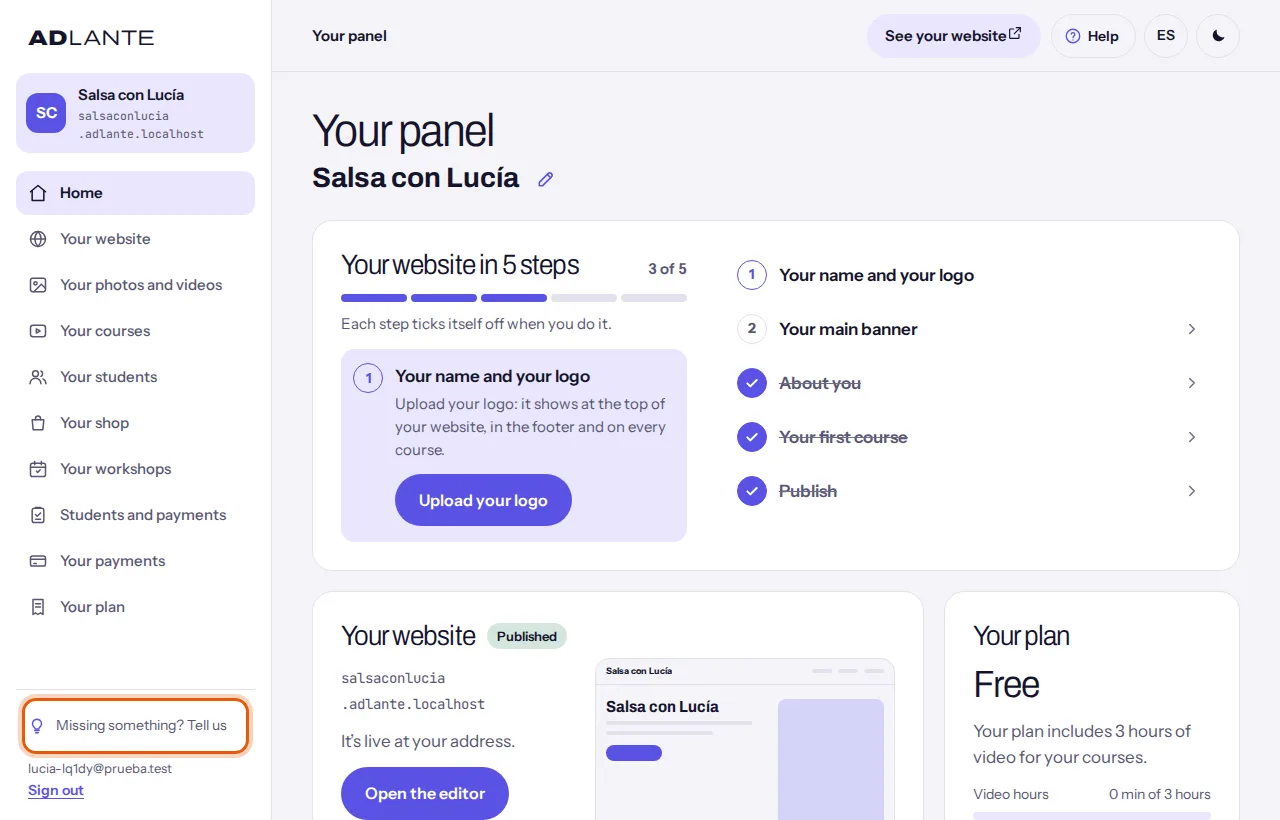
To send your idea:
Tap Missing something? Tell us. A window opens on top of the page you are on: it does not take you away from it. In the panel it is titled “Missing something?”.
In Title of your idea write, in one line, the short name of what you miss (3 to 80 letters). The grey example says “E.g.: a class calendar”.
In Describe it in detail say what you need and what for, with as much detail as you can (3 to 4000 letters).
Tap Send it. While it is being sent it says “Sending…”.
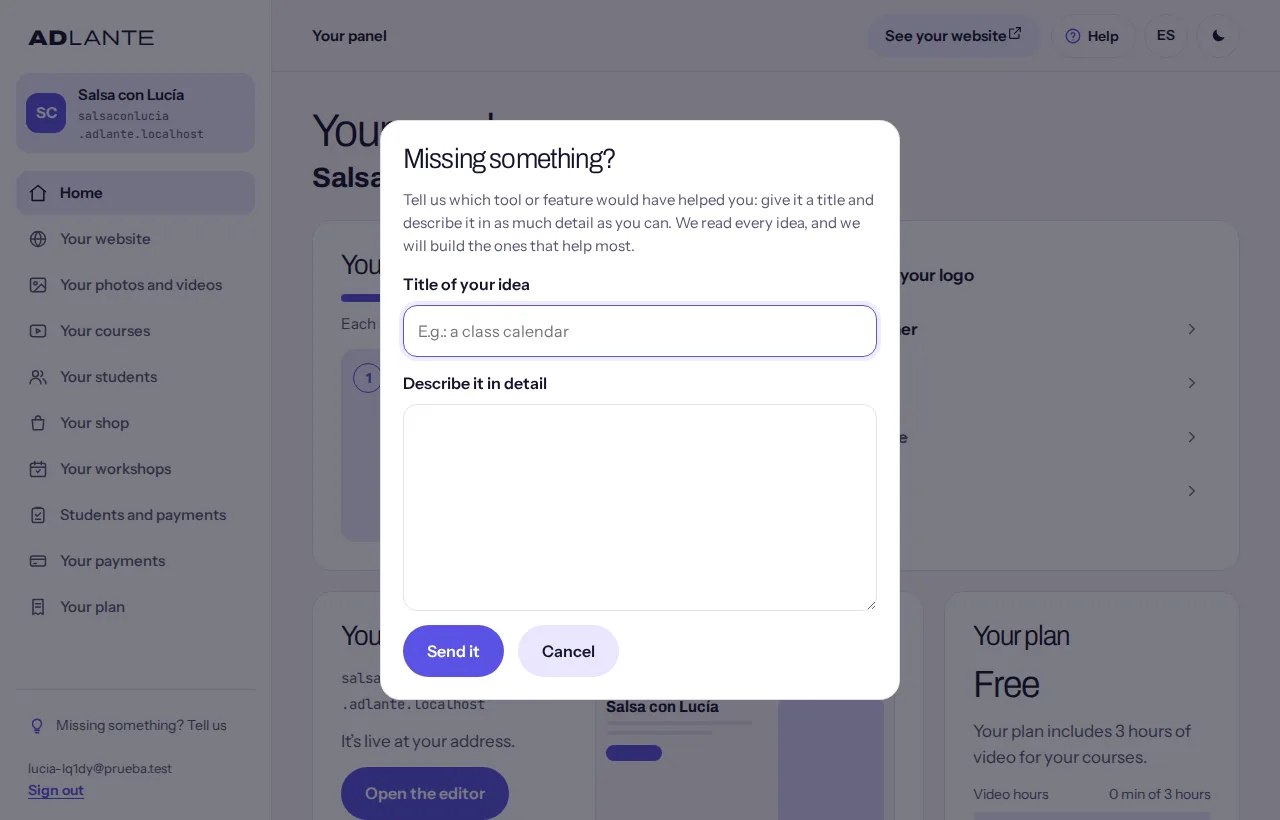
You see “Thank you. We will read it.” Tap Close. If you change your mind before sending it, tap Cancel: the window closes and what you wrote is lost.
If something is not right, it appears in red and the cursor goes to the box with the problem:
- “The title and the description are missing: it cannot be sent without both.”
- “The title is missing.”, or “The title is too short (at least 3 characters).”, or “The title is too long (80 characters at most).” The same goes for the description.
- “You have sent many in a row: wait a little and try again.”
- “It could not be sent. Try again.” What you wrote stays in the window.
We receive your title, your description and where you sent it from: in the panel, the page and whether it was a phone, tablet or computer; in the editor, also what you had selected and whether you were viewing day or night. The ideas from one space are gathered in a single file, with the newest on top.
Questions about photos, notices and this mailbox
If I remove the background photo (“Ninguno”) and publish, is it kept somewhere?
Yes. The photo stays in ADLANTE: after 30 days without use it goes to the bin on its own, and there it stays another 30 days before being deleted for good. You find it in Your photos and videos, under Not in use, with a sentence such as “It was the background of “Top section”, which now has no background.” Until you publish, it is still in your published website, and then the page says “Only on your published website…”.
If you want to delete it now, tap Delete under the photo. If it is a video, it is never deleted on its own: delete it yourself.
Why does it not let me delete a photo?
There are three reasons. If the photo is in On your website, it is shown on your website: change it in the editor first. If you have just put it there while looking at the page, you see “It can no longer be deleted: it is now shown in…”. And if it is a video that is still uploading, it has no Delete button until it finishes.
Why do my logo or my photos not show on the published website?
It is almost always one of these three things.
You have not tapped Publicar (Publish) after putting them there: your published website only changes when you publish, and the editor warns you with “Cambios sin publicar.” (Unpublished changes.)
The photo has not finished uploading yet. The publish window warns: “Una foto tuya aún no se ha podido subir: lo seguimos intentando. Si al publicar todavía no ha subido, tu web saldrá sin ella.” (A photo of yours could not be uploaded yet; we keep trying. If it has not uploaded by the time you publish, your website will go out without it.) Wait a moment and publish again.
Or it is a video still being prepared: “Un vídeo tuyo todavía se está subiendo o preparando: saldrá en tu web cuando esté listo y vuelvas a publicar.” (A video of yours is still uploading or being prepared: it will show on your website when it is ready and you publish again.)
To check that ADLANTE has it, look at Your photos and videos: if it is under On your website, it is being used.
When I tap “Missing something? Tell us” it takes me into the editor
Not any more. The window opens on top of the page you are on, without leaving it (in the editor, the usual one). It asks for the title of your idea and a description; without both it is not sent, and it tells you what is missing. When it is sent you see “Thank you. We will read it.” and it reaches us with the page you sent it from.
Can I change the main language of my website after creating my space?
Today the panel has no button for that: the main language is chosen when the space is created. What you can do at any time is write and review both languages with the ES and EN buttons in the editor. If you need it, tell us with Missing something? Tell us.
More questions on other topics, in Frequently asked questions.