Your plan: what you pay ADLANTE and when
What you pay each month, when payment starts, how to turn a tool on or off, and where to find your card and your invoices.
Detailed step-by-step guide
Where “Your plan” is and what it shows
“Your plan” is the page of your panel where you see everything you pay ADLANTE. On a computer, it is in the left-hand menu: Your plan. On a phone, it is on the first page of your panel, in the Your plan box: tap See your plan. That box already tells you, in one sentence, what you pay each month.
From top to bottom, the page has these sections. You only see the ones that apply to you:
- Each month: what you pay ADLANTE every month, line by line, and the total.
- On each sale: what ADLANTE keeps each time someone pays you by card.
- Your video hours: how much video you can upload to your courses and how much you have left.
- Your card: how your payment is going and, if you do not pay yet, the button to add your card.
- Your invoices: each month paid, with its invoice. It appears once you have one.
- Your extras: the paid tools, with their price, to turn them on or off.
This guide does not quote any prices: ADLANTE sets them, they can change and they can be different for each space. Yours, the real ones, are always in Your plan.
“Each month”: what you pay monthly
Under Each month there is one line for each thing you pay for:
- Your website. This is the ADLANTE fee: what it costs to have your website online, with its editor. If your space is not being charged for it yet, its line says Not charged.
- Each tool you have turned on, with its monthly price.
- Gift: instead of a price, it means ADLANTE has given you that tool. You pay nothing for it.
- Special price for you: under a line, it means that price is only for your space, different from the general one.
At the bottom, in bold, the total: Total a month: …, or You pay nothing a month if everything comes to €0. ADLANTE works out the total, and it is what Stripe charges you each month.
If ADLANTE does not charge you anything yet, instead of all this you see “For now, ADLANTE doesn’t charge you anything.” and “When there is something to pay, you will see it here.”.
Before your first payment, Each month shows your plan: your website and the tools you chose when you created your space, with what you will pay once you use it all. Under the total it says: “You pay nothing until you publish your website; each tool, from when you use it. All together, once a month.”. What that means is in the “Before your first payment” section, further down.
“On each sale” and “Your video hours”
On each sale says what ADLANTE keeps each time someone pays you by card in your shop or your courses. It can say three things:
- “ADLANTE keeps … of each sale from your shop and your courses. The rest goes straight to your Stripe account.” The percentage is written there.
- “ADLANTE keeps nothing from your sales.”
- “ADLANTE doesn’t charge a commission on your sales yet.” Careful: while it says this, your space cannot take card payments yet. In Your payments you will see it as “Payments are not open for your space yet.”.
Separately, Stripe keeps its own fee on each payment. That one is not in Your plan: you see it in your Stripe dashboard. The Card payments guide explains it.
Your video hours is how much video you can upload to your course lessons without paying more. The hours come with “Your courses”. What it can say:
- “Your plan includes … of video for your courses.” and, below, how much you have used: “You have uploaded …; you have … left.”.
- “You haven’t uploaded any video to your courses yet.”
- “You have used them all. To upload more, delete a video.” You can find the videos you no longer use in Your photos and videos.
- “Video hours come with “Your courses”: add them to your plan to upload your course videos.” This appears when “Your courses” is not in your plan.
Before your first payment: choosing is not having
When you created your space, under What do you want to start with?, you chose at least one tool. That is your plan: what you start with, and what you see in Your plan. Choosing a tool is not the same as having it turned on. Choosing it costs nothing; to really use it (to show it on your website, or to let people buy, pay or sign up) you turn it on when that moment comes. Until then, you can set everything up.
Until your first payment, each tool you can choose shows in Your extras in one of two ways:
- With the In your plan label and the Remove from your plan button: you chose it. If you remove it, you see “Removed from your plan.”. Nothing is charged and nothing is deleted.
- With its price and the Add to your plan button: you did not choose it. If you add it, you see “Added to your plan.”. Nothing is charged either.
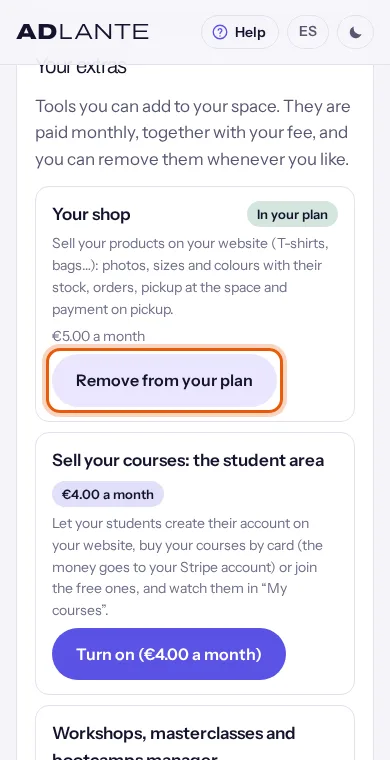
Your plan must keep at least one tool. If you try to remove the last one, you see “Your plan needs at least one tool.”.
Having “Your courses” in your plan brings something else: its video hours. Without “Your courses” in your plan, when you upload a lesson video a window offers to add them (explained further down, in “The “To use…” window”).
After your first payment you no longer choose: tools are turned on and off in Your extras. If you try, you see “Your plan is already running: tools are turned on and off in “Your extras”.”.
When you start paying
On ADLANTE, setting up is free: you can create your website, your courses, your events, your products and your classes, and try everything, without paying anything. You pay for what you really use, at two moments:
- Your website, the first time you publish it. If your website has a price and you do not pay anything yet, the editor’s Publicar (Publish) window tells you so (“Your website: … a month. Everything is paid together, once a month.”) and its button is Turn on your website and publish (… a month). It takes you to Your plan, where you see “To publish your website: … a month. Once it is on, you go back to the editor and it gets published.”, with the Turn on and publish button. You pay on Stripe, go back to the editor and your website publishes itself. After that, Publicar (Publish) does not ask for anything.
- Each tool, when you really use it: when you want something of it to show on your website, or people to buy, sign up or pay. At that moment the “To use…” window appears (next section).
Everything is paid together, once a month, with the same card: your website and your tools, in a single charge.
While a paid tool is not turned on, it carries the label Paid · … a month in your panel and in the editor, so you know from the start what it will cost. In the editor, its sections carry the Only you can see this mark: you see them while editing, but they do not show on your published website.
If, that first time, your website also uses tools you have not turned on, the Publicar (Publish) window says so under Paid tools, with each one and its price, and lets you choose:
- Turn it on and publish (… a month) (or “Turn them on…”, if there are several): you turn on your website and those tools in one payment, and your whole website goes live.
- Publish without it (… a month) (or “without them”): you pay only for your website and it is published without those sections. Nothing is deleted: when you turn them on, they will show again.
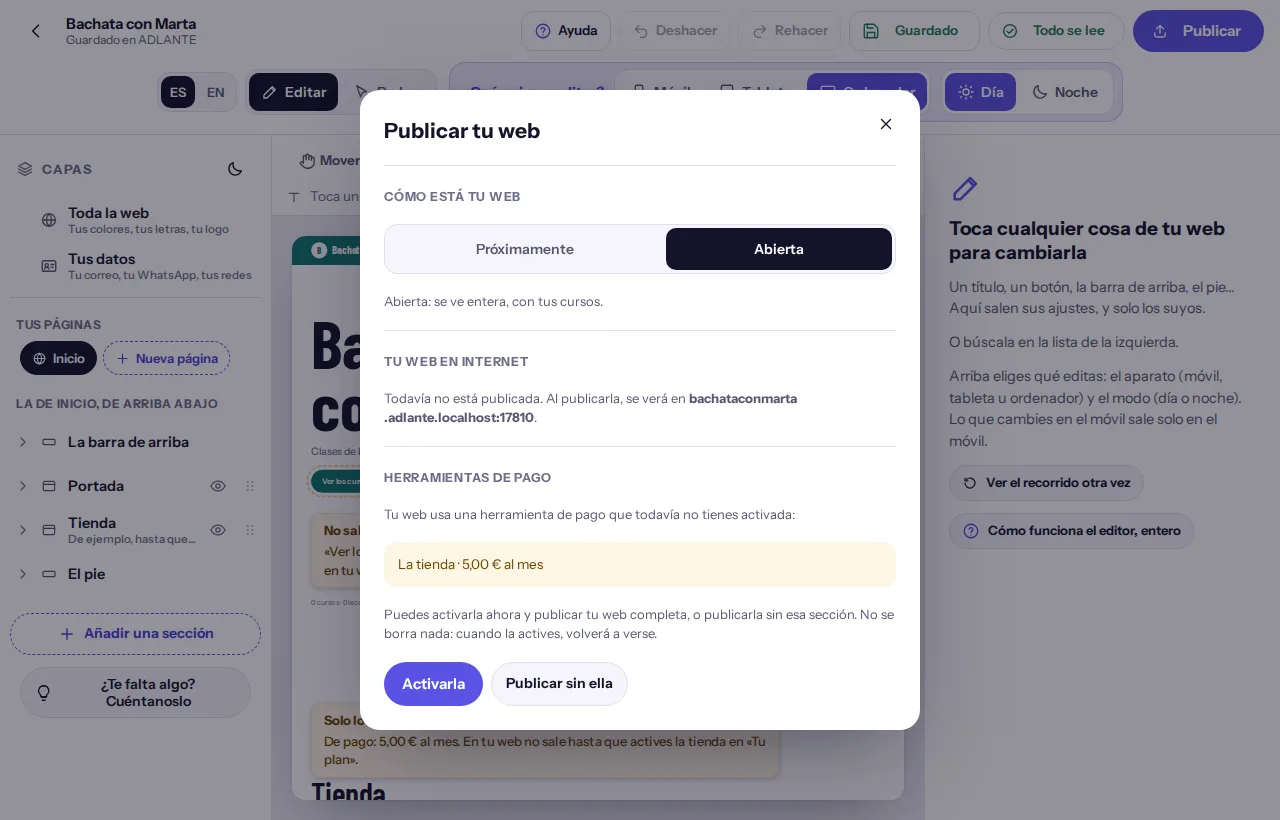
Once your website is paid for, the same window offers Turn it on (or Turn them on) and Publish without it (or Publish without them). And if ADLANTE payments are not open yet, you publish without paying anything. How to publish, step by step: The editor.
The “To use…” window: when it appears and what to do
When you try to really use a paid tool you have not turned on, ADLANTE stops you at that moment with a small window. Its title says which tool it is and what it costs: To use intensives: … a month. What you had set up is already saved: the window only asks you to turn the tool on to take the last step.
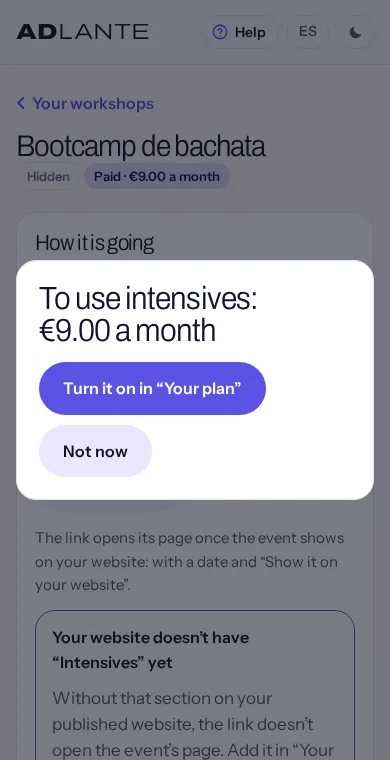
It appears when you tap these buttons:
- In Your workshops: Copy the link of an event (without the tool turned on, that link would not open anything), and ticking Show it on your website and tapping Save. In a collaborative workshop, the same with Show it on everyone’s websites. The rest of the event is saved anyway.
- In Your shop: Open the shop.
- In Your courses: choosing Published as a course’s Phase and tapping Save. The rest of the course is saved; the phase stays as it was. It may ask you for “courses” or “course sales”.
- In Students and payments: Create their link on a student’s page (the link to enter their area) and Charge now in payments.
The window has two buttons:
- Turn it on in “Your plan”: takes you to Your plan with that tool ready to turn on. What happens next is in the next section.
- Not now: closes the window and everything stays as it was. It does not appear again until you try again.
If you are not the person who runs the space (for example, someone on your team in Students and payments), the window says “Only the person who runs the space can turn it on, in “Your plan”.” and only has OK.
When you upload a lesson video without “Your courses” in your plan, a similar window appears: “To use courses: … a month”, with “They come with their video hours for your lessons. They are added to your plan and everything is paid together, once a month.”. Its button is Add them to your plan if you have not made your first payment yet (nothing is charged), or Turn them on (… a month) if you already pay (it is added to your charge); and Not now. You stay on the page: if you add them, the same video keeps uploading. If your card is needed for that, it takes you to Your plan.
If the window ever says “To use …: free”, go ahead and turn it on: it charges nothing and does not ask for a card.
Turning a tool on, step by step
From the window, tap Turn it on in “Your plan”. Your plan opens with that tool highlighted in Your extras and, under its name, “Turn it on here and you will go back to where you were.”. (If you open Your plan yourself, look for it in Your extras: it works the same, just without the trip back.)
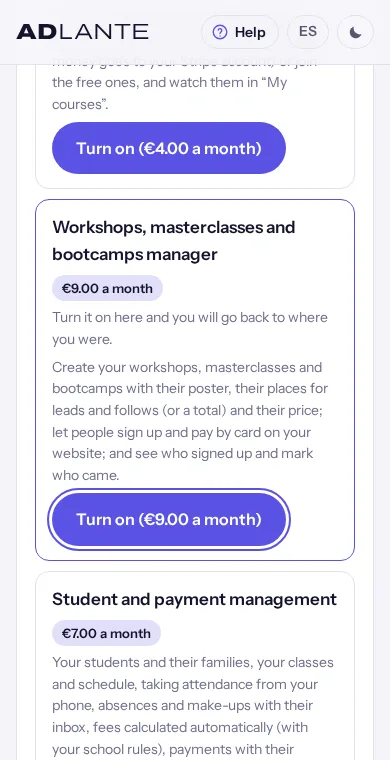
Tap its Turn on (… a month) button, which shows its price. If it says Minimum 3 months under its name, read the “Minimum months” section first.
The Turn on “…”? window appears and tells you what will happen:
- If you already pay ADLANTE: “It is added to what you pay each month: …. Your next invoice will also include the rest of this month.”. Tap Turn on and you are done.
- If you do not have a card yet: “It is paid monthly: …. First add your card; the Stripe payment already includes this extra.”. Tap Add your card and continue with the “Adding your card” section.
- Cancel closes it without doing anything.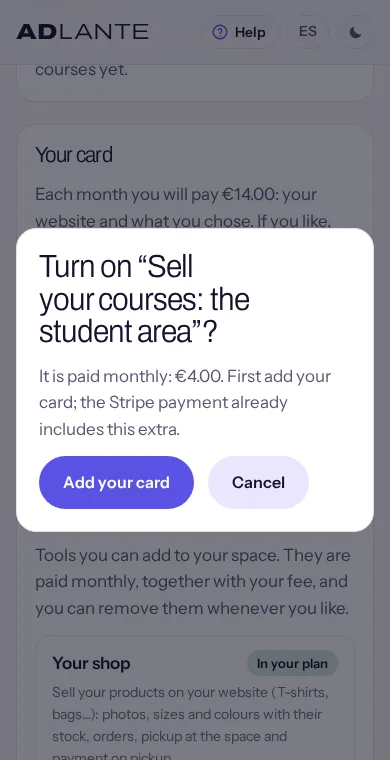
Once it is on, its row says “Turned on.” and its label changes to On. If you came from the “To use…” window, you see “Turned on. Taking you back…” and the page takes you back to where you were. There, what you wanted to do is finished for you: the event link is copied, the event shows on your website, the shop opens, the course is published, the student’s link is created, the charge is made or your website is published.
The automatic trip back works in the same browser tab and for about two hours, even if you go through the Stripe payment page on the way. If you close the tab or take longer, the tool stays turned on anyway: go back to the page yourself and tap the button again.
If you tapped Not now in the window, or you come back without turning it on, the previous page does nothing and does not ask you again.
Two notices may appear instead of the button: “First turn on “…”.” (that tool belongs to another one, which has to be turned on first) and “You can turn it on once your payment is up to date.” (you have a pending payment: see “If a payment fails”).
Adding your card: the ADLANTE payment on Stripe
What you pay ADLANTE is charged by Stripe, the company that processes cards. You type your card on Stripe’s page: ADLANTE never sees it. It only keeps the brand and the last four digits, to show them to you.
Tap Add your card (in Your card, or in the window for turning on a tool). The button says “Opening the payment…” and Stripe’s payment page opens.
On Stripe’s page you see each thing you are going to pay monthly (your website and what you are turning on), with its price, and the total. Enter your card (or whatever payment method Stripe offers you) and pay. That page expires after an hour: if you take longer, go back to Your plan and tap the button again.
When you finish, Stripe sends you back to Your plan. Your card says “Done: your card is set up.”. If Stripe has not confirmed it yet, “We are confirming your payment with Stripe…”: wait a few seconds, the page checks again by itself. If you cancelled on Stripe, “Nothing has been charged.”.
If you came from the “To use…” window, the page takes you back to where you were.
With your card set up, Your card says Up to date, your card (its brand and “ending in” its last four digits) and “Paid until …”: that day the next month is charged.
The first payment always includes your website (if it has a price) and whatever you turn on at that moment. If you add your card before publishing your website (for example, to turn on a tool), from that day you also pay for your website. And before your first payment, Add your card inside Your card turns on your whole plan: your website and everything you chose. You see it all, line by line, on Stripe’s page before paying.
If you tap Add your card when it is already set up, you see “Your card is already set up. To change it, use “Change your card and see your invoices”.”.
What costs you €0 is already yours
If a tool costs your space €0 (because that is its price, or because ADLANTE has given you that special price), you already have it: you do not need to turn it on, and you will not see the “To use…” window or the “Paid” label. In Your extras it shows as On, with no button.
A tool ADLANTE has given you as a gift shows as Gift from ADLANTE. You do not pay for it and it cannot be removed from Your plan.
If one day ADLANTE puts a price on a tool you were using for free, you lose it until you turn it on (you are never charged automatically) and, meanwhile, its content stops showing on your website. Nothing is deleted: once you turn it on, it shows again.
Minimum months
Some tools have a minimum number of months. You see it before turning one on, under its name: Minimum 3 months. The window for turning it on repeats it with the date: “It has a minimum of 3 months: if you turn it off earlier, it stays on and is charged until …. After that, you can turn it off whenever you like.”.
Once it is on, its row says Minimum 3 months · since ….
If you tap Remove before the months are up, it is not removed at that moment. The window warns you: “It has a minimum of 3 months: it is not turned off now. It stays on and is charged until …, and that day it turns itself off.”. If you confirm with Remove, you see “Done: it will turn itself off when your months are up.” and, in its row, “It will turn off on …, when your 3 months are up. Until then it stays on and is charged.”.
Changed your mind? Until that day comes, tap Keep it on: you see “It will not turn off: it stays on.” and nothing new is charged.
The minimum is fixed on the day you turn the tool on: if ADLANTE changes it later, yours does not change. And what costs you €0 has no minimum.
Removing a tool
In Your extras, on the tool, tap Remove.
The Remove “…”? window appears: “It stops working now and you are not charged for it again; the rest of this month is taken off your next invoice.”. If that tool includes others you also pay for, it says so: “This also removes: …”. (With minimum months still to run, the notice is the one in the previous section.)
Tap Remove (the red button) to remove it, or Cancel to leave it as it was.
Its row says “Removed.”, and Each month updates with what you will pay now.
What you had set up is not deleted. Your events, your products, your courses or your students stay saved in your panel. What stops working is really using them: their sections stop showing on your published website and people can no longer buy, sign up or pay through them. If you turn the tool on again, everything shows again as it was.
If, after removing something, everything adds up to €0, Stripe stops charging you when the month you already paid ends: Your card says “Paid until …; after that, nothing is charged”.
Changing your card and seeing your invoices
Change your card and see your invoices, in Your card, opens your Stripe page for what you pay ADLANTE. There you change your card and see and download your invoices. When you finish, you come back to Your plan. While it opens, the button says “Opening…”.
Next to it, Stop paying ADLANTE: it first asks “Stop paying ADLANTE?” and tells you until which day what you paid lasts; tap Stop paying or Cancel. What you paid for that month is not refunded and, until that day, everything stays as it is; after that, ADLANTE charges you nothing more. Meanwhile it says “You asked to stop paying ADLANTE.” with Stay with ADLANTE, in case you change your mind. Before you leave, download what you want to take with you.
In Your plan, Your invoices shows each month with its amount and number, and a label: Paid, Pending, Void or Uncollectible. View the invoice opens it in another tab.
If you no longer pay anything but you had a card, you see “You pay nothing right now. Your earlier invoices are still in your Stripe portal.”, with the same button.
If a payment fails
If Stripe cannot charge you for the month (the card has expired, has no funds, you changed it…), Your card turns red: Payment pending: check your card, with “Your last payment did not go through. Stripe will try again in a few days and, in the meantime, everything keeps working. If your card has expired or changed, add the new one.”.
Tap Change your card and see your invoices.
On Stripe’s page, add your new card.
Go back to Your plan. When Stripe manages to charge you, Your card says Up to date again.
While you have a pending payment, you cannot turn on paid tools: each one says “You can turn it on once your payment is up to date.” and, if you try, “Your last payment did not go through. Check your card before adding anything else.”.
Sometimes you see “Your last change is still being passed on to Stripe; it will happen by itself in a few minutes.”. Stripe did not answer the first time: you do not need to do anything.
Test mode, and payments not open yet
While ADLANTE is in testing, Your card says “Test mode: no charge is real.”. You can go through the whole process (turning on, adding the card, paying) and nothing is charged.
If ADLANTE payments are not open yet, you see “ADLANTE payments are not open yet: your card is not needed for now.”. Then no card is asked for at all: you publish your website without paying, and anything that costs you €0 can still be turned on. Paid tools cannot be turned on until payments open: their button does not appear.
Questions
How much does ADLANTE cost?
You see it in Your plan: what you pay each month for your website and for each tool, and what ADLANTE keeps from each sale. This guide does not quote prices because ADLANTE sets them, they change and they can be different for each space.
Do I pay anything while I build my website?
No. Setting up is free. You pay for your website the first time you publish it, and for each tool when you really use it (when the “To use…” window appears). All together, once a month.
I chose the shop when I created my space: why do I see “To use the shop”?
Because choosing it is not the same as having it turned on. What you choose at the start is your plan: what you start with. The shop is turned on (and you start paying for it) when you really open it, with Open the shop. Tap Turn it on in “Your plan” and, once it is on, the page takes you back and the shop opens.
What does “Minimum 3 months” mean?
That tool has a minimum number of months. You are told before turning it on, with the date. If you remove it before the months are up, it is not removed: it keeps working (and being charged) until that date, and that day it turns itself off. Meanwhile, Keep it on leaves it as it was. If ADLANTE raises the minimum later, yours does not change.
If I turn on a tool halfway through the month, do I pay for the whole month?
No. If you already pay, it is added to what you pay each month and your next invoice also includes the rest of this month. When you remove it, the other way round: the rest of the month is taken off your next invoice.
If I remove a tool, do I lose what I made?
No. What you set up stays saved in your panel. It stops showing on your website and can no longer really be used; if you turn the tool on again, it shows again as it was.
In the editor, “Add a section” shows me a tool with its price. What happens if I add it?
You can add it and set it up for free. While it is not turned on, its section carries Only you can see this: you see it in the editor, but it does not show on your website. When you publish, the Publicar (Publish) window lets you turn it on or publish without it.
Does ADLANTE see my card?
No. You type the card on Stripe’s page. ADLANTE only keeps its brand and last four digits, to show them in Your card.
My payment failed: will my website go offline?
No. Stripe tries again in a few days and, in the meantime, everything keeps working. Add your new card with Change your card and see your invoices. Until the payment goes through, you cannot turn on new tools.
Where is the invoice for what I pay ADLANTE?
In Your plan, under Your invoices: View the invoice. And all of them together, with Change your card and see your invoices.
I am on the team and I see “Only the person who runs the space can turn it on”.
Tools can only be turned on by the person who runs the space, in Your plan. Let them know: once they turn it on, you will be able to do what you wanted.
What do “Gift” and “Special price for you” mean?
Gift: ADLANTE gives you that tool and you pay nothing for it. Special price for you: that price is only for your space, different from the general one.
It says “ADLANTE doesn’t charge a commission on your sales yet”: is that good?
It means ADLANTE has not opened card payments for your space yet: until then, people cannot pay by card on your website. You can already connect your Stripe account in Your payments.