The whole editor
Every part of your website’s editor, button by button: the screen, layers, texts, photos, phone view, styles and how publishing works.
Detailed step-by-step guide
First: what the screen looks like
The editor is where you change everything people see on your website: the texts, the photos, the colours, the order of the sections, the buttons. What you change saves itself. And nothing goes online until you tap Publicar (Publish): you can try things, make mistakes and redo them without anyone seeing.
The editor is in Spanish for now. Its buttons are written in Spanish, so this guide quotes each one in Spanish with its English meaning next to it, like Publicar (Publish). Your website itself works in Spanish and English, and your panel can be in English.
How to open it. There are three ways, and all three lead to the same place:
In your panel, tap Open the editor. It is in the Your space block (on a phone) and in the Your website block (on a computer).
On a computer, tap Your website in the menu on the left.
In Your website in 5 steps, tap the button of a step (for example Upload your logo). The editor opens already at the place for that step.
While it opens, under your name (top left) it says Abriendo tu web… (Opening your website…). When it finishes, it says Guardado en ADLANTE (Saved in ADLANTE): you can start working. If your website has no sections yet, you will see only the top bar, the footer and a notice, Esta página todavía está vacía (This page is still empty), with a button to add the first one. The sections wait in Añadir una sección (Add a section).
On a computer the screen has four areas:
- At the top, a bar with everything that affects your whole website: the language, Editar (Edit) and Probar (Try), the device and day or night, Deshacer (Undo), Rehacer (Redo), saving and Publicar (Publish). Each button has its own part in this guide.
- On the left, Capas (Layers): the list of everything your website has, from top to bottom.
- In the middle, your website as it will look, on the device you choose. When you pick a text or a button, a bar with its options appears above it.
- On the right, the settings of whatever you have picked, and only its own. If you have picked nothing, it says Toca cualquier cosa de tu web para cambiarla (Tap anything on your website to change it).
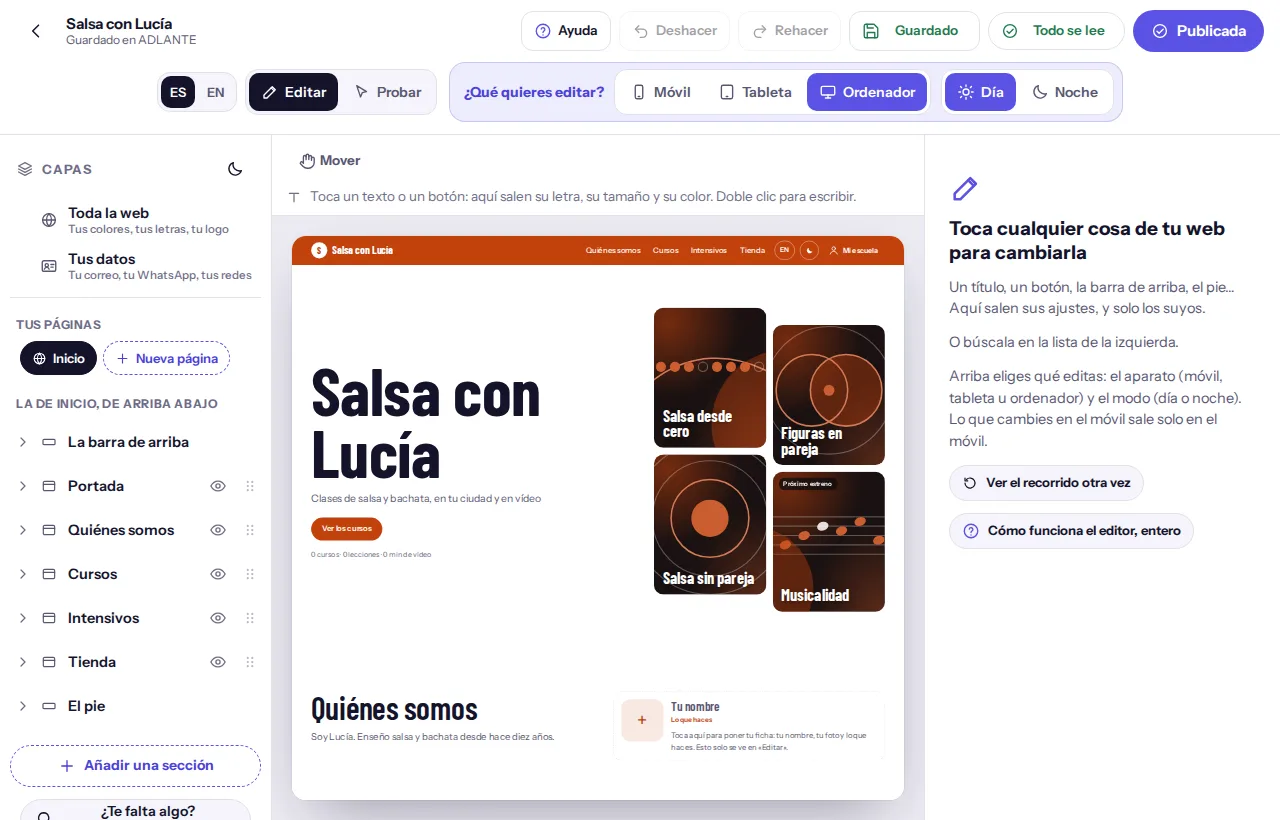
The whole editor works on one idea: you tap something on your website (or its name in the list of layers) and its settings appear on the right. A heading, a button, a photo, the top bar, the footer. Each one is a layer.
On a phone or a tablet (screens narrower than 1,024 pixels) the three columns don’t fit. The website takes the whole screen and there are three buttons at the bottom:
- Capas (Layers): slides up the list of layers.
- Ajustes (Settings): slides up the settings of whatever you have picked.
- Toda la web (Whole site): opens the settings of the whole website straight away (colours, fonts, logo, styles).
When you tap something on your website, the settings slide up by themselves. To lower a sheet, tap the X at the top right of the sheet. While Probar (Try) is on, the bottom bar disappears. And the buttons in the top bar show only their picture: hold your finger on one for half a second and it tells you what it is (more in The “i” buttons and the cards that explain).
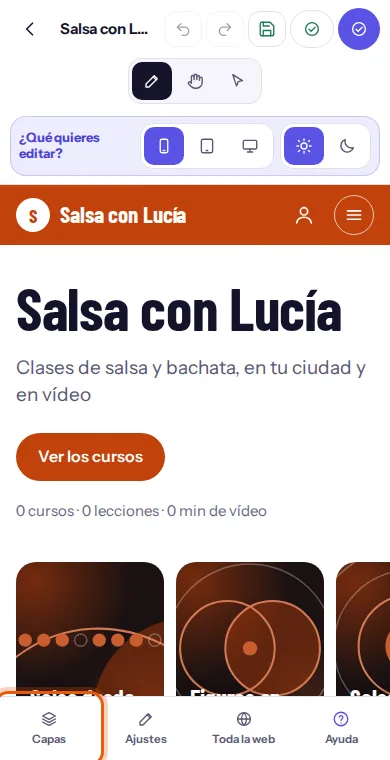
When it opens, the editor sets itself to Móvil (Phone) if your screen is narrower than 1,024 pixels and to Ordenador (Computer) if it is wider. And it always starts on Día (Day), even if you left it on Noche (Night) last time.
To go back to your panel, tap the arrow at the top left (Volver a tu panel (Back to your panel)). You lose nothing: what you changed is already saved.
The first time: the computer notice and the tour
The first time you open the editor on a device (a phone, a tablet, a computer) up to two things can appear, one after the other: a notice, only on phones and tablets, and a tour of three steps. Each one appears only once on each device: the editor makes a note in that device’s browser. If you use another phone, another browser or a private window, they appear again.
The computer notice (only on phones and tablets)
You open the editor on your phone. A screen covers everything, titled Te recomendamos editar tu web desde un ordenador (We recommend editing your website from a computer). It says the editor is designed for a big screen: you see your whole website while you build it and work much more comfortably. And that, if you don’t have one at hand right now, you can carry on from there.
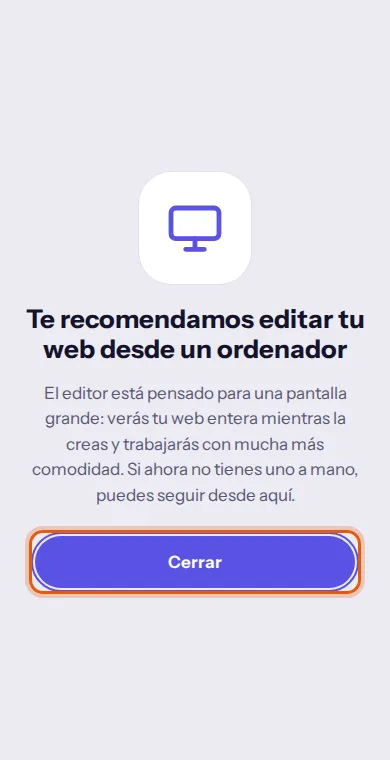
To carry on on your phone, tap Cerrar (Close). It is the only thing that removes it: tapping outside it or pressing Esc does nothing.
It does not appear again on that phone.
The notice doesn’t block you: you can edit from a phone. But on a computer you see the list, your website and the settings at the same time, and what you do with the mouse (dragging, double click) is more precise. If you can, do the big work there and keep the phone for touch-ups.
The tour of three steps. After the notice (or straight away, if you are on a computer), the editor darkens everything except one part, and a card tells you what it is. At the top of the card it says which step you are on: “1 of 3”, “2 of 3”, “3 of 3”.
- Step 1, Toca cualquier cosa para cambiarla (Tap anything to change it). It lights up your website. It says a heading, a photo, a button or the top bar are changed by tapping them, and that tapping them brings up their settings (on the right on a computer, at the bottom on a phone). On a computer it adds that a double click on a text lets you type over it.
- Step 2, Aquí eliges móvil u ordenador (Here you choose phone or computer). It lights up the device buttons (Móvil (Phone), Tableta (Tablet), Ordenador (Computer)). It says your website shows on phones, tablets and computers, that you choose which one you look at and change, and that what you change on the phone shows only on the phone.
- Step 3, Aquí publicas (Here you publish). It lights up the Publicar (Publish) button. It says what you change saves itself, but doesn’t go online until you publish.
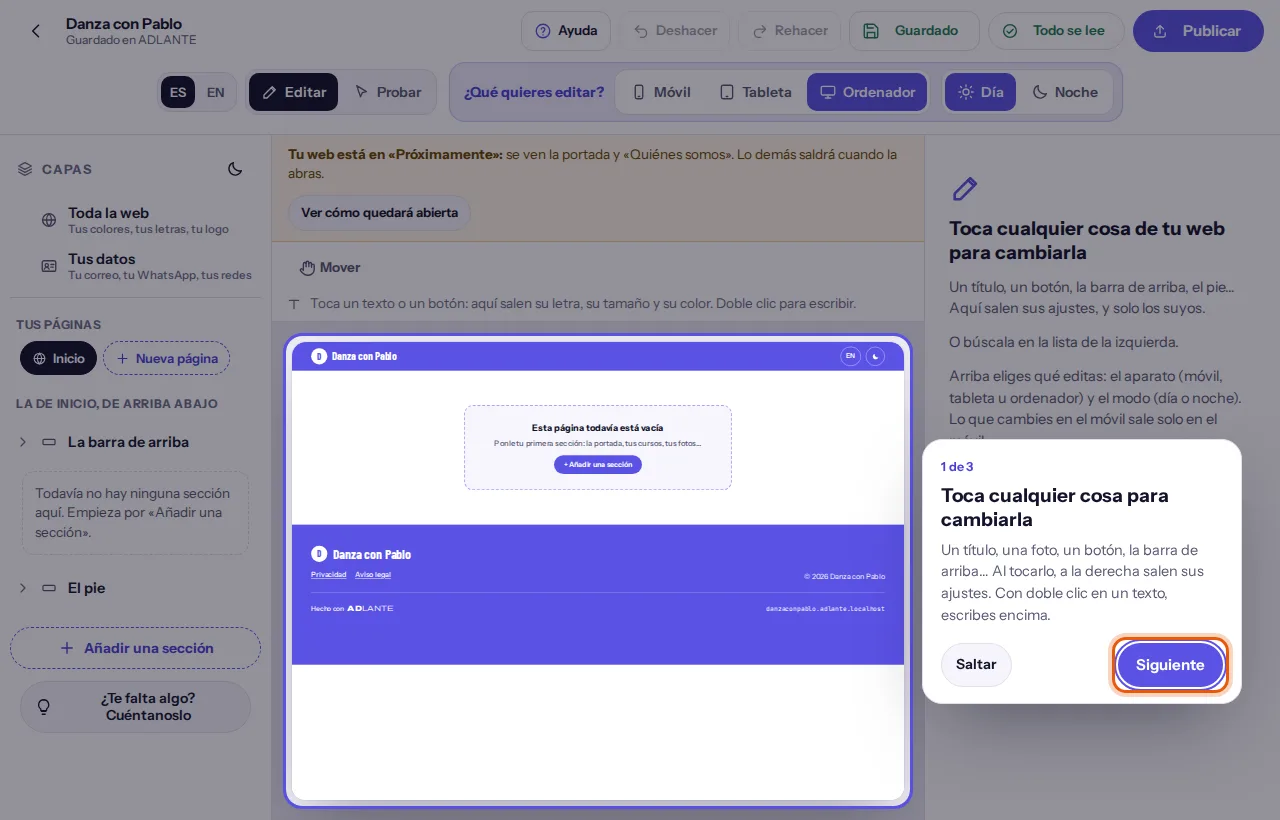
To move on, tap Siguiente (Next). To close it, tap Saltar (Skip); on the last step the button is Empezar (Start). With the keyboard: the ← and → arrows change step, and Esc skips it. If a part isn’t visible on your screen (for example, there is no publish button), that step is skipped on its own.
The tour waits until nothing is in front: not the computer notice, not a window, not your website still arriving from ADLANTE. Once you finish it or skip it, it does not appear again on that device.
Seeing the tour again
Make sure nothing is picked. Press Esc, or tap Inicio (Home) under Tus páginas (Your pages) (in the list of layers).
The settings now show the button Ver el recorrido otra vez (See the tour again). Tap it. On a phone, the settings are under Ajustes (Settings), at the bottom.
The three steps play again. When it ends, on a phone the sheet you had open comes back.
The top bar, button by button
At the top there is a bar with what affects your whole website. On a wide computer it all fits in one row; on a narrower one it splits into two. And on a phone almost everything is just a picture, without a word. From left to right:
- The arrow, Volver a tu panel (Back to your panel). Takes you to your panel. You lose nothing: everything is saved. Only if you are uploading a video does the browser warn you before letting you leave.
- Your name and, under it, in small letters, how saving is going. It says Abriendo tu web… (Opening your website…) when it opens, Guardando en ADLANTE… (Saving in ADLANTE…) while it sends, and Guardado en ADLANTE (Saved in ADLANTE) when everything is saved. If something fails, it says so here (more in What saves itself). On a narrow phone this line doesn’t show.
- A small pill with the upload, to the right of the name, which only appears while a photo or a video is uploading (more in Photos, videos and logo).
ESandEN. Which language of your website you see and write in right now. Only on wide screens (more in Your website in Spanish and in English).- Editar (Edit), Mover (Move) and Probar (Try). How you work. Mover (Move) is here only on a phone and a tablet; on a computer it is in the options bar.
- ¿Qué quieres editar? (What do you want to edit?) The device (Móvil (Phone), Tableta (Tablet), Ordenador (Computer)) and the mode (Día (Day), Noche (Night)).
- Deshacer (Undo), Rehacer (Redo), Guardado (Saved), Todo se lee (Everything reads well) and Publicar (Publish). Each one, in its own part.
Editar (Edit). This is how the editor opens. You tap something on your website and it gets picked. So that nothing fires by accident, your website doesn’t fully work here: buttons open nothing, links to another page don’t take you there (they warn you: “leads to another page: this is tried in “Probar”, above”), and sections show a line and their name when the mouse passes over them. The ☰ menu on a phone does open and close, and a link to a section on the same page does scroll down to it.
Probar (Try). Your website working, as your students will see it. Nothing is changed here. Its full part is further down: Trying your website.
Mover (Move). Switches on the hand: with it you grab a heading, a text, a button or the block of a section and place it wherever you like, on a grid. Its part: Moving things with the hand. On a computer it is in the bar that appears above your website; on a phone and a tablet, between Editar (Edit) and Probar (Try). On a phone, to switch it off, tap Editar (Edit).
On a phone and a tablet the buttons at the top show only a picture. To find out what each one is, hold your finger on it for half a second: a card appears with its name and what it does, and that touch does not press the button. On a computer, just leave the mouse over it.
Phone, tablet or computer; day or night
Your website looks different on a phone, on a tablet and on a computer, and by day and by night. In the top bar, the group ¿Qué quieres editar? (What do you want to edit?) chooses which of those versions you are looking at and changing. It has two pairs of buttons:
- The device: Móvil (Phone), Tableta (Tablet) and Ordenador (Computer). When you tap one, your website takes the width of that device (scaled down so it fits on your screen).
- The mode: Día (Day) and Noche (Night). When you tap Noche (Night), you see your website in its night colours.
The three rules that govern the whole editor
What you change with Móvil (Phone) chosen shows only on the phone. The same with Tableta (Tablet). So you can, for example, make a heading bigger only on the phone without touching the computer.
What you change with Ordenador (Computer) chosen is copied by the phone and the tablet, as long as you haven’t changed that same thing on them. In other words, the phone and the tablet follow the computer until you tell them otherwise. That is why it pays to start with the computer.
Night follows day by itself. The day colours turn into their dark tone on their own. At night you can only change colours; everything else (size, font, photos, order) is the same by day and by night.
What changes from one device to another, and what doesn’t. These change per device: colours, sizes, the font, alignment, corners, backgrounds, the cover photo or video, whether something is shown or hidden, how a section is laid out (for example, what comes first) and where you place each thing with the hand. These don’t change: the words (a text says the same on the phone, the tablet and the computer), where each button leads and the order of the sections.
How to remember where you are. In the settings of anything, at the top, there are two small tags (the device and the mode) and a sentence that says where what you change will apply:
- “What you change here shows on every device you haven’t touched up.” (with Ordenador (Computer) and Día (Day))
- “What you change here shows only on the tablet.” · “…only on the phone.” · “…only at night.” · “…only on the phone, at night.”
And next to each setting, a tag that says where what you see comes from: Como en el ordenador (Like on the computer), Como en el móvil (Like on the phone), Como de día (Like by day)… When you have changed something only on that device, the tag is “Only on the phone” (or “Only on the tablet”, or “Only at night”), with its “i”, and beside it two buttons:
- Llevar a todos (Apply everywhere): makes it the same on the phone, the tablet and the computer.
- Quitar el cambio (Undo the change): erases your change on that device, which goes back to following the computer.
The tablet. By default it goes like the computer (held upright, what comes first is taken from the phone, because of its width; held sideways, from the computer). If you prefer it to go like the phone, with the tablet chosen at the top the settings say Lo que no cambies aquí, como en: (What you don’t change here, like on:) with two buttons, El móvil (The phone) and El ordenador (The computer). It is one choice for your whole website; it is also in Toda la web (Whole site), inside Más opciones (More options), under La tableta (The tablet). If it goes like the phone, whatever you later change on the phone also changes on the tablet, except what you have touched on the tablet.
Your website looks on the phone the way you set it with Móvil (Phone) chosen. If you have only worked with Ordenador (Computer) chosen, the phone copies it, but always look at Móvil (Phone) before publishing: a landscape photo or a long text looks different on a narrow screen. To see each device you don’t need to leave anything: switch between Móvil (Phone), Tableta (Tablet) and Ordenador (Computer) whenever you like.
Day and night, for the people who visit your website. Your website has a day version and a night version, and each visitor sees the one their device uses. On top of that, the bar of your website has a day and night button that the visitor can tap (it is the layer El botón de día y noche (The day and night button)). Here you choose which one you look at and change. The editor always starts on Día (Day).
Undo, Redo, Save and “Everything reads well”
Deshacer (Undo). Takes back the last thing you changed. You can undo several times in a row (it keeps up to a hundred steps of this visit). With the keyboard: Ctrl+Z (⌘Z on a Mac). When you do, the notice “Deshecho.” (Undone.) appears at the bottom. It is greyed out when there is nothing to undo. Typing continuously in one box counts as a single step.
Rehacer (Redo). Puts back what you have just undone. With the keyboard: Ctrl+Shift+Z (⇧⌘Z on a Mac). If after undoing you change something else, what could have been redone is lost.
The steps of Deshacer (Undo) live in this visit: if you reload the page or close the editor, there is nothing left to undo. What you changed is still saved; what you lose is the chance to go backwards.
Guardado (Saved). Your website saves itself, one second after each change. The button tells you how it is going:
- Guardado (Saved): everything is saved.
- Guardando… (Saving…): it is sending it.
- Guardar (Save): something is left to send (for example, because there is no connection). Tap it to send it now; the notice “Guardado en ADLANTE.” (Saved in ADLANTE.) appears.
- Abriendo… (Opening…): the editor is opening your website.
You don’t have to tap it for things to be saved. It is there so you can see that it is saved, or to send it by hand if something was left halfway. On a phone, and on narrow screens, you only see its picture.
Todo se lee (Everything reads well). ADLANTE looks at your website on the three devices, by day and by night, and warns you if something wouldn’t be readable: a text colour that gets lost on its background, a button that barely stands out from its background, your logo if it barely shows on the bar, or one thing covering another. If all is well, the button says Todo se lee (Everything reads well) with a green tick. If not, it says how many things there are, for example 3 por revisar (3 to check), with a triangle.
Tap it and a window opens:
- With no warnings, the window is titled Todo se lee (Everything reads well) and says it has looked at your website on the phone, the tablet and the computer, by day and by night, and that everything reads well.
- With warnings, it is titled Cosas por revisar (Things to check). It says that what wouldn’t be readable already shows fixed by itself (no website goes out broken: a colour that wouldn’t read is switched to white or black, whichever reads), and that, if you are happy with it, you say so and it won’t warn again.
- Each warning explains what is happening and on which device and mode, and has two buttons: Está bien así (It’s fine as it is) (it won’t warn about that again) and Ir (Go) (takes you to the device, the mode and the layer where it happens, so you can change it).
- If it is your logo, there is also Ponerle un fondo detrás (Put a background behind it) and a button to upload its day or night version.
The warnings of Todo se lee (Everything reads well) don’t stop you publishing. They are there so you don’t get a surprise. If you don’t want to change anything, tap Está bien así (It’s fine as it is) and it goes away.
Layers: the list of your website
Every thing on your website is a layer: the top bar, each section, each heading, each text, each button, the footer. The list on the left (Capas (Layers); on a phone, the button at the bottom with that name) shows them all, from top to bottom and in the order they appear on your website.
How to pick a layer
- By tapping it on your website. In Editar (Edit), when the mouse passes over your website, whatever is underneath gets marked, with its name (texts add “double click to type”). When you tap, the smallest thing there is gets picked: the heading, not its section.
- By tapping it in the list. Passing the mouse over a row marks it on your website.
- Going up a level. If you tap the same thing again, the layer outside it gets picked (the heading goes up to its section). Esc also goes up a level. In the settings, the arrow with the section’s name (top left) does the same.
- Letting go of everything. To have nothing picked, press Esc as many times as needed, or tap Inicio (Home).
The list, from top to bottom
- Toda la web (Whole site), with the note “Tus colores, tus letras, tu logo” (Your colours, your fonts, your logo): the settings of everything at once (its part: Whole site: colours, fonts and background).
- Tus datos (Your details), with the note “Tu correo, tu WhatsApp, tus redes” (Your email, your WhatsApp, your social media): what contact and the social icons use (its part: Buttons and “Where does it lead?”).
- Tus páginas (Your pages): an Inicio (Home) button, one for each page of its own that you have, and Nueva página (New page).
- A title saying what you are looking at: “La de inicio, de arriba abajo” (the home page, top to bottom), or “La página «Tienda», de arriba abajo”.
- La barra de arriba (The top bar), with a ▸ to open its parts: your logo, your name, the menu, your social media, the language button, the day and night button, “Entrar” or “Mis cursos” and the ☰ menu button.
- The sections, in their order.
- El pie (The footer), with a ▸ to open its parts: your logo, your name, your social media, your email, the legal links, “Pago seguro”, the © line, “Hecho con ADLANTE” and your address.
- At the end, the buttons Añadir una sección (Add a section) and ¿Te falta algo? Cuéntanoslo (Missing something? Tell us).
The list only shows what is really on your website at this moment: if a part doesn’t show (for example, the “Entrar” button before you have courses), you won’t see it. The legal links and “Hecho con ADLANTE” carry a padlock and the note “Va siempre” (it is always there): you can change how they look, but not remove them.
Each section has a row with:
- A ▸ to open (and ▾ to close) the parts it holds: its heading, its text, its buttons, its cards…
- Its name. If you have changed how it looks, underneath it says “cambiada” (changed). If something is going on with it, there is a note: “No sale en «Próximamente»” (it doesn’t show in “Coming soon”), “De ejemplo, hasta que tengas lo tuyo” (sample data shows until you have your own), “Sale cuando tenga contenido” (it shows once it has content) or “Tu espacio no tiene el Gestor de intensivos” (your space doesn’t have the workshop manager).
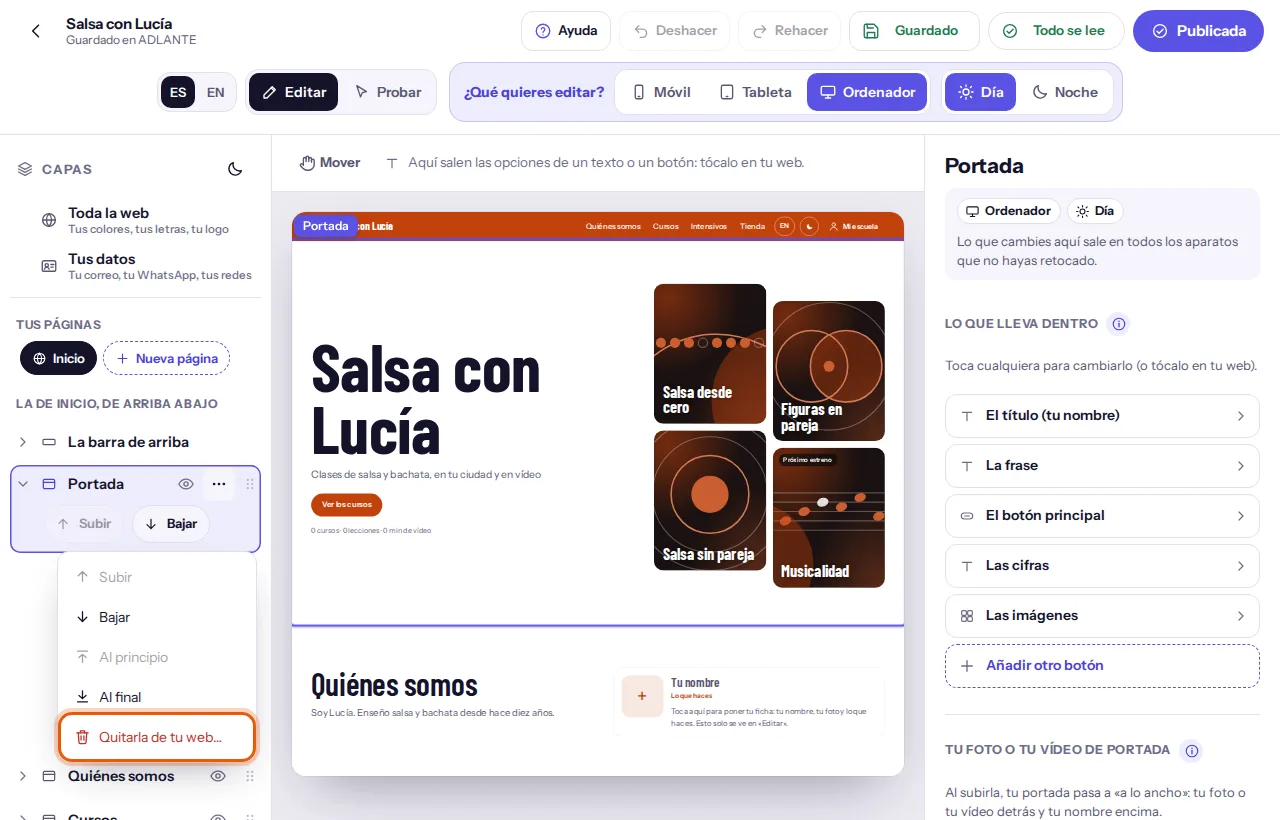
- The eye. Hides or shows that section only on the device you have chosen at the top. A hidden section looks dimmed in the list. Your website has to show at least one section. Each part of a section (a heading, a button) has its own eye too.
- When the section is picked: a button with three dots (⋯), a six-dot handle to drag it and, under the name, the buttons Subir (Up) and Bajar (Down).
Changing the order of the sections. There are four ways, and all four do the same:
- The buttons Subir (Up) and Bajar (Down) on the row of the picked section.
- The three-dot menu (⋯): Subir (Up), Bajar (Down), Al principio (To the top) and Al final (To the bottom).
- Dragging the six-dot handle up or down and letting go.
- With the keyboard:
Alt+↑andAlt+↓on the section.
When you move it, a notice appears at the bottom: “Portada, ahora la 2ª de 5.” (Cover, now 2nd of 5.). Sections move among the ones on their own page: those on the home page, among themselves; a section that has its own page isn’t mixed in with them. The order of the sections is the same on the phone, the tablet and the computer. The menu at the top of your website follows that order unless you change it separately (its part: The menu at the top and its order).
Hiding is not removing
- Hiding (the eye) removes the section only from the device you have chosen. On the others it still shows. You show it again with the same eye.
- Removing takes it off your website. In the three-dot menu, tap Quitarla de tu web… (Remove it from your website…). A window asks, with the section’s name, whether you want to remove it from your website, with the buttons Quitarla (Remove it) and Cancelar (Cancel). What it had written is kept: you can put it back whenever you like from Añadir una sección (Add a section). If you change your mind straight away, Deshacer (Undo) also works.
- A “Texto e imagen” (text and image) section that you remove is deleted completely, with what it had written. If you change your mind, Deshacer (Undo).
Your pages. Your website has a home page, with all the sections one under another. If you want a section to have its own page, with its own link and its place in the menu at the top, there are two ways: set it to “Dónde sale” → “En su propia página” (in its Más opciones (More options)) or create one with Nueva página (New page) (its part: Adding a section). When you tap a page in Tus páginas (Your pages), you see that page on your website and the list changes to show only its layers. Inicio (Home) goes back to the home page.
How the editor looks. At the top of the list, next to the title Capas (Layers), there is a button with a moon: it chooses how the editor looks (Claro (Light), Oscuro (Dark) or Como tu ordenador (Like your computer)). It only changes the editor, on that device. Your website doesn’t change.
The settings of whatever you have picked
On the right (on a phone and a tablet, in the sheet Ajustes (Settings)) appear the settings of whatever you have picked, and only its own: a text doesn’t show what belongs to a button. They always come in the same order, from the most used to the least.
From top to bottom
Its name and, if it is a part of a section, an arrow with the section’s name to go up to it. Under it, the device and the mode you are in, and the sentence that says where what you change will apply (more in Phone, tablet or computer; day or night).
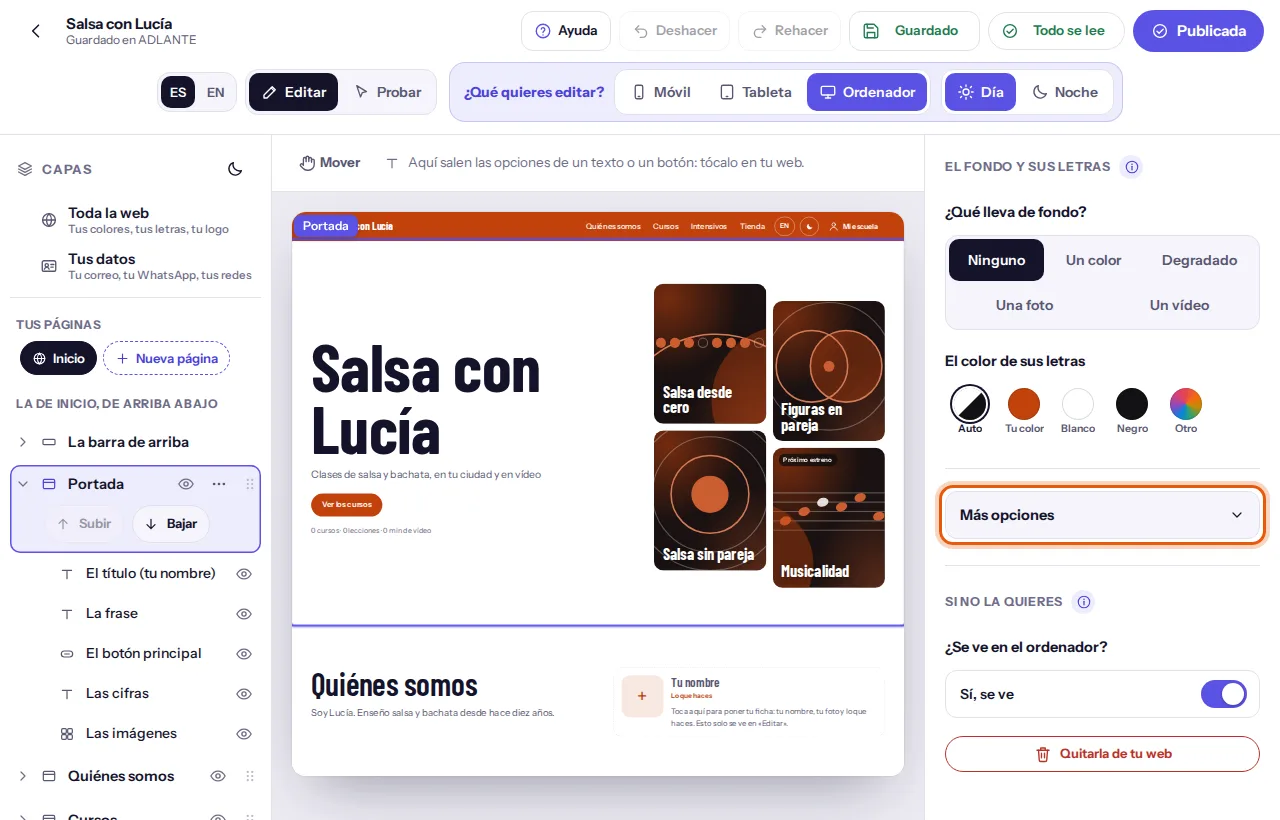
The groups, each with its title and a small “i” beside it that explains what it does (more in The “i” buttons and the cards that explain). Which groups appear depends on what you picked: a section shows Lo que lleva dentro (What it holds), Cómo va (Layout) and El fondo y sus letras (Background and text); a text, Lo que dice (What it says) and Cómo se ve (How it looks); a button, Lo que dice (What it says) and Cómo se ve (How it looks) plus where it leads.
Más opciones (More options). A fold with the less used things (the font, alignment, corners, spacing, where it appears, the hand…). If you open it, it stays open on that device for every layer. If it is closed and something inside has been changed, the button says “Más opciones · con cambios” (with changes): nothing is hidden without warning.
At the end, Si no la quieres (If you don’t want it) (or “Si no lo quieres”): a switch that asks whether it shows on the device you have chosen (for example, “¿Se ve en el móvil?”, with “Sí, se ve” or “No se ve”) and, on a section or a button, the button to remove it. If a section is hidden, the rest of the settings are hidden and it says: “Está escondida en el móvil: enciéndela para ver sus herramientas.” (It is hidden on the phone: switch it on to see its tools.)
Colours. Whenever you choose a colour you see a row of swatches:
- Auto (Auto): ADLANTE uses the colour that reads best on its background, by day and by night. It is what almost everything carries from the start.
- Tu color (Your colour) and Tu segundo color (Your second colour): your brand’s. They come from Toda la web (Whole site), under Tus colores (Your colours). If you change one there, it changes everywhere it is used.
- Blanco (White) and Negro (Black).
- Otro (Other): any colour you pick.
Size comes in five steps: Muy pequeño (Very small), Pequeño (Small), Normal (Normal), Grande (Large) and Muy grande (Very large). On a button, the whole button shrinks or grows. Even if a button looks small, the area you touch with your finger stays 44 pixels.
Where what you see comes from. Next to some settings there is a small tag. “Como en «Toda la web»” (Like in “Whole site”) or “Como los títulos” (Like the headings) means you haven’t changed it here: it comes from what you set for the whole website. “Como en el ordenador” (Like on the computer) means it follows the computer. If you change it here, the tag turns into “Solo en…” (Only on…) with the device, and brings Llevar a todos (Apply everywhere) and Quitar el cambio (Undo the change).
When you change something only here (a heading, for example), a note appears, Esto lo has cambiado solo aquí. (You changed this only here.), with a button to apply it to all of its kind, for example “Llevarlo a los títulos de toda la web” (Apply it to the headings of the whole website). It is like “update style” in Word.
When a colour wouldn’t be readable. If you choose, say, white letters on a light background, the colour doesn’t change on your website: it is shown in black, because no website goes out broken. And the editor says so next to the colour: “El blanco no se leería sobre este fondo: en tu web sale en negro.” (White would not be readable on this background: on your website it comes out black.), with a one-tap fix: Oscurecer el fondo lo justo (Darken the background just enough), Aclarar el fondo lo justo (Lighten the background just enough) or Ponerle un fondo oscuro (Give it a dark background). If you want to see your colour, change the background. If the change is only for the phone, it says that too.
Going back. Inside Más opciones (More options), if you have changed something on that layer, Volver a como venía (Put it back as it was) appears with the button Quitar todos sus cambios (Remove all its changes) (on a section, Quitar todos sus cambios de aspecto (Remove all its look changes)). It asks for confirmation: the button changes to “¿Seguro? · Sí, quitar sus cambios” (Sure? · Yes, remove its changes) and you have to tap it again. It applies to all devices, by day and by night. On a section, its texts stay as you have them.
Factory texts. When a text box is empty, the factory text shows in grey, and that is what appears on your website. Type over it and yours appears; if you delete everything, the factory one comes back.
Adding a section
A section is a piece of your website: the cover, your courses, who you are, your photos… They are added from a window.
Tap Añadir una sección (Add a section), at the end of the list of layers. (If your page is empty, the button is also in the notice in the middle of the screen. On a phone, open Capas (Layers) first.)
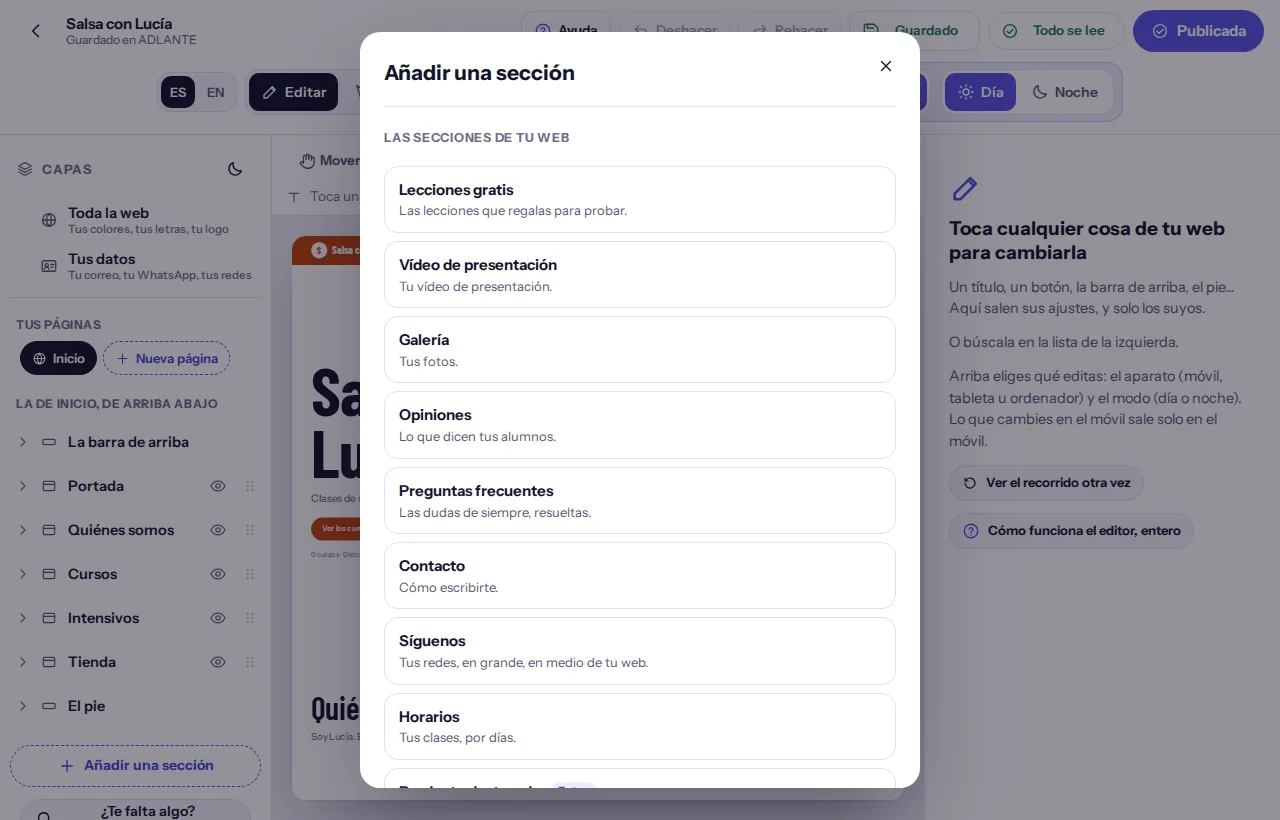
In the window, under Las secciones de tu web (The sections of your website), appear the ones you haven’t added yet and the ones you removed. Each has its name and a sentence saying what it is for. If you already have them all, it says “Ya tienes puestas todas las secciones.” (You already have every section.)
Tap one. It is added at the end of your website (the cover, at the very top), gets picked, and the notice appears at the bottom: “Tienda: puesta al final. Muévela adonde quieras.” (Shop: added at the end. Move it wherever you like.) If you had removed it before, it comes back with what it had written.
Change it to your liking and take it wherever you want with Subir (Up) and Bajar (Down) (its part: Layers: the list of your website).
The sections there are
- Portada (Cover): your name, your sentence and your buttons; the first thing people see.
- Cursos (Courses): your courses for sale.
- Lecciones gratis (Free lessons): the lessons you give away to try.
- Vídeo de presentación (Introduction video): your introduction video.
- Quiénes somos (About us): who you are and how you teach.
- Galería (Gallery): your photos.
- Opiniones (Reviews): what your students say.
- Preguntas frecuentes (Frequently asked questions): the usual doubts, answered.
- Contacto (Contact): how to write to you.
- Síguenos (Follow us): your social media, large, in the middle of your website.
- Horarios (Timetable): your classes, by day.
- Tienda (Shop): your products (t-shirts, bags…), to buy from your website.
- Producto destacado (Featured product): one of your products, large, to buy without leaving.
- Intensivos (Workshops): your workshops, masterclasses and bootcamps, with their poster; people sign up and pay from your website.
What is particular to each one (what you fill in, where its data comes from) is in the next part: What is particular to each section.
Text and image. Under the sections there is a group, Texto e imagen (Text and image), for what isn’t above: “Clases presenciales” (in-person classes), “Nuestro estudio” (our studio), “Por dónde empezar” (where to start)… It has four shapes: Texto e imagen (Text and image), Solo texto (Text only), Imagen grande (Large image) and Llamada: un título y un botón (Call to action: a heading and a button). When you choose one, a block is added with a sample text that you change for your own. You can have up to five (if you already have five, it says “Ya tienes cinco: es el máximo.”, You already have five: that is the maximum).
The paid ones. Tienda (Shop), Producto destacado (Featured product) and Intensivos (Workshops) are paid tools. In the window they carry a tag: De pago · su precio al mes (Paid · its price a month) if you haven’t turned them on yet (the real price shows there, in the tag, and you also see it in Your plan), or “Extra” if you already have them and they are an extra.
Setting up is free; you pay when you really use it. You can add a paid section, design it and try it in Probar (Try) without turning anything on. While you haven’t turned it on, in Editar (Edit) the mark Solo lo ves tú. (Only you can see this.) appears above the section, with the price, and says it doesn’t show on your website until you turn that tool on in Your plan. The Publicar (Publish) window reminds you and lets you choose: turn it on, or publish without it (its part: Publish). Nothing is deleted.
A new page. Nueva página (New page), in Tus páginas (Your pages), opens the same window but titled Una página nueva: ¿qué lleva? (A new page: what goes on it?). It says: “Sale en el menú de arriba, con su propio enlace. Luego eliges si sale en el menú o solo con un botón.” (It appears in the menu at the top, with its own link. Then you choose whether it appears in the menu or only with a button.) It has three groups: Con una de estas (With one of these) (the sections not yet added; the cover is not offered), Texto e imagen (Text and image) and O una que ya tienes en la de inicio (Or one you already have on the home page) (each with the note “Pasa a su propia página.”, It moves to its own page). When you choose, the section is put on its own page, with its link in the menu.
Afterwards, in the settings of that section, under Más opciones (More options): Dónde sale (Where it appears) has two buttons, En la página de inicio (On the home page) and En su propia página (On its own page). And the menu group asks Cómo se llega a su página (How people get to its page) with Desde el menú (From the menu) or Solo con un botón (Only with a button). If you choose “Solo con un botón” and no button on your website leads to that page, the editor warns you: “Ningún botón lleva a esta página: nadie podría llegar a ella. Ponle un botón en otra sección o sácala al menú.” (No button leads to this page: nobody could get to it. Give it a button in another section or put it in the menu.) You can see each page’s address, to copy it, in Cómo se ve al compartir (How it looks when shared), inside Toda la web (Whole site).
What is particular to each section
All sections are handled the same way (their heading, their text, their buttons, their background). This is what each one adds, and when it really appears on your website: some only appear once they have content. Until then, in Editar (Edit) you will see sample data and the list of layers says so (“De ejemplo, hasta que tengas lo tuyo”, sample until you have your own).
- Portada (Cover). Its texts: the small line, the heading (your name), the sentence and the buttons. Its photo or video: in Tu foto o tu vídeo de portada (Your cover photo or video), the buttons Subir tu vídeo (Upload your video) and Subir tu foto (Upload your photo); when you upload one, the cover goes “full width” (your photo or video behind and your name on top). If it isn’t full width, Qué va en el hueco de la imagen (What goes in the picture space) chooses between Tu foto o tu vídeo (Your photo or video), Las portadas de tus cursos (Your course covers) and Tus fotos (Your photos) (four, which you upload). In Cómo va (Layout) you choose among six ways to place the text and the images; on the phone, what comes first. Inside Más opciones (More options), on a computer, the group En la portada (On the cover) lets you remove the figures of your courses, remove the second button (¿Sale el segundo botón? (Does the second button show?)) or put your logo on the cover (Tu logo en la portada (Your logo on the cover): No (No), Encima del nombre (Above the name) or En vez del nombre (Instead of the name)).
- Cursos (Courses). The cards come from your published courses, which are created in your panel (their guide: Courses): what each card says isn’t typed here. Here you choose how they look: Tarjetas grandes (Large cards) or En lista, con la foto a un lado (As a list, with the photo on one side), the background, the frame, the corners, the shape of the photo and Qué sale en cada tarjeta (What each card shows) (the level, the lessons, the hours, the description, the teachers, the languages, the free lessons and the price). Until you have a course to show, you see sample courses.
- Lecciones gratis (Free lessons). They come from the lessons you have left free in your courses. If there are none, the section doesn’t appear on your website.
- Vídeo de presentación (Introduction video). It has its heading, its text and its button, which you change like any other. The player you see in the section is a sample, marked “Ejemplo”: today, your own video is uploaded on your cover (Subir tu vídeo (Upload your video)) or as the background of a section.
- Quiénes somos (About us). One card per person. Their data and how to handle them, just below.
- Galería (Gallery). Your photos, up to 24. Its part is in Photos, videos and logo. It appears on your website with your first photo.
- Opiniones (Reviews). Today the editor has nowhere to write your own reviews: the section can be added and you will see some samples, but it doesn’t appear on your published website.
- Preguntas frecuentes (Frequently asked questions). It comes with a few questions already written about buying and watching courses. You can change its title, add a button and decide whether it appears in the menu, but today the questions themselves can’t be changed from the editor.
- Contacto (Contact). Its text and its button are yours; the details (email, WhatsApp, social media) come from Tus datos (Your details). Whatever you leave empty there doesn’t appear.
- Síguenos (Follow us). Your social media, large. It appears when you have written one (Instagram, TikTok, YouTube or Facebook) in Tus datos (Your details). Email and WhatsApp don’t count: they have their place in Contacto (Contact).
- Horarios (Timetable). You write the classes yourself in the group Tus clases (Your classes). It appears when you have at least one.
- Tienda (Shop) and Producto destacado (Featured product). The products are created in your panel, in Your shop (its guide: The shop); the button Abrir «Tu tienda» (Open “Your shop”) takes you there. They appear when your shop has products for sale.
- Intensivos (Workshops). The events are created in your panel, in Your workshops (their guide: Workshops); the button Abrir «Tus intensivos» (Open “Your workshops”) takes you there. The section appears even if there is no event yet: then your website says “Pronto anunciaremos los próximos.” (We will announce the next ones soon.), and you change that sentence in Lo que dice si no hay ninguno (What it says if there are none). It only disappears if your space doesn’t have the workshop manager.
About us: the cards. Each person is a card, and each card is a layer. In the settings of Quiénes somos (About us), or when you open Las fichas (The cards) in the list, you see Tus fichas (Your cards): their photo, their name and what they do, with two arrows to change the order. Añadir una ficha (Add a card) puts in a new one (the first time, Añadir la primera ficha (Add the first card)); up to 20 fit. When you tap a card it opens with:
- Su nombre (Their name), the same in both languages. Without a name, the card doesn’t appear on your website.
- Lo que hace (What they do) (60 letters is the recommended length) and Una frase suya (si quieres) (A sentence from them, if you like) (up to 200), each in Spanish and in English.
- Su foto (Their photo): Subir su foto (Upload their photo) or Cambiar la foto (Change the photo) (square or portrait, at least 400 pixels; with no photo their initials show), and Recortar o acercar la foto (Crop or zoom the photo) to choose which part shows.
- Su sitio (Their place), with Subirla (Move it up) and Bajarla (Move it down).
- Quitar esta ficha (Remove this card), which asks first with Quitarla (Remove it) and Cancelar (Cancel).
Timetable: your classes. In Tus clases (Your classes) there is Añadir una clase (Add a class) (up to 30) and, for each class: the Día (Day) (a list), the Hora (Time) (free text, for example 19:00–20:00), La clase (The class) and Dónde (Where), with Quitar esta clase (Remove this class). The day shows by itself in both languages and the classes sort themselves by day and time. In Cómo va (Layout) there are five ways to show them on a computer: a table, one card per class, grouped by days, the week in columns and a compact list. On the phone there are three (the week in columns doesn’t fit on a phone and goes by days); the tablet goes like the computer.
Shop: the products and their pages. Besides the cards, the group Las páginas de la tienda (The shop pages) has the button Cambiar su fondo y sus letras (Change their background and fonts): the page of each product, the basket, the payment and “Mi pedido” (My order) come out with the colours of Toda la web (Whole site), but here you can give them another background and other fonts. To see them in the editor, open a product of your shop. In Producto destacado (Featured product), El producto que sale (The product that shows) is a list of your products. If your shop is closed, the section says so: “Tu tienda está cerrada: en tu web todavía no sale” (Your shop is closed: it doesn’t show on your website yet), with the steps that are missing. In Probar (Try) you can buy as a test: those orders don’t count in your sales and don’t touch your stock.
Typing and formatting texts
Texts are changed as in Word: you tap and you type. There are three ways, and all three change the same thing:
Double click on the text, on your website. It is the most direct. With a double click on a heading, a sentence or a button, the text gets selected and you type over it. The notice appears at the bottom: “Escribe aquí mismo: se guarda solo. Para terminar, toca fuera o pulsa Intro.” (Type right here: it saves itself. To finish, tap outside or press Enter.) The texts you can type on this way say “doble clic para escribir” (double click to type) in their label when you pass the mouse over them.
The button Escribir (Type), in the options bar (above your website, on a computer): it does the same with whatever you have picked.
The boxes under Lo que dice (What it says), in the settings. They are the only ones on a phone and a tablet, and the ones that show both languages at once.
While you type over your website: Enter finishes (in a one-line text); in a long text, like the one in “Quiénes somos”, Enter starts a new paragraph, as in Word, and you finish by tapping outside or with Esc. If you paste text, only the text goes in, without the formatting of wherever you copied it from. What you type goes to the language you have set at the top (ES or EN).
The limits. Each text has its length, and under the box it says how many letters you have, for example “12 / 40”. If you go over, it says “puede pasar a dos líneas” (it may wrap onto two lines): it doesn’t forbid it, but the longer it is, the more it breaks up. In a one-line text, up to double the recommended length fits.
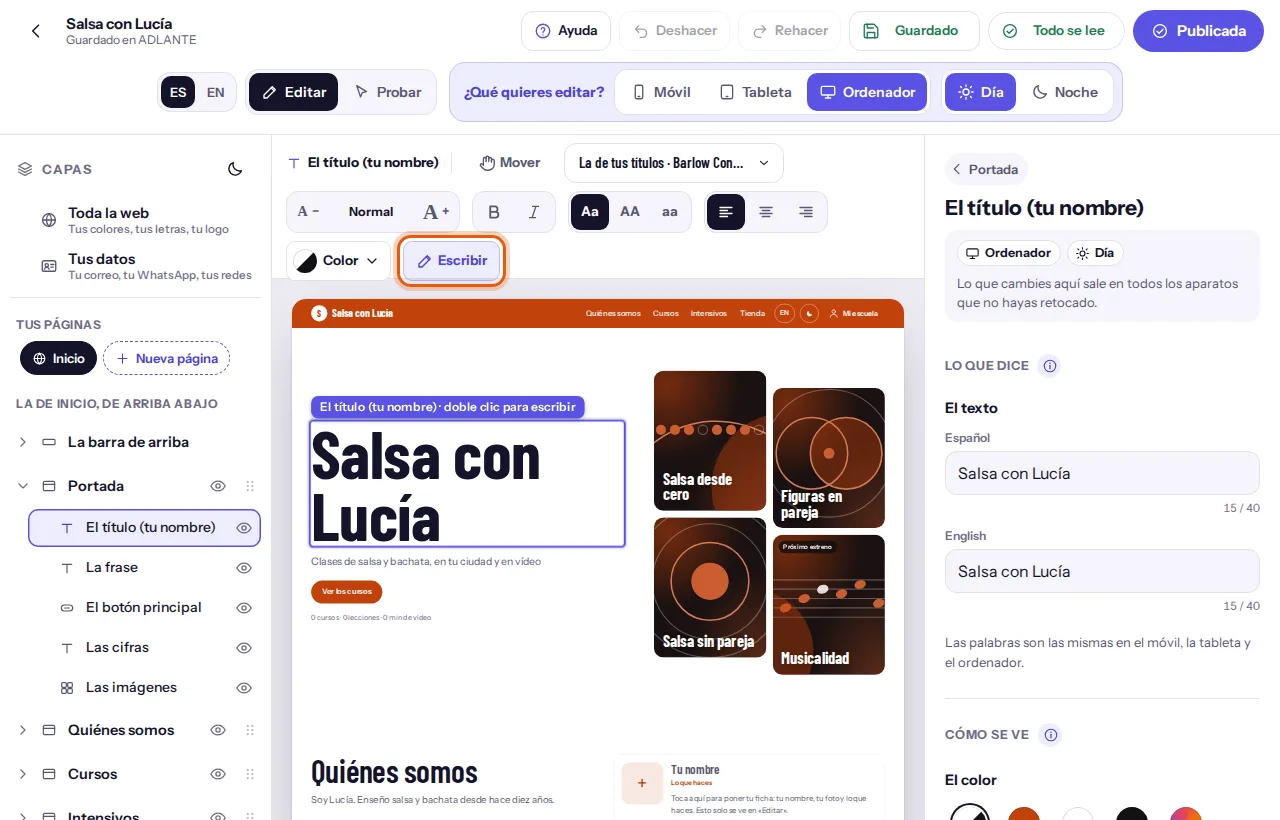
The options bar (only on a computer) sits above your website and changes according to what you pick. With nothing picked it says “Toca un texto o un botón: aquí salen su letra, su tamaño y su color. Doble clic para escribir.” (Tap a text or a button: its font, size and colour appear here. Double click to type.) With a text picked, from left to right:
- Its name, so you know what you are changing.
- Mover (Move): the hand (its part: Moving things with the hand).
- The font. A button with the font’s name written in that font. It opens a window titled with the name of what you picked (“La letra de…”, the font of…), with the fonts grouped in tabs by style (strong, modern, elegant, classic, friendly and characterful), each name written in its own font. Below, Las de toda tu web (The ones for your whole website) (the one for your headings and the one for your text) and, if you have uploaded any, your own fonts. All of them have ñ, accents and ¿¡, and are served from ADLANTE.
- The size. A minus, the name of the size and a plus, in five steps.
- Negrita (Bold) and Cursiva (Italic).
- Capitals: Aa (as you type it), AA (all capitals) and aa (all lower case). What you typed doesn’t change, only how it looks.
- Alignment: left, centred or right.
- Color (Colour): opens a window with the row of colours (with Auto (Auto), your palette, white, black and Otro (Other)).
- Escribir (Type).
With a link picked (a name in the menu, the email in the footer…) the bar brings the size, Negrita (Bold) and Color (Colour). With a button picked it brings Relleno (Filled), Con borde (Outlined) and Solo texto (Text only) (what the button is like), the size, Botón (Button) (the fill colour; if it isn’t a filled one, Color (Colour)) and Letras (Letters) (the colour of its letters, only on filled ones).
On a phone and a tablet the options bar doesn’t appear: it doesn’t fit. The same things are in the settings: Cómo se ve (How it looks) (colour and size) and, inside Más opciones (More options), La letra (The font), Negrita, cursiva y mayúsculas (Bold, italic and capitals) and La alineación (Alignment). And everything applies only to the device you have chosen at the top: a bigger text with Móvil (Phone) chosen gets bigger only on the phone.
The same, but for everything at once. Instead of changing headings one by one, in Toda la web (Whole site) (inside Más opciones (More options)) there are Los títulos de toda la web (All headings) (the size, capitals and colour of all of them at once), El texto de toda la web (All text) and Los botones de toda la web (All buttons). What you set there applies to all; a single heading is changed by tapping it on your website, and its own setting wins.
Your website in Spanish and in English
Your website comes in two languages, Spanish and English. The one you chose when you created your space is the main one: it comes first everywhere (at the top, in ES | EN, and in every text box). People who visit your website choose their language with the language button in the bar (it is the layer El botón del idioma (EN) (The language button)).
Every text has its two versions. There are two ways to write the second one:
- With the buttons at the top (only on wide screens): tap the language that isn’t the main one. Your website switches to that language, and what you type over it (double click) goes to that language.
- With the boxes under Lo que dice (What it says), always: each text comes with a box labelled Español (Spanish) and another with English (English), the main one first. On a phone and a tablet the
ES|ENbuttons at the top aren’t there, so you write here.
When you change the text in the main language, the same text in the other language is marked as behind: next to its box it says se ha quedado atrás: revísalo (it has fallen behind: check it), until you write it yourself. If you write in the other language first, nothing is marked. If things are left behind, the Publicar (Publish) window mentions it (for example: “El inglés se ha quedado atrás en: Portada. Hasta que lo traduzcas, ahí sale en español.”, The English has fallen behind in: Cover. Until you translate it, it shows in Spanish there), but it doesn’t stop you publishing.
What a visitor sees in the other language. What you wrote and haven’t translated shows in your main language (never a sample text). What you have never written shows with the factory sentence of that language. In Probar (Try) you see it exactly like that: choose the other language with ES | EN and look.
People’s names (on the “Quiénes somos” cards) and the addresses buttons lead to are the same in both languages. The rest of the texts are written once in each language.
Photos, videos and logo
Photos and videos are uploaded from buttons with an upward arrow: Subir tu foto (Upload your photo), Subir tu vídeo (Upload your video), Subir tu logo (Upload your logo)… When you tap one, your device’s file picker opens. Where you can upload:
- Your logo: in Toda la web (Whole site), in Tu logo (Your logo).
- Your cover photo or video: on the cover, Tu foto o tu vídeo de portada (Your cover photo or video).
- The background of a section: in its settings, El fondo y sus letras (Background and text) → ¿Qué lleva de fondo? (What is the background?) → Una foto (A photo) or Un vídeo (A video).
- The background of your whole page: in Toda la web (Whole site), El fondo de la página (The page background) → Una foto (A photo) or Un vídeo (A video).
- The photos of a gallery, of the “Quiénes somos” cards, of “Texto e imagen” and the four cover photos: each one in the settings of its section (its part: What is particular to each section).
- The tab icon and the share card: in Cómo se ve al compartir (How it looks when shared) (its part: How it looks when shared).
What each one accepts
- Photos: JPG, PNG or WebP, up to 15 MB. ADLANTE makes them at most 1,920 pixels wide, which is enough for any screen, and also keeps smaller versions: each phone downloads only the one it needs. For the computer, landscape is best; for the phone, portrait (choose Móvil (Phone) at the top first).
- Logo: PNG, JPG, WebP or SVG; best of all a PNG with a transparent background, at least 800 pixels on its long side. ADLANTE makes it 800 and trims the empty edges.
- Videos: MP4, WebM or MOV, up to 30 GB. Upload it as it comes out of your camera: ADLANTE compresses it itself (1080 at the best quality, and smaller sizes for phones). On your website it plays muted, looping and with its pause button; people who ask their phone for less motion see it still. Short is best (10 to 30 seconds).
What happens when you upload a photo. “Leyendo tu foto…” (Reading your photo…) appears at the bottom and, right after, “Tu foto, puesta.” (Your photo, in place.) (if it is for one device only, it adds “solo en el móvil”, only on the phone). The photo already shows in the editor and saves itself to ADLANTE. If it fails because of the connection, it retries by itself, a little later each time, and the pill Foto sin subir (Photo not uploaded) appears at the top with “No se ha podido subir: lo reintentamos cada poco. No tienes que hacer nada.” (It couldn’t be uploaded: we keep trying. You don’t have to do anything.) Until it uploads, it doesn’t appear on your published website; once it uploads, the editor tells you: “Tu foto ya está en ADLANTE. Publica otra vez para que salga en tu web.” (Your photo is now in ADLANTE. Publish again for it to appear on your website.)
What happens when you upload a video. “Subiendo tu vídeo: puedes seguir trabajando.” (Uploading your video: you can keep working.) appears, and a pill at the top, next to your name, with the progress: “Subiendo” (Uploading) and the number it has reached. When it finishes uploading, the pill says “Preparando tu vídeo” (Preparing your video) while ADLANTE compresses it. If what is uploading is a photo, it says Subiendo tu foto (Uploading your photo). Tap it for the detail. You can keep editing while it uploads. If you close the page, the upload stops; when you come back, the pill says Vídeo a medias (Video half-done) and has Seguir subiendo (Keep uploading) and Quitar (Remove). When you continue, it asks you for the same file again (the browser doesn’t let any website keep your files). If you try to leave while it uploads, the browser warns you.
If something doesn’t work, a notice at the bottom says what to do:
- “Ese archivo no es una imagen (PNG, JPG, WebP o SVG).” (That file isn’t an image.) · “La imagen pesa demasiado: como mucho, 15 MB.” (The image is too heavy: 15 MB at most.)
- “Ese archivo no es un vídeo (MP4, WebM o MOV).” (That file isn’t a video.) · “El vídeo pesa demasiado: como mucho, 30 GB.” (The video is too heavy: 30 GB at most.)
- “Has llegado al tope de fotos de tu espacio. Quita alguna que no uses en «Tus fotos y vídeos».” (You have reached your space’s photo limit. Remove one you don’t use in “Your photos and videos”.) · “Has llegado al tope de vídeo de tu espacio.” (You have reached your space’s video limit.)
- “Has subido muchas fotos seguidas: la subimos sola dentro de unos minutos.” (You have uploaded many photos in a row: we upload it by ourselves in a few minutes.)
- “Tu sesión ha caducado: vuelve a entrar en tu panel y la subimos sola.” (Your session has expired: sign in to your panel again and we upload it by ourselves.)
The cover and the background, per device. The cover photo or video and the background ones go per device: with Ordenador (Computer) chosen you upload the landscape one; with Móvil (Phone) chosen you upload another, portrait, which shows only on the phone. If you upload none on the phone, the computer one shows. A button lets you remove the one of the chosen device so the computer one comes back.
Which part of the photo shows. A photo doesn’t always fit whole in its space. In Más opciones (More options), the group Qué parte se ve (Which part shows) has the button Recortar o acercar la foto (Crop or zoom the photo) (or Recortar o acercar el vídeo (Crop or zoom the video)). It opens a window, Elige qué parte se ve (Choose which part shows):
Drag the photo to place it. What stays inside the frame is what will show. With the keyboard, the arrows move it.
Zoom with the bar, with the + and − buttons, with the mouse wheel or with two fingers.
Tap Usar esta parte (Use this part) (or Cancelar (Cancel)). The notice appears: “Listo: en tu web se ve la parte que elegiste.” (Done: your website shows the part you chose.)
Your photo is not touched: only which part shows is saved. To undo it, Volver a como venía (Put it back as it was). The same frame works for the cards, “Texto e imagen”, the gallery, the icon and the share card.
The overlay. Over a background photo or video, the overlay darkens it a little so the letters can be read on top. In Más opciones (More options): Hacia dónde oscurece (Which way it darkens) (evenly, from the bottom, from the top, from the left, from the right or no overlay) and Cuánto oscurece (How much it darkens) (Suave (Light), Medio (Medium) or Fuerte (Strong)). With “Sin velo” (no overlay), your letters may not be readable over the light parts.
The background of a section. ¿Qué lleva de fondo? (What is the background?) has five options: Ninguno (None), Un color (A colour), Degradado (Gradient), Una foto (A photo) and Un vídeo (A video). With a colour, the group says which one it is (“Tu color: blanco”, Your colour: white) and warns you if it barely shows against the background of your page. At night, the colour drops to its dark tone by itself; if you want it the same at night, choose Noche (Night) at the top and give it its colour.
Your logo
Tap Toda la web (Whole site) and go down to Tu logo (Your logo). If you don’t have one yet, tap Subir tu logo (Upload your logo).
Your logo appears where your initial shows today: at the top, in the footer and on every course. Two samples appear, De día (By day) and De noche (By night) (with “(el mismo)”, the same one, if you haven’t uploaded another).
For the one shown at night, tap Subir tu logo para la noche (Upload your logo for night) (if you already have it, Cambiar el de noche (Change the night one); to remove it, Quitar el de noche (Remove the night one)). Do it if your logo is white or very light: by day it wouldn’t show on a white background.
To change it, Cambiarlo (Change it). To remove it, Quitar el logo (Remove the logo): it asks for a second tap (“¿Seguro? · Sí, quitarlo”, Sure? · Yes, remove it) and your initial comes back.
Its size and its place are changed by tapping the logo on your website (in the bar or the footer). For the logo in the bar: El tamaño (The size) (Pequeño (Small), Normal (Normal), Grande (Large)), Qué sale (What shows) (Tu logo y tu nombre (Your logo and your name) or Solo el logo (Only the logo)) and, in Más opciones (More options), Dónde va (Where it goes) (on the left or in the centre) and Un fondo detrás del logo (A background behind the logo) (with Sin fondo (No background) or a colour from your palette). For the one in the footer, Dónde va (Where it goes) also has the right, and there are Tu logo y tu nombre (Your logo and your name) (Uno al lado del otro (Side by side) or Uno encima del otro (One above the other)) and Cuál va primero (Which comes first). Even if only the logo shows, your name is still written inside: Google and screen readers read it. ADLANTE never changes your logo’s colours. If it doesn’t show well on the bar or the footer, Todo se lee (Everything reads well) warns you and offers a background behind it or uploading its night version.
The gallery. In the settings of Galería (Gallery), Subir tus fotos (Upload your photos) (the first time) or Añadir fotos (Add photos) lets you choose several at once; 24 fit. Each photo is a layer: when you tap it, Tu foto (Your photo) (with Cambiar la foto (Change the photo)), Lo que dice debajo (si quieres) (What it says underneath, if you like) (it shows when it is opened large, and people who can’t see it hear it), Su sitio (Its place) with Subirla (Move it up) and Bajarla (Move it down), and Quitar esta foto (Remove this photo), which asks first. Until you upload any, in Editar (Edit) sample photos show and on your website the gallery doesn’t appear.
“Texto e imagen”. Its photo goes in Tu foto (Your photo): Subir tu foto (Upload your photo) or Cambiar la foto (Change the photo), and Volver a la de ejemplo (Go back to the sample) (with confirmation). If the image sits beside the text, there are El tamaño (The size) (Pequeña (Small), Normal (Normal), Grande (Large)) and Dónde va (Where it goes). Without yours, the sample one shows.
Where to see everything you have uploaded. In your panel, Your photos and videos lists everything, with where each thing is used, and from there you delete what you no longer use. A photo that is no longer anywhere (not on your website, not in your courses, not in your shop) stays in the group “Sin usar” (unused); if it has gone 30 days like that, it moves to the bin by itself, and 30 days later it is deleted completely (until then you can recover it). Videos, on the other hand, are never deleted by themselves: if you have any unused, the top of that page tells you and gives you See the videos you are not using.
Your logo or your photos don’t show on the published website? It is almost always one of two things: (1) they haven’t finished uploading yet (check whether the pill is at the top), or (2) they uploaded after you published. The Publicar (Publish) window warns you if there is something like that. As soon as they are uploaded, publish again.
Buttons and “Where does it lead?”
A button has three things: what it says, where it leads and how it looks. To change it, tap it on your website, or open its section in the list of layers and tap its name.
What it says. Its text, in Spanish and in English, in the boxes under Lo que dice (What it says). On a section’s button (not the main one on the cover), if you leave the text empty, the button doesn’t appear: that is how you remove it without deleting anything.
Where it leads. Under its text there is the list ¿Adónde lleva? (Where does it lead?). Choose one of these:
- “Sección: …” (Section: …), one for each other section of your website: when it is tapped, your website scrolls down to it. The cover isn’t in the list: it is the start.
- “Tu vídeo (se reproduce)” (Your video, it plays), only on the second button of the cover. If your website doesn’t have the section Vídeo de presentación (Introduction video), it says so.
- “Tu correo”, “Tu WhatsApp”, “Tu Instagram”, “Tu canal de YouTube” (your email, your WhatsApp, your Instagram, your YouTube channel): they come from Tus datos (Your details). The ones with the arrow ↗ and “(sale de tu web)” open another site outside your website.
- Your links, the ones you have written under Tus enlaces (Your links) (for example, “Mi tienda ↗ (sale de tu web)”).
- “+ Un enlace nuevo (en «Tus datos»)…” (A new link, in “Your details”): takes you to Tus datos (Your details) to write it and then you choose it here.
Your details. It is the layer at the top of the list, next to Toda la web (Whole site). In the group Cómo te encuentran (How people find you) you write your email, your WhatsApp, Instagram, TikTok, YouTube and Facebook. What you leave empty doesn’t appear on your website. With your email and your WhatsApp, contact appears; with your social media, their icons (at the top, in the footer and in Síguenos (Follow us)). How to write them:
- Email: like this,
hola@tuespacio.com. If it doesn’t look like one, the box warns you in red. - WhatsApp: with your country’s prefix. If the number isn’t understood, the box warns you in red.
- Instagram, TikTok, YouTube and Facebook: your username (
@tuespacio) or the address of your profile (https://instagram.com/tuespacio) both work. If you type the address withouthttps://, the editor completes it and says so: “Completado: …” (Completed). If it isn’t understood, it warns you in red; until you fix it, that detail doesn’t appear on your website.
Your links. In the group Tus enlaces (Your links) you write, just once, each place outside your website (your shop, your Spotify, a form…): its name in Cómo se llama (What it is called) and its address in Su dirección (Its address), and then Añadir el enlace (Add the link). If the name is missing, it warns: “Ponle un nombre: es lo que verás en «¿Adónde lleva?».” (Give it a name: it is what you will see in “Where does it lead?”.) The address has to be a secure web address (starting with https://): if not, “Esa dirección no vale. Tiene que ser una dirección web segura, como https://mitienda.com” (That address isn’t valid. It has to be a secure web address, like https://mitienda.com). Twenty fit. To remove one, tap its button Quitar (Remove) and confirm; the buttons that led to it go back to their usual place.
When a button won’t appear. The editor tells you before you find out on your website: in Editar (Edit), that button shows with a dashed line and, under its group, a notice appears, No sale en tu web: (It doesn’t appear on your website:), with the reason and how to fix it:
- A detail is missing: “falta tu Instagram en «Tus datos»” (your Instagram is missing in “Your details”), with a button that takes you to that box (“Poner tu Instagram”, Add your Instagram). If the detail is there but isn’t understood, the button says “Revisar tu Instagram” (Check your Instagram).
- It leads to a link that is no longer in Tus datos (Your details): choose another place in “Where does it lead?”.
- It leads to a section that is no longer on your website, or to your video and you don’t have the section Vídeo de presentación (Introduction video).
If, when you write a detail in Tus datos (Your details), a button suddenly appears, it is because it already led to that place and didn’t appear because the detail was missing. In Probar (Try), your website is the real one: what you see is what appears.
More buttons, or fewer. Each button is its own: the two buttons on the cover are not linked, each has its own ¿Adónde lleva? (Where does it lead?) and its own text. To add more, open the section and, in Lo que lleva dentro (What it holds), tap Añadir otro botón (Add another button) (up to 20 per section). It appears with the text “Otro botón” (Another button), picked, so you can change it. To remove one, pick it and tap Quitar este botón (Remove this button); the button changes to “¿Seguro? · Sí, quitarlo” (Sure? · Yes, remove it) and you have to tap it again. If you change your mind, Deshacer (Undo). The cover’s second button can also be removed with ¿Sale el segundo botón? (Does the second button show?) in En la portada (On the cover).
How a button looks. In Cómo se ve (How it looks): El color del botón (The button colour) and the size. In Más opciones (More options): ¿Relleno o con borde? (Filled or outlined?), El color de sus letras (The colour of its letters) and Las esquinas (The corners) (Redondas (Round), Suaves (Soft) or Rectas (Square)). To make a button smaller, lower its size one step, or switch on Mover (Move) and drag its corner: it goes through the five sizes. To change them all at once, Los botones de toda la web (All buttons), in Toda la web (Whole site).
The buttons in the top bar that ADLANTE puts there (the language one, the day and night one, “Entrar” or “Mis cursos”) are not written by you: ADLANTE writes their text, in the language of the person visiting your website. You choose how they look.
Whole site: colours, fonts and background
Toda la web (Whole site) is the first row in the list of layers (on a phone, the button at the bottom with that name). It gathers what applies to everything at once. From top to bottom:
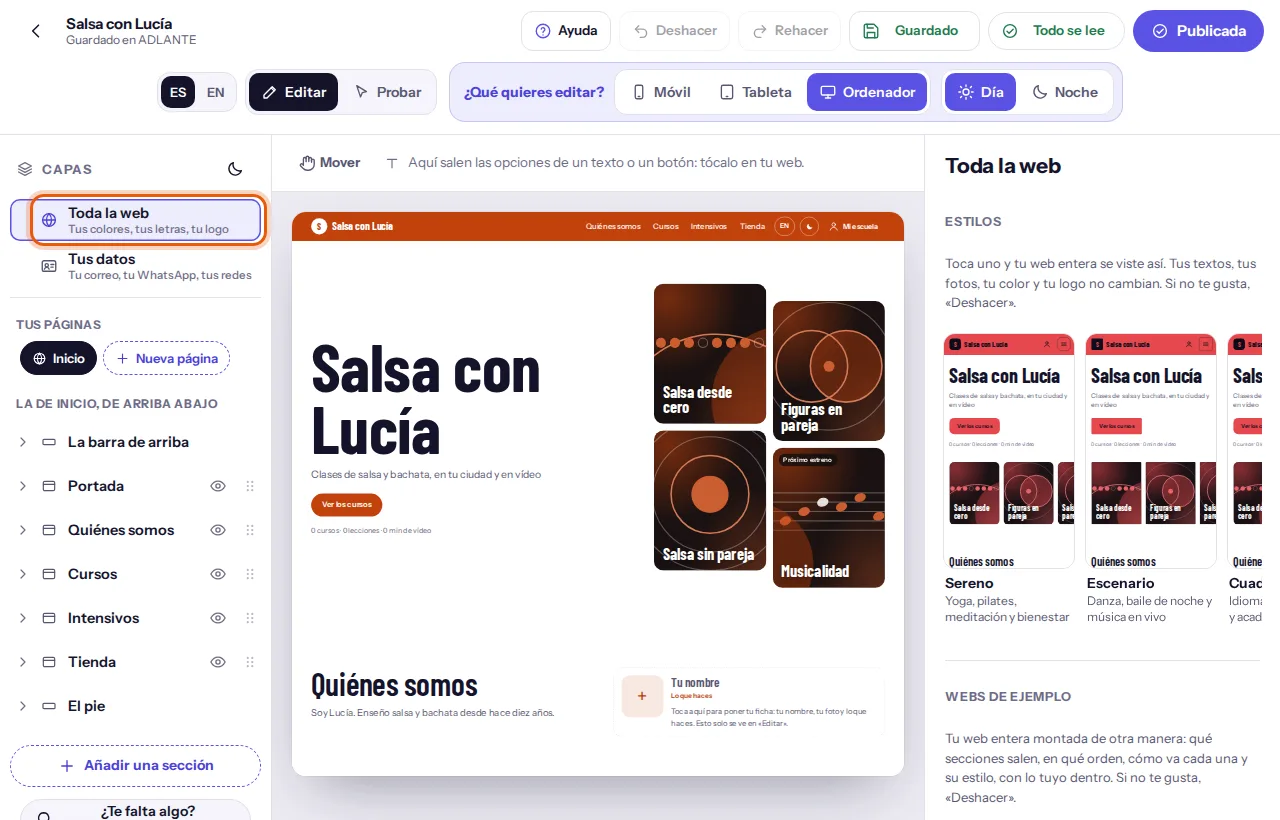
- Estilos (Styles) and Webs de ejemplo (Example websites): your whole website in one tap (their part: Styles in one tap and example websites).
- Tus colores (Your colours): your brand’s colours.
- Tus letras (Your fonts): your website’s pair of fonts.
- Tu logo (Your logo): its part is Photos, videos and logo.
- El fondo de la página (The page background): what shows behind everything.
- Cómo se ve al compartir (How it looks when shared): the tab and the WhatsApp card (its part: How it looks when shared).
- Más opciones (More options): the rest.
Your colours. Tu color (Your colour) is your brand’s: choose one of the eight in the row, or Otro (Other) for any you like. Tu segundo color (si quieres) (Your second colour, if you like) is optional (Ninguno (None) or one of the others). They are your website’s palette: each thing chooses one of them, and if you change one here, it changes everywhere it is used. If you remove the second colour, what carried it goes to Tu color (Your colour) (the notice says: “Sin segundo color. Lo que lo llevaba pasa a «Tu color».”, No second colour. What had it moves to “Your colour”.). Up to three more colours, in Más opciones (More options), with Más colores (si quieres) (More colours, if you like) and Añadir un color (Add a colour); they appear in the settings of each thing as “Color 3”, “Color 4”…
Your fonts. Your website uses a pair of fonts: one for headings and one for text, tested together. There are 18, grouped into six styles (strong, modern, elegant, classic, friendly and characterful); tap a style and then a pair. Each sample shows your name in the headings font and the names of the two fonts. All of them have ñ, accents and ¿¡. A single thing is changed by tapping it on your website (its part: Typing and formatting texts); in Más opciones (More options), La letra de los títulos (The headings font) and La letra del texto (The text font) change the one for all of them at once.
Your own font. Under the pair, Tu propia letra (Your own font): upload your brand’s font and use it in your headings or in your text. Up to four fit (for example, regular, bold and their italics). It is a tool in your plan: if you don’t have it yet, the group says it is an extra and brings the button Ir a «Tu plan» (Go to “Your plan”) to turn it on; if your space doesn’t have it, the group doesn’t appear.
Tap Subir tu letra (Upload your font) (or Subir otra (Upload another)). A window appears with a warning: “Muchas letras que se descargan gratis solo se pueden usar en tu ordenador, no en una web. Súbela solo si su licencia te deja usarla en tu web.” (Many fonts you download for free can only be used on your computer, not on a website. Upload it only if its licence lets you use it on your website.)
Tick the box Tengo la licencia para usar esta letra en mi web. (I have the licence to use this font on my website.) Until you tick it, the button to choose a file is switched off.
Tap Elegir el archivo (Choose the file) and choose your font (WOFF2, WOFF, TTF or OTF, up to 2 MB). “Comprobando tu letra…” (Checking your font…) appears.
If it is fine, “Lista: …” (Ready) appears, with “Tiene la ñ, las tildes, la ü, ¿ y ¡.” (It has ñ, accents, ü, ¿ and ¡.), a sample text so you can see how it looks and two buttons: Usarla en los títulos (Use it for headings) and Usarla en el texto (Use it for text). If something is missing, it says what (“No podemos usar … le faltan la ñ…”, We can’t use … it lacks ñ…) and suggests looking for a version with Spanish characters (it sometimes says “Latin Extended” or “Latin-1”); with Elegir otro archivo (Choose another file) you try another.
To remove one, Quitar esta letra (Remove this font): it asks first, with Quitarla (Remove it) and Cancelar (Cancel). If your published website uses it, it won’t let you: “elige otra, publica, y después podrás quitarla” (choose another, publish, and then you can remove it).
The page background. It is what shows behind your whole website. The options are Lila, como ADLANTE (Lilac, like ADLANTE), Liso, sin color (Plain, no colour), Un tono de tu color (A shade of your colour), Degradado (Gradient), Un color (A colour), Una foto (A photo) and Un vídeo (A video). With the shade or the gradient, there are Suave (Light), Medio (Medium) and Intenso (Intense). With a colour, you choose which; the text turns light or dark by itself, and at night the colour moves to its dark tone. With a photo or a video, El velo (The overlay) (Neutro (Neutral) or Con tu color (With your colour)) darkens it a little so it can be read. Each section can also have its own.
What is inside Más opciones (More options):
- Más colores (si quieres) (More colours, if you like), La letra de los títulos (The headings font) and La letra del texto (The text font).
- Los títulos de toda la web (All headings): the size, capitals and colour of all headings at once.
- El texto de toda la web (All text): the size and colour of all the text at once.
- La tableta (The tablet): whether it goes like the phone or like the computer.
- Los botones de toda la web (All buttons): filled or outlined, the colour and the corners of all of them at once.
- Las esquinas (The corners): Redondas (Round), Suaves (Soft) or Rectas (Square). They apply at once to the cards, the photos and the buttons.
- El aire entre las secciones (The space between sections): the gap above and below each section, across your whole website (Poco (A little), Normal (Normal), Mucho (A lot) or Muchísimo (A great deal)). A single one is changed by tapping it, in its Espacio arriba y abajo (Space above and below).
- El ancho de tu web (The width of your website): how far the inside reaches on a large screen (Estrecho (Narrow), Normal (Normal) or Ancho (Wide)). On a phone nothing changes.
Each setting in “Whole site” is the starting point: anything on your website can still be changed on its own, and its own setting wins. To make it follow “Whole site” again, remove the change on that layer.
Styles in one tap and example websites
At the very top of Toda la web (Whole site) there are two rows of previews. In each one you see your own website, not a sample, already dressed that way. They let you change a lot with a single tap, and you can always go back with Deshacer (Undo).
Estilos (Styles). Tap one and your whole website is dressed that way. There are five: Sereno (Serene) (yoga, pilates, meditation and wellbeing), Escenario (Stage) (dance, nightlife dance and live music), Cuaderno (Notebook) (languages, tutoring and spaces with many classes), Recreo (Playtime) (kids, teens, arts and sport) and Estudio (Studio) (music, production and online courses). A style changes the fonts, the space between sections, the width, the corners, the background of the page and of the sections, the buttons, the cards, the bar and the footer.
What a style never touches: your texts, your photos and videos (nor the background of a section or of the page that carries your photo), your colour and your colours, your logo, what is shown and what isn’t, nor the order or place of things. The cover doesn’t change background either.
Tap the preview of the style you want.
If you hadn’t changed anything by hand, it is applied straight away. The notice “Tu web lleva «Sereno». Si no te gusta, «Deshacer».” (Your website now wears “Serene”. If you don’t like it, “Undo”.) appears, the style in use carries the mark Puesto (In place) and, right under the styles, a strip with the button Deshacer (Undo).
If you had changed by hand something the style is going to overwrite, a window appears first: “Has cambiado a mano tus letras y el fondo de alguna sección. El estilo lo pone todo a su manera.” (You have changed your fonts and the background of some section by hand. The style sets everything its own way.) (it says which of these you touched: the fonts, the capitals of headings, the corners, the page background, the spacing, the width, the buttons, the background of some section, the cards, the top bar or the footer). With Ponerlo (Apply it) it goes ahead; with Cancelar (Cancel) nothing happens.
If you tap the style you already wear and haven’t changed anything on top, it only says “Tu web ya lleva «Sereno».” (Your website already wears “Serene”.). If you wear it but have changed things on top, its mark says Con tus cambios (With your changes).
Webs de ejemplo (Example websites). Your whole website put together another way: which sections appear, in what order, how each one is laid out and with which style, with your own things inside. There are five, each made for a kind of space: Web 1 · La sala (Site 1 · The studio) (yoga, pilates, meditation), Web 2 · La noche (Site 2 · The night) (dance with events), Web 3 · El aula (Site 3 · The classroom) (many classes: languages, tutoring, music), Web 4 · El patio (Site 4 · The playground) (kids and teens) and Web 5 · En línea (Site 5 · Online) (video courses and products).
When you tap one, a window always appears first, because it changes the order and shape of your sections. It says what changes and what doesn’t:
- Your sections change order and shape, and your website is dressed in that example’s style.
- Your texts, your photos, your colour and your logo stay.
- Your sections that the example doesn’t use are switched off, not deleted: you switch them back on with the eye in Capas (Layers).
- The ones the example has and you don’t are added empty: in the editor you see them with sample data.
- If the example has the shop or the workshops and your space doesn’t have them yet, they appear so you can see how they look, and on your website they will appear when you have them.
- If it adds a text block, it brings a sample text for you to change for your own.
The buttons are Montarla así (Set it up like this) and Cancelar (Cancel). When it is set up, “Tu web está montada como «Web 1 · La sala». Si no te gusta, «Deshacer».” (Your website is set up as “Site 1 · The studio”. If you don’t like it, “Undo”.) appears, the website in place carries the mark Puesta (In place) and under it there is a strip with Deshacer (Undo).
A style and an example website are a starting point, not a cage: afterwards you keep changing everything on its own (your fonts, the corners, the buttons, each section…). What you change by hand wins. And what is on your published website doesn’t change until you Publicar (Publish) again.
Moving things with the hand
Each section has its own way of arranging things (Cómo va (Layout)), but sometimes you want a heading further to the right, one button under another or your timetable wider. That is what the hand is for: you grab a thing in a section and put it where you like, on a grid that snaps it into place. It works in every section.
Switching it on. Tap Mover (Move). On a computer it is in the options bar, above your website, the first one; on a phone and a tablet, at the top, between Editar (Edit) and Probar (Try). The notice appears: “La mano: toca lo que quieras mover y arrástralo. Se imanta a la rejilla, no sale de su sección y nada se tapa. Tu web no cambia hasta que mueves algo.” (The hand: tap what you want to move and drag it. It snaps to the grid, doesn’t leave its section and nothing gets covered. Your website doesn’t change until you move something.) The settings change to “Con la mano: toca lo que quieras mover” (With the hand: tap what you want to move). It is switched off every time you open the editor.
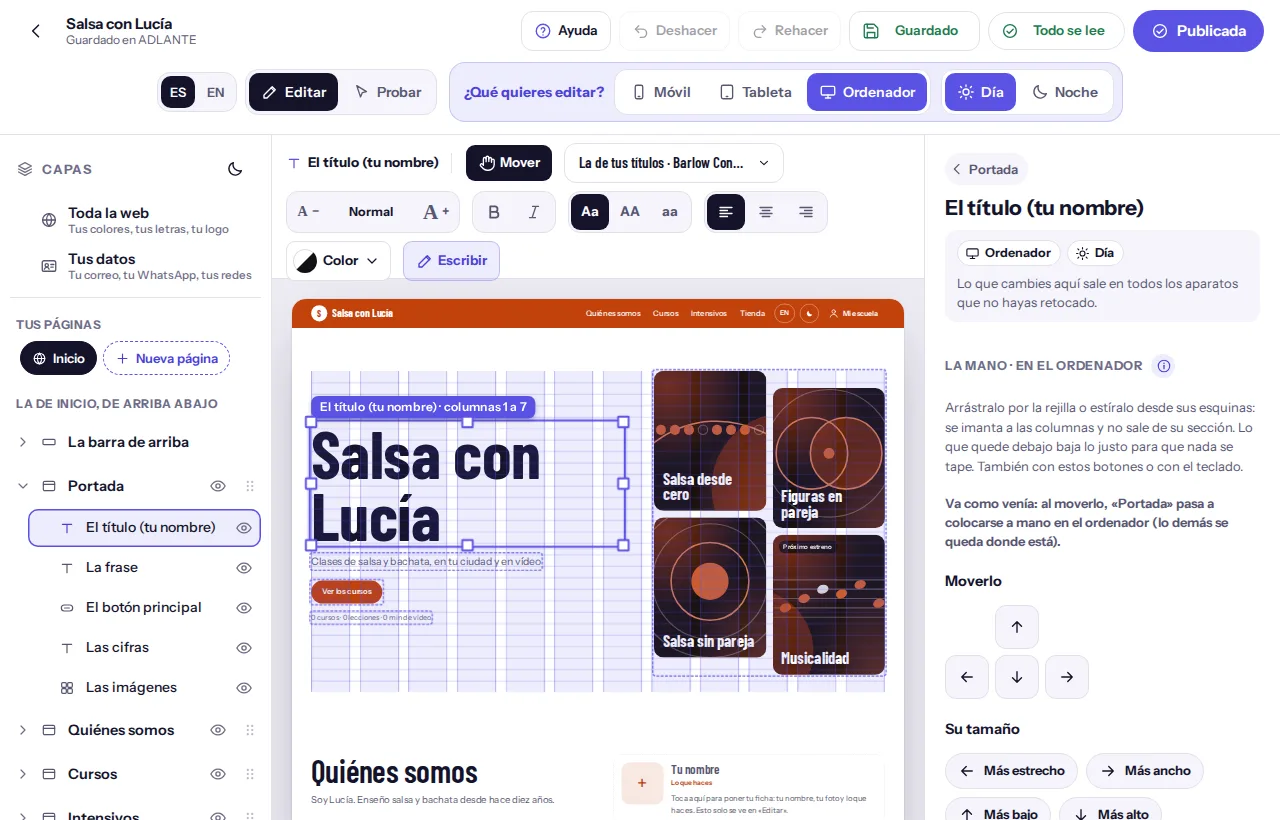
What can be moved: a heading, a text, a button, or the block of a section (your timetable, your courses, your photo…). What comes out of a list goes together: the list of your courses moves as a whole, not a single card. The top bar and the footer are not moved with the hand: they have a fixed place (in their settings, La alineación (Alignment)).
How it moves
Pick the thing. Tap it on your website. It gets a border and its eight handles (the corners and the sides). The other things that can be moved show a dashed border. With the mouse, just grab it and drag; with a finger, tap it first and then drag it (that way the page keeps scrolling with your finger when you want to scroll).
Drag it and let go where you like. While you move it you see a guide and a label, for example “Imantada: columnas 3 a 8” (Snapped: columns 3 to 8). The grid has 12 columns (6 on the phone) and rows of 24 pixels: what you drop sticks to them.
Stretch it by grabbing a handle. A button doesn’t stretch: it only has the corner, and dragging it takes it through the five sizes of “El tamaño” (The size).
Let go. A notice at the bottom says what happened: “El título: columnas 3 a 8 · fila 2. Si te arrepientes, «Deshacer».” (The heading: columns 3 to 8 · row 2. If you change your mind, “Undo”.)
The safeguards. So you can’t break anything:
- Nothing leaves its section. If you try, it says “Eso se saldría de su sección.” (That would go outside its section.)
- Nothing gets covered. What would end up under where you drop moves down just enough, and before you let go you see it marked, with the notice “… baja para no taparse” (… moves down so nothing is covered). Only a text or a button over a photo can end up on top.
- A minimum size. Smaller than can be read comfortably (or touched with a finger) isn’t allowed: “Más pequeño no: se dejaría de leer bien (o de tocar con el dedo).” (Not smaller: it would stop being readable, or touchable with a finger.)
- If it doesn’t fit, it says “No cabe: no hay más sitio en esta sección.” (It doesn’t fit: there is no more room in this section.)
Without dragging. Everything done by dragging can also be done without dragging: pick the thing and, in the settings, the group La mano · en el ordenador (The hand · on the computer; or “en el móvil”, on the phone) has four arrows to move it one cell up, down, left or right, and buttons to make it narrower, wider, shorter or taller. It tells you where it is in words (“Columnas 3 a 8 · fila 2”). With the keyboard: the arrows move it one cell; with Shift + arrow, they stretch it (a button gets smaller or bigger). Up and down, if there is something beside it, they swap places.
If you haven’t moved anything in that section yet, the group brings Moverlo con la mano (Move it with the hand) (or “Moverla…”, depending on the thing) so you can switch it on from there.
Each device keeps its own. What you move with Móvil (Phone) chosen moves only on the phone. The section becomes “placed by hand” on that device, and the others stay as they were. The section’s note says so: “Colocada a mano en el ordenador: cada cosa va donde la pongas (con «Mover», la mano).” (Placed by hand on the computer: each thing goes where you put it, with “Move”, the hand.)
Going back
- Deshacer (Undo) and Rehacer (Redo): each move is one step.
- Volver a como venía (Put it back as it was): puts that thing back where it was when you started.
- Volver a como venía toda la sección (Put the whole section back as it was): puts the whole section back as it was on that device. It asks for confirmation: “¿Seguro? · Sí, como venía en el ordenador” (Sure? · Yes, as it was on the computer).
- If everything goes back to its place, the section goes back to being the usual one, just as before you touched it.
- Choosing another layout in Cómo va (Layout) sets the section to that layout: what you had placed by hand on that device goes back to its place. The notice appears: “…, como el diseño que has elegido: lo que habías movido con la mano en el ordenador vuelve a su sitio. Si te arrepientes, «Deshacer».” (…, like the layout you chose: what you had moved with the hand on the computer goes back to its place. If you change your mind, “Undo”.) The section’s note warns you before you touch it.
Switching it off. Tap Mover (Move) again (on a phone, tap Editar (Edit)). “La mano, apagada. Lo que has movido se queda donde lo pusiste.” (The hand, switched off. What you moved stays where you put it.) appears. The grid, the handles and the dragging go away at once; what you moved stays where you left it. Todo se lee (Everything reads well) warns you if, when moving, one thing covers another.
Moving is not the same as changing the order of the sections. Whole sections are moved up and down in the list of Capas (Layers). The hand places things inside a section. And for the order of the menu at the top there is another place (its part: The menu at the top and its order).
The “i” buttons, the cards that explain and “Missing something?”
Ayuda (Help). At the top, next to Deshacer (Undo) (on a phone, at the bottom, next to Capas (Layers) and Ajustes (Settings)), it opens «How ADLANTE works» over the editor, without leaving it: this guide comes first, and below, all the others and a search box. With nothing selected, in the settings, Cómo funciona el editor, entero (How the whole editor works) opens this guide directly.
The editor doesn’t fill the screen with explanations: it keeps them behind two things, the “i” and the cards. Both show the same texts.
The “i”. Next to the title of each group of settings there is a small button with an “i”. When you tap it, a window opens with the group’s title, a miniature drawing of your website that shows where it takes effect (with a small animation) and a sentence or two. It has two buttons: Verlo otra vez (See it again), which replays the animation (it isn’t there if your device asks for less motion: then the drawing stays still), and Entendido (Got it), which closes it. When you close it, you are back where you were.
The cards. If you leave the mouse for a moment over a tool in the top bar, in the options bar or over the title of a group with an “i”, a small card appears with its name, the keyboard shortcut if it has one, a sentence and a short animation. It doesn’t cover what you touch: it appears below, above or to one side. It goes away when you move the mouse off or touch anything.
- With the mouse: leave it on top. It takes a little while to appear, so as not to bother you; if a card was already showing, the next one appears at once. You can move the mouse onto the card without it going away.
- With a finger: hold your finger on it for half a second. That touch doesn’t press the button. It goes away when you touch something else.
- With the keyboard: it appears when you get there with
Tab, andEscremoves it.
They don’t appear if a window is open, or the tour or the computer notice is in front.
¿Te falta algo? Cuéntanoslo (Missing something? Tell us). At the end of the list of layers (on a phone, in Capas (Layers)) and in your panel’s menu. It opens a window, ¿Te ha faltado algo? (Missing something?), which says: “Tell us which tool or feature would have helped you build your ideal website: give it a title and describe it in as much detail as you can. We read every idea, and we will build the ones that help most.” You fill in two boxes, both required:
Título de tu idea (Title of your idea): a short line. For example: “a class calendar”.
Descríbela con detalle (Describe it in detail): as much as you can.
Tap Mandarla (Send it). If something is missing, it isn’t sent and it says what: “The title and the description are missing: it cannot be sent without both.” (or “the title is missing”, “the title is too short…”, “the description is missing”…), and it marks the box. If all is well, “Thank you. We will read it.” appears. If you send many in a row, “You have sent many in a row: wait a little and try again.”
From the editor, the idea reaches us together with the layer you had picked, the device and the mode: that way we know where you were. To leave without sending, Cancelar (Cancel).
“Próximamente” and “Ver cómo quedará abierta”
Your website has two states: Próximamente (Coming soon) and Abierta (Open). A new space starts in Próximamente. You change it in the Publicar (Publish) window, under Cómo está tu web (How your website is). This is what people see:
- Próximamente (Coming soon). A page with your name, your logo, “Quiénes somos” and your social media. The cover shows the label “Próximamente”, your name, your sentence, the “Próximamente” sentence and, if you have added any social media in Tus datos (Your details), your social media with the title “Síguenos” (Follow us). The rest (the courses, the gallery, the contact…) doesn’t appear yet.
- Abierta (Open). Your whole website, with all its sections.
The “Próximamente” sentence. It is the one on the cover while your website is in Próximamente (“Estamos preparando los primeros cursos.”, We are preparing our first courses, if you don’t change it). Tap it on your website and type over it, or pick it in the cover’s list of layers: it is called La frase de «Próximamente» (The “Próximamente” sentence). Also from the Cursos (Courses) section, which meanwhile has a group, Mientras tanto (Meanwhile), with the button Cambiar esta frase (Change this sentence). It is written in Spanish and in English. Once you open your website, it stops showing.
While your website is in Próximamente, the editor reminds you:
- Above your website a strip appears: “Tu web está en «Próximamente»: se ven la portada y «Quiénes somos». Lo demás saldrá cuando la abras.” (Your website is in “Coming soon”: the cover and “About us” show. The rest will appear when you open it.), with the button Ver cómo quedará abierta (See how it will look open).
- In the list of layers, the other sections carry the note “No sale en «Próximamente»” (It doesn’t show in “Coming soon”) and can’t be opened.
- In the settings of those sections it says: “En «Próximamente» esta sección no sale. Saldrá cuando abras tu web.” (In “Coming soon” this section doesn’t show. It will once you open your website.), with the same button. You can change where it appears or remove it.
Ver cómo quedará abierta (See how it will look open) is a rehearsal. Your website, in the editor, is shown as it will look once you open it, with all its sections, so you can design it and see it whole. It changes nothing anyone else sees and isn’t saved: it is only for you, right now. The strip changes to “Así quedará tu web cuando la abras. Ahora mismo, tus alumnos ven la de «Próximamente».” (This is how your website will look when you open it. Right now, your students see the “Coming soon” one.), with the button Volver a «Próximamente» (Back to “Coming soon”). It works in Editar (Edit) and in Probar (Try).
How to really open it. Tap Publicar (Publish) and, under Cómo está tu web (How your website is), tap Abierta (Open). Underneath it says “Abierta: se ve entera, con tus cursos.” (Open: it shows whole, with your courses.) Then publish (its part: Publish). To go back to Próximamente, do the same with Próximamente (Coming soon).
Choosing Abierta (Open) or Próximamente (Coming soon) doesn’t change your published website until you tap the publish button in that same window. Meanwhile, it only changes what you see in the editor.
Trying your website
Probar (Try) is your website working, as your students will see it. You tap it at the top, next to Editar (Edit). While you are in Probar (Try):
- The notice appears: “Prueba tu web: todo funciona como la verán tus alumnos. Para cambiar algo, «Editar».” (Try your website: everything works as your students will see it. To change something, “Edit”.)
- The list of layers, the settings, the options bar and (on a phone) the bottom bar are hidden: your website takes everything.
- The buttons, the menu, the language button and the day and night one really work. Links to other pages of your website take you there.
- Nothing is changed here. To change something, tap Editar (Edit) (or press Esc).
- You see what would be seen published: if your website is in Próximamente, you see Próximamente (unless you have Ver cómo quedará abierta (See how it will look open) on); if you have a paid tool that isn’t turned on, its section shows here, but won’t appear on your published website.
- If you change the language at the top (
ES|EN, on wide screens), you see how it looks in the other language, with what you haven’t translated shown in your main language. - If you switch on Mover (Move), you leave Probar (Try).
The shop and the workshops. You can go through them completely. The orders you place in the shop are test orders: they don’t count in your sales and don’t touch your stock. In a workshop you see its page with the form, but nobody really signs up.
The “Entrar” (or “Mis cursos”) button. In Probar (Try), it says why it doesn’t let anyone in yet and what is missing: “Tus alumnos podrán entrar aquí cuando publiques tu primer curso.” (Your students will be able to sign in here once you publish your first course.), “Tus alumnos todavía no pueden entrar aquí: tu espacio no tiene la zona del alumno.” (Your students can’t sign in here yet: your space doesn’t have the student area.) or “Tus alumnos podrán entrar aquí cuando abras tu web.” (Your students will be able to sign in here once you open your website.) When they can already sign in, “Mis cursos” opens View as student in another tab: your website exactly as a student sees it, without creating another account for you (its guide: Courses). For people visiting your website, “Entrar” keeps saying they will be able to sign in with their account until there is a published course.
How it looks when shared
When someone sends your website by WhatsApp, Instagram or Facebook, a card appears with a photo, a title and a sentence. And in the browser tab a small icon appears. All of that is chosen in Toda la web (Whole site), right at the bottom (before Más opciones (More options)), in Cómo se ve al compartir (How it looks when shared). It has three groups.
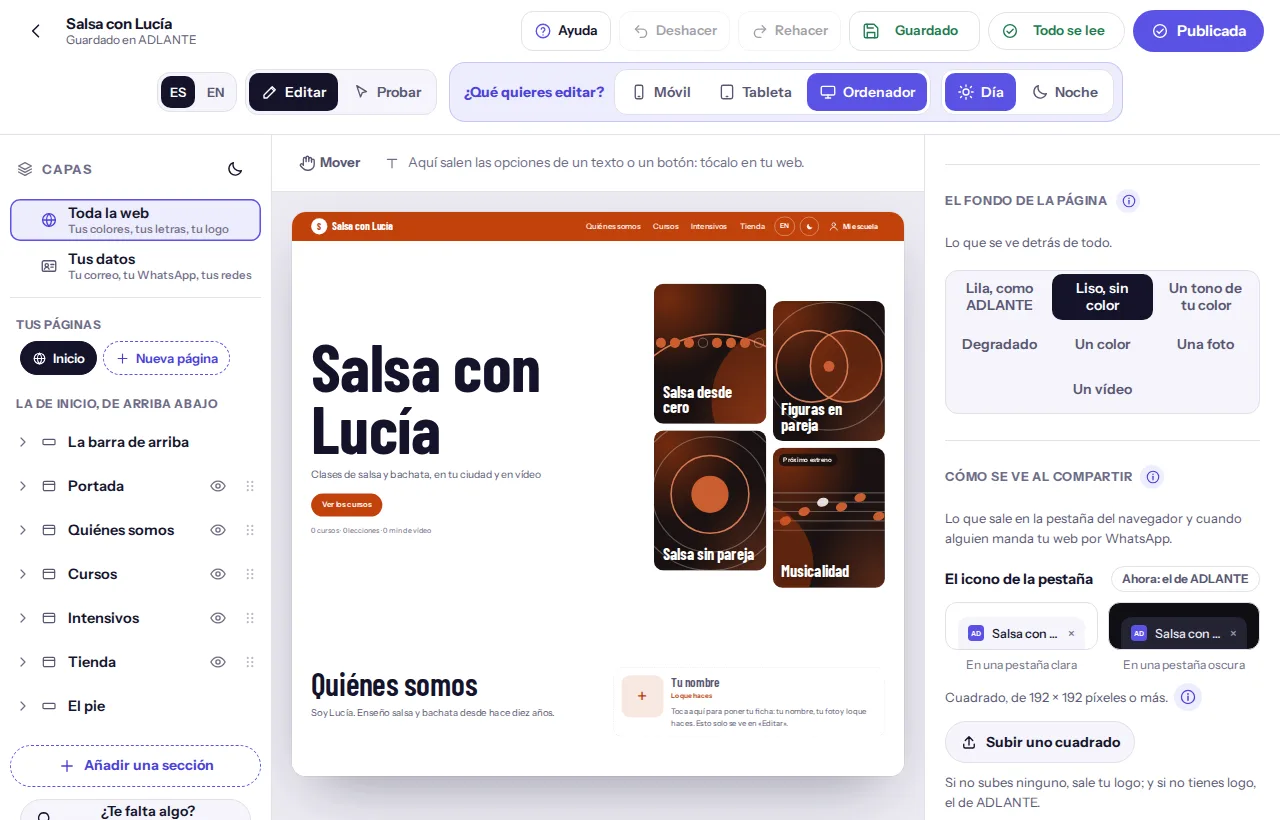
El icono de la pestaña (The tab icon). At the top it says where it comes from now: “el tuyo” (yours), “tu logo” (your logo) or “el de ADLANTE” (ADLANTE’s). Underneath you see how it looks in a light tab and in a dark one.
Tap Subir uno cuadrado (Upload a square one) (or Cambiarlo (Change it), if you already have one). It has to be square, 192 × 192 pixels or more (PNG, JPG or WebP).
The frame Elige qué parte se ve (Choose which part shows) opens: drag the photo to place it; what stays inside the frame is what will show in the tab. It says “Quedará de 192 × 192, sin tocar sus colores.” (It will be 192 × 192, without touching its colours.)
Tap Usar esta parte (Use this part). “Preparando tu icono…” (Preparing your icon…) appears and, right after, “Tu icono, puesto. Míralo arriba, en la pestaña.” (Your icon, in place. Look at it above, in the tab.)
If you upload none, your logo shows; and if you have no logo, ADLANTE’s. To remove yours, Quitar tu icono (Remove your icon) (it asks for a second tap).
Tu tarjeta para compartir (Your share card). At the top it says which one it is now: “la tuya” (yours), “la de tu portada” (your cover’s) or “la de fábrica” (the factory one). Underneath you see, exactly, how the person who receives your link on WhatsApp will see it: “Así la verá quien reciba tu enlace por WhatsApp.” (This is how the person who receives your link on WhatsApp will see it.)
- The title and the sentence. The boxes El título (The title) (up to 70 letters) and La frase (The sentence) (up to 160), in the language you have set at the top (
ES|EN). When empty, your name and your cover’s sentence appear. - The photo. Subir una foto (Upload a photo) (or Cambiar la foto (Change the photo)). The frame opens: you choose which part shows and ADLANTE makes it 1,200 × 630 and under 300 KB, which is what WhatsApp, Instagram and Facebook require. “Preparando tu tarjeta…” (Preparing your card…) and “Tu tarjeta, puesta. Así se verá al compartir.” (Your card, in place. This is how it will look when shared.) appear. If a photo doesn’t fit in those 300 KB even so, it says “No hemos podido dejarla por debajo de 300 KB: prueba con otra foto.” (We couldn’t get it under 300 KB: try another photo.)
- Without your photo, your cover’s shows (it is made by itself when you upload your cover photo on the computer) and, if not, a factory one, made with your name, your font, your colour and your logo, which is prepared when you publish. To go back to that, Quitar la foto (Remove the photo).
WhatsApp keeps the card of a link that has already been sent. If you change the card, new links show the new one; the ones already in a conversation may keep the old one.
Cada curso, producto y página (Each course, product and page). Every thing on your website has its own address and, when shared, its own card. The list shows, with their address: Inicio (Home) (“Tu web”), each course, each product and each page of its own. Each row has a Copiar (Copy) button, which copies the address (“Copiada: …” appears). When you tap a row, its card opens:
- A course: its landscape cover shows, if it weighs 300 KB or less; if not, your card. It is changed in “Tus cursos”.
- A product: its first photo shows. It is changed in “Tu tienda”.
- A page of its own: it can have its own: Subir su foto (Upload its photo) (or Cambiar su foto (Change its photo)), its title and its sentence, and Quitar su foto (Remove its photo). Without it, your card’s shows.
What saves itself, and what to do if something crosses over
Everything saves itself. Each change is saved at once on the device you are using and, a second later, in ADLANTE. That is why your website opens the same on the phone and on the computer, and nothing is lost if you clear your browser’s data. There is no “save and exit”: you leave whenever you like. (The button Guardado (Saved) is there so you can see it is saved, not because you need to tap it.)
What does not travel with your website, and stays only on that device: how the editor looks (light or dark), whether Más opciones (More options) is open, and whether you have already seen the computer notice and the tour. What is not remembered from one visit to the next: Día (Day) or Noche (Night) (it always starts on Día (Day)), the hand (it starts off), what you had picked and the steps of Deshacer (Undo).
No connection. If there is no connection to ADLANTE, under your name it says “Sin conexión con ADLANTE: se guarda aquí y se mandará al volver” (No connection to ADLANTE: it saves here and will be sent when it returns). You can keep working: your website is saved on that device and, as soon as the connection returns, it is sent by itself. It retries a little later each time, up to every minute. You don’t have to do anything; if you like, tap Guardar (Save) to send it now.
If it can’t be saved. Messages you may see, and what to do:
- “Tu web pesa demasiado para guardarla en ADLANTE. Quita alguna foto grande.” (Your website is too heavy to save in ADLANTE. Remove a large photo.) · “No se ha guardado: pesa demasiado” (It hasn’t been saved: it is too heavy): remove a large photo, or upload a smaller one.
- “ADLANTE no ha aceptado el guardado. Se queda en este aparato.” (ADLANTE didn’t accept the save. It stays on this device.): tell us with “Missing something? Tell us”, saying what you were doing.
- “No se ha podido guardar en este aparato: las imágenes pesan demasiado. Quita alguna o sube una más pequeña.” (It couldn’t be saved on this device: the images are too heavy. Remove one or upload a smaller one.)
If you open your website in two places and change something in both. For example, on the phone and on the computer. When the second one tries to save, ADLANTE notices the other version is newer and, so as not to overwrite anything, a window appears, Tu web se ha cambiado en otro aparato (Your website was changed on another device): it says when the other was saved (“Se guardó el 12 oct, 10:30.”) and “Para no perder nada, elige con cuál te quedas. La otra se guarda en el historial de este aparato.” (So you lose nothing, choose which one you keep. The other is saved in this device’s history.) It has two buttons:
- Traer la otra (Bring the other): you keep the version that was in ADLANTE; what is on this device is set aside (it stays in its history).
- Quedarme con la de este aparato (Keep the one on this device): what you have here wins and is sent to ADLANTE.
Until you choose, under your name it says “Hay otra versión guardada” (There is another saved version) (or “Otro aparato la ha cambiado”, another device changed it), and you can’t publish: “Tu web se ha cambiado en otro aparato: elige con cuál te quedas y vuelve a publicar.” (Your website was changed on another device: choose which one you keep and publish again.)
If you open your website in two tabs. The editor is used in one tab at a time, so the changes of one don’t overwrite those of the other. When you open your website in a new tab, the old one shows a window, Tu web está abierta en otra pestaña (Your website is open in another tab): “Se edita en una sola pestaña a la vez, para que los cambios de una no pisen los de la otra. Lo que hiciste aquí ya está guardado.” (It is edited in one tab at a time, so the changes of one don’t overwrite the other’s. What you did here is already saved.) Its button is Seguir aquí (Carry on here): it reloads that tab and it keeps the editor (the other steps aside). Photos and videos that were already uploading keep uploading in the tab where they began.
What people see on the internet doesn’t save itself: it is the last version you published. Every time you change something, your published website stays the same until you tap Publicar (Publish). In your panel, Your website tells you if there are Unpublished changes.
Publishing your website
Publishing is putting your website on the internet, at its address. As long as you don’t publish, everything you do in the editor is seen by you and nobody else. When you publish, ADLANTE keeps a fixed copy of your website as it is at that moment and shows it at your address. What you change afterwards doesn’t appear until you publish again.
The button in the bar. At the top right it says Publicar (Publish). When your website is published and you haven’t changed anything since, it says Publicada (Published), with a green tick. As soon as you change something, it says Publicar (Publish) again. On a phone and on narrow screens you only see its picture (an upward arrow, or the green tick).
Check. Look at Todo se lee (Everything reads well) and look at your website on each device (Móvil (Phone), Tableta (Tablet), Ordenador (Computer)), by day and by night, and in Probar (Try). Look above all at Móvil (Phone): it is where most people will see it.
Tap Publicar (Publish). The window Publicar tu web (Publish your website) opens.
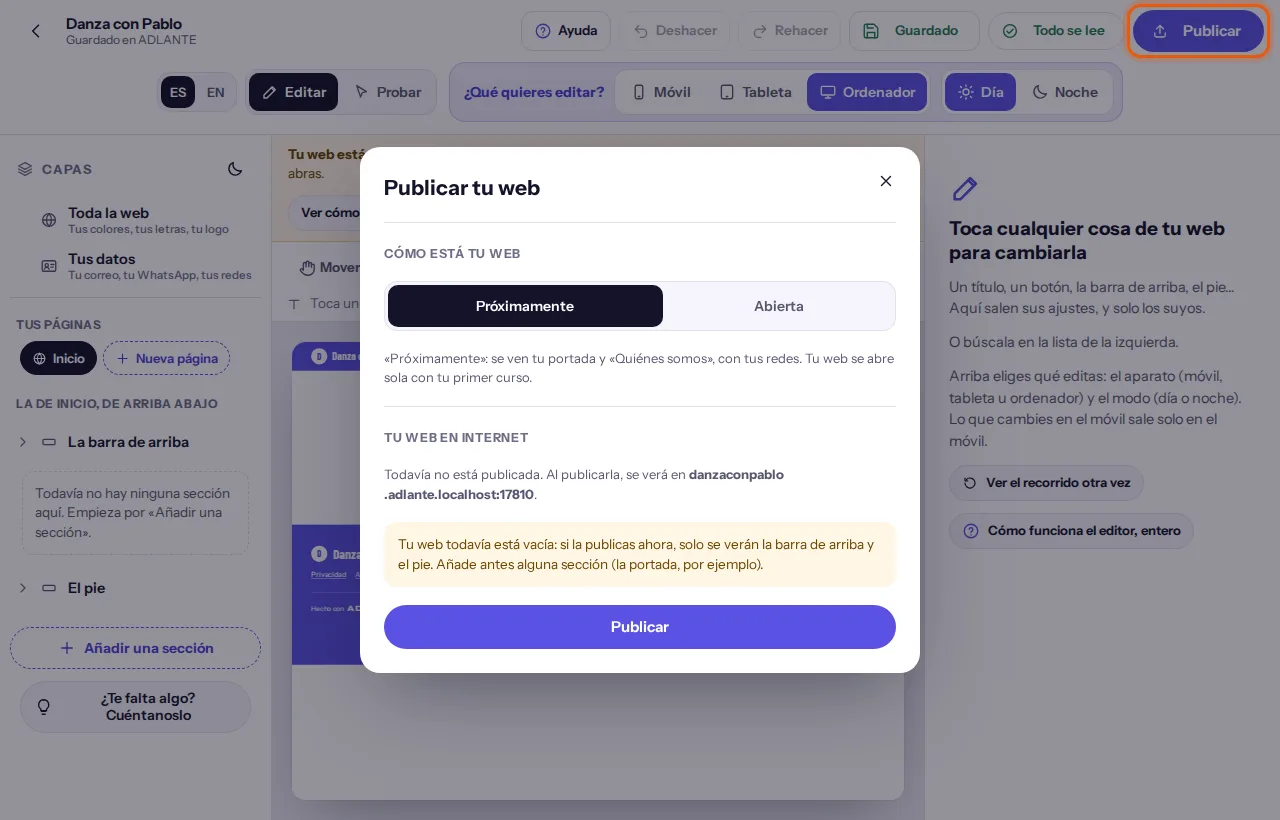
At the top, under Cómo está tu web (How your website is), choose Próximamente (Coming soon) or Abierta (Open). If you want it to show whole, Abierta (Open) (its part: “Próximamente” and “Ver cómo quedará abierta”).
Read what it says underneath: Tu web en internet (Your website on the internet) tells you how it is right now, and any warnings appear (below).
Tap the window’s button: Publicar (Publish) (or Publicar los cambios (Publish the changes), if it was already published).
Wait a few seconds. The button keeps telling you where it is: Guardando lo último… (Saving the latest…), Publicando… (Publishing…) and Comprobando que ya se ve… (Checking that it shows…). Don’t close the page until it finishes.
When it ends, the button turns into Publicada (Published) and a note appears: “Publicada. Ya se ve en” (Published. It already shows at) and your address, with a link to open it.
The window, from top to bottom
- Cómo está tu web (How your website is). Two buttons, Próximamente (Coming soon) and Abierta (Open), with a sentence underneath saying what each one shows: “Próximamente: se ven tu portada y «Quiénes somos», con tus redes.” (Coming soon: your cover and “About us” show, with your social media.) or “Abierta: se ve entera, con tus cursos.” (Open: it shows whole, with your courses.) What you choose is saved like everything else, but only reaches the internet when you publish.
- Tu web en internet (Your website on the internet). How it is right now: “Todavía no está publicada. Al publicarla, se verá en…” (It isn’t published yet. Once published, it will show at…), or “Publicada el 12 oct, 10:30. Su dirección: …” (Published on 12 Oct, 10:30. Its address: …), or, if you have changes, a note, Cambios sin publicar. (Unpublished changes.), which says “Lo que has cambiado desde entonces todavía no se ve. Publícalo cuando quieras.” (What you have changed since then doesn’t show yet. Publish it whenever you like.) The address is a link: it opens in another tab.
- The warnings, if there are any. None of them stops you publishing. There are four (plus the paid tools, separately): (1) a language that has fallen behind (“El inglés se ha quedado atrás en: Portada. Hasta que lo traduzcas, ahí sale en español.”, The English has fallen behind in: Cover. Until you translate it, it shows in Spanish there); (2) “Tu web todavía está vacía: si la publicas ahora, solo se verán la barra de arriba y el pie. Añade antes alguna sección (la portada, por ejemplo).” (Your website is still empty: if you publish it now, only the top bar and the footer will show. Add a section first, the cover for example.); (3) photos that haven’t uploaded yet (“Una foto tuya aún no se ha podido subir: lo seguimos intentando. Si al publicar todavía no ha subido, tu web saldrá sin ella.”, One of your photos couldn’t be uploaded yet: we keep trying. If it still hasn’t uploaded when you publish, your website will go out without it.); (4) videos still uploading (“Un vídeo tuyo todavía se está subiendo o preparando: saldrá en tu web cuando esté listo y vuelvas a publicar.”, One of your videos is still uploading or being prepared: it will appear on your website when it is ready and you publish again.).
- Retirar tu web (Withdraw your website), only if it is published (below).
If your website uses a paid tool you haven’t turned on. A section of the shop, the featured product or the workshops only appears on your published website if that tool is turned on (you can see it in its guide and in Your plan). If you have it added and it isn’t turned on, the window adds a group, Paid tools, that says which one it is, with its price per month (“La tienda · …”), and “Puedes activarla ahora y publicar tu web completa, o publicarla sin esa sección. No se borra nada: cuando la actives, volverá a verse.” (You can turn it on now and publish your complete website, or publish it without that section. Nothing is deleted: once you turn it on, it will show again.) You have two buttons:
- Activarla (Turn it on) (or Activarlas (Turn them on), if there are several): it saves the latest and takes you to Your plan, with those tools already ready to turn on (and, if you haven’t added your card yet, it asks for it there). When you return with them turned on, the editor opens Publicar tu web (Publish your website) and publishes by itself. If you come back without turning them on, nothing is published and it doesn’t insist.
- Publicar sin ella (Publish without it) (or Publicar sin ellas (Publish without them)): publishes right now, without those sections. Your website goes out without them (and, if one had its own page, without that page). The sections stay in the editor with everything they had.
The first time you publish. If your website has a monthly cost and you aren’t paying anything yet, the window says so with a line, “Tu web: … al mes. Todo se paga junto, una vez al mes.” (Your website: … a month. Everything is paid together, once a month.) (the real price appears there, and in Your plan), and the buttons change: Activar tu web y publicar (con su precio al mes) if you use no paid tool, or, if you do, Activarla y publicar (con su precio al mes) and Publicar sin ella (con su precio al mes). All of them go to Your plan (and to add your card, if you don’t have one) and, when you return, they publish. It is only the first time: after that, publishing is never blocked.
How long it takes to show. Normally, a few seconds. The button does three things in a row: it saves the latest (and, if some photos haven’t uploaded yet, it waits a few seconds for them to), it publishes, and it checks by looking at your own address that it already shows the new version (it looks every few seconds, for about twenty-five). If it sees it, “Publicada. Ya se ve en…” (Published. It already shows at…) appears. If that time passes and your address still doesn’t show it, “Publicada en ADLANTE. Su dirección todavía no la enseña: puede tardar unos minutos. Prueba a abrir… dentro de un rato.” (Published in ADLANTE. Its address doesn’t show it yet: it may take a few minutes. Try opening… in a while.) appears. There is no need to publish again: it is already published, it just has to arrive. If you tap it again without having changed anything, it says “Ya estaba publicada así.” (It was already published like this.), and it isn’t published twice.
If ADLANTE doesn’t answer. The button says Reintentando… (Retrying…) and underneath: “ADLANTE no contesta. Lo reintentamos unos segundos; no tienes que hacer nada.” (ADLANTE isn’t answering. We retry for a few seconds; you don’t have to do anything.) It retries by itself for about 30 seconds, always with the same version (if one attempt did publish and its answer got lost, the next one recognises it and doesn’t publish twice).
If it couldn’t be published, what happened appears in red and, on the button, Volver a intentarlo (Try again):
- “No hay conexión con ADLANTE, así que no se ha publicado nada. Comprueba tu conexión y vuelve a intentarlo.” (There is no connection to ADLANTE, so nothing has been published. Check your connection and try again.) · “Este aparato no tiene conexión a internet, así que no se ha publicado nada: tu web sigue como estaba.” (This device has no internet connection, so nothing has been published: your website stays as it was.)
- “ADLANTE no contesta ahora mismo, así que no se ha publicado nada: tu web sigue como estaba. Lo hemos intentado durante 30 segundos.” (ADLANTE isn’t answering right now, so nothing has been published: your website stays as it was. We tried for 30 seconds.)
- “Has hecho muchos intentos seguidos. Espera unos minutos y vuelve a intentarlo.” (You have made many attempts in a row. Wait a few minutes and try again.)
- “Tu sesión ha caducado. Vuelve a entrar en tu panel y publícala otra vez.” (Your session has expired. Sign in to your panel again and publish it again.)
- “No se ha podido guardar lo último, así que no se ha publicado nada. Comprueba tu conexión y vuelve a intentarlo.” (The latest couldn’t be saved, so nothing has been published. Check your connection and try again.) (or, if your website is too heavy, “…quita alguna foto grande y vuelve a intentarlo.”, remove a large photo and try again.)
- “Tu web todavía no está guardada en ADLANTE. Cambia algo en el editor y vuelve a publicar.” (Your website isn’t saved in ADLANTE yet. Change something in the editor and publish again.)
- “Tu web se ha cambiado en otro aparato: elige con cuál te quedas y vuelve a publicar.” (Your website was changed on another device: choose which one you keep and publish again.) (its part: What saves itself)
- “Algo ha fallado de nuestro lado. Vuelve a intentarlo en un momento.” (Something failed on our side. Try again in a moment.)
In all those cases your website stays as it was: nothing is published halfway.
Withdrawing your website. If you want it to stop showing, at the bottom of the window (it only appears if your website is published) there is Retirar tu web (Withdraw your website), with the button Retirar la web (Withdraw the website). A question appears saying your address will stop showing on the internet in under a minute, and that nothing is deleted: your website stays in the editor and you can publish it again whenever you like. To go ahead, Sí, retirarla (Yes, withdraw it); to leave it, Cancelar (Cancel). Once withdrawn, anyone opening your address will see “There’s no website here.” The window changes to “La retiraste el…: ahora no se ve. Al publicarla, vuelve a verse en…” (You withdrew it on…: it isn’t shown now. When you publish it, it shows again at…). Withdrawing is not deleting: it is the opposite of publishing, and it is undone by publishing again.
There is no button to go back to a version you published earlier. If you make a mistake, change it and publish again: it takes a few seconds. And if what you want is for nothing to show for a while, Retirar la web (Withdraw the website).
Questions that come up about the whole editor
Can I edit my website from my phone?
Yes, and a tour of three taps shows you the basics. But the computer is more comfortable, which is why the first time a big notice appears, Te recomendamos editar tu web desde un ordenador (We recommend editing your website from a computer), which goes away with Cerrar (Close). On the phone: the website takes the whole screen and at the bottom you have Capas (Layers), Ajustes (Settings) and Toda la web (Whole site); the buttons at the top are just a picture (hold your finger on one for half a second and it tells you what it is, without pressing it); the options bar doesn’t appear (you type texts in the boxes under Lo que dice (What it says), which carry both languages); and Mover (Move) is at the top, between Editar (Edit) and Probar (Try). Everything you change with Móvil (Phone) chosen shows only on the phone.
Do I have to tap “Save” every time? I’m afraid of losing something when I leave the editor.
No. Your website saves itself, one second after each change, and you can leave whenever you like. Under your name it says Guardado en ADLANTE (Saved in ADLANTE) when everything is saved. The button Guardado (Saved) is there to see it or, if something was left halfway (for example, with no connection), to send it right now with Guardar (Save). What you do have to tap is Publicar (Publish), because saving is not publishing.
I changed things and my website on the internet is the same.
That is normal: what you change is saved, but it doesn’t go on the internet until you tap Publicar (Publish). In your panel, the block Your website says Unpublished changes when there is something that doesn’t show yet. Open the editor and publish.
I published and my address still doesn’t show my website.
Look at what the window said: if it says “Publicada en ADLANTE. Su dirección todavía no la enseña: puede tardar unos minutos”, nothing more needs doing; you will see it in a while. If it said it couldn’t be published, your website stays as it was and it says what to do: almost always Volver a intentarlo (Try again). If ADLANTE doesn’t answer, the button retries by itself for about 30 seconds, without publishing twice.
How do I change the “Próximamente” sentence?
Where it shows: tap the sentence on your website (or pick La frase de «Próximamente» (The “Próximamente” sentence) in the cover’s list of layers) and type over it, in Spanish and in English. Also from the Cursos (Courses) section, with Cambiar esta frase (Change this sentence). Once you open your website, it stops showing.
What is “Altura de la barra”? And “¿La barra se queda fija al bajar?”
Both are in the settings of La barra de arriba (The top bar), inside Más opciones (More options), each with its “i” that shows where it takes effect. Altura de la barra (Bar height) is how tall the bar is where your logo and menu sit: Poca (Short), Normal (Normal) or Mucha (Tall). ¿La barra se queda fija al bajar? (Does the bar stay put when scrolling?): with Sí, fija arriba (Yes, fixed at the top), as people scroll down your website the bar stays at the top; with No, se va con la página (No, it goes with the page), it scrolls away with the page and comes back when you scroll all the way up. If your website starts with your cover and your photo or video full width, Encima de tu portada (Over your cover) also appears (De su color (Its own colour) or Transparente (Transparent)).
What is “Espacio arriba y abajo”? And “Solo en el móvil”?
Espacio arriba y abajo (Space above and below) is the gap a section leaves above and below it, up to the next one: Poco (A little), Normal (Normal) or Mucho (A lot). It is in Más opciones (More options) of each section. “Solo en el móvil” (only on the phone) is a tag that appears next to a setting when you have changed it only on that device; with its “i”, and beside it Llevar a todos (Apply everywhere) and Quitar el cambio (Undo the change). It is all in Phone, tablet or computer; day or night.
I type in “Cómo se llama en el menú” and I don’t see anything change.
The menu name isn’t inside the section, which is why you don’t see it where you type. While you type, your website shows you where it appears: on a computer it marks the link in the bar, with “Aquí sale” (it appears here); on a phone it opens the ☰ and marks it (and, on small screens, a drawing of the phone right under the box). If nothing appears, that section isn’t in the menu: look at ¿Sale en el menú de arriba? (Does it appear in the menu at the top?).
I try to change the letters to white and it doesn’t change.
It isn’t a fault: if white wouldn’t be readable on that background, your website shows it in black, so no website goes out broken. The editor says so next to the colour (“El blanco no se leería sobre este fondo: en tu web sale en negro.”, White would not be readable on this background: on your website it comes out black.) and gives you a one-tap fix: Oscurecer el fondo lo justo (Darken the background just enough) or Ponerle un fondo oscuro (Give it a dark background). If the change is only for the phone, it says that too.
If I remove the background photo (“Ninguno”) and publish, is it kept somewhere?
Yes, for a while. What you upload stays in your account even if it is no longer on your website: you see it in Your photos and videos, in the group “Sin usar” (unused). A photo that has gone 30 days unused anywhere moves to the bin by itself, and 30 days later it is deleted completely; until then you can recover it. Videos are never deleted by themselves: if you have any unused, the top of that page tells you and gives you See the videos you are not using, and you delete it yourself.
Can I crop or zoom a photo so it fits?
Yes, the cover one too: in Más opciones (More options), in Qué parte se ve (Which part shows), tap Recortar o acercar la foto (Crop or zoom the photo). You choose which part shows and how much it zooms; your photo isn’t touched. To leave it as it was, Volver a como venía (Put it back as it was). To move and stretch things inside a section, there is Mover (Move).
Can I move the timetable (or anything) up or down inside its section?
Yes, in all of them: tap Mover (Move) (the hand) and grab the whole timetable, a heading, a text or a button. It snaps to the grid and doesn’t leave its section; if it was going to cover something, that moves down just enough. Also with the arrows. Each device keeps its own, and Deshacer (Undo) or Volver a como venía (Put it back as it was) put it back as it was. Its part: Moving things with the hand.
I switch off “Mover” and the grid is still there; and if I tap a layout, it ends up ugly.
The grid, the handles and the dragging only appear with Mover (Move) switched on: when you switch it off they go away at once, and what you moved stays where you put it. And when you tap a layout in Cómo va (Layout), the section is set to that layout: what you had placed by hand on that device goes back to its place (with Deshacer (Undo) you get it back). The section’s note warns you before you touch it.
Why does a button show in the editor and not on my website?
Because that button is missing something, and the editor tells you: in Editar (Edit) you will see it with a dashed line and, underneath, No sale en tu web: (It doesn’t appear on your website:) with the reason (a detail in Tus datos (Your details) that is missing or isn’t understood, a link that no longer exists, a section that is no longer there…) and how to fix it. Probar (Try) shows your website exactly as it will appear.
How do I make a button smaller?
Pick it and lower its size one step (in Cómo se ve (How it looks), or with the minus in the options bar). Or switch on Mover (Move) and drag its corner: it goes through the five sizes. Even if it ends up small, the area you touch with your finger stays 44 pixels.
Are the two buttons on the cover linked?
No. Each button has its own text and its own ¿Adónde lleva? (Where does it lead?). If, when you put a detail in Tus datos (Your details), a button suddenly appears, it is because it already led to that place and didn’t appear because the detail was missing.
In “Tus datos”, does my Instagram go with the @ or with the link?
Either works: your username (@tuespacio) or the address of your profile. If you type the address without https://, the editor completes it. If something in Tus datos (Your details) isn’t understood, the social icon (in Editar (Edit)) and the buttons that lead to it warn you with No sale en tu web: (It doesn’t appear on your website:), and on your website it doesn’t appear until you fix it.
Can I use my own tab icon?
Yes: in Toda la web (Whole site), in Cómo se ve al compartir (How it looks when shared), El icono de la pestaña (The tab icon). Upload a square one; if you upload nothing, your logo shows. Right there you also choose your share card, seeing how it looks on WhatsApp. Each course and each product also has its own address and card.
Why do my logo or my photos not show on the published website?
It is almost always one of two things: they haven’t finished uploading yet (look whether the pill is at the top, for example Foto sin subir (Photo not uploaded)) or they uploaded after you published. When they are in ADLANTE, the editor tells you (“Tu foto ya está en ADLANTE. Publica otra vez para que salga en tu web.”): publish again. The Publicar (Publish) window warns you if something hasn’t uploaded.
In “Añadir una sección” I see “Paid”. And what is “Solo lo ves tú”?
The shop, the featured product and the workshops are paid tools. They can be added, designed and tried without paying anything. While they aren’t turned on, in Editar (Edit) they carry the mark Solo lo ves tú. (Only you can see this.) above: on your published website they don’t appear until you turn that tool on in Your plan. The Publicar (Publish) window lets you turn them on or publish without them.
When I tap “¿Te falta algo? Cuéntanoslo” it takes me away from what I was doing.
No: it opens a window on top of the page you are on, without leaving it (in the editor, the usual one). It asks for the title of your idea and for you to describe it; without both it isn’t sent and it tells you what is missing. When you send it, “Thank you. We will read it.”
How do I change the order of the menu at the top? I want to put “Tienda” first.
In the list of layers, open La barra de arriba (The top bar) and tap El menú (The menu). The list of its names appears: drag one somewhere else, or use its arrows (with the keyboard, Alt+↑ and Alt+↓). The menu has its own order: your sections don’t move. It applies to the computer’s menu and to the phone’s ☰. Its part: The menu at the top and its order.
I chose “Un color” as a background and almost nothing changes, or the products changed colour.
Un color (A colour) sets Tu color (Your colour) as the background. Now the editor says which one it is (“Tu color: blanco”) and warns you if it barely shows against your page’s background: choose another in the palette, for example Suave (Light) or Oscuro (Dark). In the shop, the sample drawings (the t-shirt, the bags) are painted with your colour; on your website your products’ photos show, and they don’t change colour.
How do I change the colour of the product cards? And the photo’s background separately?
In the list of layers, inside Tienda (Shop), tap Las tarjetas de los productos (The product cards). In ¿Qué lleva de fondo? (What is the background?), choose Un color (A colour). Separately, in La foto (The photo), there is El fondo de la foto (The photo’s background): it shows around a photo that doesn’t fill its space (for example, a cut-out PNG) and behind the sample drawings; a normal photo fills its space completely. The same goes for the course and workshop cards.
Can I change the background of the shop pages (a product’s page, the basket…)?
Yes. In the Tienda (Shop) section (or Producto destacado (Featured product)), in Las páginas de la tienda (The shop pages), tap Cambiar su fondo y sus letras (Change their background and fonts): you choose a colour or a gradient and the colour of the letters (ADLANTE checks they can be read). It applies to each product’s page, the basket, the payment and “Mi pedido”. If you don’t touch it, they go with the colours of Toda la web (Whole site). To see it in the editor, open a product of your shop.
How do I try what my students see?
With Probar (Try), at the top: your website working, as they will see it. To see your students’ area (their courses, their lessons), in “Tus cursos” there is View as student, which opens your website in another tab exactly as a student sees it, without creating another account for you (its guide: Courses).
The “Entrar” button on my website doesn’t work: can’t I create an account?
In Probar (Try), “Entrar” tells you what is missing: “Tus alumnos podrán entrar aquí cuando publiques tu primer curso.” (Your students will be able to sign in here once you publish your first course.), or that your space doesn’t have the student area, or that your website isn’t open yet. To people visiting your website, “Entrar” keeps saying they will be able to sign in with their account until there is a published course.
What is a style? Does it change what I have written?
In Toda la web (Whole site), right at the top, Estilos (Styles): five complete outfits for your website, each with a preview of YOUR website. One tap changes the fonts, the space between sections, the width, the corners, the backgrounds, the buttons, the cards, the bar and the footer. It doesn’t change your texts, your photos, your colour or your logo.
I applied a style and I don’t like it: how do I go back?
Deshacer (Undo): it appears right under the styles and at the very top. Or tap another style.
If I apply a style, do I lose what I had changed by hand?
Before applying it, the editor tells you what you changed by hand (for example, “tus letras y el fondo de alguna sección”, your fonts and the background of some section) and lets you cancel. If you apply it, the style sets its own on those things; Deshacer (Undo) puts everything back. It doesn’t touch a section with your photo or video as a background, nor the page background if it is your photo.
Can I change things after applying a style?
Yes, everything: the style is a starting point. Your fonts, the corners, the buttons, each section… keep being changed on their own.
What are the “Webs de ejemplo”? If I set one up, do I lose my sections?
In Toda la web (Whole site), under Estilos (Styles): five complete websites, each with its order of sections, its way of laying them out and its style, with your own things inside. When you set one up, your sections change place and shape; the ones that example doesn’t use are switched off, not deleted (you switch them on with the eye in Capas (Layers)). Your texts, your photos, your colour and your logo stay. Deshacer (Undo) puts everything back.
The example has a shop (or workshops) and my website doesn’t.
The shop and the workshops are separate tools: in the examples they appear so you can see how they look; on your website they appear when your space has them.
What are “El aire entre las secciones” and “El ancho de tu web”?
They are in Toda la web (Whole site) → Más opciones (More options). The space is the gap above and below each section, across your whole website (each section still has its own Espacio arriba y abajo (Space above and below)). The width is how far the inside reaches on a large screen; on a phone nothing changes.
Can I show my timetable some other way than a table?
Yes, five: the usual table, one card per class, grouped by days, the week in columns and a compact list. You choose in the Horarios (Timetable) section, under Cómo va (Layout). On the phone you choose separately (one card per class, by days or the list; the week in columns doesn’t fit on a phone and goes by days). The tablet goes like the computer.
What does someone see who goes to a page of my website that doesn’t exist?
“This page doesn’t exist.”, but inside your website: with your bar, your menu, your colours and your footer, and a button to go to your website’s home page. Google doesn’t keep it.
Where do I write my reviews, or change the frequently asked questions?
Today, nowhere in the editor. Opiniones (Reviews) can be added and shows with samples, but doesn’t appear on your published website. Preguntas frecuentes (Frequently asked questions) comes with a few questions already written about buying and watching courses; you can change its title, add a button and decide whether it appears in the menu, but not the questions. If you need it, tell us in ¿Te falta algo? Cuéntanoslo (Missing something? Tell us).
How do I add my introduction video?
The section Vídeo de presentación (Introduction video) comes with a sample player, marked “Ejemplo”. Today, your own video is uploaded on your cover (Tu foto o tu vídeo de portada (Your cover photo or video) → Subir tu vídeo (Upload your video)) or as the background of a section (¿Qué lleva de fondo? (What is the background?) → Un vídeo (A video)).
A section looks greyed out in the list and I can’t open it.
If your website is in Próximamente (Coming soon), only the cover and “Quiénes somos” show; the others carry the note “No sale en «Próximamente»”. You can see how they will look with Ver cómo quedará abierta (See how it will look open). You may also have it hidden on that device with the eye: switch it on, or in its settings set that it does show.
I removed a section by mistake.
If it is the last thing you did, Deshacer (Undo). If not, open it again from Añadir una sección (Add a section): it comes back with what it had written. (A “Texto e imagen” block that you remove is deleted completely: only Deshacer (Undo) gets it back.)
Can I put my website in a language other than Spanish or English?
Not today: your website comes in Spanish and English. One of the two is the main one (the one you chose when you created your space) and comes first.
It says “Tu web se ha cambiado en otro aparato”.
It means you changed your website in two places at once (for example, the phone and the computer). Choose: with Traer la otra (Bring the other) you keep the version that was in ADLANTE; with Quedarme con la de este aparato (Keep the one on this device) what is here wins. Until you choose, you can’t publish. More in What saves itself.
It says “Tu web está abierta en otra pestaña”.
The editor is used in one tab at a time, so changes don’t overwrite each other. What you did is already saved. If you want to carry on in this tab, Seguir aquí (Carry on here); the other steps aside.
How many times can I change and publish?
As many as you like. If you tap Publicar (Publish) many times in a row, “Has hecho muchos intentos seguidos. Espera unos minutos y vuelve a intentarlo.” (You have made many attempts in a row. Wait a few minutes and try again.) may appear. If you publish without having changed anything, it says “Ya estaba publicada así.” (It was already published like this.).
How do I see my website once it is published?
In the Publicar (Publish) window, Tu web en internet (Your website on the internet) has your address as a link. In your panel, the block Your website has See your website when it is published.