Card payments: connecting Stripe
How to connect your Stripe account screen by screen, what each status means, where you see what you are paid, how to refund a payment and when money arrives.
Detailed step-by-step guide
What Stripe is and why you have your own account
Stripe is the company that processes card payments. For people to pay you by card on your website (in your shop, your courses, your workshops and, if you use it, the management of your classes), your space needs its own Stripe account, connected to ADLANTE.
- The money is yours. Buyers pay into your Stripe account, and Stripe sends it to your bank. ADLANTE does not touch your money: only its commission on each sale reaches ADLANTE.
- The law requires knowing who is being paid. That is why Stripe asks for your details, your identity document and your bank. You give them to Stripe, on its own page: ADLANTE does not see them.
- You do not need a Stripe account already. If you do not have one, Stripe creates it in the same step.
- Your students do not need anything: they pay with their card.
All of this is in Your payments. On a computer, in the left-hand menu. On a phone, on the first page of your panel, in the Your payments box: tap See your payments.
Stripe is only needed to take payments by card. In your shop you can also take payment on pick-up or by bank transfer, without Stripe. The The shop guide explains it.
Before you start: what to have to hand
In Your payments, above the button, there is the guide Before you start: what you need (about 15 minutes). The first time it is open; after that, folded: tap it to open it. Inside, also folded, there is Step by step in Stripe (the 12 screens).
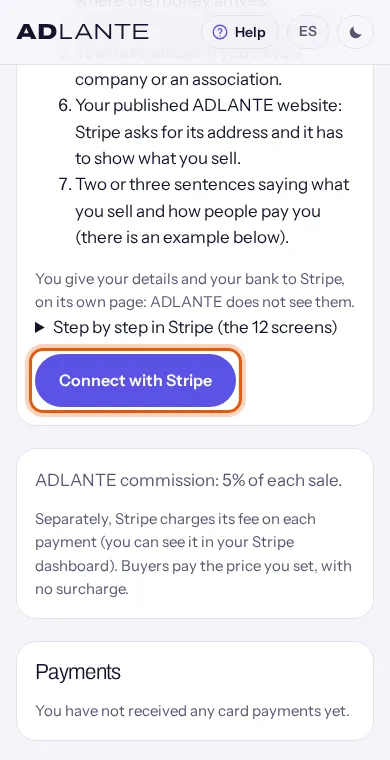
How long it takes. Filling it in takes about 15 minutes. Then Stripe checks your details: sometimes in a few minutes, sometimes up to 3 days. Until then, you cannot take card payments yet.
Have to hand:
- Your identity document (or your passport), valid.
- Your mobile: you get a code by text message, and Stripe may ask for a photo of your document and a selfie.
- Your bank account details, in your name (or your company’s). That is where the money arrives.
- Your address and your date of birth.
- Your tax number, if you have a company or an association.
- Your ADLANTE website, published: Stripe asks for its address and it has to show what you sell. If you have not published it yet, do that first: The editor.
- Two or three sentences saying what you sell and how people pay you.
The screens belong to Stripe, not ADLANTE, and Stripe may change their order or names. If you do not see what this guide describes, follow what Stripe asks and tell us with Missing something? Tell us.
“Connect with Stripe”: what happens when you tap it
Go to Your payments. Under Your Stripe account it says Not connected and “You have not connected your Stripe account yet. If you do not have one, Stripe creates it in the same step: it will ask for your details and your bank account.”.
Tap Connect with Stripe. The button says Opening Stripe… and, a few seconds later, you are on Stripe’s page (a different website: Stripe’s).
Fill in Stripe’s screens. They are described one by one in the next section.
When you finish, Stripe sends you back to Your payments by itself. First you see “Checking your account with Stripe…” and then, at the top, “You are back from Stripe. This is what your account says now.”, with your account’s status.
If you leave Stripe halfway (you close the tab, or run out of time), go back to Your payments and tap Continue signing up with Stripe: it takes you to where you left off. If the Stripe link has expired, ADLANTE opens a new one by itself: you will see Opening Stripe… again.
To save you typing, ADLANTE fills in a few things on Stripe for you: your website address, the industry (an education one), a description of what you sell and automatic payouts to your bank. Check them on Stripe and change them if they do not fit.
Stripe’s screens, one by one
This is how they look today, in the order they appear. You may not see some of them (for example, if you already used Stripe).
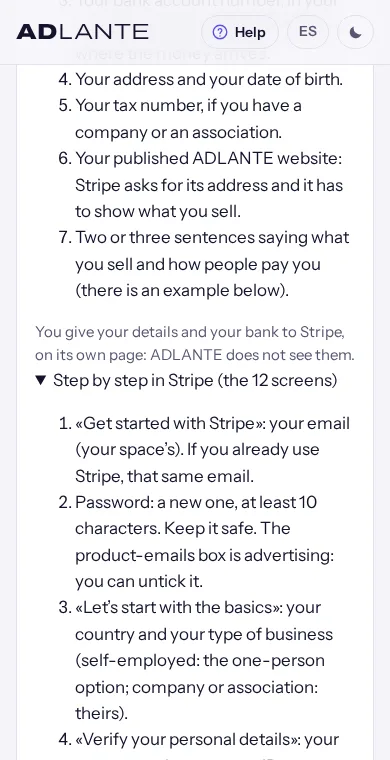
“Get started with Stripe”: your email. Your space’s email, the one you want to use to sign in to Stripe. If you already use Stripe, enter that same email: it will ask for your password, and your space’s account will sit next to the one you already had.
The password: a new one, at least 10 characters. Keep it safe: it is for signing in to your Stripe dashboard. The box for emails about products is advertising: you can untick it.
“Let’s start with the basics”: your country and your type of business. If you work for yourself, the one-person option; if you have a company or an association, theirs. If in doubt, ask your accountant.
“Verify your personal details”: your full name exactly as on your identity document, your date of birth, your home address and your mobile (you get a code by text message).
“Business details”:
- Your tax number, if you have one.
- The industry: the one closest to what you sell. If you teach, an education one: Other educational services works.
- Your website: your ADLANTE address (yourname.adlante.com, the one shown in your panel under your space’s name). It has to be published: Stripe does not accept websites under construction.
- The description: two or three sentences about what you sell, how people know you and how they pay you.
ADLANTE already fills in the website, the industry and a description: check them.“Add an account for payouts”: the currency, the country and your bank account number (twice, to avoid typos). For the schedule, Automatic: the money reaches your bank by itself. ADLANTE already sets it to automatic; with “Manual”, the money stays in Stripe until you ask for it.
“Public details”:
- The statement description: your space’s name, as people know you. It is what the buyer will see on their bank statement: if they do not recognise it, they may dispute the charge.
- The short version: 2 to 10 letters (your initials, for example).
- The phone number you give your students.“Protect your business from fraud”: tap the link at the bottom, Use basic protection with Lite (included): it costs nothing. The other options charge extra on each payment. You can change it later in your Stripe dashboard.
“Climate” (contributing to climate action): it is optional, and it is Stripe’s, not ADLANTE’s: donating part of what you take. To skip it, Skip (not the big button).
“Tax calculation” (Stripe Tax): Not right now. If you turn it on, Stripe charges a fee on each sale. The taxes on what you sell, with your accountant.
The summary. If any section says Incomplete, tap Verify and finish it. The most common one is your identity: Stripe asks, on your phone, for a photo of your document and a selfie. The photos go to Stripe, not to ADLANTE.
Agree and submit: you accept Stripe’s agreement for accounts connected to a platform (such as ADLANTE), and Stripe sends you back to Your payments.
Back in “Your payments”: what each status means
Under Your Stripe account there is a label with your account’s status, a sentence and, when needed, a button:
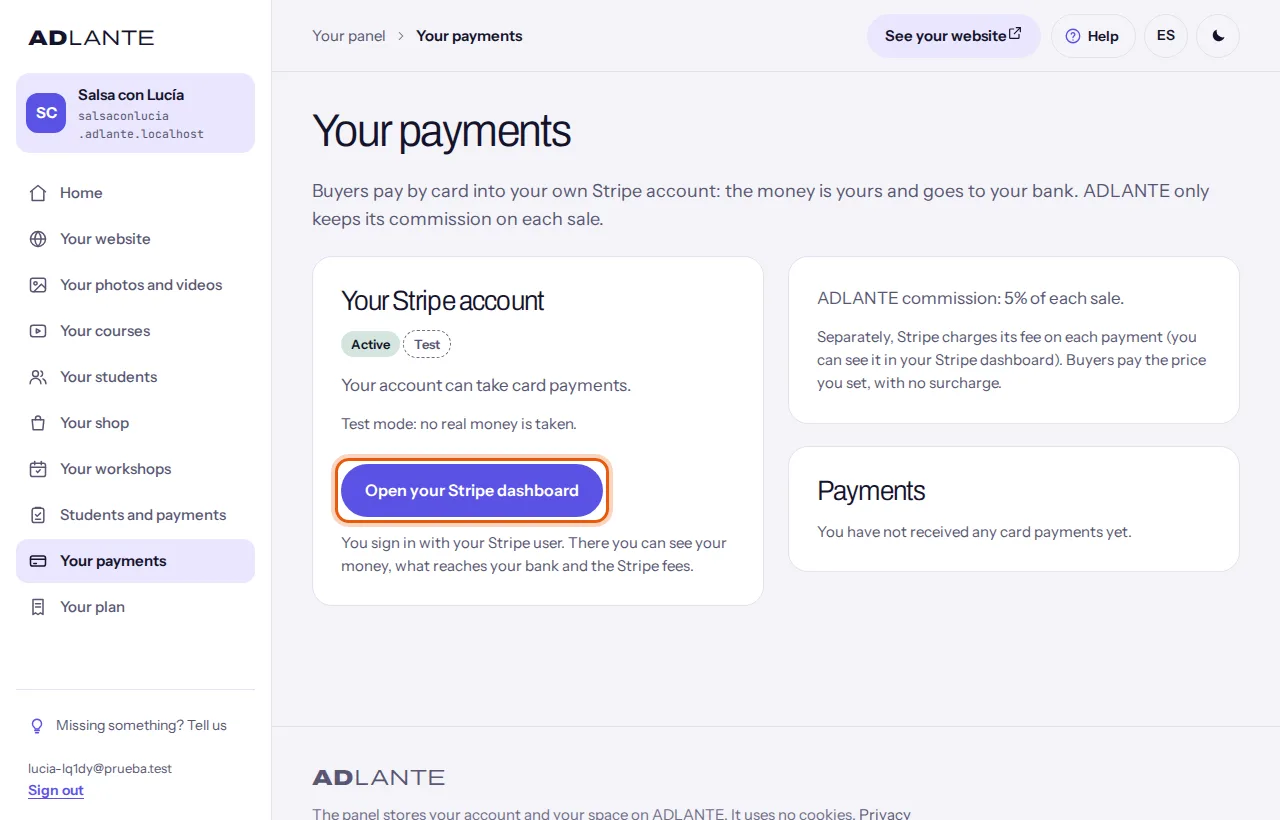
- Active: “Your account can take card payments.”. You are done: on your website, card payment appears by itself at checkout. There is no connect button any more, only Open your Stripe dashboard.
- Not finished: “You still need to finish signing up with Stripe to take payments.”. Tap Continue signing up with Stripe and finish what is missing: it takes you to where you left off.
- Restricted: you have finished, but Stripe does not let you take payments yet: “Stripe needs something from you before you can keep taking payments. Check your Stripe dashboard.”. Tap Continue signing up with Stripe and finish what it asks for. Sometimes you just have to wait for Stripe to finish checking (up to 3 days).
- Disconnected: “You removed ADLANTE from your Stripe account. Connect it again to take payments.”. Tap Connect with Stripe again.
- Test mode: your account was connected while ADLANTE was in testing, and ADLANTE now takes real payments: “Your account was connected in test mode and ADLANTE now takes real payments: connect it again to take payments.”. Tap Connect with Stripe again and sign up again, with your real details.
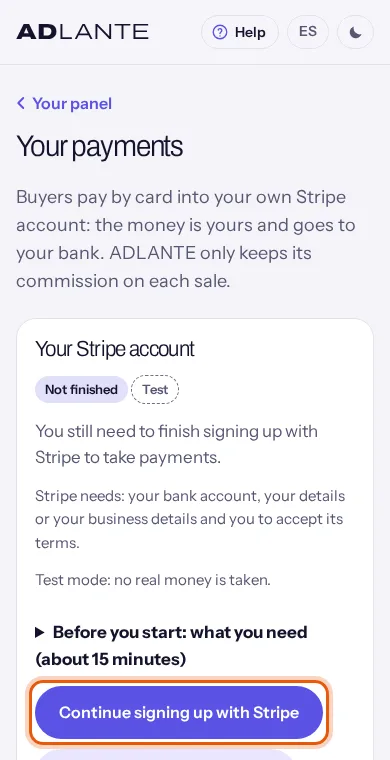
With Not finished or Restricted, underneath it tells you what Stripe needs: “Stripe needs: …”, for example “your bank account”, “an identity document”, “some details about your business” or “you to accept its terms”.
With an Active account, if you see “Stripe is not sending money to your bank yet: something is missing in your Stripe dashboard.”, you can already take payments, but Stripe will not send you the money until you complete what it asks. Go in with Open your Stripe dashboard.
Open your Stripe dashboard opens Stripe’s website in another tab. You sign in with your Stripe email and password (the ones from the first two screens). There you see your money, what reaches your bank and Stripe’s fees.
While your account is not Active, people cannot pay by card on your website, and your panel reminds you: on a course or an event with a price you see To sell it by card, connect your payments, with Go to «Your payments»; and in your shop, under How you get paid, By card says how your account stands.
If you get an error when you tap “Connect with Stripe”
If Stripe does not open the sign-up, the notice appears in red right under the button. It can say:
- “Stripe is not answering right now. Please try again in a moment.”. It is temporary: wait a little and tap the button again.
- “We could not open the Stripe sign-up. There is nothing you need to do: we have already been notified and are looking into it. Please try again later.”. It is a fault on ADLANTE’s side, not yours. We are notified automatically, with what Stripe said.
- “Stripe does not work in your space’s country yet, so it cannot open your sign-up: for now, your space cannot take card payments.”. Meanwhile, in your shop you can take payment on pick-up or by bank transfer.
If it still fails the next day, write to us with Missing something? Tell us and include: the notice word for word (a screenshot is best), your space’s address (yourname.adlante.com), which button you tapped and at what time. Never send your bank details or your identity document: they are not needed.
Two other notices in Your payments: “ADLANTE payments are not open yet. When they open, you will be able to connect your Stripe account here.” (you cannot connect yet) and, in the commission box, “Payments are not open for your space yet. You can already connect your Stripe account.” (you can connect it now, but you will not take card payments until ADLANTE opens them for your space).
“Takings” and “Payments”: what you have been paid
Under your account, Your payments has three more sections:
- The commission: ADLANTE commission: … of each sale, and underneath “Separately, Stripe charges its fee on each payment (you can see it in your Stripe dashboard). Buyers pay the price you set, with no surcharge.”.
- Takings: the total of what was paid by card: how many payments, what was taken, what was refunded and the ADLANTE commission. Underneath: “Not counting the Stripe fees.”. Test payments get their own line, with the Test label.
- Payments: each card payment, one by one.
Each payment in Payments shows:
- What was paid for (the product, the course or the ticket) and its status: Paid, Awaiting payment (someone started paying and has not finished yet), Not paid, Refunded or Disputed.
- Where it comes from, Shop, Course, Module or Event ticket, and the date.
- The amount and the ADLANTE commission on that payment. If part of it was refunded, “Refunded: …”.
- See the order, See the course or See the event: takes you to what was paid for.
- Refund, if it can be refunded.
Disputed means the buyer’s bank has challenged the charge: “The buyer’s bank has opened a dispute. Respond to it in your Stripe dashboard.”. You respond on Stripe, with Open your Stripe dashboard.
Only card payments appear here. What you are paid on pick-up or by bank transfer does not go through Stripe. All your shop orders, however they were paid, are in Your shop → Orders. If nobody has paid you by card yet, you see “You have not received any card payments yet.”.
Refunding a payment
In Your payments → Payments, find the payment and tap Refund. It only appears on Paid payments that have not been fully refunded yet.
The Refund … to the buyer? window appears, with “The money goes back to their card within a few days. The ADLANTE commission is not refunded. This cannot be undone.”.
Tap Refund (the red button) to refund it, or Cancel to leave it.
The button says “Refunding…” and, on that payment, you see “Refunded.”. Its label changes to Refunded.
Everything still left on that payment is refunded. If you only want to refund part of it, do it in your Stripe dashboard: Your payments will then show “Refunded: …” with the amount.
What is not refunded: the ADLANTE commission on that payment, nor Stripe’s fee (that is how Stripe works). The refund comes out of your Stripe account.
What happens to what was paid for, when it is fully refunded:
- An event ticket: it is marked as refunded and its place becomes free again.
- A course or a module: the buyer no longer has it.
- A shop order: the order is marked as refunded once Stripe confirms it.
- A class fee: what they paid becomes pending again.
You can also refund from other places, with the same window: inside a shop order, under The card payment; and in an event, in the list of people signed up, Refund (in “Your payments”) brings you here.
A payment for a collaborative workshop (shared by several spaces) is taken in the ADLANTE account and its notice is different: when the money is shared out, the refunded amount counts for nobody. Once it has been shared out among the spaces, it can no longer be refunded from here. The Workshops guide explains it.
What ADLANTE keeps and what Stripe keeps
Two commissions come out of each card payment:
- ADLANTE’s. You see it in Your payments (“ADLANTE commission: … of each sale”) and in Your plan, under On each sale. Each payment in Payments shows what ADLANTE kept from it. The commission in force on the day of the payment is saved: if ADLANTE changes it later, what was already taken does not change.
- Stripe’s. Stripe sets it, for processing the card. It does not appear in ADLANTE: you see it in your Stripe dashboard (Open your Stripe dashboard).
Buyers pay the price you set, with no surcharge: both commissions come out of what you take. The rest is yours and goes to your bank.
The figures are not in this guide because each company (ADLANTE and Stripe) sets its own and they can change. ADLANTE’s, in Your plan; Stripe’s, in your Stripe dashboard. How Your plan works: Your plan.
When the money reaches your bank
What you are paid goes into your Stripe account, and Stripe sends it to your bank by itself. ADLANTE sets your payouts to automatic, every day, so you do not have to request them. How many days each payment takes before it can be sent is decided by Stripe, depending on your country and your account.
What has arrived, what will arrive and when, you can see in your Stripe dashboard (Open your Stripe dashboard). There you can also change your payout schedule.
If Your payments says “Stripe is not sending money to your bank yet: something is missing in your Stripe dashboard.”, the money stays in Stripe until you complete what it asks: go into your Stripe dashboard and finish it.
Your brand at checkout
When someone pays you by card on your website (in your shop, for a workshop or for a course), the Stripe payment opens in a window over your website, with your name, your fonts and your colours. The pay button uses your colour, the one from your published website; if your colour is white, a dark one, so it can be read. When they finish, they go back to your “thank you” page.
If it cannot open there on their phone (because of a blocker, for example), they go to Stripe’s usual page, with your name: the payment works the same.
The name and icon shown inside the payment are those of your Stripe account. You change them in your Stripe dashboard, under “Settings” → “Branding”: your icon, your logo and your colours. And the name the buyer sees on their bank statement is the statement description (Stripe’s seventh screen).
Test mode
While ADLANTE is in testing, Your payments carries the Test label and says “Test mode: no real money is taken.”. You can connect an account and try payments without any money moving; each test payment shows with Test.
An account connected in test mode cannot take real payments. When ADLANTE starts taking real payments, your account will show Test mode: tap Connect with Stripe again and sign up with your real details. (The reverse also happens: an account connected for real shows Live while ADLANTE is in testing.)
Questions
Does every space need its own Stripe account?
Every space that wants to take card payments has its own, because the money is theirs and Stripe needs to know who it is paying. But you do not need to create it beforehand or go to Stripe: in Your payments, Connect with Stripe creates it there and then, and Stripe sends you back to your panel. ADLANTE only keeps its commission on each sale, and Stripe its own.
Stripe asks for an email: which one do I use?
Your space’s email, the one you want to use to sign in to Stripe. If you already have a Stripe account, you can use that same email: Stripe will ask for your password and you will have both accounts together.
What do I put for “Website” and for the industry?
Your ADLANTE website, the one shown in your panel under your space’s name (yourname.adlante.com), already published. For the industry, the one closest to what you sell; if you teach, an education one (Other educational services works). ADLANTE already fills in both: check them.
What do I put as the statement description?
Your space’s name, as people know you: it is what the buyer will see on their bank statement. If they do not recognise it, they may dispute the charge with their bank.
Stripe offers fraud protection with several options: which one do I choose?
The basic one, with the link Use basic protection with Lite (included): it is included and costs nothing. The others charge extra on each payment. You can change it later in your Stripe dashboard.
It asks me to contribute to climate action (“Climate”) and to turn on Stripe Tax.
Both are optional and belong to Stripe, not ADLANTE. Climate means donating part of what you take; Stripe Tax helps with taxes and charges a fee on each sale. You can skip them: Skip and Not right now. Your taxes, with your accountant.
“Manual” or “Automatic” payouts?
Automatic: the money reaches your bank by itself. With “Manual”, it stays in Stripe until you ask for it. ADLANTE already sets it to automatic.
It asks for a selfie and a photo of my document.
That is Stripe checking it is you: the law requires it for card payments. The photos go to Stripe, not to ADLANTE.
When I come back from Stripe, my account says “Restricted”.
Your sign-up has been sent, but Stripe does not let you take payments yet: it still needs to check something (your details or a document). In Your payments, Continue signing up with Stripe takes you to what is missing; sometimes you just have to wait for Stripe to finish checking. Once it says Active, you can take card payments.
I get an error when I tap “Connect with Stripe”.
Read the red notice under the button. If it says Stripe is not answering, try again in a moment. If it says “We could not open the Stripe sign-up…”, it is nothing on your side: we have already been notified. If it still happens the next day, write to us with Missing something? Tell us, with a screenshot of the notice and your space’s address.
Where do I see what I have been paid? Are all my orders there?
In Your payments → Payments you see everything you take by card, and above it, Takings adds it up (without Stripe’s fee, which you see in your Stripe dashboard). What you are paid on pick-up or by bank transfer is not there: all your shop orders, however they were paid, are in Your shop → Orders.
How do I give money back to someone who paid by card?
In Your payments → Payments, on that payment, Refund. It asks you to confirm and you tap Refund again. The money goes back to their card within a few days. It cannot be undone. The ADLANTE commission is not refunded, nor is Stripe’s fee. For a shop order you also have it inside the order, under The card payment.
How do I refund a ticket?
In Your payments, on that ticket, Refund. From the event, in the list of people signed up, Refund (in “Your payments”) takes you there. Once it is fully refunded, its place becomes free again.
My paid course says “To sell it by card, connect your payments”.
It appears while your space cannot take card payments yet (not connected, or sign-up not finished). Go to «Your payments» takes you there to connect it. Once your account says Active, the notice goes away by itself.
Why can I not take card payments under “How you get paid”?
Because your Stripe account is not Active yet. In your shop, under How you get paid, By card says how your account stands and why, with the Go to “Your payments” link to fix it.
Do buyers leave my website to pay? Does my brand show?
They do not leave: the payment opens in a window over your website, with your name and colours, and the pay button in your colour. The name and icon inside are those of your Stripe account: you change them in your Stripe dashboard, under “Settings” → “Branding”.
Do buyers pay more for paying by card?
No. They pay the price you set, with no surcharge. The ADLANTE and Stripe commissions come out of what you take.
Does ADLANTE see my details or my bank details?
No. You give your details, your document and your bank to Stripe, on its own page. ADLANTE only knows whether your account can take payments and what it still needs.