Students and payments
Your weekly classes, your students and their families, attendance, fees, payments, absences and your team: every screen, step by step.
Detailed step-by-step guide
What «Students and payments» is and how to open it
Students and payments is the tool for your weekly classes: the timetable, who comes to each class, taking attendance, absences and make-up classes, each month’s fees, what you are paid and what you are owed. Your students also have their own area on your website, «My school», where they see their timetable and what they owe, pay, and report an absence.
It is not the same as Your students in your panel’s menu. Your students are the people who create an account on your website to watch your video courses. Students and payments holds the people who come to your classes. They are two separate lists: someone can be in both, but what you do in one does not change the other.
How to open it:
- On a computer: in the menu on the left, Students and payments.
- On a tablet: in the row of buttons at the top, Students and payments.
- On a phone: on the first page of your panel, in its Students and payments box, tap Go to students and payments.
- If you are on a school’s team (teacher or reception): when you sign in at
adlante.com/en/panelyou land straight here.
At the top of every page are its tabs: Today, Students, Classes, Payments, Absences, Reports, Rules and Team. Each person on your team only sees theirs (see «Your team»). To go back to the first page of your panel, tap Your panel at the top left.
What is free and what you pay for. Setting it up is free: you can create your classes, add your students, take attendance and record what you are paid without turning anything on. You pay when something reaches a real student: when you create the link to their area (Create their link) or charge saved cards (Charge now). At that moment a window opens, To use student management: (its price) a month, with two buttons: Turn it on in “Your plan” and Not now. If you turn it on, you go back to where you were and what you wanted to do finishes on its own (the link is created or the charge is made). Until you have it, the badge Paid · (its price) a month shows next to the title. Its real price is always in Your plan; how it works, in Your plan.
If someone from reception taps the button, the window tells them Only the person who runs the space can turn it on, in “Your plan” and OK: the person who runs the space has to turn it on.
The home page: «Today», your steps and your numbers
When you open it you land on the Today tab: Today’s classes, attendance and what you are owed, in one place. From top to bottom:
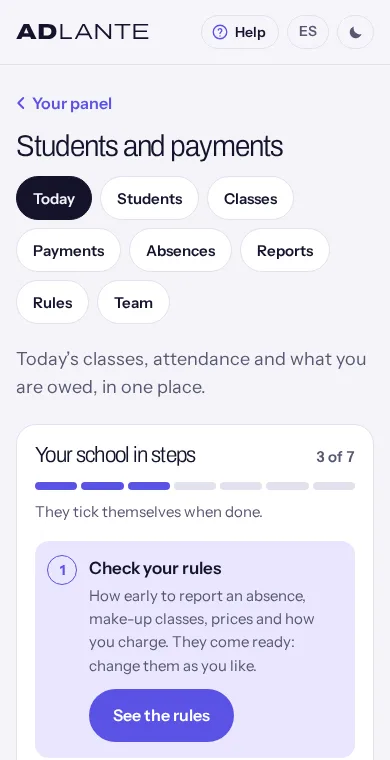
1 · Your school in steps. Seven steps to get everything ready, with a bar and a count (3 of 7). The next step is highlighted, with its button; the others are in the list below and you tap them to go there. They tick themselves when done: you don’t tick anything. When all seven are done, the block disappears.
- Check your rules → See the rules. It ticks the first time you save your rules. If you only look at them and tap Save, the bar says Everything is saved and the step does not tick: change something (even if you then put it back) and save.
- Create your classes → Create a class. It ticks with your first class.
- Add your students → Add students. It ticks with your first student.
- Enrol each one in their classes → Go to classes. It ticks when someone is enrolled (or on a trial) in a class.
- Take attendance → See today’s classes. It ticks with the first sealed list. Its button leaves you on this same page: today’s classes are just below.
- Record your first payment → See payments. It ticks with the first payment recorded. The button takes you to Payments, but payments are recorded from the payer’s record (below, «Recording a payment by hand»).
- Give a student their link → See your students. It ticks when the first student opens their link and their account is joined to their record.
2 · Today, Mon, Oct 12. Today’s classes, by time: name, room, who teaches it and how many come (Students: 8). Each has a badge: Not taken or Sealed. Tap a class to take its attendance. If there are none today it says No classes today; if today is one of your closed days, The school is closed today.
3 · Students at risk of leaving (2). Only shows if there is someone. The first three, with the reason and, if they have a phone or email, Call and Email. See the reports takes you to the full list.
4 · Classes with few students. Only shows if a class has fewer students than the number you set in your rules, with the badge 2 of 5.
5 · Your numbers. Four boxes you can tap: Students (how many you have, not counting archived ones) opens their list; Classes, your week; Make-ups to approve, the absences inbox; and Debts (it says See), straight to the debts in Payments.
A teacher on your team only sees Your classes today: take attendance from your phone and their classes for today here: no steps, no numbers and no students at risk.
Your school rules
The Rules tab (or See the rules) holds Your school rules: how your school works, written as numbers and tick boxes. What you set here is what the system does (absences, make-ups, fees, reminders), and the rules page your students read writes itself from it. They come filled in with example rules: change them as you like. Only the person who runs the space changes them (reception and teachers don’t have this tab).
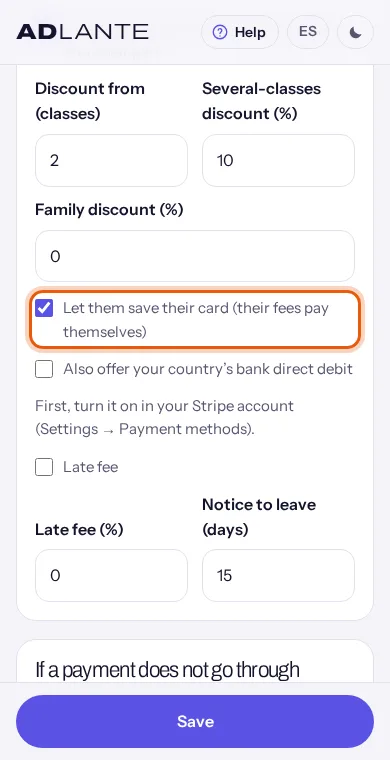
How they are saved. There is a single Save, in a bar at the bottom that stays in view while you scroll. As soon as you touch something the bar says You have unsaved changes; when you tap Save, everything is saved at once and it says Saved. If you leave with unsaved changes, your browser warns you. If a number is not valid, nothing is saved and you see One value is not valid (…). Check it.: inside the brackets is the name of the value as the system stores it. For example, recuperaciones.cada_dias is the make-ups’ Every (days); cobro.dias_para_pagar, Days to pay; imagen.donde, Where you publish them.
Absences and make-ups
- Notice (hours): if a student reports their absence at least this many hours before the class, it counts as reported in time. With 0, any notice before the class starts is fine.
- Give make-up classes: when ticked, each absence reported in time gives a make-up (a class to come on another day). Unticked, absences are not made up.
- At most and Every (days): the limit. For example, 2 every 90 days: if they already have two make-ups in those days, the next absence does not give another.
- Expire after (days): how many days they have to use it, counting from the day they reported. After that it expires on its own.
- Who approves them: The school (they reach your inbox) (your student picks the day and you approve or decline it in Absences) or Automatically, if there is a place (it is booked straight away if there is room that day).
How you charge
- People pay: Monthly (one fee) (each class has a monthly price) or Per class (each class day in the month is paid).
- Price of a 60-minute class (one per length): the default price of your classes by length; monthly or per class, depending on the above. A class without its own price uses the one for its length (the closest one below; if it is shorter than all of them, the first). You get the lengths that come by default: if a class lasts something else, give it its own price in the class itself.
- Single class: the price of a single class. Today it only appears on the rules page your students read: the panel does not have a button to charge it yet.
- Enrolment fee (0: none): charged once, when you enrol someone in their first class (on a trial, when you confirm them; with a class pass, never).
- Days to pay: each fee is due that many days after day 1 of its month (the enrolment fee, after the day you enrol them). After that day it shows Overdue.
- Minimum classes per month: Only when paying per class. 0: no minimum. If they have fewer classes in the month, they are charged the difference up to that number, at the price of their cheapest class.
- Take off closed days: with «monthly», your closed days are taken off the fee. (With «per class», a closed day is never charged.)
- Whoever joins or leaves mid-month pays only their part: they only pay the class days from when they join or until they leave.
- Discount from (classes) and Several-classes discount (%): if they go to that many different classes or more in the month, their fee gets that discount. (It counts the different classes they are in, not the days.)
- Family discount (%): when one person pays for several, the second and following ones get this discount (below, «Families and minors»).
- Let them save their card (their fees pay themselves): your students see the button to save their card in «My school» (below, «Card payments»).
- Also offer your country’s bank direct debit: besides the card, they can set up a direct debit from their bank. First, turn it on in your Stripe account (Settings → Payment methods).
- Late fee and Late fee (%): a late fee is added, once, to each fee that falls due unpaid.
- Notice to leave (days): it appears on your students’ rules page. The panel does not apply it by itself: you are the one who removes someone from a class.
If a payment does not go through: retries and the email when an automatic charge fails. See «Payments that fail».
Photos and videos: Ask for permission for class photos and videos and Where you publish them (Your website, Your social media, Posters and leaflets, Your school’s message groups). If you ask for it, tick at least one place; otherwise it does not save. Each student gives or withdraws permission from their area (for a minor, whoever pays for them), and No photos shows in the attendance list for anyone who has not given it.
Class passes: the multi-class passes you sell. See «Class passes» below.
Reminders and students at risk
- Payment reminder (days before) and And if still unpaid (days after): an email to the payer, with the link to pay in their area, that many days before it is due and that many days after if still unpaid. With 0, it is not sent. It only arrives if their record has an email.
- Tell me when a class has fewer than (students): no email reaches you; the class appears under Classes with few students, in Today and in Reports. With 0, it is not checked.
- When a student is at risk of leaving: Has not come for (days), Absences in a row and Owes for (days). With 0, that rule is not checked. Coming half as much as before also counts. Anyone who meets one appears in Today and Reports, with the reason.
N-month plan: A commitment of several months, with a discount if you like. Tick Offer a plan and set Months, Discount (%), Its name (if empty, «N-month plan») and How it is paid: All at once or Month by month, with commitment. Today the plan appears on the rules page your students read, but the panel does not have a button to enrol someone on it yet.
Closed days: in Holidays and closures, one per line: the date (year-month-day), another date if it is several days in a row, and its name. For example: 2026-12-24 2027-01-06 Holidays. On those days there is no class: they don’t show in Today, attendance is not taken, your students cannot report absences or make up classes, and they are not charged (if your rules say so). Anything else you want to say (optional): your own text at the end of the rules page; each line, one point.
What your students see: at the very bottom, the rules page exactly as your students read it in «My school», with your prices in your currency. It rewrites itself every time you save.
Creating your classes
Go to the Classes tab (or tap Create a class in your steps). At the top is Your week; at first it says No classes yet. Create the first one below.
Scroll down to A new class and fill it in:
- Class name: required, up to 80 characters.
- Level (optional).
- Days: tick one or more. With none, you see Choose at least one day.
- Time (19:00 by default) and Length (minutes) (15 to 600; 60 by default).
- Room (optional): the name of the room. It is used in the Your rooms report.
- Who teaches (optional): the name your students see on their timetable.
- Who in your team teaches it: only shows if you have someone on your team. If you choose a teacher, they will see this class and take its attendance.
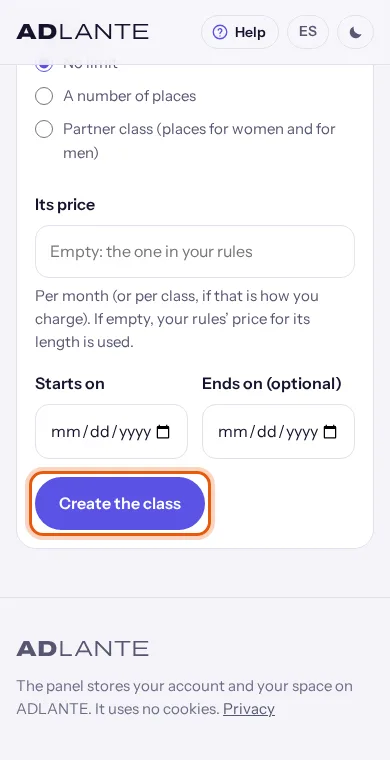
- Places: No limit; A number of places (and write how many in Places); or Partner class (places for women and for men) (write Places for women and Places for men).
- Its price: per month, or per class if you charge per class. Write just the number, with a decimal point if it has cents. Empty: Empty: the one in your rules, by length.
- Starts on and Ends on (optional): its season. Outside those dates the class does not count: no attendance and no charges.
Tap Create the class. If something is missing, it shows in red above the button, with the reason (for example, Write a time or Write how many places there are). If everything is fine, your new class opens.
In Your week your classes appear by day and time, each with its room, who teaches it and its places: with «No limit», how many come; with a number, places taken and the total; partner classes, women and men separately; and, if people are waiting, Waiting: 2. Tap one to open it. At the bottom, See archived ones shows your Archived classes and See active ones takes you back.
The classes here do not appear on your website by themselves. Your website’s timetable is written in the editor, in its timetable section: they are two separate things. If you change a class here, change it there too.
Inside a class
It opens when you tap a class in Your week. From top to bottom:
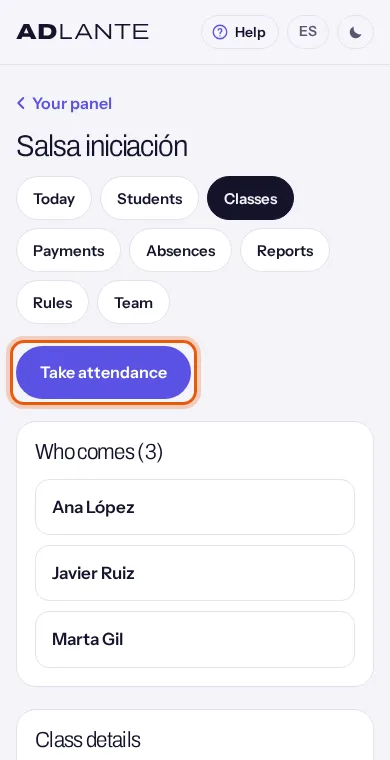
- Take attendance: opens today’s list for this class. If this class is not on today, you see «There is no class on that day.» and the Back to the class button (see «Taking attendance from your phone»).
- Who comes (6): those enrolled and those on a trial (with the Trial badge and, if set, Woman or Man). Each name opens their record. For someone on a trial who stays: They stay: enrol them.
- Waiting list: the people waiting, in order. When a place becomes free, the first person on the list comes in: this happens when you remove someone from the class or archive their record. In a partner class, the first one who fits comes in (a woman into a woman’s place, a man into a man’s). If you increase the class’s places, people waiting do not come in by themselves: in their record, remove them from the waiting list and enrol them again.
- Enrol a student: choose from the list (it shows those not already in this class), tick As a trial class if they are coming to try it, and tap Enrol. If there is no place left, they join the waiting list.
- Class details: the same form you created it with. Change whatever you like and tap Save: Saved appears below.
- Archive the class: it asks Archive “Salsa beginners”?, with Archive the class and Cancel. Once archived, it leaves the timetable and prepares no charges, and all its students are removed from it; its lists and payments are kept. Reopen the class brings it back, but empty: you have to enrol each person again.
- Delete the class: it asks Delete “Salsa beginners”?, with Delete the class and Cancel. Only a class that never had students or attendance can be deleted; otherwise it is not deleted and you see «This class has had students: archive it instead of deleting it.»
A teacher on your team sees their classes with Take attendance, Who comes and the waiting list, but cannot enrol anyone, change the details or archive it.
Adding your students
In the Students tab (or Add students). There are two ways: one by one, or all at once with the list you already have.
One by one
Scroll down to A new student.
Write their Name (required, up to 80 characters), their Phone (optional) and their Email (optional). In In partner classes, choose Not set, Woman or Man: it is used for places in partner classes.
Tap Add. Their record opens, so you can fill in the rest. If something is not valid, it shows in red: Write a name (80 characters at most), That email does not look right or That phone number is too long.
Their email is where their reminders go (a payment reminder, a charge that failed, the end of their class pass): without an email on their record, none arrive. Their phone appears in the debts and in Call. Neither one joins their record to their account: their link does that (below).
All at once (a CSV file)
Prepare your list in Excel, Numbers or Google Sheets: one row per student. Put the name of each column in the first row:
Name,Phone,Emailand, if you like,RoleandNotes(Spanish names work too:Nombre,Teléfono,Correo,Rol,Notas). InRole, write woman or man (female/male and follower/leader also work).Save it as CSV (separated by commas or semicolons: both work). At most 300 KB and 1000 rows.
In Import a list, tap Choose the file and pick your CSV. If it is too big: The file is too big (300 KB at most).
Before saving anything, it tells you how many would come in: 40 students would come in. Rows with an error: 2. and, if there are errors, Check these rows: 7, 15. (the row number in your spreadsheet).
Tap Import them. The good rows come in; rows with an error are left out: fix them and add them by hand, or import another file with just those.
Without the row with the column names, it is read like this: the first column is the name, the second the email and the third the phone. If your list goes name, phone, email without that row, the phones are read as emails and those rows fail. And don’t import the same list twice: each time everyone comes in again.
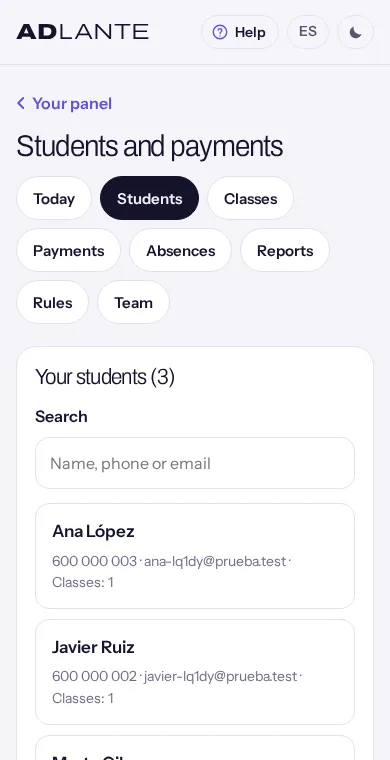
The list. Your students (40), in alphabetical order. In Search, type a name, a phone or an email and the list filters as you type. Each student shows Owes … if they have something overdue (theirs or of someone they pay for) and Has an account if they have already opened their link; below, their phone, their email and how many classes they are in (Classes: 2). Tap their name to open their record. At the bottom, See archived ones and See active ones.
A student’s record
A record opens when you tap a name in Students, in a class or in Payments. It is long: everything about them is there, from top to bottom.
- If it is archived, the top says Archived record: not in any class and no new charges are prepared.
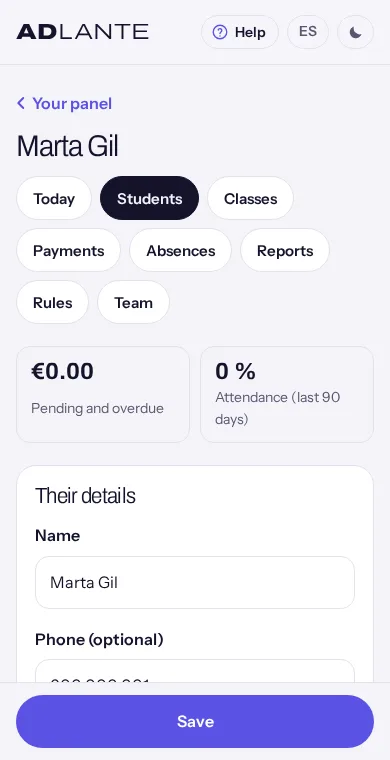
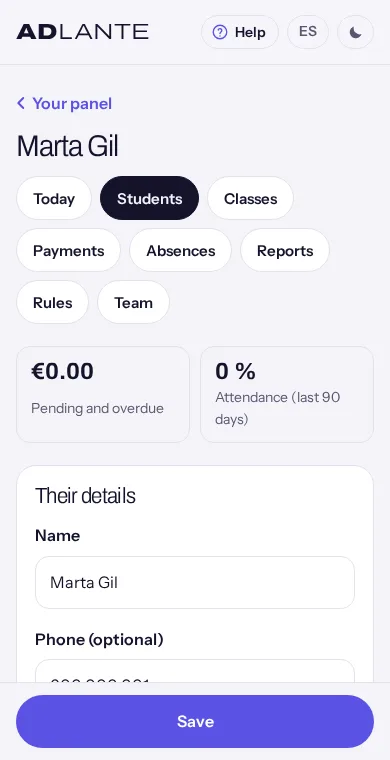
- Two numbers: Pending and overdue (what is already overdue, theirs and of anyone they pay for) and Attendance (last 90 days) (from the lists where they were marked).
- Their details: Name, Phone (optional), Email (optional), Date of birth (optional), In partner classes, Who pays, Their own price (per month), Why that price (only you see it) and Notes (only you see them).
- Family and pick-up and Permissions (minors): below, in «Families and minors».
- Their classes: below, in «Enrolling each one in their classes».
- Class passes: in «Class passes».
- What is pending: in «Recording a payment by hand».
- Their payments: each payment with its amount, date, method and code, and Refunded if it was refunded. Tap the amount to see its receipt.
- Absences and make-ups: the absences they reported (date and class), with Excused, Told in time or Too late, and below, the state of their make-ups (Make-up to use, Make-up requested, Make-up used…).
- Their student area: their link, in «Each student’s link».
- Archive the record, at the end.
How their details are saved. As with the rules: a bar at the bottom with Save. When you change something it says You have unsaved changes; when you save, Saved. If something is not valid, nothing is saved and the reason shows in red at the end of their details and in the bar (for example, Write the price in numbers (…)). The other blocks in the record (family, classes, payments) each have their own button and save straight away.
Their own price (per month). If you give them a special price, put it here: it overrides everything else: their fee each month is that price (if they have any class that month), with no other discounts. Empty, Empty: their classes’ price. Use Why that price (only you see it) to note the reason.
Archive the record (when someone leaves). It asks Archive Marta?: They leave their classes and no more charges are prepared. Their payments and absences are kept, and you can bring the record back whenever you like. Also, if they paid for others, each one goes back to paying for themselves; if they had an account, they no longer see «My school»; and what they owed stays there. An archived record comes back with Bring the record back: it goes back to the student list, and then you have to enrol them in their classes again. Students are not deleted: they are archived.
Families and minors: who pays, pick-up and permissions
There are two different things that look alike: who pays for a student (another record among your students, who can have their own account and area) and family and pick-up (a minor’s contacts, with no account).
1 · Who pays (one family, one payment)
The payer needs their own record among your students, even if they don’t come to class. If they don’t have one, create it in A new student, with their name and email.
Open the child’s record (or the partner’s, or whoever’s) and choose that person in Who pays. If someone else in the family pays, choose them: their charges will go together. Tap Save in the bar at the bottom.
The payer’s record now says Also pays for: Pablo, Lucía. From then on, the fees, enrolment fee and class passes of both go to the payer: in their What is pending they appear with each person’s name, and they are paid together.
- With Family discount (%) in your rules, the second and following ones get that discount.
- In «My school», the payer sees everyone’s timetable and everything pending (and pays it at once), can report absences for each of them and, for minors, give their permissions.
- The child, if they have an account, sees in their area (their name) pays for you: anything pending shows up in their area.
- Someone who pays for others cannot in turn have someone paying for them. If you choose someone who is not valid, you see That person cannot pay for this record.
- In the child’s record, What is pending is empty: everything is in the payer’s record.
- Anything already prepared before the change stays with whoever it was for.
2 · Minors: family and pick-up
Enter their Date of birth (optional) and save. It tells us if they are a minor…: the note below says up to what age, which depends on your space’s country. If they are a minor, the Family and pick-up block appears:
In Add a family member write their Name, choose the Relationship (Mother, Father, Legal guardian or Other relative) and, if you like, their phone and email.
Leave Can pick them up after class ticked or untick it, and tap Add. They appear in the list with Can pick them up or Does not pick them up. Four people at most.
To remove someone: Remove, and it asks Remove Ana?: they will no longer appear on the record, and the permissions they signed stay saved with their name.
The people in Family and pick-up have no account or area: they are contacts and the ones who sign permissions on paper. For a mother or father to see the timetable and pay from their phone, give them a record and set them in Who pays (point 1).
3 · Permissions
Two permissions: Their details and, if your rules ask for it, Photos and videos. Each one with Yes, No or Not given yet, and below, where (for photos), the date, who gave it and how (on paper or from their area). At the top, a note: They are 12: their permissions are given by a parent or guardian…, They are 15: they give their own permissions. or Without a date of birth we do not know if they are a minor.
If they bring it signed on paper, go to Record a signed permission.
Choose Which permission and the Answer: Gives permission or Does not give it (or withdraws it). For photos with «yes», tick Where they can be published (at least one place; otherwise, Tick where they can be published).
In Signed by, the student or a family member. If, because of their age, their family signs and you haven’t added anyone yet, you see Because of their age, a parent or guardian signs their permissions: add a family member first.
Set the Date signed (today by default) and tap Record.
What is recorded is never deleted: if they change their mind, record the new answer. Everything stays in History (3), with the exact wording of each permission. From «My school», in Your permissions, the student gives or withdraws it themselves (if they are old enough) or, for a minor, whoever pays for them; before accepting they read the exact wording (You’re about to accept this) and tap I accept.
Enrolling each one in their classes
You can do it from two places, and it makes no difference:
- From the class: in Enrol a student, choose the person, tick As a trial class if they are coming to try it, and tap Enrol.
- From their record: in Their classes, in Enrol in a class, choose the class (it shows the ones they are not in). If you have class passes in your rules, Comes with a class pass (no monthly fee) also shows. Tap Enrol.
What happens when you enrol them:
- With a place, they are In from today, and it counts for their fees. If it is their first class and your rules have an enrolment fee, the enrolment fee is prepared.
- With no place, they are Waiting, on the class’s waiting list, and come in by themselves when a place frees up.
- On a trial, they are Trial: they take a place but pay no fee. If they stay, tap They stay: enrol them in the class (and then the enrolment fee is prepared, if there is one). If they don’t stay, remove them from the class in their record.
- With a class pass, they are With a pass: no fee for that class, and each day they come uses one class of their pass (see «Class passes»).
In their record, Their classes shows each one with its days, time and badge: In, Waiting, Trial or With a pass. An archived record cannot be enrolled in anything.
Removing them from a class. In their record, under the class, Remove from class. It asks Remove from “Salsa beginners”?: their place becomes free and, if someone is waiting, they come in; what has already been charged does not change. It counts from today. If they have a plan commitment, it asks again (They have a commitment) and only goes ahead with Remove anyway.
A month’s fee is prepared only once. If someone already has this month’s fee and you enrol them in another class or remove them from one, that fee does not change: the change counts from the following month.
Taking attendance from your phone
It is designed for your phone, in the browser: no app is needed. You, reception or that class’s teacher can take it.
Open Students and payments and, in Today, tap the class. (Or from the class itself, with Take attendance.)
At the top you see the date, the time and the room, and two buttons to go to another week of the same class: ‹ Previous week and Next week ›.
In Attendance (12), each student has three buttons: Came, Missed and Told us. One tap marks it; another tap on the same one unmarks it. It is saved straight away: there is nothing else to press. If a tap does not go through (for example, with no signal), the message appears in that person’s row.
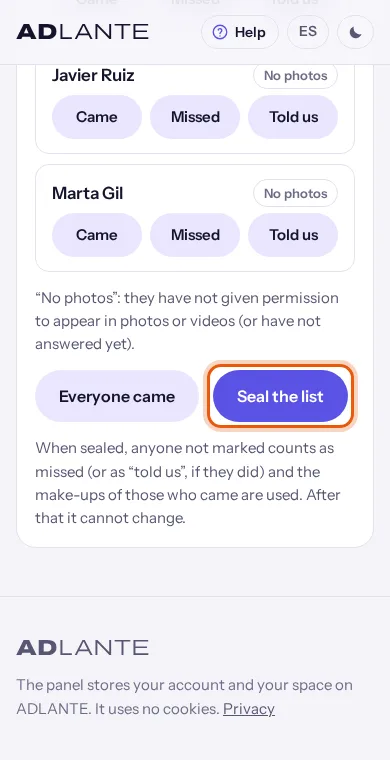
If almost everyone came, tap Everyone came: it marks Came for everyone who has no mark yet. Then correct the ones who missed it.
When it is right, tap Seal the list. It asks Seal the list?: anyone not marked will count as missed, and after that it cannot be changed. Tap Seal the list again. The heading changes to Sealed attendance (12) and below it says This list is sealed: it cannot change.
What appears next to each name:
- Make-up: they are making up an absence from another day.
- Trial: they are coming to try it.
- Pass: 3 left: they come with a class pass and have that many classes left (today included). No pass left: they come with a pass and have none left.
- No photos: they have not given permission to appear in photos or videos (or have not answered yet). Only if your rules ask for it.
- If they reported an absence, under their name: Excused absence, Told in time or Told too late, with the reason. They already appear marked Told us.
What happens when you seal it: anyone not marked counts as missed (or as «told us», if they did); the make-ups of those who came to make up a class are used (and the make-up of someone who was due and did not come becomes available again); and anyone with a class pass who came uses one class of it. Sealed lists are the ones that count in your reports and in what your team is paid.
Take attendance always opens today’s list. If this class is not on today, you see «There is no class on that day.» (or «The school is closed that day.») and only Back to the class. To take a previous week’s list, open the list on the day of that class (from Today) and tap ‹ Previous week. A list for a day that has not come yet can be marked but not sealed (the button is greyed out). And a sealed list cannot be reopened: check it before sealing.
Fees that work themselves out
You don’t write any fees. At the start of each month one is prepared per student, from your rules, their classes and their prices, in the payer’s name. You see them in Payments from day 1. (They are prepared when you open Payments or when ADLANTE goes through the saved cards, every hour. If on day 1 you open a record and don’t see the month’s fee yet, open Payments first.)
How a month’s fee is worked out:
- For each class they are In that month, its price: the class’s own or, if it has none, the one in your rules for its length.
- With Monthly (one fee): the whole price. If they joined or left mid-month and Whoever joins or leaves mid-month pays only their part is ticked, only the part for their days. With Take off closed days, closed days are taken off.
- With Per class: the price for each open class day in the month. With Minimum classes per month, at least that number.
- Outside a class’s season (Starts on and Ends on (optional)), that class does not count.
- If they go to several different classes, Several-classes discount (%); if someone pays for several, Family discount (%) for the second and following ones.
- With Their own price (per month), their fee is that price, with no other discounts.
- No fee for the waiting list, trial classes or classes «with a pass».
- Each fee is due Days to pay after day 1. If it falls due unpaid and you have a Late fee, it is added once.
Besides fees, the enrolment fee (when you enrol them in their first class), the price of a class pass when you sell it, and late fees are also prepared on their own.
Each fee is prepared only once. If you then change something for that month (enrol them in another class, remove them, change a price or your rules), the fee already prepared does not change: the change counts from the following month. Today the panel has no button to change or remove a fee once prepared.
The «Payments» page: the month, debts and the file for your accountant
In the Payments tab (you and reception; teachers don’t see it). From top to bottom:
- The month, with two arrows to go to the previous and next one (it does not go past the current month).
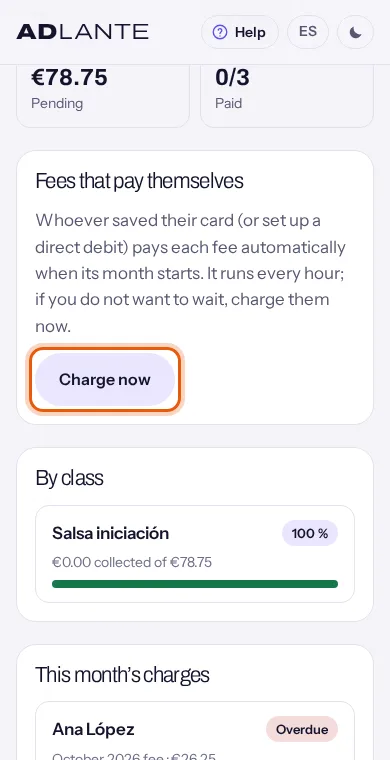
- Four numbers: Month total (everything charged that month: fees, enrolment fees, class passes and late fees), Collected, Pending and Paid (how many charges are paid out of the total).
- Fees that pay themselves and its Charge now button: in «Card payments», below.
- By class: what each class brings in that month, its share of the total, … collected of … and a bar.
- This month’s charges: one per student and item, with its badge (Paid, To pay or Overdue); below, what it is (for example, «October 2026 fee»), how much, anything already paid towards it and, if someone else pays, Ana pays. Tapping the name opens the payer’s record, which is where the payment is recorded: fees are prepared on their own and payments are recorded from the record.
- Debts: everything overdue up to today, from any month. In total (people: 3) and by age: Up to 30 days, 31 to 60 days and Over 60 days. Below, each person with what they owe, Unpaid charges: 2 · days since the oldest: 40 and their phone. If there is nothing: Nobody owes anything.
- Download payments: in «The file for your accountant», just below.
- Your taxes (optional) and its See your taxes button: only you see it (in «Your taxes», at the end).
The file for your accountant. In Download payments, choose From and To (by default, from day 1 of the month you are viewing to today) and tap Download (CSV). You get a file with every payment in those dates: the date, the receipt code, who paid, what they paid, the amount, the currency, the payment method, anything refunded and the note. It opens in Excel, Numbers or Google Sheets, for you or whoever keeps your accounts. If it does not download: It could not be downloaded. Try again.
Recording a payment by hand
For what you are paid in cash, by bank transfer or however people pay in your country. Recording it does not charge anything: it records money you have already been given and creates its receipt.
Open the payer’s record: from Students, or by tapping their name in This month’s charges or in Debts. If a child’s fees are paid by their mother, it is the mother’s record.
Scroll down to What is pending. Everything they owe (theirs and of anyone they pay for) appears with its box ticked, what is left, anything already paid towards it and due …. If they have saved a card, the top says Their fees are paid automatically with Visa ···· 4242. If they owe nothing: Nothing pending.
Untick whatever they are not paying today. How much they pay fills in by itself with what is ticked; change it if they only pay part: They can pay part of it: it goes to the oldest first.
In How they pay, choose: «Cash», «Bank transfer», your country’s own method if there is one, or «Another way». Which ones appear depends on your space’s country.
If you like, a Note (optional): it appears on their receipt (in their area) and in the payments file.
Tap Record the payment. Its receipt opens. Anything paid in full becomes Paid; if they paid part, the rest stays pending.
If nothing is ticked or the amount is empty, you see Choose what they pay and write how much. If you write more than what is ticked, That is more than what is pending in what you chose. The payment is recorded with today’s date.
If you make a mistake, open its receipt and tap Refund this payment: what was paid becomes pending again and you can record it correctly.
The receipt
Every payment, by hand or by card, has its receipt: Payment receipt. This is not an invoice. It opens when you record a payment or when you tap its amount in Their payments in the record. To go back, Payments, at the top.
- Your space’s name and Payment of ….
- Code: eight letters and numbers, for example
K7P2-9QXM. It is not an invoice number. - Who pays, When and How.
- What was paid, line by line (with each person’s name, if they paid for their family).
- If it was refunded: Refunded: …, on ….
Print opens your device’s print window; from there you can also save it as a PDF and send it. Your student does not need it: they have it in their area, in Your receipts.
Refund this payment (only for payments recorded by hand and not yet refunded): it asks Refund this payment?: what they paid becomes pending again, and you give the money back yourself, the same way they paid. A card payment does not have this button: it is refunded in Your payments, with Refund, and when refunded, what they paid becomes pending again in their record.
Each student’s link and what they see in «My school»
With their link, your student joins their account to their record and opens their area on your website, «My school». The tool has to be turned on and your website published (the link opens your website).
Open their record and scroll down to Their student area. If they don’t have an account yet, it says No account yet. Give them their link (valid for 30 days, once)…
Tap Create their link. If the tool is not turned on, the window to turn it on opens (see «What «Students and payments» is»); when you come back, the link is created by itself. You see Their link: https://yourname.adlante.com/#alumno/unirme/… and, if your device allows it, (Copied.): it is already copied.
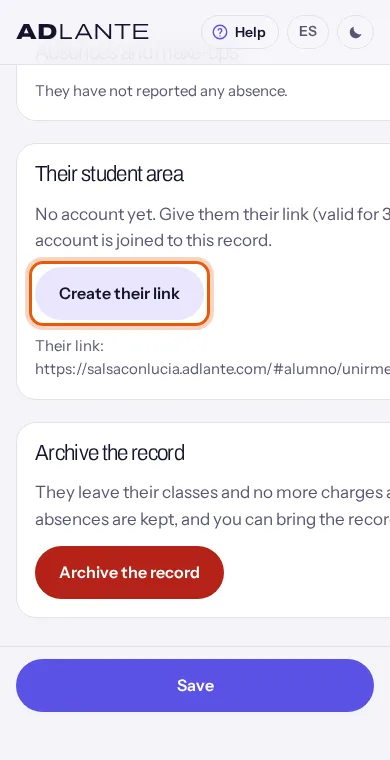
Send it by WhatsApp or email. It is valid for 30 days and only once. If you create another one, the previous one stops working.
Your student opens it and lands on your website, at Your account at (your space), with the text «Your school sent you this link…». They create their account (Create account) or sign in with the one they have (I have an account); if they were already signed in on your website, they are joined straight away. If the account is new, they get an email to confirm it: they open it, tap the link and come back to the page.
They see You’re in and Go to My school. In your panel, their record now says They already have an account… and in the list they show Has an account.
If the link does not work for them, they see «This link is not valid or has already been used. Ask your school for a new one.» (it expired, it was used, or you created another after it): create a new one. An account joins only one record at your school: for someone to also see their family’s, set them in Who pays on those records.
What they see in «My school» (from top to bottom):
- Hi, Marta. and two buttons: Report an absence and Your school’s rules (your rules page).
- Your timetable: their classes (and those of anyone they pay for), with days, time, level, room, who teaches it and how long it lasts; and whether they are on a trial, on the waiting list or on a plan.
- Your class passes: what is left on each one.
- What you owe: each item with its due date, and the total. If your Stripe account is ready to take payments, the Pay … by card button; if not, To pay it, talk to (your space).
- Automatic payment: to save their card (if your rules allow it and your Stripe is ready).
- Your make-up classes: the ones to use, with Book a make-up, and those requested or confirmed.
- Your receipts: all their payments, each with its receipt.
- Your permissions: their details and photos (and those of a minor they pay for).
Reporting an absence: they choose the Class and the Day (the next days of that class, without closed days or ones already reported), write the Reason (optional) and tap Report the absence. If they report in time and are due one, they are told You have a make-up class to use by …; if they report late, As it was less than … hours before, there’s no make-up class this time. It reaches your Absences inbox.
Booking a make-up: in Your make-up classes, Book a make-up; they choose the Class (any class at your school except their own) and the Day (until it expires) and tap Request this day. If it is full that day, The class is full that day. Try another day. If you approve them, they see Requested: … Your school will confirm it.; if they book automatically, Booked: ….
How they come back another day: by signing in on your website with their account. If your website sells courses, «My school» appears as a card on their page, with Open; if not, they go straight to «My school».
Card payments and automatic fees
To take card payments you need your Stripe account connected and ready to take payments: Card payments. The money goes to your Stripe account. ADLANTE keeps a small part of each payment and Stripe keeps its own: how much, in Your plan, under On each sale.
1 · Your student pays from «My school». In What you owe, Pay … by card pays everything pending at once, on Stripe’s secure page, without leaving your website. When it is done they go back to «My school»: Payment received: it’ll show in your receipts in a moment. In your panel, the payment appears by itself in their record, with its receipt and the method «Card», and what they paid becomes Paid.
2 · Automatic fees (their saved card).
In your rules, leave Let them save their card (their fees pay themselves) ticked (it is ticked by default).
Your student, in «My school», goes to Automatic payment and taps Pay my fees automatically. They save their card on Stripe’s page, without paying anything at that moment. When they come back: Done: from now on your fees are paid automatically.
From then on, their fees, late fees and plans are charged automatically on the day their month starts. Enrolment fees and class passes are not: they pay those from «My school» or by hand.
In their record, in What is pending, you see Their fees are paid automatically with Visa ···· 4242. You only see the brand and the last four digits. They remove it whenever they like, with Remove.
- With Also offer your country’s bank direct debit (and it turned on in your Stripe), they can set up a direct debit from their bank account instead of using the card.
- Only someone who pays for themselves can save it. If someone’s fees are paid by their mother, the mother saves it, in her «My school».
3 · Charge now. Every hour ADLANTE charges what is due that day to the saved cards. If you don’t want to wait, in Payments → Fees that pay themselves, tap Charge now. While it charges it says Charging…; afterwards, There was nothing to charge right now or Done. Charged: … · on their way: … · did not go through: …. («On their way» are direct debits, which take a few days to confirm.) If the tool is not turned on, the window to turn it on opens; when you come back, the charge runs by itself.
To refund a card payment: see «The receipt».
Payments that fail
When the bank does not accept the automatic charge on a saved card, the fee stays pending: in their record, in Debts once it is due, and in «My school», where they can pay it with another card. What happens next you decide in Rules → If a payment does not go through:
- Try again after (days): comma-separated, counting from the first attempt (for example: 3, 7); empty, no retries. Each number higher than the previous one; up to five. If they save a new card, it is tried on the next run, without waiting for its day.
- Email them, with a link to pay it: they get an email (if their record has one) with what did not go through, when it will be tried again and the link to «My school».
- Pending first: with something overdue they cannot book make-up classes (unticked by default): while they have something overdue, they cannot book a make-up; they see «Before booking, pay what is overdue.»
Once the retries run out, it is not tried again: it stays pending until they pay it from their area or you record it by hand. In Charge now, the ones that failed are shown as «did not go through».
Separately, for everyone (also without a saved card), in Reminders and students at risk: Payment reminder (days before) and And if still unpaid (days after). They are emails to the payer, with their link to pay. Anyone with automatic fees does not get them for what is charged automatically.
Class passes
A class pass is several classes paid at once. Someone who comes to a class «with a pass» pays no fee for that class: each day they come uses one.
Create it. In Rules → Class passes, tap Add a pass and fill in Its name, Classes, Price and Expires after (days; 0: never) (counting from the day you sell it). Save with Save, in the bar at the bottom. You can have up to ten. To stop selling one, Remove: it asks Remove “Class pass”? (it will no longer be sold, and passes already sold remain valid); then save.
Choose when to tell them. Tell them when they have (classes left; 0: never): when a list is sealed, if they have that many classes left (or run out), they get an email.
Sell it. In their record, in Class passes → Sell a class pass, choose the pass and tap Sell. It is valid straight away; its price stays pending: it stays in «What is pending» until they pay it.
Enrol them «with a pass». In their record, in Enrol in a class, choose the class, tick Comes with a class pass (no monthly fee) and tap Enrol. Their classes show With a pass. (That box only shows if you have a class pass in your rules. If they were already enrolled without a pass, remove them from the class and enrol them again with the box ticked.)
Take attendance. You see Pass: 4 left (today included). When the list is sealed, if they came, one class is used from the pass that expires first. If they have none left, No pass left shows: sell them another.
In Class passes in the record, each pass shows 6 of 10 left, Used up or Expired, Expires on … or Does not expire, and bought on …. Your student sees them in «My school», in Your class passes.
The absences and make-ups inbox
In the Absences tab (you and reception): The absences your students report and the make-ups they ask for. It shows the last 60 days.
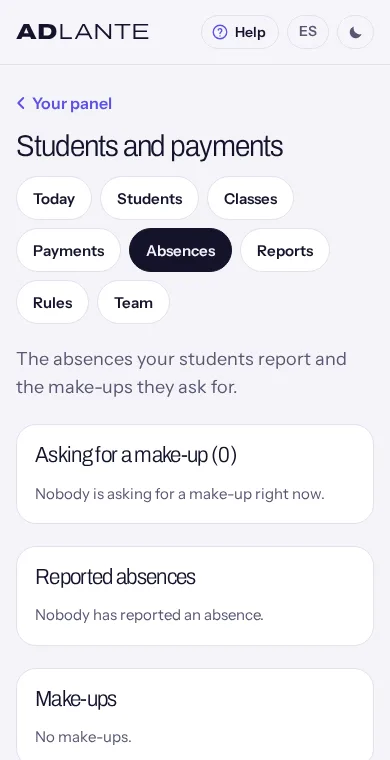
- Asking for a make-up (2): who, the day they ask for and Wants to come to: Salsa beginners. Approve: it is confirmed and on that day they appear in that class’s list with Make-up. Decline: their make-up is free again and they can ask for another day. They only reach this inbox if in your rules The school (they reach your inbox) approves them; with Automatically, if there is a place, they book themselves. If there are none: Nobody is asking for a make-up right now.
- Reported absences: each one with Excused, Told in time or Too late, and below the date, the class, the reason and their make-up (its state, or No make-up). Excuse it marks it as excused and, if it had no make-up, gives one (if your rules give make-ups and they have not reached the limit). Remove the excuse removes it; a make-up already given stays.
- Make-ups: the rest, with their state: Make-up to use (with Expires …), Make-up approved, Make-up used, Make-up expired or Make-up cancelled. They expire on their own.
Only absences reported by the student from «My school» (or by whoever pays for them) reach the inbox. Marking Told us when taking attendance records their attendance, but does not create an absence in the inbox or give a make-up. If they tell you by phone, ask them to also report it in «My school».
Your team: teachers and reception
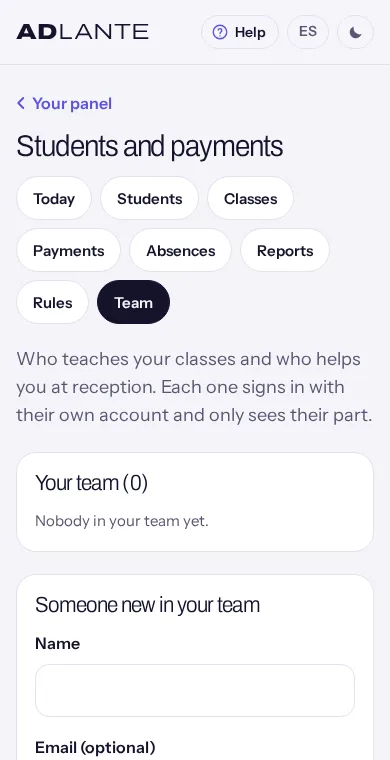
In the Team tab (only the person who runs the space sees it): who teaches your classes and who helps you at reception. Each one signs in with their own account and only sees their part.
What each one can do:
- You: everything.
- Reception: everything except your rules, your team and what each one is paid: students, classes, attendance, payments, absences and reports. They don’t see Rules, Team or «Your taxes», and cannot turn the tool on.
- Teacher: Teaches (sees only their classes and takes attendance). They only see Today and Classes, with the classes that have their name in Who in your team teaches it: who comes and taking attendance. They don’t see money or records.
- Nobody on your team sees the rest of your panel (your website, courses, shop): only Students and payments.
Adding someone:
In Someone new in your team, write their Name and, if you like, their Email (optional). In What they do, choose Teaches (sees only their classes and takes attendance) or Reception.
In How they are paid: I do not track it here, Per class taught, Per hour taught, A % of what their classes bring in or Per student who came. Depending on your choice, How much or Percentage (%) appears. Tap Add.
They appear in Your team (2) with their role. Tap Create their link: Their link (valid for 7 days, once): …, already copied. Send it to them.
When they open it, they sign in to ADLANTE with their account (or create one with Create one and confirm their email) and land straight in your school’s Students and payments. Your list shows Has an account.
For a teacher, assign their classes: in each class, Who in your team teaches it, and Save.
Removing someone: Remove, and it asks Remove Luis?: they will not be able to sign in, and their classes and attendance stay, with nobody teaching them. Today you cannot change how someone already added is paid: to change it, remove them, add them again and reassign their classes.
What each one is paid. At the bottom, What is paid in October 2026, with an arrow to see the previous month (to come back to this month, tap the Team tab again): for each person, the classes, the hours, the students who came and what their classes bring in, and what they are owed; at the end, In total: …. Only classes with a sealed list count. It is a calculation so that you can pay them: ADLANTE pays them nothing.
Reports
In the Reports tab (you and reception): what is happening in your school. Everything comes by itself from your sealed lists, your classes and your payments.
- Students at risk of leaving: each one with High risk or Medium risk, the reasons (for example, Has not come for 20 days, Missed their last 3 classes, coming less than before, or Their family’s payment is 35 days overdue) and Call or Email. It is high risk with two or more reasons, or with twice the days without coming. Someone who has just started does not count as not coming. The rules are in Rules → When a student is at risk of leaving. If there is nobody: Nobody right now.
- Classes with few students: based on Tell me when a class has fewer than (students). If it is 0: The few-students alert is off (in “Rules”).
- Who stays month to month: month by month, of those enrolled at the start, how many are still there at the end, with Stayed 18 of 20 · left: 2 · joined: 3.
- Attendance by class (8 weeks): how well each class is attended and On average, 11 per class · sealed lists: 8. Only sealed lists count: with none, No sealed lists yet.
- What each class brings in (6 months): what went into its fees, month by month, paid or not. What was actually collected is in Payments.
- Your rooms: for each room, the hours a week, how many classes it has and how full their places are. Classes with no room go together, under No room.
- Leavers by class (6 months): how many left each class.
«Your taxes» (optional)
It is an optional help, off by default. If the price of your classes includes a tax, it works out how much of what you collected is tax, by month and by quarter. ADLANTE does not decide which tax applies to you: you enter it, and whoever keeps your accounts has the final word. If you don’t charge tax, you don’t need to do anything.
In Payments, at the very bottom, in Your taxes (optional), tap See your taxes. Only the person who runs the space sees it.
In Your tax, tick Work out my tax, write Its name (your tax’s name, as it is called in your country) and its Percentage (%) (two decimals at most; a comma or a point both work). Tap Save.
If something is not valid, you see Write its name (…) or A percentage from 0 to 100 (two decimals at most).
2026 at a glance appears, with arrows to see other years: By quarter (the tax for each quarter and what was collected in it), a line with the whole year, and By month (what was collected each month and what is left without the tax).
The figures come from what was collected in Students and payments (payments by hand and by card, minus refunds), assuming your prices already include the tax. Your shop and your courses are not counted. Your receipts and the payments file do not change. To turn it off, untick the box and save: it is off.
Questions
Is «Students and payments» the same as «Your students»?
No. Your students are the people who create an account on your website to watch your video courses. Students and payments is for your weekly classes: their records, their classes, attendance, their fees and their payments. They are separate lists.
I can’t find «Students and payments» on my phone.
On the first page of your panel, scroll down to its Students and payments box and tap Go to students and payments. On a computer it is in the menu on the left, and on a tablet, in the row of buttons at the top.
Do I have to pay to try it?
No. You can create your classes and students, take attendance and record payments by hand without paying anything. You pay when something reaches a real student: when you create their link or use Charge now. At that moment you see its price and it takes you to turn it on in Your plan. Nothing you set up is lost.
Do I have to press «Save» in every box?
It depends on the page. In your rules and in a record’s details there is a single bar at the bottom, with Save, which saves everything at once and warns you with You have unsaved changes. Everything else (creating a class, enrolling someone, recording a payment, adding a family member, marking attendance) has its own button and saves straight away.
Do the classes I create here appear on my website’s timetable?
No. Your website’s timetable is written in the editor, in its timetable section. They are two separate things: if you change a class, change it in both places.
I enrolled someone and no fee appears.
Fees are prepared at the start of each month (you see them in Payments; open it if it is not there yet). No fee for anyone who is Waiting, on a Trial or With a pass. And if their fee for this month was already prepared before you enrolled them, the new class counts from the following month.
I made a mistake in a fee: how do I change it?
Today the panel has no button to change or remove a fee once prepared. Whatever you change (a price, their classes, your rules) counts from the following month. If it is something you cannot fix, tell us in Missing something? Tell us.
How do I charge a family with several children?
Create a record for the payer (even if they don’t come to class) and, in each child’s record, choose them in Who pays. Their fees go together in the payer’s name, with the Family discount (%) if you have one. Give that person their link: in «My school» they see and pay for everyone.
A student paid me in cash: where do I record it?
In the payer’s record, in What is pending: tick what they pay, choose how and tap Record the payment. Their receipt appears. The See payments button in your steps takes you to Payments, but the payment is recorded in the record.
I recorded a payment by mistake.
Open its receipt (in Their payments in their record) and tap Refund this payment. What they paid becomes pending again and you can record it correctly. The wrong payment stays marked Refunded.
Can I take attendance for a day that has passed?
Yes, as long as it is not sealed. Take attendance opens today’s list: open the list on a day the class is on and use ‹ Previous week. If the class is not on today, you see «There is no class on that day.» and you cannot move to another week from there.
I sealed a list with a mistake.
A sealed list cannot be changed or reopened. That is why it asks before sealing. Check carefully before tapping Seal the list.
A student told me on WhatsApp they would miss class: do they get a make-up?
Only absences reported from «My school» give a make-up. Marking Told us in the list records their attendance but does not give a make-up. Ask them to report it from their area as well, before the class.
My student’s link doesn’t work.
A link is valid for 30 days and only once, and stops working if you create another one after it. Your website also has to be published. Create a new one in their record with Create their link and send it. If they are told their account is already linked to another record, they already have a record at your school: for them to see their family’s, set them in Who pays on those records.
Can my students pay by card?
Yes, if your Stripe account is connected and ready to take payments (Card payments). They pay from «My school» with Pay … by card or save their card so their fees pay themselves. Without Stripe, their area tells them to talk to you to pay, and you record the payment by hand.
Do my students get any emails?
Only if their record (or the payer’s) has an email: the reminder before and after a payment is due, the email when an automatic charge failed and the one when their class pass is running out, depending on your rules. With 0 in those numbers, nothing is sent.
Can I give them an invoice?
ADLANTE does not make invoices: every payment has its receipt, which is not an invoice. For your accounts, download the file in Payments → Download payments and give it to whoever keeps your accounts; if you need invoices, your accountant or your own software makes them with that data.
How do I delete a student?
They are not deleted: they are archived, with Archive the record at the end of their record. They leave their classes and no more charges are prepared, and their payments and absences are kept. Bring them back with Bring the record back.
What does a teacher on my team see?
Only Today and Classes, with the classes you assigned them in Who in your team teaches it: who comes and taking attendance. They don’t see money, records or the rest of your panel.
How do I set up a three-month plan?
In Rules → N-month plan, tick Offer a plan and set its months, its discount and how it is paid. Today it appears on your students’ rules page, but the panel does not have a button to enrol someone on the plan yet.
How much does «Students and payments» cost?
You see it in Your plan: its monthly price and what ADLANTE keeps from each card payment. This guide does not quote prices because ADLANTE sets them and they can change.