What ADLANTE is
Your space, your website and your panel: what each one is, what you can do and what you pay for.
Detailed step-by-step guide
Three things: your space, your website and your panel
ADLANTE is where you set up what you teach: your website, your courses, your events, your shop and the management of your students. It all comes from three things:
- Your space. Your place inside ADLANTE: it has your name and your web address (for example,
yourname.adlante.com). You create it once, with the invitation you receive. - Your website. What people see at that address: your home section, who you are, your courses, your events, your shop… You build it yourself, with the editor, and it goes online when you tap Publicar (Publish).
- Your panel. Where you, and only you, work: your website, your courses, your events, your students, your payments and what you pay. You sign in with your account at
adlante.com/en/panel.
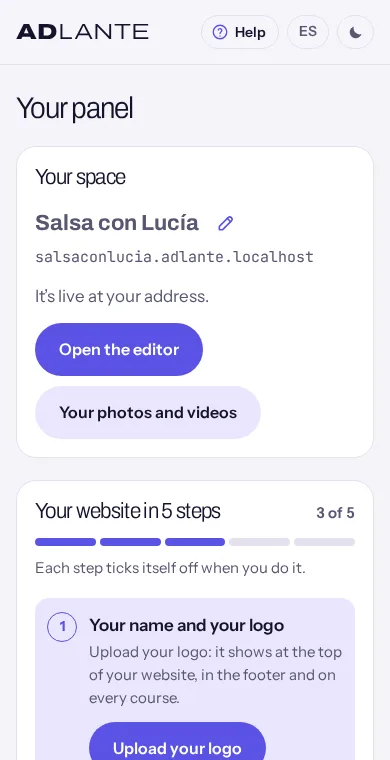
What is in your panel
On a computer, your panel has a fixed menu on the left. On a phone, everything is on the first page of your panel, one thing under another; to go back, tap Your panel at the top left.
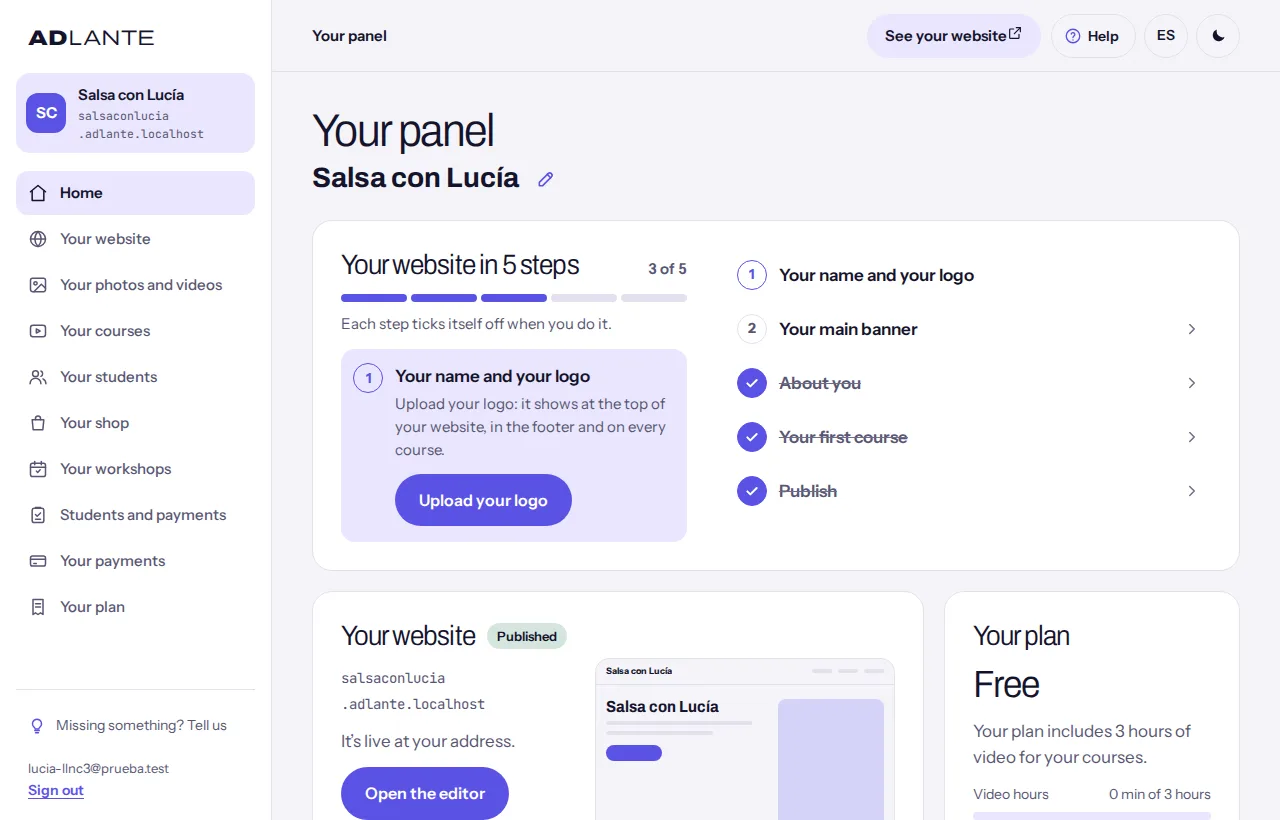
- Your website: the editor, where you change everything people see on your website and publish it. Its guide: The whole editor.
- Your photos and videos: everything you have uploaded, where it is used and what you can delete.
- Your courses: your video courses, with their modules and lessons. Its guide: Courses.
- Your students: who has created an account on your website to watch your courses, and which courses they have.
- Your shop: your products, your orders and the seller details. Its guide: The shop.
- Your workshops: your workshops, masterclasses and bootcamps, with their places and who signs up. Its guide: Workshops.
- Students and payments: your weekly classes, your students and their families, taking attendance and fees. Its guide: Students and payments.
- Your payments: your Stripe account, to take card payments, and everything you have been paid by card. Its guide: Card payments.
- Your plan: what you pay ADLANTE, your paid tools and your card. Its guide: Your plan.
Your students and Students and payments are not the same thing. Your students are the people who buy your video courses on your website. Students and payments is for your weekly classes: who comes, who pays their fee and who owes something.
You only see the tools your space can use. If something is missing, tell us with Missing something? Tell us: it is at the end of the Help window (on a computer, also at the bottom of the left-hand menu). We read it.
What is free and what you pay for
On ADLANTE, setting up is free. You can create your website, your courses, your events and your products, and get everything ready, without paying anything. You pay when you really use it: when something goes live on your website for people to buy, sign up or pay.
- Your website. What it costs each month is shown in Your plan. You pay nothing until you publish it.
- Paid tools (for example, workshops, the shop or student management). Each one has its own monthly price, also shown in Your plan. A tool that costs you €0 is yours, without doing anything.
- Per sale. When someone pays you by card (a product, a course, a ticket), ADLANTE keeps a small percentage and Stripe, the company that processes cards, keeps its own. The rest goes to your bank. How much, in Your plan, under On each sale.
Everything you pay ADLANTE is charged together, once a month, to your card. Prices are set by ADLANTE and can be different for each space: that is why this guide does not quote any. The real ones are always in Your plan.
When you try to really use a tool you have not turned on yet, ADLANTE tells you at that moment, with its price, and takes you to turn it on. Nothing you set up is lost. How it works, step by step: Your plan.
Where to start
Create your space with your invitation: From sign-up to your published website.
In your panel, follow Your website in 5 steps: each step takes you to the exact place and ticks itself when you do it.
When you like your website, publish it. Then add what you need: your courses, your workshops, your shop or your classes.
To take card payments, connect your Stripe account: Card payments.
If you get lost on any screen, tap Help: the guide for the page you are on comes first.