The shop
How to set up your shop, open it and get paid, what buyers see and what to do with each order, refund or withdrawal.
Detailed step-by-step guide
What your shop is and what you need to open it
Your shop is for selling things people can hold: T-shirts, bags, accessories. Each product has its own page on your website, with its photos, its price and, if needed, its sizes and colours. Buyers collect it at your space or, if you have delivery, you send it to their home. They don’t need to create an account.
Where it is. On a computer, Your shop is a button in the menu on the left. On a phone, it is on the first page of your panel: a Your shop card with the button Go to your shop. Inside there are three tabs at the top: Products, Orders and Settings. Each product and each order also has its own page.
What it costs. Setting it up is free: you can add your products, fill in the settings and try it all out without paying anything. You pay when you open it for real, when your website starts taking orders: at that moment ADLANTE tells you its monthly price and takes you to turn it on in Your plan. This guide quotes no prices, because ADLANTE sets them and they can change: the real ones are always in Your plan. How it works: Your plan.
For people to be able to buy, these six things have to be done:
- Who sells: your legal name, your address and your email. They also appear in the privacy policy and the legal notice of your website (in its footer): whatever you leave out says “(not given yet)” there.
- How it is delivered: the address where orders are collected (or delivery, if you have it).
- How you get paid: on pickup, by bank transfer or by card.
- A product with the status For sale.
- The shop with the status Open.
- The Tienda (Shop) section on your website, published.
You do them one by one, following the list that shows in your shop: Your shop in 6 steps.
There are two different switches. Each product has its own status (Draft, For sale or Archived) and the whole shop has its own (Open or Closed). For someone to buy, the product has to be For sale, the shop Open and the Tienda (Shop) section published on your website.
If you want to take card payments, you also need your Stripe account connected in Your payments: Card payments. To be paid on pickup or by bank transfer, you don’t.
What is on the Your shop page
It is the first tab, Products. From top to bottom, this is what is there:
- The back link, top left: it takes you to Your panel.
- If your space has not turned on the shop yet, a label next to the title: Paid · (its price) a month. It is only a notice: you can set the shop up anyway.
- The tabs Products, Orders and Settings.
- Your shop in 6 steps: the list of what is missing. It disappears when everything is done. It is explained in the next part.
- Your shop, on your website: says whether the shop is Open or Closed, what is missing to open it and the button Open the shop (or Close the shop).
- Your orders: four numbers (to prepare, ready for pickup, unpaid and sold this month) and the button See the orders.
- Your products: the button Add a product and the list of what you have added.
- The bin: it only shows if you have deleted a product.
- Try it all out: how to place test orders, with the button Open the editor.
On a wide screen, the home of your panel also shows your shop numbers (Sales this month, Orders this month and To prepare). Tapping one takes you to Orders.
If instead of all this you see “The shop is not available in your space right now.”, ADLANTE has this tool switched off for your space. If you need it, ask for it in Missing something? Tell us.
Your shop in 6 steps: what each step does
While something is missing, Your shop in 6 steps shows at the top of Your shop. Above it says how many you have done (“2 of 6”) and a bar shows it. Each step ticks itself off: you don’t mark anything, it is checked every time you come in. On a phone, the step that is next is open inside the list, with its button; the others are rows you can tap to go straight there. On a wide screen, the count and the next step, with its button, are on the left and the list of all six is on the right. When all six are done, the list disappears.
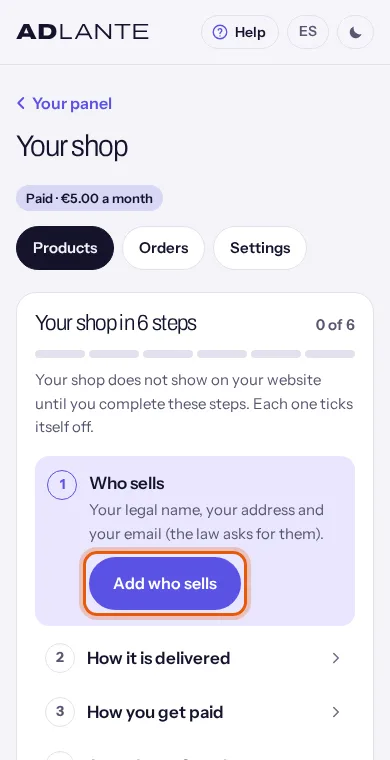
Who sells. Button: Add who sells. It takes you to Settings, to the first detail you are missing (legal name, address or email), with the cursor already in place. It ticks when all three are saved.
How it is delivered. Button: Choose how it is delivered. It takes you to the Pickup at the space section of Settings. It ticks when delivery is ready: the address where orders are collected or, if you have delivery, delivery.
How you get paid. Button: Choose how you get paid. It takes you to the How you get paid section of Settings. It ticks when there is at least one way to be paid: on pickup, by bank transfer or by card. For cards, you first have to connect Stripe in Your payments, with the button Connect with Stripe.
A product «On sale». Button: Go to your products. It takes you to the product list, on this same page. It ticks when at least one product has the status For sale. (In this step the screen says “On sale”; the status itself is called “For sale”.)
Open the shop. Button: Go and open it. It scrolls you down, on the same page, to Your shop, on your website, where the button Open the shop is. It ticks when the shop is open.
Your shop on your website. Button: Open the editor. It takes you to the editor, where you have to add the Tienda (Shop) section and tap Publicar (Publish). It ticks when your published website already has that section.
The list does not open the shop for you: step 5 takes you to the button, but you press it. And step 6 only ticks when your published website already has the Tienda (Shop) section: if you add it in the editor and don’t tap Publicar (Publish), it stays unticked.
The shop settings: how to fill them in and save them
The Settings tab holds everything that is not a product. There are five sections, one under another: Who sells, Pickup at the space, How you get paid, Home delivery and Returns. Each one has its own part in this guide.
There is one single Save button, at the very bottom, in a bar that stays stuck to the foot of the screen as you scroll. Write whatever you want in any section and tap Save once: everything is saved together. The bar tells you where you are: “You have unsaved changes.” when you have touched something, “Saved.” once it is saved and “Everything is saved.” if you tap it without having changed anything.
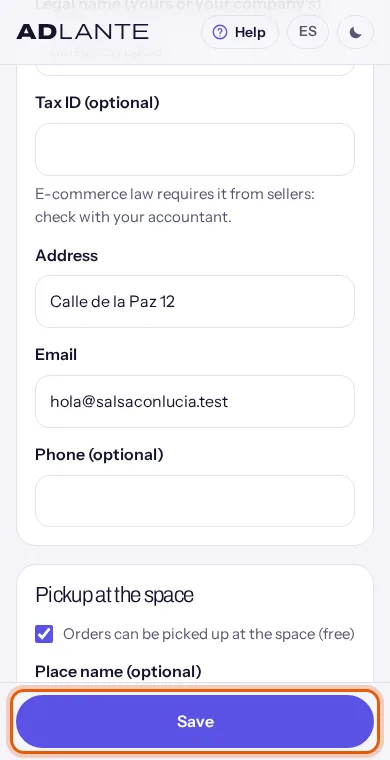
What shows after saving. If nothing is missing to open the shop, a green notice: “Settings saved. Your shop can now open.” If something is missing, the green notice says so: “Settings saved. To open the shop you still need: …”, with the list of what is left (for example, “Who sells: add your email”). It is not an error: what you wrote is saved.
If a detail is not valid, what is wrong shows in red and the cursor goes to that field: “That email is not valid.”, “That phone number is not valid: only numbers, spaces and +.”, “The legal name is too long.” Fix it and tap Save again. The red notice from before disappears by itself on each attempt. Until you see “Saved.” or the green notice, don’t assume it was saved.
If you leave the page with unsaved changes, the browser asks before letting you go (with its own text, which ADLANTE cannot change).
If you arrived from a step in the list (for example, Add who sells), the page opens already at the missing field, with the cursor in place. It is normal for the page to scroll down by itself.
Add who sells: your name, your address and your email
The law asks that buyers know who they are buying from. That is why Who sells is the first thing to fill in. The screen itself says so: “It shows on every product and at checkout: the law requires saying who sells. If in doubt, ask your accountant.”
Whatever you write here can be read by anyone: it shows on each product page (“Sold by…”), in the terms of sale and on each order page. Think carefully about which address and which email you use.
- Legal name (yours or your company’s): required. The name you really sell under, yours or your company’s.
- Address: required. A postal address.
- Email: required. An email you read: it is the one buyers will see.
- Tax ID (optional): optional. The screen warns that e-commerce law can ask sellers for it and that you should check with your accountant. If you write it, anyone can see it too.
- Phone (optional): optional. Only numbers, spaces and the + sign. It shows in the terms of sale.
Until the legal name, the address and the email are all there, the step Who sells does not tick and Open the shop cannot be pressed. In Your shop, on your website, “To open it you still need:” says which one is missing: “Who sells: add your email”, “Who sells: add your address and your email”… If you tap it, you go straight to that field.
These same details show as the manufacturer’s on the products where you choose My space (I have it made with my brand). It is explained in the part about what the law requires.
Choose how it is delivered: pickup and delivery
There are two ways to hand over an order: buyers collect it at your space (always free) or you send it to their home (only if you have the delivery tool). You need at least one.
Pickup at the space. In the Pickup at the space section:
- Orders can be picked up at the space (free): the box that turns it on.
- Place name (optional): for example, “Space reception”.
- Address: needed to open the shop. It is where people will go for their order.
- When (optional): the times, in your own words (“Monday and Wednesday evenings”).
- Instructions (optional): anything you want to tell whoever comes. It shows at checkout and, afterwards, on their order page until it is delivered.
- How long it takes you to have it ready: you pick a phrase: Usually within 24 hours, Usually within 2 to 4 days, In 5 days or more or You tell them when it’s ready. Buyers see it when they choose how they want it (“Usually ready within 24 hours”).
Home delivery. It is a separate tool. If your space does not have it, this section says “Home delivery is a separate tool, and your space doesn’t have it yet.” and there is nothing to fill in. Which tools you have and what they cost is in Your plan. If you have it:
- Deliver to the customer’s home: the box that turns it on.
- Delivery price (flat rate): what you charge to send an order, whatever it weighs. You write it like the price of a product.
- Free from (optional): if the order reaches that amount, delivery is free. Empty: never free.
- Where to: tick the areas you deliver to, Mainland … and Balearic Islands. You have to tick at least one (“Choose at least one delivery area.”). Outside those two areas, you cannot deliver yet.
- How long it takes (optional): a phrase, like “2 to 4 working days”.
A delivery cannot be paid on pickup. If you turn on delivery, also turn on bank transfer or card in How you get paid. Card works as soon as your Stripe account is Active.
Buyers choose among the ways you have turned on. If they ask for delivery, they write their address and postcode, and ADLANTE works out the total (with delivery) right away.
Choose how you get paid: on pickup, by transfer or by card
In the How you get paid section you choose which ways buyers can pay. You have to turn on at least one. You can turn on all three.
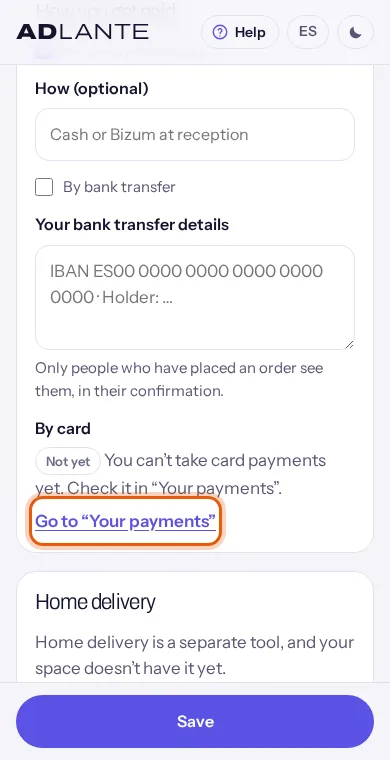
On pickup at the space. Box On pickup at the space. Buyers pay when they collect their order. In How (optional) you can say how (for example, “Cash at reception”); if you leave it empty, they see “You pay when you collect your order.” It only works if they collect: if they ask for delivery, this option switches off.
By bank transfer. Box By bank transfer. In Your bank transfer details write what buyers need to pay you: your account number (or the account details your bank asks for) and the holder’s name. Buyers only see them once they have placed their order, in their confirmation, with the phrase “Use this reference: Order #…”. ADLANTE cannot see your bank: when the transfer arrives, open the order and tap Mark as paid.
By card. It is not a box: it depends on your Stripe account. The By card block tells you where you are, with a label and a sentence:
- Active: “Buyers can pay by card when they place their order. The money goes to your Stripe account.” With the link See your payments.
- Not connected: “Connect your Stripe account in “Your payments” and your shop will also take card payments.”
- Not finished: “You still need to finish signing up with Stripe. As soon as you do, your shop also takes card payments.”
- Restricted: “Stripe needs something from you before you can take payments. Check it in “Your payments”.”
- Disconnected: “Your Stripe account was disconnected from ADLANTE. Connect it again in “Your payments”.”
- Not yet: when it is another cause, for example that ADLANTE has not opened card payments for your space yet.
In every case except Active, the link Go to “Your payments” takes you to Your payments. Buyers who pay by card don’t leave your website: a window opens on top of it, with Stripe’s secure payment. The money goes to your Stripe account. ADLANTE keeps a commission on each card sale (how much: Your plan) and Stripe keeps its own. How to connect Stripe, step by step: Card payments.
Payments on pickup and by bank transfer do not go through Stripe, so they don’t show in Your payments. Every order in your shop, however it is paid, is in Orders.
Your returns rules and the low-stock warning
The last section of Settings is Returns. The screen says: “What the law requires (14 days to withdraw from the purchase and the 3-year guarantee) is already in your terms of sale, by ADLANTE. Here, only your own rules.”
- Your own returns rules (optional): your own rules, for example how to change a size. It shows on each product page, inside Delivery and returns, and in the terms of sale. Up to 3,000 characters.
- Warn “only a few left” from: a number of units. When a product falls below it, your product list shows “only a few left” and whoever looks at it on your website sees “Only 2 left” (with the units there are). With 0 it never warns. It has to be a whole number from 0 to 100; otherwise you get “The “only a few left” warning must be a number from 0 to 100.”
Add a product
Go to Your shop (tab Products) and scroll down to Your products. Tap Add a product.
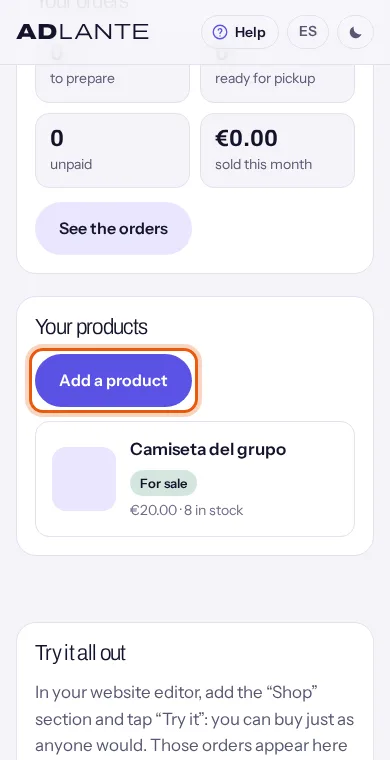
A small form opens with two fields: Product name (up to 120 characters; the example you see is “T-shirt with your logo”) and Price. The price is what the buyer pays, taxes included, and you write it with a comma or a dot for the cents.
Tap Create the product. If you change your mind, Cancel (or the Esc key) closes the form.
If something is missing, it shows in red and the cursor goes to that field: “Write the product name.”, “Write its price.” or, if the price cannot be understood, “The price is not valid: write it in euros…”.
Once it is created, the product page opens. There you set everything else: photos, description, sizes, stock and what the law requires. Check its Status: until it is For sale, it does not show on your website.
The product list. Each row has the thumbnail of its first photo, its name (tap it to open the product), a label with its status (Draft, For sale or Archived) and a line with the price and the stock. That line says “from …” if the combinations cost different amounts, “5 in stock” (the total units), Sold out if none are left, Made to order if you make it when it is ordered, and “only a few left” if it reaches the warning you set in Settings.
If you have none, the list says “You don’t have any products yet. Add the first one…”.
The product page: name, price, description and status
A product page opens by tapping its name in the list. At the top, the link back to Your shop, the product name as the title and its labels (its status and, in red, Sold out if no units are left). Below, in this order: Photos, The product, Sizes, colours…, Stock (or Each combination), What the law requires and Delete this product. There is one single Save button, at the very bottom.
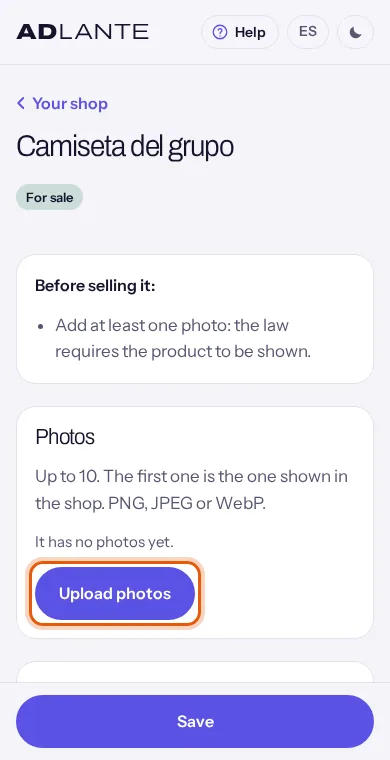
If there is something worth fixing before you sell, a box Before selling it: shows at the top with a list: “Add at least one photo: the law requires the product to be shown.”, “If it’s clothing or fabric, write what it’s made of (the law requires it).” or “The manufacturer’s details are missing.” They are notices: they tell you what is missing, product by product.
The The product section has these fields:
- Product name: up to 120 characters.
- Description: up to 5,000 characters. A blank line separates paragraphs. Not required.
- Price: what the buyer pays, taxes included. If one combination costs something different, its price goes in the stock section, and the product shows “from”.
- Show it as on sale: it only shows in spaces that have the sales tool. Ticked, your website shows the previous price crossed out. You don’t write that “previous” price: ADLANTE sets it, and it is the lowest price the product had in the previous 30 days, as the law requires. Below, a sentence tells you what would show now; if the product was not more expensive, no sale shows.
- Status: Draft (not shown), For sale (shown and can be bought, with the shop open) or Archived (stops showing, but is not deleted). The note below: “It only shows on your website when it’s “For sale”.”
- Its address on your website: the last part of the product address,
yourname.adlante.com/tienda/…. Only letters without accents, numbers and hyphens, and it cannot be repeated in your shop (“Another product in your shop already uses that address.”). It is the one you can send on WhatsApp.
You don’t need a photo or a description to save. Without a photo, your website shows a filler drawing; the panel warns you because the law requires the product to be shown.
Upload the product photos and write their texts
The Photos section says how many you can add (today, up to 10; the screen gives the exact number), that the first one is the one shown in the shop and that PNG, JPEG or WebP work.
Tap Upload photos and pick one or several photos. On a phone, it offers the gallery or the camera, depending on your phone.
While they upload, the button says “Uploading 1 of 3…”. ADLANTE prepares them by itself (it makes them smaller and keeps them in several sizes) so your website loads fast; you don’t have to do anything.
When it finishes, “Photos uploaded: 3.” shows and each photo appears with its options. If the product already has the maximum, the button says It already has all its photos.
If a file cannot be uploaded (for example, it is not an image), you get ““…” is not a photo that can be uploaded.” and that one is skipped; the others carry on.
Each photo has, under it:
- What it shows (for people who can’t see the photo): a sentence describing the photo (“Black T-shirt with the logo on the chest”). Screen readers read it and it shows if the photo does not load. It is optional, but worth writing.
- Goes with: it only shows when the product already has sizes or colours saved. It ties the photo to a value (for example, “Colour: Black”): when someone chooses that colour on your website, the gallery jumps to that photo. With All options, the photo works for any of them.
- The arrows ← and →: they move the photo earlier or later. The first photo cannot go earlier, nor the last one later.
- Remove: it asks first “Remove this photo?” (“It is deleted from your shop and cannot be recovered.”) with the buttons Remove and Cancel.
Uploading and removing a photo happens right away, without Save. The rest (the order, the text and Goes with) is saved with the Save at the bottom. If you change the order and leave without saving, it stays as it was.
Add sizes, colours and other options
If the product comes in several sizes or colours, use the Sizes, colours… section. The screen explains it: “Up to two options, such as Size and Colour. Each combination will have its own stock.” Each option is a question for the buyer (Size, Colour…) with its possible answers (S, M, L). With two options, each pair is a combination: M and black, M and white…
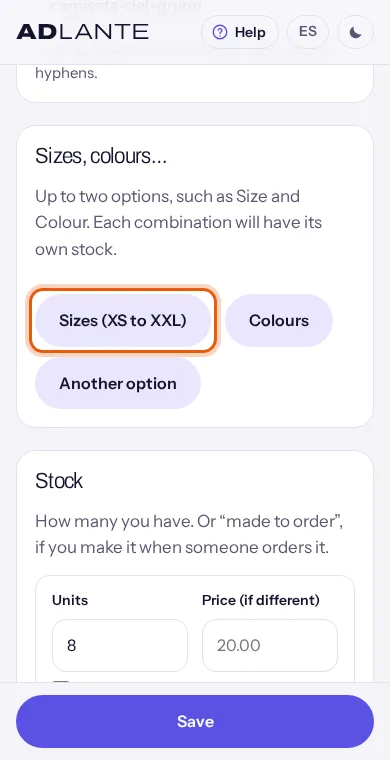
Tap a shortcut: Sizes (XS to XXL) fills the Size option with XS, S, M, L, XL and XXL; Colours sets the Colour option with Black and White; Another option adds an empty one for you to write your own.
Each option has two fields: its name (Option 1, for example “Size”) and Its values, separated by commas (“S, M, L”). Change them as you like: the shortcuts are only a starting point.
To remove an option, Remove this option. Once there are two options, the shortcuts disappear: two is the maximum.
Tap Save, at the bottom. The combinations then appear in the stock section. Until then, that section warns you: “You have changed the options: when you save, their new combinations will show up here.”
What it warns about. Each option needs a name and at least one value (“Each option needs a name and at least one value.”). Names and values cannot be repeated, and the maximum is 100 combinations (“The options are not valid: check that names and values are not repeated (100 combinations at most).”).
If you remove a value that already had combinations, a window shows when you save: “Save the options?” with “4 combinations that no longer exist will be deleted, with 12 units in stock.” (with your own numbers). If you accept with Save the options, those combinations and their stock are lost. Cancel leaves it as it was.
What buyers see. On the product page, each option shows as a row of buttons, one per value. A value with no units is marked with “Sold out” written out, not only greyed.
Set the units you have (stock) and the price of each combination
Under the options is the section where you say how many units you have. It is called Stock if the product has no options (a single row), and Each combination if it has them (one row per combination, with its name in bold, for example “M / Black”).
- Units: how many you have. A whole number, 0 or more. Otherwise you get “Units must be a whole number (0 or more).”
- Price (if different): only if that combination costs something different. Empty means the product price (it shows in grey inside the field).
- Made to order (no limit: you make it when someone orders it): tick this box if you have no stock and make it when the order arrives. The units switch off and it never sells out. On your website the label Made to order shows.
- For sale: only with combinations. If you untick it, that combination stops being sold and its row gets the label Not for sale. It is for a size you don’t make.
- Reference: a drop-down with the field Reference (optional), a code of your own to recognise the combination. Only letters without accents, numbers, dots and hyphens; otherwise you get “The reference can only have letters without accents, numbers, dots and hyphens.”
When a combination reaches 0, its row gets the label Sold out and buyers can no longer add it. If all of them reach 0, the whole product shows as Sold out, in your list and on your website.
When someone places an order, its units are taken off the stock. If you cancel the order, the box Put the items back in stock (ticked from the start) puts them back. Test orders don’t touch your stock.
If someone buys just while you have this page open, the stock may have changed when you save: ADLANTE shows the units as they are now and tells you. What else you had written stays; check the units and tap Save again.
Fill in what the law requires on each product
The What the law requires section says: “It shows on the product page, before buying.” These are details the law wants buyers to be able to read. If in doubt about what to write, ask your accountant.
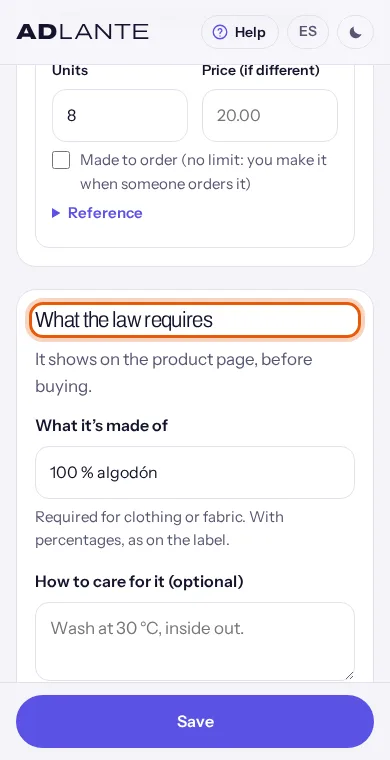
- What it’s made of: required for clothing or fabric. Write the composition with its percentages, as on the label. It shows on the product page, in the drop-down Materials and care.
- How to care for it (optional): washing, ironing… It shows in the same drop-down.
- Who makes it: you choose one of two. With My space (I have it made with my brand), the Who sells details are used as the manufacturer’s; below you see which ones would show (“Your details will show: …”), or “The “Who sells” details in your shop settings will show (they are still empty).” With Another company (a brand I resell) three fields appear that you have to fill in: Its name, Its address and Its email or website.
- Warnings (optional): for example, “Contains small parts: not suitable for children under 3.”
The manufacturer and the warnings show on the product page, in the drop-down Manufacturer and safety.
If you choose Another company (a brand I resell) and leave its name, address or contact empty, when you tap Save this section shows in red: “If another company makes it, write its name, its address and its email or website.” and nothing is saved.
Save, archive and delete a product
Everything on a product page (name, price, status, description, options, stock, the legal details and the order of the photos) is saved with one single button: Save, in the bar at the bottom. Everything is sent together: either everything is saved, or nothing is. If something is wrong, it shows in red in its section and the bar says “Nothing was saved: check what’s shown in red.” If all goes well, it says “Saved.” While there are changes, it says “You have unsaved changes.” and the browser asks before letting you leave. The only exception is uploading and removing photos, which happens right away.
Archive. If you only want a product to stop showing, set it to Archived (in Status) and tap Save. Nothing is lost and you can set it back to For sale whenever you want.
Delete. At the very bottom is Delete this product, which reminds you: “If you only want it to stop showing, set it to “Archived”. Deleting it doesn’t change the orders you already have.”
Tap Delete the product.
A window shows: “Delete “T-shirt”?” (with your product’s name) and “It goes to the bin: it stops showing in your shop and you can restore it for 30 days. After that it is deleted for good, with its photos.”
Confirm with Delete the product or step back with Cancel. When you confirm, you go back to Your shop.
On that page, The bin lists what you have deleted, with the day it will be deleted for good. Restore puts it back as it was. Delete now asks first (“It can’t be restored: its photos are deleted too.”) and deletes it forever.
A product in the bin cannot be changed: its page only says when it will be deleted for good and offers Restore.
Put the shop on your website
Products are added in the panel, but they show on your website thanks to a section in the editor. Without the section, your website does not show the shop even if it is open.
Go into the editor: Tu web (Your website) in the menu, or Open the editor in Your shop. (The editor is only in Spanish for now; its buttons are quoted here in Spanish, with their meaning.)
Tap Añadir una sección (Add a section). You will see two shop options: Tienda (Shop) (“Tus productos (camisetas, bolsas…), para comprarlos desde tu web.”, meaning your products, to buy from your website) and Producto destacado (Featured product) (one of your products, big, to buy without leaving). If you have not turned on the shop yet, the card has the label Paid · (its price) a month; if you already have it, it may say “Extra”.
Tap the one you want. It goes at the end of your website: “Tienda: puesta al final. Muévela adonde quieras.” (Shop: placed at the end. Move it wherever you want.) How to move and adjust it: The whole editor.
With the section selected, in the group Tus productos (Your products) you see how many you have for sale and the button Abrir «Tu tienda» (Open “Your shop”), which opens the panel in another tab. In Producto destacado (Featured product), the drop-down El producto que sale (The product shown) picks which one.
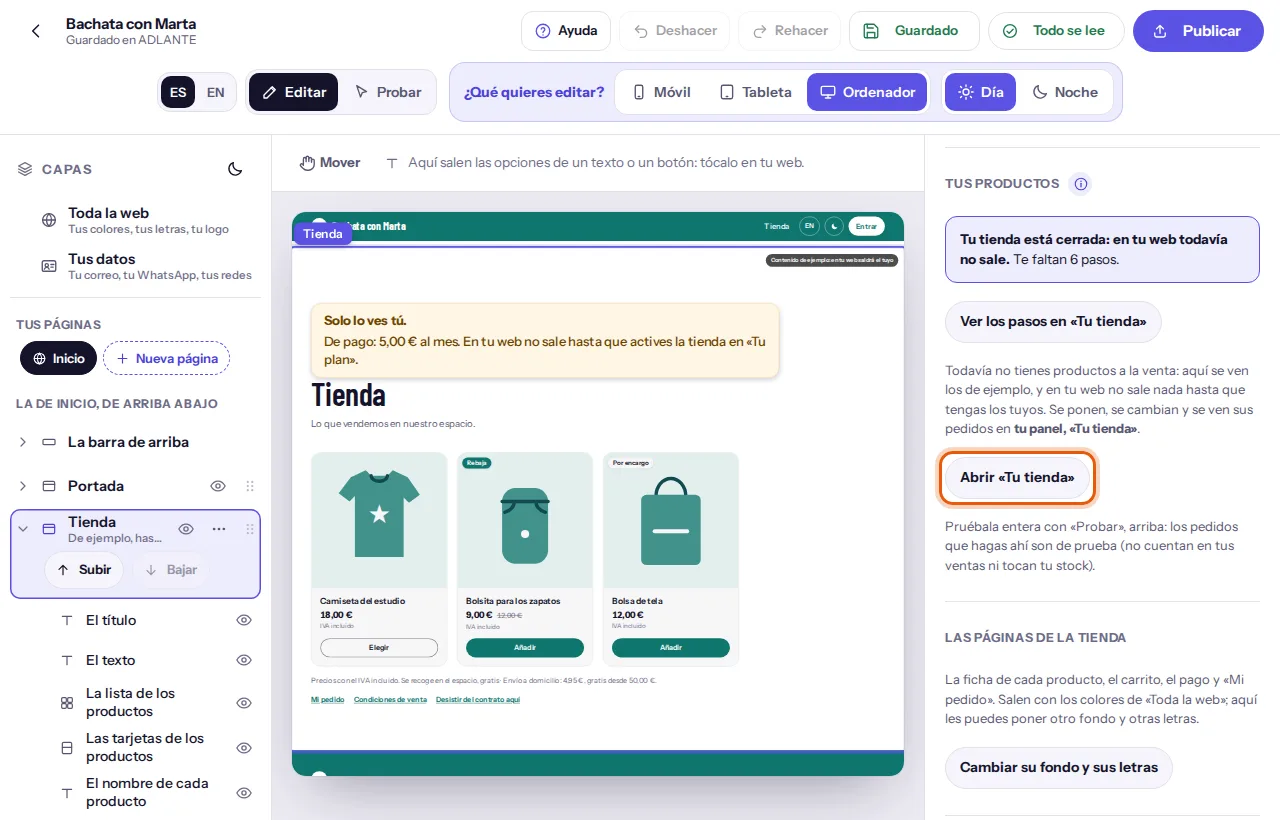
Tap Publicar (Publish), at the top. Until then, people see none of this.
Where it shows. By default, the shop shows on the home page. If you would rather it had its own page, select the section, open Más opciones (More options) and, in Dónde sale (Where it shows), choose En su propia página (On its own page) (or En la página de inicio (On the home page) to go back). Its own page has its own address, yourname.adlante.com/tienda, and an entry for it appears in the menu of your website. If your website has a second language, that language adds its letters before the address (for example /en/tienda).
One address per product. Each product also has its own, yourname.adlante.com/tienda/ followed by what you put in Its address on your website. On the product page, next to “‹ Back”, there is a “Share” button: on a phone it opens the phone’s share menu (WhatsApp, for example); on a computer it copies the link. What gets shared carries the product’s photo.
While the shop is closed, when you tap Tienda (Shop) or Producto destacado (Featured product) in the editor, and at the top of each product page in the panel, you get: “Your shop is closed: it does not show on your website yet.”, “You have 2 steps left.” (or “You have 1 step left.”) and the button See the steps in «Your shop», which takes you to Your shop in 6 steps. When you open the shop, the notice goes away by itself.
Example products. While you have no products, the editor shows some examples so you can design (in Capas (Layers), the section’s row says “De ejemplo, hasta que tengas lo tuyo”, meaning example until you have your own). On your published website they never show: only yours do, and only with the shop open.
If the shop is paid and you have not turned it on, the section can be added and adjusted, but it carries the mark Solo lo ves tú. (Only you can see this.) and does not show on your website until you turn it on. When you tap Publicar (Publish), the editor tells you, with its price, and lets you turn it on or publish without it: The whole editor and Your plan.
The colours of the shop pages. The product page, the cart, checkout and My order are dressed with the colours and fonts of Toda la web (Whole website). To give them others, select the section and, in Las páginas de la tienda (The shop pages), tap Cambiar su fondo y sus letras (Change their background and fonts).
Remove the section. Select the section, tap Quitarla de tu web (Remove it from your website) and confirm with Quitarla (Remove it). What it had written is kept and you can put it back from Añadir una sección (Add a section). Removing the section does not close the shop or delete your products.
Try the whole shop before opening it
Before opening it, place an order yourself, as anyone would. In Your shop, the Try it all out section says so: “In your website editor, add the “Shop” section and tap “Try it”: you can buy just as anyone would. Those orders appear here marked “Test”: they don’t count in your sales or touch your stock.”
Put the Tienda (Shop) section on your website (previous part). You don’t need to publish.
At the top, in the selector with Editar (Edit) and Probar (Try), tap Probar (Try). Your website behaves as others will see it.
Open a product, choose size and colour, tap Add to cart and carry on until Confirm purchase.
A notice shows at the top of the shop: “You are trying out your shop: orders placed here are test orders (they don’t count in your sales or touch your stock).” If the shop is closed, it says “Your shop is closed: nobody else can buy yet. Here you can try it all out; orders are test orders.”
Go back to Orders: your test order is there, with the label Test and a number that starts with T (T1, T2…). Open it and go through all the buttons.
Clearing the tests. When there are test orders and the filter is All, Your test orders shows under the list, with the button Delete the test orders. It asks first: “Delete your test orders?” with “Only the ones marked “Test”. Real orders are not touched (and cannot be deleted).” When it finishes, it says how many it deleted.
A test order doesn’t count in sold this month or touch your stock, and there is nobody to charge for it: you placed it yourself. Real orders cannot be deleted.
Open the shop and close it
In Your shop, on your website there is a label, Closed or Open, and a button. When closed, it says: “Nobody can place orders yet. Meanwhile, you can try it all out from the editor, with “Try it”.” When open, it says: “Anyone visiting your website can place orders.”
Look at “To open it you still need:”. It is the list of what is left: who sells, how it is delivered, how you get paid and a product for sale. Each line is a link: tap it and you go to the place.
While something is missing, the button Open the shop is switched off. When nothing is missing, it switches on.
Tap Open the shop. The label changes to Open and the button becomes Close the shop.
If it turns out something is still missing when you open it, the list updates and the reason shows in red. If it cannot be done for another reason, you get “It could not be opened or closed.”
If your space has not turned on the shop yet. Setting it up is free, but opening it is really using it. When you tap Open the shop, a window shows with the title To use the shop: (its price) a month (or To use the shop: free) and two buttons: Turn it on in “Your plan” and Not now. With the first you go to Your plan, turn it on there and come back by yourself to Your shop, where the shop opens by itself: “Done: your shop is open.” With Not now nothing happens: it stays as it was and nothing you had set up is lost.
Closing it. Close the shop asks first: “Close your shop?” with “Nobody will be able to order until you open it again. The orders you already have don’t change.” and the buttons Close the shop and Cancel. You can always close it.
With the shop closed, your website shows no products and no shop page, even if they are For sale. The orders you already have stay in Orders and you can still try it with Probar (Try).
How people buy on your website
This is what buyers see, step by step. To see it yourself, use Probar (Try) in the editor.
Choosing. In the Tienda (Shop) section, each product is a card with its photo, its name and its price. A label can say Sold out, Sale or Made to order. If the product has no sizes or colours, the button is Add; if it has them, it is Choose and leads to its page. Under the cards there is a note about taxes and delivery, and three links: My order, Terms of sale and Withdraw from the contract here. The section title (“Shop”) and its text are changed in the editor.
The product page (
yourname.adlante.com/tienda/…). Photos (on a phone you swipe; on a computer, a big photo with thumbnails), price, a row of buttons for each option, quantity with − and +, and Add to cart. A sentence below says what is going on: “Choose size.” if they still have to choose, “Only 2 left”, “None of those are left.” or “That combination is not for sale.” Further down: how it is delivered, the description, the drop-downs Materials and care, Delivery and returns and Manufacturer and safety, and “Sold by …” with your details.The cart. When they add something, “Added to your cart.” shows with the link See your cart, and Your cart (2) appears at the top of the shop. The cart is kept on that device for 14 days, even if they close the page. In Your cart they can change quantities with − and +, Remove something, carry on with Keep shopping or move on with Go to checkout. If something changed in the meantime (it sold out, it is no longer sold), “Something in your cart changed in the meantime.” shows with the button Keep only what’s available; until they tap it, they cannot move on. Totals are always worked out by ADLANTE; the buyer’s phone never adds anything up on its own.
Their details and the order, on a single page (Checkout). At the top, a line says which ways of delivery and payment there are. Then: Your details (Full name, Email and Phone, the last one optional: it lets you let them know on WhatsApp); How you want it (Pickup at the space, with its address, or Home delivery, with Address, Flat, door…, Postcode, City and Province); How you pay (Pay on pickup at the space, Bank transfer and Card); A note for the space; the summary Your order with the totals; the terms of sale, which they can read right there (Read the terms of sale and the right of withdrawal); the box to accept them; and the button Confirm purchase, with the phrase “By confirming, you place an order with an obligation to pay.” Below it, another line tells them that the seller of your shop (the name in “Who sells”) is selling it to them, not ADLANTE, and which email to write to for questions or refunds.
If something is missing or wrong, it shows in red and the cursor goes to the field: “Write your name.”, “Write a valid email.”, “To continue, tick that you accept the terms of sale.”… If the total changed in the meantime: “The total has changed since you saw it. Check the new one and confirm again.”
After confirming, they reach their order page. There they see the status (Received…), a sentence about what happens now, their code (“Your order code:”, 8 letters and numbers) and the buttons Copy your order link and Print or save as PDF. With a bank transfer, they also see Bank transfer details and “Use this reference: Order #…”. No email reaches them yet: that is why the page tells them to keep their code and link.
If they pay by card, when they confirm a window opens on top of your website, with your name and your colours: Pay by card, with Stripe’s secure payment inside. When it is done, they go back to their order page. Close closes the window without paying: their order stays waiting and the page offers Back to payment. While the payment is being confirmed, they see “We are confirming your card payment. It takes a few seconds.” If they don’t finish paying within 30 minutes, the order is cancelled by itself. If their phone does not let the window open, they go to Stripe’s payment page and come back all the same.
Going back to their order. Without an account, with My order: they write Your order code and Email, and tap See my order. On that same device they also see the list Your orders on this device. If they saved their order link, it opens directly.
Buyers don’t need an account: their name, their email and, if they want, their phone are enough. Their code and their email are their key. The account in Your students is for courses, which are watched later from any device.
You don’t see an order’s code in the panel. If someone loses it, they can write to you: in the order you have their email and, if they gave it, their phone.
See your orders: the list and the filters
The Orders tab lists all the orders in your shop, newest first, however they are paid. Those paid by card also show in Your payments, but this is the place to prepare and hand them over.
Each order is a card, and the whole card can be tapped to open it. It shows:
- Its number: Order #…. Test orders start with T.
- Labels: New (an order you have not opened yet), Test and its status: Awaiting payment, Paid, Ready for pickup, Shipped, Delivered or Cancelled.
- A line with who ordered, the total, how many items (“2 items”), whether it is for “pickup” or “delivery”, and Withdrawal if that person has withdrawn.
- The date and time of the order.
At the top there are seven filter buttons: All, To prepare, Ready for pickup, Unpaid, Shipped, Delivered and Cancelled. The active one shows as selected. If there are none, it says “You don’t have any orders yet. When someone buys on your website, it will appear here.” or, in a filter, “No orders with this status.” See more orders, at the end, brings the next ones.
The numbers in Your shop (Your orders) count the same: to prepare, ready for pickup, unpaid; sold this month adds up what was sold in the month, not counting test orders.
Look at Orders often: new orders show at the top, with the label New, and the number to prepare goes up. That is where you find out.
An order, inside
Tap an order in the list. At the top, a link back to Orders, the order number as the title and its labels (its status, Test if it is a test and Withdrawal if there is a withdrawal). Below, in this order:
- What to do now: a sentence that says the next step and the buttons to take it. It is explained in the next part.
- Who ordered it: their name; their email (tap it to write to them) and their phone (tap it to call); “Their note:”, if they left one; and the Let them know block.
- What they ordered: each line with its photo, the name, the size and colour (“M / Black”), the quantity and the price, and “Made to order” if it is; the totals (products, delivery if any and total); the taxes included; and how they pay and whether they have paid (“Pays on pickup · not paid yet”).
- The card payment: only if they paid by card. Its status, the amount and the buttons Refund and See it in your payments.
- Pickup at the space (with where and when) or Home delivery (with the address and, if you already noted it, the tracking). Below: “Ordered on …” and, if they accepted the terms, “accepted your terms of sale”.
- Withdrawal received: only if there is one.
- Your note (only you see it): a box to note anything you want about the order, with its own button Save (“Saved.”). It is not the bar at the bottom: this page has no bar.
- What has happened: the history of the order, newest to oldest: “Order placed”, “Marked as paid”, “Ready for pickup”, “Shipped”, “Delivered”, “Cancelled”, “Money returned”, “Note saved”, “Withdrew from the purchase” and “Seen”, each with its date and who did it (“by the buyer”, “by your space” or “by ADLANTE”).
A test order carries, under What to do now, the note “This is a test order: it doesn’t count in your sales and hasn’t touched your stock.”
Mark an order and let the buyer know
An order moves through statuses. In What to do now the screen tells you, in a sentence, the next step, and below it come the buttons that make sense at that moment. Which ones show depends on the status and on how it is paid; you don’t have to remember the order.
- Awaiting payment: “Prepare it. When it’s ready, mark it, and tell them with “Let them know”.”
- Paid: “It’s paid. Prepare it and mark it as ready for pickup.” (if it is a delivery: “It’s paid. Ship it and note its tracking.”)
- Ready for pickup: “It’s ready. When they come for it, mark it as delivered.”
- Shipped: “It’s on its way. When it arrives, mark it as delivered.”
- Delivered: “Delivered. They have 14 days to withdraw from the purchase.”
- Cancelled: “Cancelled.”
The buttons, one by one:
- Mark as paid: when the money reaches you (the bank transfer, for example).
- Ready for pickup: it is prepared and they can come for it.
- Shipped: you have sent it. A form opens with Courier (optional), Tracking number (optional) and Tracking link (optional). The link has to start with https:// (“The tracking link must start with https://”). Tap Shipped again to mark it, or Cancel to step back. The buyer sees the tracking on their order page.
- Delivered: they have it. If it is a pickup that has not been paid yet, the button is called Delivered and paid and marks delivered and paid at once.
- Cancel the order and Money returned: they are in the part about returning money.
Each time you mark one, the order updates, “Done.” shows in green and the history (What has happened) adds a line.
There is no “Prepared” button. Preparing the order is what you do; what you mark is Ready for pickup or Shipped. To prepare holds the orders you have not yet left that way.
Letting the buyer know. ADLANTE doesn’t send emails yet: the message goes from your WhatsApp or your email, already written.
After marking the order, look at Who ordered it. In Let them know you get, in quotes, the message already written for the status the order is in. For example, in Ready for pickup: “Hi María. Your order #… at … is ready for pickup.” (with the buyer’s first name). If it is shipped, it adds the tracking.
Tap By WhatsApp: your WhatsApp opens with their number and the message already in; you only have to send it. On a computer it opens WhatsApp Web or your app. The button only shows if the phone they gave can be understood as a WhatsApp number.
Or tap By email: your mail program opens with the subject and the message already written; you only have to send it. If your computer has no mail program, copy the message and send it from wherever you usually do.
ADLANTE doesn’t know whether you sent the message: it only prepares it. If the By WhatsApp button doesn’t show, write by email or call: the buyer’s email is always there.
Cancel an order and refund the money
These are three different things, each with its own button. Cancelling does not give the money back by itself.
Cancel an order.
In the order, tap Cancel the order. The window “Cancel order #…?” shows.
Its text depends on whether it was paid. Unpaid: “It stops being pending. It can’t be undone.” Paid: “It was already paid: give them their money back and then mark it as “Money returned”.” Paid by card: “It was already paid by card: afterwards, refund them with “Refund”, in “The card payment”.”
If you want, write Reason (optional, only you see it). Leave Put the items back in stock ticked so the units go back on sale (it doesn’t show for test orders).
Confirm with Cancel the order or step back with Cancel.
Refund a card payment.
Open the order and scroll down to The card payment: you see its status and the amount.
Tap Refund. The question “Refund … to the buyer?” shows with “The money goes back to their card within a few days. The ADLANTE commission is not refunded. This cannot be undone.”
Confirm with Refund. “Refunded.” shows and the section updates: “Refunded: … It goes back to their card within a few days.”, with the date. It no longer lets you refund it again. If only part was refunded, it says “Refunded: … of …”.
The Refund button only shows when it can really be refunded. The same question and the same button are in Your payments, in the list Payments.
Note that you have returned the money by hand (when they paid on pickup or by bank transfer). You return the money yourself, your own way. Afterwards, in the order, tap Money returned: it asks “Have you given them their money back?” with “It’s noted on the order, with today’s date.” Confirm with Money returned. This button only notes that you did it: it moves no money. If the card payment can be refunded from ADLANTE, this button doesn’t show: use Refund.
Withdrawal: “Withdraw from the contract here”
ADLANTE puts in your shop, with these exact words, a button that consumer rules ask online shops to have: Withdraw from the contract here. It lets buyers back out during the 14 days after they receive their order, without giving a reason. You don’t have to turn it on.
Where it is. In the footer of your website, while your website is published and the shop is open and has products, and on each order page, for as long as the period lasts. The Terms of sale explain it.
What the buyer does:
They tap Withdraw from the contract here. If they come from their order page, it already knows which order. If they come from the footer of your website, they have to write Your order code and Email.
They write Full name, How we can contact you (their email or phone) and, if they want, Why (not required). They tap Withdraw from the contract here, the form’s button.
The page asks: “Do you confirm that you withdraw from the purchase?” (“The space will receive your withdrawal with today’s date and time, and will contact you about the return.”). They confirm with Confirm withdrawal or step back with Cancel.
They get a receipt, Withdrawal received, with the order number and the date and time. They can Print or save as PDF: it is their acknowledgement of receipt.
What you see. In Orders, the card shows Withdrawal on its line. Inside the order, the same label at the top and the section Withdrawal received: “María (their email) withdrew from the purchase on …”, with their reason if they wrote one. Also, What to do now changes: “They withdrew from the purchase. Refund them within 14 days of their notice at the latest (you can wait until you have what they bought back) and mark it with “Money returned”.” If they had paid by card, it sends you instead to Refund, in The card payment. If they had not paid yet: “They withdrew from the purchase before paying: cancel the order.”
What you have to do:
Get in touch with the person (you have their email and phone in Who ordered it) and agree how they send the product back. The screen says: “They have the right to return it: agree with them how, and refund them within 14 days at the latest.”
Refund the money within 14 days at most of their notice. You can wait until you have what they bought back. The terms of sale say you refund what they paid, including standard delivery.
If they paid by card: Refund, in The card payment. If they paid by bank transfer or on pickup: you return it yourself and mark Money returned. If they had not paid yet: Cancel the order.
The cost of sending the product back to you is paid by the buyer, unless you say otherwise. If you want to say otherwise, write it in Your own returns rules (optional), in Settings.
The money is not returned by itself, neither on a withdrawal nor on a cancellation. And to find out about a withdrawal, look at Orders often: that is where it shows.
Questions that come up often
I set a product to “For sale” and it doesn’t show on my website
Your shop has a general switch. While it is Closed, your website shows no products, even if they are For sale. (The editor does show them, so you can design; that is why it looks as if it is already there.) Look at Your shop, on your website: “To open it you still need:” says what is left. Fill it in and tap Open the shop.
After that, the Tienda (Shop) section has to be on your website and published. If you added it and didn’t tap Publicar (Publish), tap it now. The list Your shop in 6 steps tells you which of the two is missing.
I put the shop “On its own page” and my website says that page doesn’t exist
If the shop is Closed, that page doesn’t exist, just as no product shows. Open it in Your shop and, if needed, tap Publicar (Publish) again. With the shop open, its page is yourname.adlante.com/tienda and an entry for it shows in your menu. If you would rather it showed on the home page: select the section, Más opciones (More options), Dónde sale (Where it shows) and En la página de inicio (On the home page).
What do I have to fill in to open my shop?
Four things, in Your shop and in Settings: who sells (legal name, address and email), how it is delivered (the address where orders are collected, or delivery), how you get paid (on pickup, by bank transfer or by card) and a product that is For sale. Everything else is optional: the tax number, the phone, the times, the instructions, your own returns rules. Save the settings and tap Open the shop. For it to show, the Tienda (Shop) section has to be on your published website. It is all in Your shop in 6 steps. And if you want to be paid by card only, you can: with Your payments active, card counts as a way to be paid.
In the editor, or on a product, I see “Your shop is closed: it does not show on your website yet”
It is the notice that your shop is still Closed. While it is, no product shows on your website, even if you see them in the editor. It tells you how many steps you have left (“You have 2 steps left.”) and See the steps in «Your shop» takes you to the list that ticks itself off. When you open the shop, it goes away by itself.
When I save the settings I get an error even though I have fixed it
Each time you tap Save, the red notice from before disappears. If a green “Settings saved.” shows, it is saved, even if something is still missing to open (the sentence says so). If it is still red, it is about now: the highlighted field is the one to fix. If in doubt, reload the page and see whether the detail stayed.
Do I have to tap “Save” in each section of a product?
No. There is a single Save, at the bottom, for the whole product. The only thing that happens right away, without Save, is uploading and removing photos.
For my buyers, the “Card” option is greyed out and says “Not available in this shop.”
It means your shop cannot take card payments yet: your Stripe account is not Active. Look at By card in Settings: it tells you where you are and takes you to Your payments. As soon as Stripe makes it Active, the option switches on by itself; there is nothing to tick. (“Very soon.” is an old text: it now means “not yet”.) How to connect: Card payments.
How do my buyers pay by card?
They choose the product, Add to cart, Go to checkout, write their details, choose how they want it and Card. When they confirm, a window opens on top of your website with Stripe’s payment. Once they pay, they go back to their order page, with its number, its code, what they bought and the taxes. No email reaches them yet: that is why their page tells them to keep their code and link, and that with the code and their email they can look the order up in My order.
Do my buyers leave my website to pay? Does my brand show?
They don’t leave: the payment window opens on top of your website, with your name, your fonts and your colours, and Stripe’s secure payment inside. The name and icon that show inside are those of your Stripe account: you change them in the brand settings of your Stripe dashboard. If their phone doesn’t let the window open, they go to Stripe’s payment page, with your name, and the payment works just the same.
Can I change the background or colours of the product page, the cart or the order page?
Yes. Those pages dress themselves with what is in Toda la web (Whole website), in the editor. To give them another background and other fonts: select the Tienda (Shop) section and, in Las páginas de la tienda (The shop pages), tap Cambiar su fondo y sus letras (Change their background and fonts). To see them side by side, open a product in your shop or your cart with Probar (Try).
How do I change the colour of the product cards?
In the editor, in Capas (Layers), inside Tienda (Shop), tap Las tarjetas de los productos (The product cards) and, in ¿Qué lleva de fondo? (What is the background?), choose Un color (One colour). In Más opciones (More options) you can change their border and their corners. The photo area just takes a light grey and cannot be chosen separately; with your photos you don’t see it, because the photo fills it.
The editor shows products I didn’t add, and my website doesn’t
They are example products: the editor shows them while you have none of your own, so you can design the section. On your published website only your products show, and only with the shop open.
Is it compulsory to upload a photo or write the description of a product?
No. You can sell without a photo; the panel warns you (“Add at least one photo: the law requires the product to be shown.”) because the law asks for it. The only thing that stops you is, if another company makes the product, not having written its name, its address and its contact: without that, it is not saved.
Why can people buy in my shop without making an account?
It is on purpose: asking for an account makes many people give up on the purchase. For a product, a name, an email and, if they want, a phone are enough. In return, they get a code and the link to their order, and with the code and their email they look it up in My order. The account is for courses, which are watched later from any device.
How do I see what they ordered, from whom and how they want it?
In Your shop, Orders, tap the order (any part of its card). Inside you see what they ordered (size, colour, how many), their contact details, how they want it (pickup, or delivery with their address), how they pay and the buttons to mark it as you go. It is all in An order, inside.
How do I let a buyer know their order is ready?
Inside the order, in Let them know: By WhatsApp opens your WhatsApp with their number and the message already written, and By email opens your mail program with the subject and the message already written. You only have to send it. ADLANTE doesn’t send emails by itself yet.
What is “Withdraw from the contract here” in my shop?
It is a button that consumer rules ask online shops to have, with those exact words. It lets buyers back out in the 14 days after they receive their order, without giving a reason: they write their name, how to contact them and, if they want, the reason, they confirm it and get a receipt with the date and time. ADLANTE puts it in your shop by itself, in the footer of your website and on each order page. If you are unsure what it means for you, ask your accountant.
What happens when someone taps “Withdraw from the contract here”?
A form opens inside your website; the person fills it in and confirms it with Confirm withdrawal. You see the order in Orders with the label Withdrawal and the notice of what is next: refund them within 14 days at most of their notice. The money is not returned by itself. If they paid by card, you refund with Refund, inside the order. If not, you return it yourself and mark Money returned. It is all in Withdrawal.
Where do I see what I have been paid? Do all my orders show there?
In Your payments, Payments shows what you take by card: orders from your shop, courses and workshops, each with its label and with what ADLANTE keeps. Each payment leads to what was paid: See the order. What you are paid on pickup or by bank transfer doesn’t go through Stripe and doesn’t show there. Every order in your shop, however it is paid, is in Orders.
How do I refund someone who paid by card?
Inside the order, in The card payment, tap Refund and confirm. The money goes back to their card within a few days and the payment is left as refunded. It cannot be undone, and the ADLANTE commission is not refunded. You can also do it in Your payments, in Payments.
Do I pay for the shop?
Setting it up is free. You pay when you open it for real, and its monthly price is in Your plan (or in the window that shows when you tap Open the shop). In addition, ADLANTE keeps a commission on each card sale; how much, in Your plan. In the editor, the shop and the featured product may carry a small label, “Extra”: it is the mark that they are a separate tool. How it works: Your plan.
Someone has lost their order code
You don’t see that code in the panel. If the buyer can’t find it, they can write to you: in the order you have their email and, if they gave it, their phone. To withdraw they can also write to you, even without the code (the terms of sale say so). On the same device they bought with, My order shows them the list Your orders on this device.
Can I delete an order?
Real orders cannot be deleted: if there is nothing left to do with one, Cancel the order leaves it cancelled. Test orders can, with Delete the test orders.