From sign-up to your published website
From the invitation link to your website online: your account, your space, your first day in the panel, “Your website in 5 steps” and your first publish.
Detailed step-by-step guide
The whole route at a glance
This guide takes you from the invitation link to your website published on the internet. The “sign-up” is creating your space for the first time: what you do with the invitation. After that first day, the guide is also useful for signing in another day and for knowing what is in your panel.
You open your invitation: Open your invitation.
You create your account, with Google, with Apple or with your email: Create your account.
If you create it with an email, you confirm it: Confirm your email.
Your space is ready, but your website starts empty: When it says “Your space is ready” and Why your website starts empty.
You get to know your panel and follow “Your website in 5 steps”: Your first day in the panel and Follow “Your website in 5 steps”.
You publish: Publish for the first time.
Also: change your space’s name, see how your website looks, sign in another day and recover your password and sign out. The most common questions are at the end: Real questions.
Three words, so you do not get lost. Your space is your place inside ADLANTE, with your name and your address. The editor is the tool where you build your website. Your panel is your home page: from it you reach the editor and everything else. What each thing is, more slowly, in What ADLANTE is.
Open your invitation
To create your space you need an invitation. It comes from whoever invites you to ADLANTE, almost always on WhatsApp, and it is a link. Each invitation is for one person and can be used once. It expires 14 days after it is created, and the exact date is shown on the invitation itself. Creating your space with it costs nothing.
Tap the link. On WhatsApp it arrives as a card that says “You’re invited to ADLANTE” (with your name in front, if whoever invited you added it). It works the same on a phone as on a computer.
The page You have been invited to ADLANTE opens. It says: “With this invitation you create your space: your website, at your own address”, and until which day it is valid.
Tap Create my space. Right under the button there is a note: “First you sign in with your email, Google or Apple.”
What comes next depends on whether you have already signed in to ADLANTE from this device. If you are signed in, you go straight to Create your space. If not, you arrive at Create your account: Create your account.
At the top right, ES / EN switches the language of the page, and the invitation goes along with the change. Next to it is the light and dark button.
When you open the invitation, ADLANTE saves it in the browser of this device and removes the code from the page address. That is why it is best to do everything in one go, on the same device and in the same browser. If you switch devices, open the invitation link again from the message.
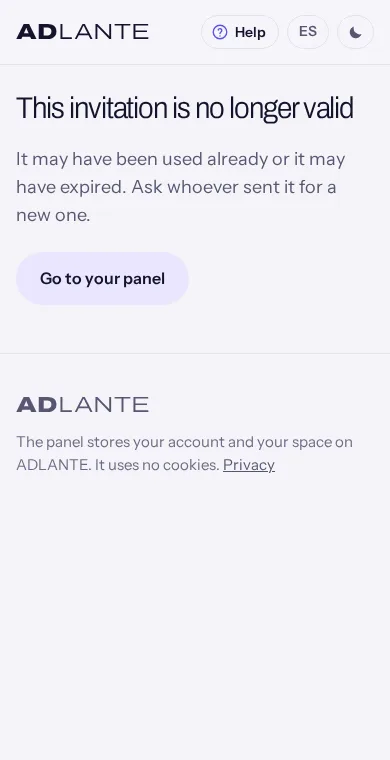
If the page says “This invitation is no longer valid”. It happens when the invitation was already used, has expired, or was cancelled by whoever sent it. The page does not say which of the three, on purpose. It says: “It may have been used already or it may have expired. Ask whoever sent it for a new one.” Ask for another. The Go to your panel button only takes you to your panel: it does not fix the invitation.
If it says “The link is incomplete”. Part of the link is missing (sometimes it gets cut when copied) or you reloaded the page after opening it, because the code is no longer in the address. Open it again from the message it arrived in.
Create your account
Your account is what identifies you on ADLANTE: you use it to get into your panel. If you come from an invitation, the page opens on Create your account, with the text “With your account you create your space and change it whenever you like.” It is the same page you use to sign in another day. There are three ways to create it; choose one.
- With Google. Tap Continue with Google. A window opens so you can choose your Google account. Choose one and the window closes by itself. If you close it yourself, nothing happens: the page stays as it was.
- With Apple. Tap Continue with Apple. It works the same way, with your Apple account.
- With your email and a password. That is the path in the steps below.
Under or with your email, type your email in Your email.
In Password type a password of at least 8 characters (the page reminds you underneath: “At least 8 characters.”). The eye on the right (Show password) lets you see what you type; tap it again to hide it.
Tap Create my account. The button changes to “Creating your account…” while it works.
The page takes you to confirm your email: Confirm your email. With Google or Apple you skip that step: their accounts already arrive confirmed, and you go straight to creating your space.
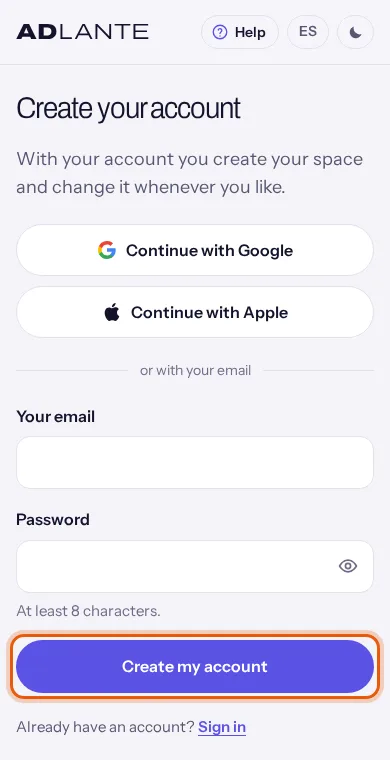
What can go wrong, in the page’s own words. Email notices appear in red, above Create my account. Google and Apple notices appear right under their buttons.
- “That email does not look valid.” Something is missing in the email: the @ sign or the ending.
- “The password must be at least 8 characters long.”
- “There is already an account with that email. Sign in with it.” You already made an account. Tap Sign in, at the bottom, and sign in.
- “That email has signed in another way before (email, Google or Apple). Use that one.” That account was created with another button. Sign in with the one you used to create it.
- “Your browser blocked the sign-in window. Allow it and tap the button again.” Your browser does not allow pop-up windows. Allow them for ADLANTE and tap the Google or Apple button again.
- “Too many attempts in a row. Please wait a few minutes.”
- “No connection. Check your connection and try again.”
- “That didn’t work. Please try again.” A failure that is none of the above. Try again; if it stays the same, wait a while.
If you already had an account, tap Sign in (at the bottom, next to “Already have an account?”): the page changes to Sign in to ADLANTE and you sign in from there. With the invitation saved, after signing in you continue to creating your space.
Confirm your email
This step is only for people who create the account with an email and a password. ADLANTE sends you an email with a link and does not let you continue until you open it: that is how it knows the email is yours. With Google or Apple it is not needed.
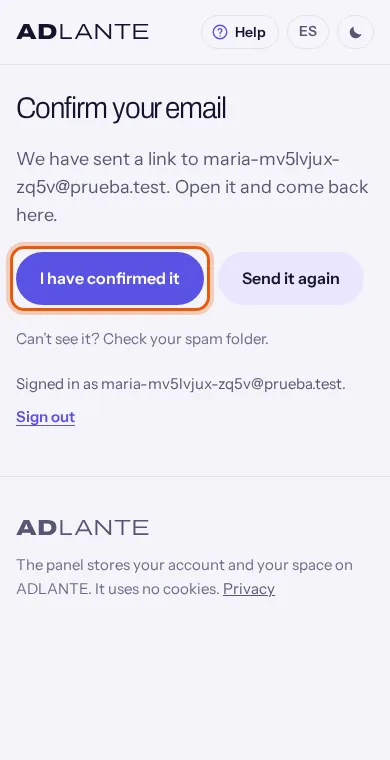
You will see the page Confirm your email. It says: “We have sent a link to”, your email, and “Open it and come back here.” Check that the email is spelled correctly.
Open your email, find the message and tap the link in it.
Go back to the ADLANTE page and tap I have confirmed it. If all is well, you move on by yourself to creating your space: Create your space, step 1.
If you tap I have confirmed it before opening the link, a red notice appears: “We can’t see it yet. Open the link in the email and try again.” No harm done: open the link and tap the button again.
If the email does not arrive:
- Look in your spam folder. The page itself reminds you: “Can’t see it? Check your spam folder.”
- Wait a few minutes. Sometimes it is slow.
- Tap Send it again. A green notice appears: “We have sent it again.” Do not tap it many times in a row: ADLANTE warns “Too many attempts in a row. Please wait a few minutes.”
- Check that the email shown on the page is yours. If you typed it wrong, this page does not let you correct it: tap Sign out (at the very bottom), create the account again with the right email and carry on. The invitation stays saved in this browser: you do not need to ask for it again.
If you open the email link on another device, your email is confirmed just the same. But the invitation is saved on the first device: go back to it and tap I have confirmed it. If you would rather continue on the second one, you will have to open the invitation link again there.
This page also appears if you close everything and come back another day without having confirmed: go to adlante.com/en/panel and sign in with your email and password, and you will see Confirm your email again.
Create your space, step 1: the details
Here you decide what your space is called and what its address is. At the top it says Step 1 of 2, with a two-part bar, and the title Your space. The page says “Three questions and your space is ready, with your name and your address”; there are actually five fields, and all five are easy. In order:
- What is your space called? The name of your school, your brand or your own. A grey example is shown: “Salsa con María”. From 2 to 60 characters. It is the one your students will see and the one shown in your panel. You can change it later (Change your space’s name). If you leave it empty or with a single letter, “Type the name of your space.” appears in red and you cannot continue.
- What do you teach? A list: pick whatever is closest to what you do. Today it only lets ADLANTE know what you do; it changes nothing you see on your website.
- Which country is it in? The country that matches your device’s time is already chosen; change it if it is not yours. Underneath, a note says the currency (it shows you that country’s) and the time zone of your space come from there: the currency of your prices and the time of your classes.
- The main language of your website Your website is in Spanish and English. This is the language shown first and the one the editor opens in. You write the other one later.
- Your address What goes between
https://and.adlante.com. It fills in by itself as you type the name: no accents, no spaces and no symbols (“Salsa con María” becomessalsaconmaria). You can change it by hand; from then on it no longer follows the name. It must be 3 to 30 characters, only letters without accents, numbers and hyphens.
While you type the address, ADLANTE checks whether it is free. First it says Checking… and then Available: it will be yours., in green, or a red notice. The notices talk about a “nickname”: that is your address. They can be:
- “Another space already has that address. Please try another one.”
- “The nickname must be 3 to 30 characters long.”
- “Only letters without accents, numbers and hyphens.”
- “The nickname cannot start or end with a hyphen, or have two in a row.”
- “That nickname is reserved. Please try another one.” There are words ADLANTE keeps for itself, such as
admin,tienda,ayudaorpanel.
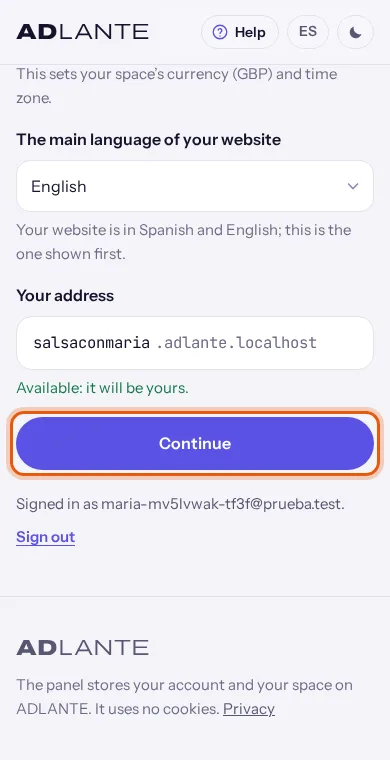
The address cannot be changed afterwards. From your panel you can only change the name; the address stays as you write it here. There is no button to change it, either in the panel or in the editor. The page does not repeat this when you choose it, so decide now: short, easy to say out loud and, if you can, without hyphens. You will put it on your social media and on your posters.
The same is true, today, of the country, the main language and what you teach: your panel has no place to change them. If you get something like that wrong, tell us in Missing something? Tell us (at the bottom of the left-hand menu, on a computer). We read it.
When you are done, tap Continue. It only checks that the name has at least 2 characters. The address is checked again when the space is created, in step 2: if it is not valid then, you come back to this step with the notice under the address.
If you do not see “Step 1 of 2”. If ADLANTE has no tools to choose from right now, the sign-up is a single page: there is no Continue, the terms checkbox is right there and the button is Create my space.
Create your space, step 2: what you start with
At the top it says Step 2 of 2. The title is What do you want to start with? and underneath it says: “Choose at least one. You can add or remove them whenever you like.”
Each row is an ADLANTE tool: for example, video courses, managing your weekly classes, workshops or the shop. It shows its name, a sentence saying what it is for and, on the right, what it costs a month or Free. The courses row also says how many hours of video it comes with.
Tick the box of the ones you want to start with. Tapping the whole row ticks it too.
If you want them all, tap I want them all: it ticks them all at once.
Look at the Your plan summary, just below. It redraws itself every time you tick or untick.
Tick the box “I accept the ADLANTE terms, privacy policy, data processing agreement and rules of use.” Those four are links: they open in another tab, so you can read them without losing what you have done.
Tap Create my space. It changes to “Creating your space…” while it works.
If you want to fix step 1, tap Back: you return with everything you had written.
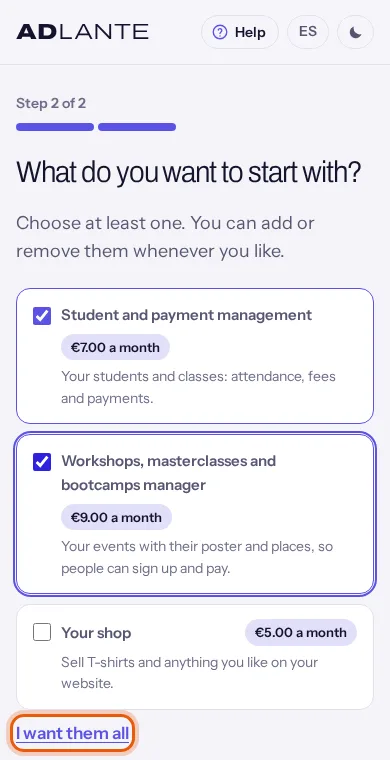
Choosing is not turning on, and it is not paying. With what you tick, ADLANTE shows you in Your plan what you would pay and, if you tick courses, it sets aside their video hours. Really using a tool still asks you to turn it on when the time comes: Your plan. And you can change what you chose later.
The “Your plan” summary. It has one line for your website and one for each tool you ticked, each with its monthly price or Free. At the bottom, the total: “Total a month” with the sum, or “You pay nothing a month.” Prices are set by ADLANTE and can be different for each space, so this guide does not quote any: yours are the ones you see on screen and, afterwards, in Your plan.
When you pay. Under the summary, the page puts it like this: “You pay nothing until you publish your website; each tool, from when you use it. All together, once a month.” As a list:
- Creating your space costs nothing, and neither does building your website.
- Your website is paid from the first time you publish it (Publish for the first time).
- Each tool is paid from when you really use it (for example, when something from it goes live on your website).
- It all goes together, in a single charge a month, to your card.
- Anything that costs you €0 is not charged.
The notices in this step:
- If you tick none, a red notice appears under the list: Choose at least one to start with.
- If you do not tick the terms checkbox, this appears above the button: To continue, accept the ADLANTE texts.
- If ADLANTE does not accept the name or the address, you go back to step 1 with the notice in its field.
- If something fails when creating: “We could not create your space. Nothing was saved: please try again.” It is all or nothing: no half-made space is left and the invitation is still unused.
- If the invitation stopped being valid in the meantime (it expired or was cancelled): “This invitation is no longer valid. Ask whoever sent it for a new one.”
- If you already have a space, the page takes you to your panel: each person has one space today.
When it says “Your space is ready”
When your space is created, the page changes to Your space is ready. It shows the name of your space and your address, and says: “Your website starts blank: in the editor you add your home section and the rest. It is not published until you want.”
This is what has happened:
- Your space exists, and you run it.
- Your address is now yours. Nothing is published at it yet: whoever opens it sees “There’s no website here.”
- The invitation is used up: it cannot be used by anyone else.
- The terms and privacy policy you accepted are on record.
- Your website exists with your name, but unpublished and with no sections in it: Why your website starts empty.
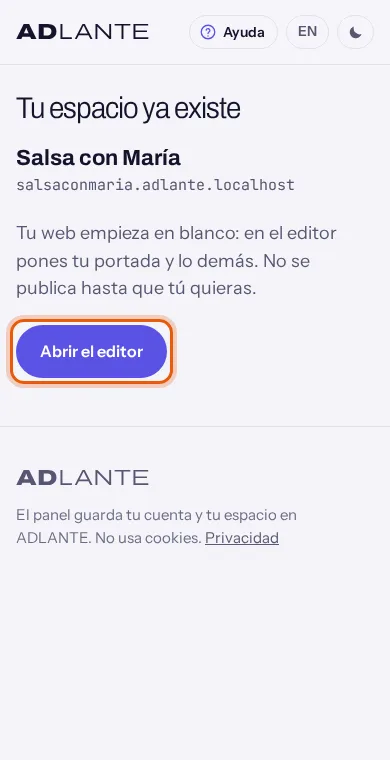
There is only one button: Open the editor. It takes you to your website’s editor, which opens with no sections. If you would rather start from your panel, which is where Your website in 5 steps lives, there are two ways: in the editor, tap the arrow at the top left (Volver a tu panel (Back to your panel)); or go to adlante.com/en/panel. When you come back another day, you will start from your panel.
On a phone, the first time you open the editor a screen recommends editing from a computer (it closes with Cerrar (Close)) and then a three-tap tour (Saltar (Skip), Siguiente (Next), Empezar (Start)). They belong to the editor: The whole editor.
Why your website starts empty
When your space is created, ADLANTE saves your name and your address, but it puts no sections on your website. That is why, the first time you open the editor, your website looks empty: just the bar at the top and the footer. It is not a fault and you have not done anything wrong.
When the sign-up ends, your website starts blank on purpose: it already carries your name and your address, and each section you add will come with your name written into its sample texts. The sections (banner, about you, courses…) are added by you, one by one.
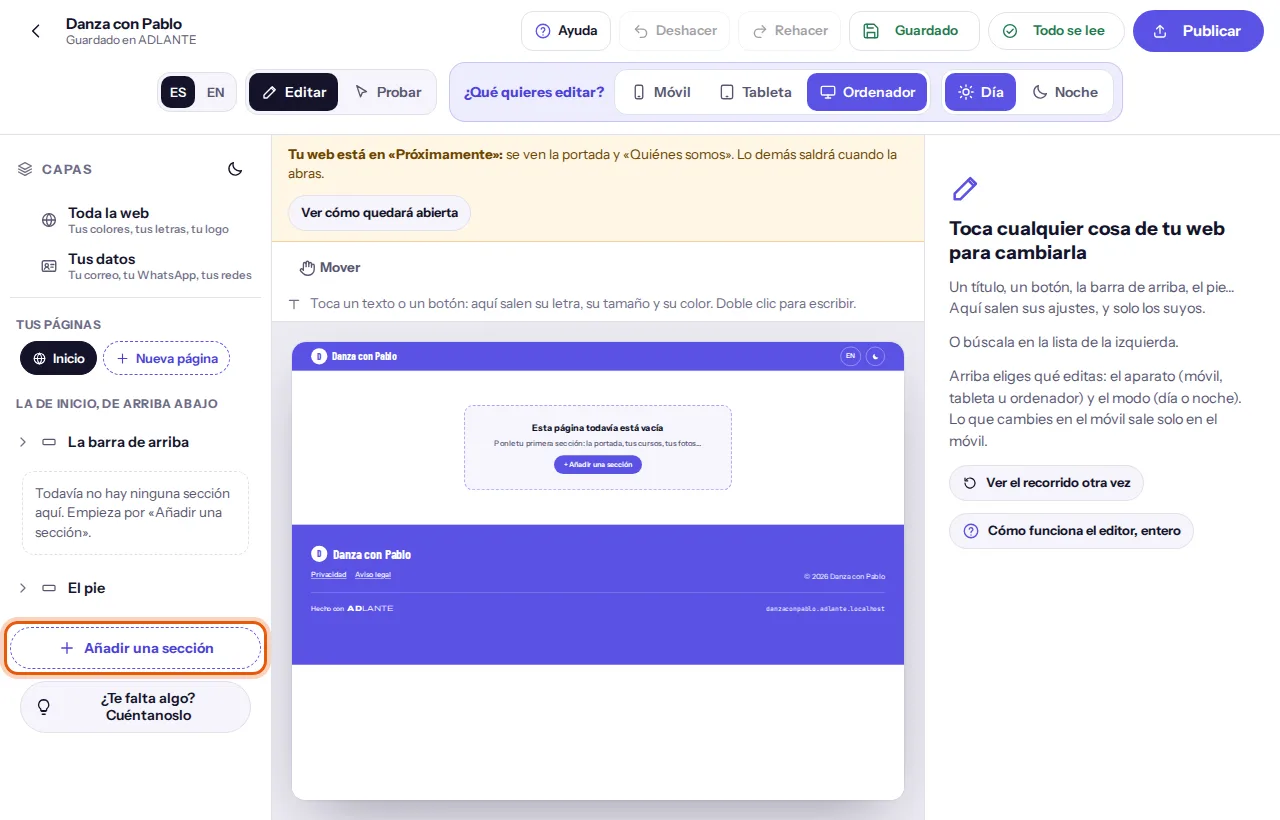
If you publish with the website empty, your address shows only the bar and the footer. The publish window warns you (“Tu web todavía está vacía: si la publicas ahora, solo se verán la barra de arriba y el pie…”, which means: your website is still empty; if you publish now, only the top bar and the footer will show), but it lets you publish anyway.
The shortest way to add a banner:
Go to your panel. In Your website in 5 steps, tap the step Your main banner. If it is the current step, its button is called Make your banner.
The editor opens and puts the Banner section (called “Portada” in the editor) at the very top, already selected. It says: “Portada puesta, arriba del todo” (Banner added, at the very top). It comes with sample texts, with your name in the title.
Replace the sample texts with your own. Start with La frase (The line), the one that counts for the step. Choose your photo or video (Tu foto o tu vídeo (Your photo or video)). How, in The whole editor.
Go back to your panel. The step Your main banner ticks itself only when the banner has your line and your photo or video already uploaded: Follow “Your website in 5 steps”.
Other ways to fill it:
- Inside the editor, Añadir una sección (Add a section) (at the end of the Layers list; on a phone, the Layers button at the bottom) lets you pick each section: Portada, Quiénes somos, Cursos, Galería, Opiniones, Preguntas frecuentes, Contacto, Horarios… (banner, about us, courses, gallery, reviews, FAQ, contact, timetable). Each one comes with sample texts.
- Or build a whole website at once: in the editor, open Toda la web (The whole website). At the top are Estilos (Styles) and Webs de ejemplo (Sample websites). Tap one of the websites, for example Web 1 · La sala (Site 1 · The studio): the editor asks “¿Montar tu web como «Web 1 · La sala»?” (Build your website as “Site 1”?) and, if you say Montarla así (Build it this way), it puts several sections in at once, with your name and sample texts. If you do not like it, Deshacer (Undo).
Your first day in the panel
Your panel is your home page on ADLANTE, at adlante.com/en/panel: from here you go to everything else. It looks different depending on the device. If you turn your phone or resize your computer window, the page redraws itself in the shape that fits.
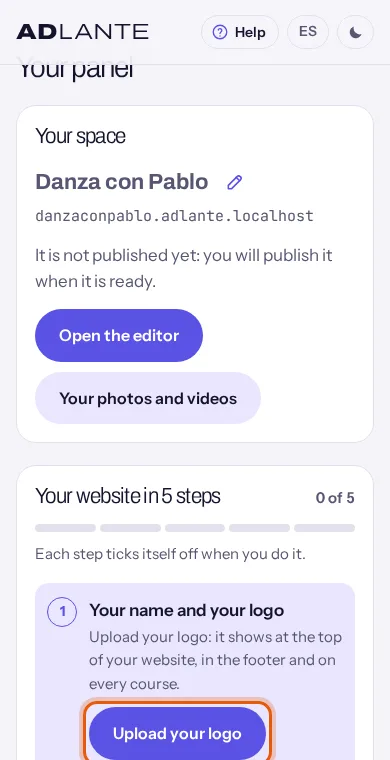
On a phone (narrow screen) there is no menu. Your panel is a single page of blocks, one under another, and each block takes you to its area with its button. To go back from any area, tap the arrow at the top left: it is named Your panel. From top to bottom:
- Your space: your name with its pencil, your address, a sentence saying whether your website is published (“It is not published yet: you will publish it when it is ready.”) and two buttons: Open the editor and Your photos and videos.
- Your website in 5 steps: until you finish the list (Follow “Your website in 5 steps”).
- Your courses (button Go to your courses), Your students (button See your students) and Your shop (button Go to your shop): only the ones your space can use. A paid tool you have not turned on yet still appears, with a “Paid” label and what it costs a month; building with it is free.
- Your plan (button See your plan): a sentence with what you pay.
- Your payments (button See your payments): your Stripe account, to take card payments.
- At the end: “Signed in as” and your email, and the Sign out button.
Today, the phone page has no block for Your workshops or for Students and payments. To open them, get into your panel from a tablet or a computer: there they appear in the menu.
On a tablet or a computer (wide screen) there is a menu, with the same areas, and your panel is laid out in columns.
- On a tablet, the menu is a row of rounded buttons under the ADLANTE header.
- On a computer, the menu is fixed, on the left: at the top, the initials of your space with your name and your address; then Home, Your website, Your photos and videos, Your courses, Your students, Your shop, Your workshops, Students and payments, Your payments and Your plan (only the ones your space can use); and at the bottom, Missing something? Tell us, your email and Sign out.
- On a computer, the bar at the top of the page shows the path you are on, the button See how your website looks (or See your website once it is published), the language switch (ES / EN) and the light and dark button (Switch between light and dark).
Inside the page, from top to bottom: the title Your panel with your name and its pencil; Your website in 5 steps across the full width; the Your website block (with its status, your address, Open the editor and a small drawing with your name: it is a drawing, not a photo of your website); Your plan; some numbers, only the ones that exist (Sales this month, Orders this month, To prepare and Published courses); and the cards Your courses (with New course), Your students, Your shop and Your payments (with their status, for example Not connected).
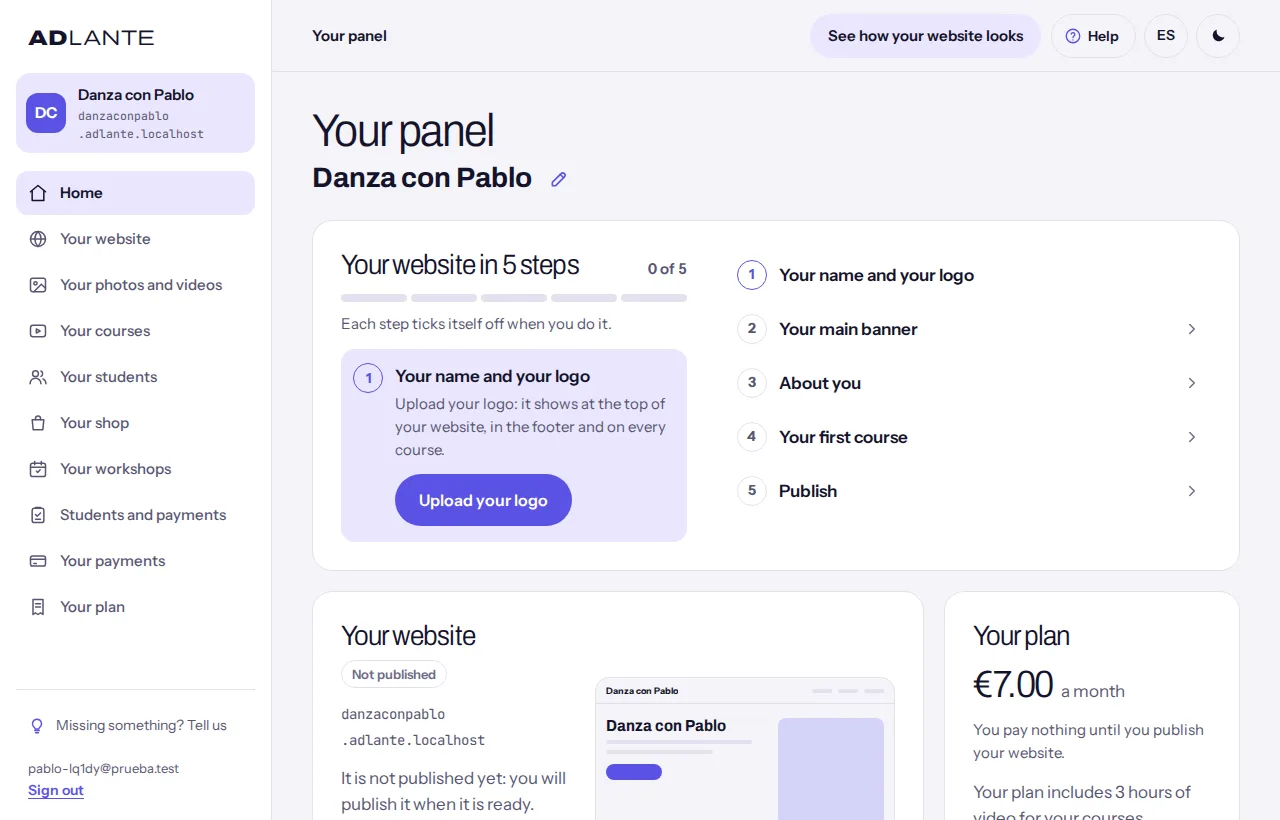
The first item in the menu is called Home, but the page it opens is titled Your panel. They are the same page.
If you get lost on any page, tap Help: the guide for the page you are on comes first.
Follow “Your website in 5 steps”
This is the list you see at the top of your panel until your website is ready. Each step takes you to the exact place in the editor (or in your courses) and ticks itself on its own when you do it: there is nothing to tick by hand. At the top there is a counter (“0 of 5”), a bar and the note “Each step ticks itself off when you do it.” Finished steps appear crossed out and with a tick.
On a phone, the current step is open, with its button, and the others are rows you tap. On a computer, the current step with its button is on the left and the list of all five on the right. You can do them in any order.
- Your name and your logo. “Upload your logo: it shows at the top of your website, in the footer and on every course.” Button Upload your logo: it opens the editor in Toda la web (The whole website), at the logo box. It ticks when your logo is uploaded to ADLANTE. You already set your name when you created the space: this step only looks at the logo.
- Your main banner. “Your photo and your line: the first thing your students see.” Button Make your banner: it opens the editor and, if you did not have it, puts the Banner section at the very top. It ticks when the banner exists, has your own line (in La frase (The line), in either language) and has your own photo or video already uploaded, or you chose for it to have no photo (Solo el texto (Text only) or Las portadas de tus cursos (Your courses’ covers)). Sample texts do not count.
- About you. “Tell people who teaches and how.” Button Write it: it opens the editor and, if you did not have it, puts the About us section in. It ticks when there is a text of yours in that section or, at least, one profile with a name.
- Your first course. “Give it a name; the rest, whenever you like.” Button Create your first course: it opens Your courses with the New course form already open. It ticks as soon as a course exists, even a draft. More in Courses.
- Publish. It says your website goes live at your address. Button Publish your website: it opens the editor with the publish window already open. It ticks when your website is published.
When it says 4 instead of 5. If ADLANTE has switched off the courses tool in your space, “Your first course” does not appear and the list is Your website in 4 steps. If courses are a paid tool you have not turned on yet, the step does appear: building is free.
When you finish. With all five steps done, Your website is ready appears just once, with “5 of 5”, a sentence saying it is live at your address and that “This guide won’t show again.”, and the See your website button. After that, on that device, it does not come back. If you open your panel from another device and everything was already done, it does not appear either.
If it cannot check how you are doing. While it checks, a grey “Checking how your website is going…” appears. If something does not answer, it retries by itself twice. If it still cannot, it says “We couldn’t check how your website is going.” and the Try again button. The rest of your panel keeps working.
Two steps often get stuck. “Your name and your logo” does not tick without an uploaded logo: if you have no logo, the list stays at 4 of 5 and “Your website is ready” never appears, although you can publish anyway. And “Your main banner” does not tick just by adding the section: it needs your line and your photo or video.
Change your space’s name
Go to your panel. Your name has a pencil to its right: on a phone, in the Your space block; on a tablet or a computer, right under the title Your panel.
Tap the pencil. It is called Change the name. The name turns into a field, Your space’s name, with your name already typed and the cursor at the end.
Type the new name (2 to 60 characters) and tap Save. While it works it says “Saving…”.
A green notice appears: “Name changed. The address stays the same.” The new name shows straight away in the block, in the menu on the left and in the small drawing of Your website.
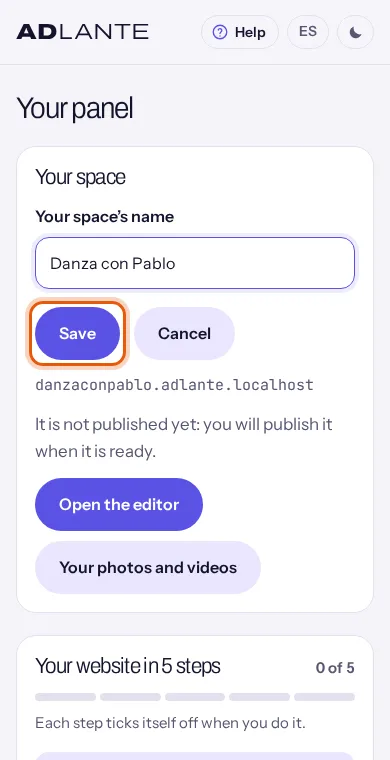
- To leave it as it was, tap Cancel or press the Esc key. If you change nothing and tap Save, it just closes.
- If the name is under 2 characters, a red notice appears: “Type the name of your space.”
- If ADLANTE does not accept the name (for example, because it contains characters it does not accept), the reason appears under the field and the field stays open for you to fix it.
The address never changes. Only the name changes. What your website takes from your name (the title in the browser tab and the sample texts you have not changed) starts using the new name. What you wrote yourself in your own words does not change. It can take a few minutes to show on your already published website.
See how your website looks, and see it live
They are two different things. One is seeing how it looks before publishing. The other is seeing your website already published, as anyone sees it.
Before publishing. In the editor, Probar (Try it) (at the top, next to Editar (Edit)) shows your website as your visitors will see it, including what you have not published yet. On a computer, the bar at the top of your panel shows, while it is not published, the button See how your website looks: it takes you to the editor, not to your website on the internet.
Already published. The See your website button opens your address in another tab. It appears in three places:
- On a computer, at the top right of your panel (it replaces See how your website looks once it is published).
- On a tablet or a computer, inside the Your website block, next to Open the editor.
- In the Your website is ready notice, just once.
On a phone, your panel does not have that button (only the notice above). To open your published website you can type your address, or open the editor, tap Publicar (Publish) and tap your address, which appears as a link in the window.
What the “Your website” block says (tablet and computer; on a phone, the same sentence inside Your space):
- Not published: “It is not published yet: you will publish it when it is ready.”
- Published: “It’s live at your address.”
- Unpublished changes: “You’ve changed things that aren’t live yet: publish them from the editor.”
The editor saves what you change, but your website on the internet only changes when you publish. Until you publish, whoever opens your address sees “There’s no website here.”: “The address may be mistyped, this space may not have published its website yet, or it may have taken it down for a while.”
Publish for the first time
These are the basics. The editor’s detail is in The whole editor, and what you pay is in Your plan.
Open the editor: with Open the editor or with the step Publish your website in your panel (which opens the editor with the publish window already open).
First, check that your website has something in it: at least the banner. If it is empty, the window warns you, but it does not stop you publishing.
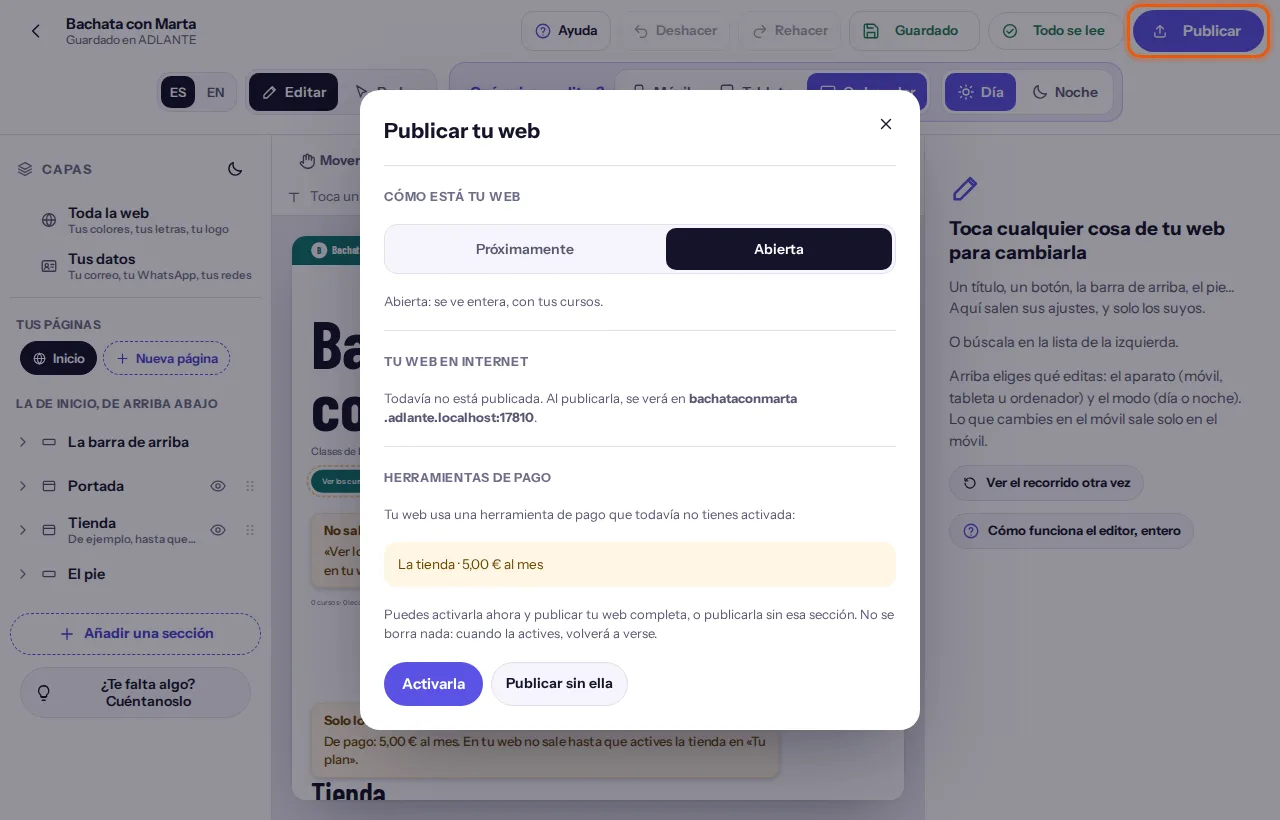
At the top right, tap Publicar (Publish). The window Publicar tu web (Publish your website) opens.
At the top, Cómo está tu web (How your website is): Próximamente (Coming soon) or Abierta (Open). Your website starts as Próximamente (Coming soon): your banner and “About us” show, with your social media, and the rest does not. The window says: “Tu web se abre sola con tu primer curso” (your website opens by itself with your first course). Switch to Abierta (Open) when you want it to show in full, with your courses.
Further down, Tu web en internet (Your website on the internet) says whether it is already published and what your address will be.
Tap the button at the bottom. Depending on your case, it is one of these: Publicar (Publish); or «Activar tu web y publicar» (Turn on your website and publish), with the price next to it (if your website has a price and you have not paid anything yet: it takes you to Your plan to turn it on and add your card, and when you come back it publishes by itself); or, if your website uses a paid tool you have not turned on, the window explains it under «Herramientas de pago» (Paid tools) and gives you two ways: turn it on and publish, or publish without that section. Nothing is deleted.
While it works, the button says “Guardando lo último…” (Saving the latest), “Publicando…” (Publishing) and “Comprobando que ya se ve…” (Checking it is live). When it ends a note says “Publicada” (Published) and that it is live at your address, and the button changes to Publicada (Published).
If it does not show straight away. Sometimes it says “Publicada en ADLANTE. Su dirección todavía no la enseña: puede tardar unos minutos.” (Published on ADLANTE. Its address does not show it yet: it can take a few minutes.) Try opening it again in a little while.
If ADLANTE does not answer. Publicar (Publish) retries by itself for about 30 seconds (the button says “Reintentando…”, Retrying) and always with the same version, so your website is never published twice. If it really cannot, it says nothing was published and your website stays as it was, and the button changes to “Volver a intentarlo” (Try again).
Changing your mind. Once published, the window has Retirar tu web (Take down your website): it stops showing on the internet and nothing is deleted. You can publish it again whenever you like.
Sign in another day, and recover your password
Go to
adlante.comand tap the button at the top right: it says Sign in and, if you have already signed in on that device, Your panel. You can also go straight toadlante.com/en/panel.If there is no open session, Sign in to ADLANTE appears. Sign in the same way you created the account: with Continue with Google or Continue with Apple, or with your email and password and the Sign in button.
You arrive at Your panel. ADLANTE remembers you on that device: next time, you go straight in. The panel uses no cookies.
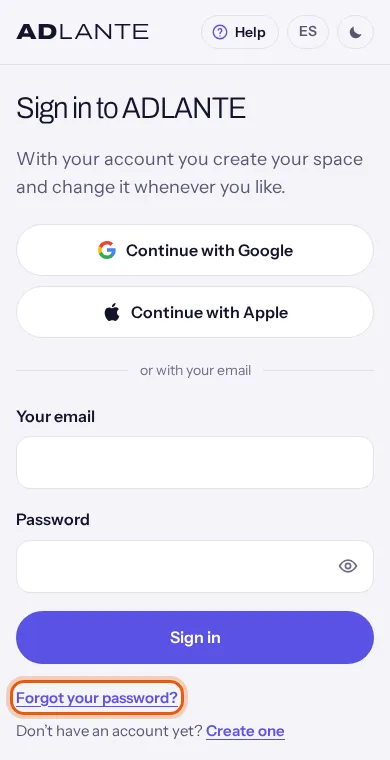
If the email or the password are not those of the account, a red notice appears: “The email or password is not correct.” The same happens if the account was created with Google or Apple and you try to sign in with an email and a password: it has no ADLANTE password. Sign in with the Google or Apple button.
I have forgotten my password:
In Sign in to ADLANTE, type your email in Your email.
Tap Forgot your password?. If the email is empty, it says “Type your email above and tap here again.”
A green notice appears: “If there is an account with that email, we have sent you a link to choose a new password.” The sentence is the same whether the account exists or not; that way nobody can find out who has an account.
Open the email, tap the link, choose the new password and go back to Sign in. If it does not arrive, check your spam folder, wait a few minutes and tap the link again.
If your account is a Google or Apple one, there is no password to forget: sign in with the usual button.
Sign out
At the bottom of every page of your panel it says “Signed in as” and your email, and right under it, Sign out. On a computer, also at the end of the menu on the left. Tapping it closes your session on that device and takes you back to the sign-in page.
Nothing is deleted: neither your space nor your website. If you sign out halfway through the sign-up, the invitation stays saved in that browser. It is useful when you use a device that is not yours; you do not need to sign out every day.
Real questions
My website is empty: is that normal?
That is normal. The sign-up saves your name and your address and leaves your website ready to fill, but with no sections: only the top bar and the footer show. The shortest way is to go to Your website in 5 steps and tap Your main banner. Everything, in Why your website starts empty.
Can I change my website’s address?
No. Today your panel only lets you change the name; the address stays as you wrote it during sign-up. Think it through before creating the space (Create your space, step 1). If you got it wrong, tell us in Missing something? Tell us and we will read it.
Can I change my space’s name?
Yes, with the pencil next to your name in your panel. It changes the name, not the address: Change your space’s name.
When I sign in I see “ADLANTE’s legal texts have changed” and I cannot go on.
It appears when the terms, the privacy policy, the data processing agreement or the rules of use change and you had accepted another version. Open them with the links in the checkbox, tick it and tap Accept and continue: the window closes and your panel is just as it was. If you do not want to accept them now, Sign out ends your session; the window appears again the next time you sign in.
The email to confirm my account does not arrive.
Check your spam folder and wait a few minutes. Then tap Send it again. Also check that the email shown on the page is yours: if not, tap Sign out and create the account with the right one. With Google or Apple there is nothing to confirm. Everything, in Confirm your email.
I opened the email link and the page still asks me to confirm.
Go back to the ADLANTE page and tap I have confirmed it: that is what makes it look again. If it stays the same, tap Sign out, sign in again with your email and password and try again.
My invitation says “This invitation is no longer valid”.
It was already used, it expired (after 14 days) or whoever sent it cancelled it. The page does not say which of the three. Ask whoever invited you for another.
I closed the page halfway through the sign-up. Do I lose the invitation?
No. The invitation is not used up until you tap Create my space, and it stays saved in the browser of that device. Go back to adlante.com/en/panel and the page takes you back to the sign-up. What you had written in step 1 does have to be typed again. If you switch device or browser, open the invitation link again.
Can I have more than one space?
Today, one per person. If you already have one and open another invitation, the page takes you to your panel and does not create another.
How much does it cost to create my space? Do I pay anything now?
Creating your space and building your website costs nothing. Your website is paid from the first time you publish it, and each tool from when you really use it, all together in a single charge a month. You see the prices on screen and, always, in Your plan. Detail: Your plan.
I chose wrongly in “What do you want to start with?”. What do I do?
No harm done: choosing is not turning on or paying, and it can be changed later in Your plan, as long as your plan has not started to be charged. At least one tool must always stay chosen.
The “Your main banner” step does not tick although I already added it.
Adding the section is not enough. The step ticks when the banner has your own line (in La frase (The line)) and your own photo or video already uploaded; or when you chose for it to have no photo (Solo el texto (Text only) or Las portadas de tus cursos (Your courses’ covers)). Sample texts do not count. If you have just uploaded the photo, wait for it to finish uploading.
The “Your name and your logo” step does not tick and I have no logo.
That step only looks at the logo: your name has been set since sign-up. Without an uploaded logo it stays unticked, and the list never reaches 5 of 5. It does not stop you publishing: your website shows your initial instead of the logo.
“Your website in 5 steps” has disappeared from my panel.
It shows until your website is ready. When all five steps are done, it appears once as Your website is ready and after that it does not come back on that device. If you never saw it half-done and everything was already done, it does not appear either.
On my phone I cannot find “Your workshops” or “Students and payments”.
Today the panel page on a phone has no block for those two. On a tablet or a computer they are in the menu. More in Your first day in the panel.
I have published and my address still does not show my website.
It can take a few minutes: the window says “Su dirección todavía no la enseña: puede tardar unos minutos” (its address does not show it yet: it can take a few minutes). If ADLANTE does not answer when you publish, Publicar (Publish) retries by itself for a few seconds, without publishing twice. And your website keeps showing even if ADLANTE’s server goes down, because a copy is saved when you publish.
Can I edit my website from my phone?
Yes. When you open the editor, ADLANTE recommends a computer (“El editor está pensado para una pantalla grande”, the editor is designed for a big screen) but you can carry on from the phone: close it with Cerrar (Close). A three-tap tour shows you the basics (skip it with Saltar (Skip) and see it again with Ver el recorrido otra vez (See the tour again)). On a phone, the buttons at the top are just a drawing: hold your finger on one for half a second and it tells you what it is.
Can anyone see my website before I publish it? What does someone who opens my address see?
It is not visible. Until you publish, whoever opens your address sees “There’s no website here.” To see it yourself first, use Probar (Try it) in the editor: See how your website looks, and see it live.
I created the account with Google and now I want to sign in with my email (or the other way round).
Always sign in the way you created the account. If you use another, it says “That email has signed in another way before (email, Google or Apple). Use that one.”, or “The email or password is not correct.” if you try to sign in with a password on a Google or Apple account.
On my published website, the sign-in button says “Soon you will be able to sign in here.”
That is normal at the start. That button is your students’ door: it opens when your website is Abierta (Open), your space has the student area and there is at least one published course. More in Courses.