Courses
Create a course, upload its videos, set its price, put it on sale and see how your students buy and watch it.
Detailed step-by-step guide
What a course is on ADLANTE
A course on ADLANTE is a set of video lessons that your students watch on your website. You build it in your panel, put it on sale (or give it away) and each student watches it from their own account, on a phone or a computer.
A course has three levels, from big to small:
- The course. It has the title, the cover, the price and a phase: draft, in production, coming soon or published. It is the card people see on your website.
- The modules. They are groups of lessons, like the chapters of a book. A course needs at least one.
- The lessons. Each one is a video, with its title and description. It is what the student opens and plays.
Everything about a course is done in Your courses. Who has bought one or signed up for one is in Your students. On a computer, both are in the menu on the left. On a phone, they are on the first page of your panel.
Your students and Students and payments are not the same thing. Your students are the people who buy or join your video courses on your website. Students and payments is for your weekly classes: who comes, who pays their fee and who owes something. Further down, in “Your students”, we explain it in detail.
Setting up costs nothing; using it can. Creating courses, modules and lessons is free. ADLANTE asks you to turn something on when you use it for real: when you upload your first video (videos come with their own hours, which come with the Your courses tool) and when you put a course on sale. At that point a window shows what it costs per month, with a button to turn it on in Your plan. What you had built is not lost. How it works: Your plan.
The whole route, in ten steps
If this is your first course, this is the order. Each step is explained in detail further down.
In Your courses, tap New course, type the title and tap Create the course. More detail.
On the course page, tap Modules and lessons and create the first module with Add a module. Inside the module, tap Add a lesson.
Open the lesson and upload its video with Upload a video. Wait until it says Ready. How to upload a video.
The module and the lesson start as drafts. Open the module and tick Published; open the lesson and tick Published. Each page is saved with its own Save.
Go back to the course page. Under Price, type the price or tick Free course.
If the course is paid, connect your Stripe account in Your payments: Card payments.
Under Launch, choose Published and tap Save, at the bottom. If something is missing, the page tells you what. If a tool has to be turned on, a window shows its price.
In the editor, tap Publicar (Publish). In the window, under “Cómo está tu web” (How is your website), choose Abierta (Open) and tap Publicar (Publish) again. If your website is still in Próximamente (Coming soon), no course shows. How a course appears on your website.
See your website as a student sees it with View as student, in Your courses.
When someone buys, you will see it in Your students and in Your payments.
See your courses and create a new one
Go to Your courses. On a computer, it is in the menu on the left. On a phone, it is a block on the first page of your panel, with the button Go to your courses. At the top it says: “Your video courses. The ones that are not drafts show on your website.”
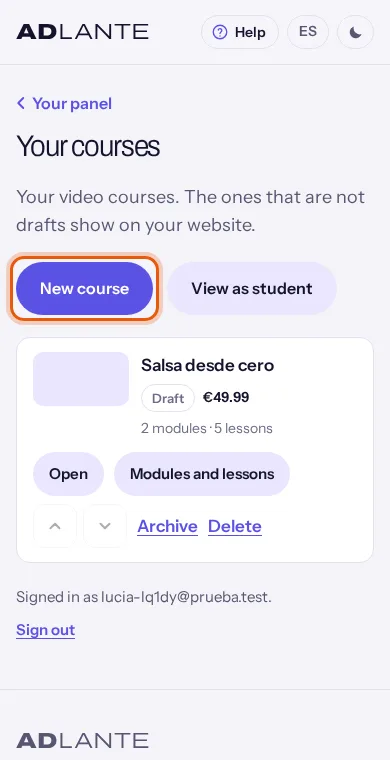
Each course is a row (on wide screens it can be a card) with these things:
- Its small cover. If it has none, you see a grey drawing.
- Its title and, under it, its tags: the phase (Draft, In production, Coming soon or Published), its badge if it has one, and its price (Free, the price you set, or No price).
- Its totals, for example “3 modules · 12 lessons · 3 h 20 min”. They add up by themselves.
- Open goes to the course page. Modules and lessons goes straight to its modules and lessons.
- Two arrows, one up and one down, move the course in the list. The order of the list is the order your courses appear in on your website. Each tap saves by itself: “Order saved.”
- Archive and Delete: explained in “Archive, restore and delete”.
To create a new course:
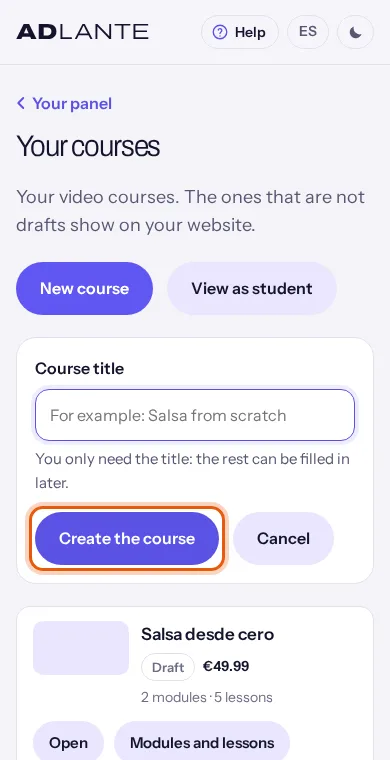
Tap New course. A box opens with a single field: Course title. On a computer you can also start from the “Your courses” block on the first page of your panel, or from the step Create your first course in Your website in 5 steps: both bring you to this same box, already open.
Type the title, up to 120 letters. Under the field it says: “You only need the title: the rest can be filled in later.”
Tap Create the course. While it creates it, the button says “Creating…”. If you typed nothing, it is not created and the same notice shows in red. To close the box without creating anything, tap Cancel (or press Esc).
The course page opens. It starts as a Draft: only you can see it.
The web address of the course is made from the title you type now and never changes, even if you change the title later. That way, links you have already sent keep working.
On a wide screen (tablet or computer), the list adds more. At the top: filters by phase (All, Published, Coming soon, In production and Drafts, each with how many there are), the search box Search a course and two buttons to see courses as cards or as rows (Grid view and List view; the browser remembers your choice). Each card has a three-dot button with Modules and lessons, Move earlier, Move later, Archive and Delete. While you filter or search, the arrows are switched off: “To change the order, choose “All” and clear the search.”
Further down, two boxes can appear: Archived (courses you have archived) and The bin (courses you have deleted, kept for 30 days). And at the top, next to New course, the button View as student, explained below.
If instead of courses you see “You don’t have any courses yet. To create your first one, all you need is its title.”, you have not created any yet. If a red notice appears with the button Try again, the list could not be loaded: check your connection and tap that button.
If the page says “Courses are not available for your space right now.”, ADLANTE has switched that tool off for every space. It is not your fault. Tell us in Missing something? Tell us.
A course page and its single Save
To open a course, tap Open on its row. At the top you see its title; a tag with its phase and a sentence saying how it shows on your website (“Shows on your website as “Published”.” or “It’s a draft: it doesn’t show on your website yet.”); how many modules, lessons and hours it has; and the button Modules and lessons. To go back to the list, tap Your courses, at the top left.
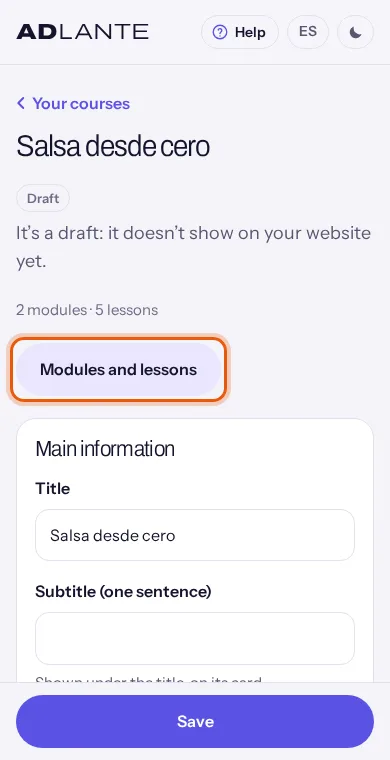
Below, each section has its own box. On a phone and a tablet they go one under another, in this order: Main information, Course details, Price, Showcase, Launch, Badge and benefits and Archive or delete the course. On a computer with a wide screen they go in two columns. On the left: Main information, Course details, Showcase, a block with the modules and lessons (with its button See its modules and lessons, which takes the place of the button at the top) and Badge and benefits. On the right: Launch, Price and Archive or delete the course.
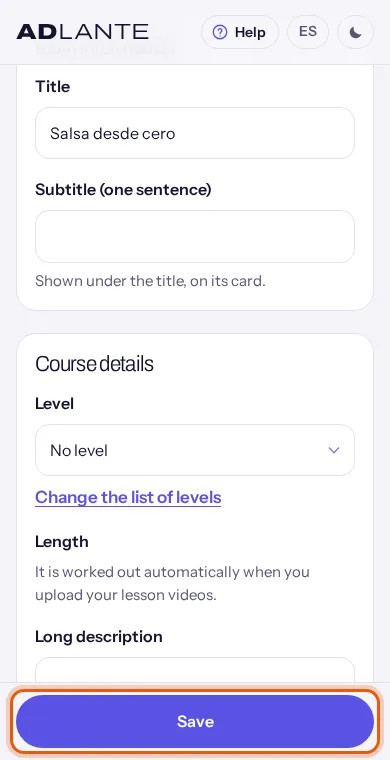
There is no save button in each box. There is only one, Save, at the very bottom, which stays stuck to the edge of the screen as you scroll. It works like this:
- When you touch anything, the bottom says You have unsaved changes.
- When you tap Save, everything is saved at once. The button says “Saving…” and then Saved. If you had not touched anything, it says Everything is saved.
- If something is wrongly written (a price that is not a number, a launch with a day but no time…), nothing is saved and it says Nothing was saved: check what’s shown in red. The red notice appears in the section with the problem, and the cursor goes to that field.
- If you try to leave the page with unsaved changes, or with a video still uploading, your browser asks first. That question belongs to the browser, not to ADLANTE: ADLANTE cannot change its words.
Some things save by themselves, without waiting for Save: the covers and trailers in Showcase (saved when you upload or remove them) and Remove the badge (as soon as you confirm). Modules and lessons have their own pages: saving works differently there, and it is explained in their parts.
Some fields or sections depend on your plan. If one is missing (the trailer, the launch, the badge, the benefits…) or a note appears with the name of the tool and “is an extra of … a month”, that tool is not turned on in your space. Extras are turned on in Your plan, under Your extras. The note ends with “Soon you will be able to turn it on from here.”, but today it is done in Your plan, not there. If a section does not show at all, not even with a note, ADLANTE has switched it off for every space.
Main information and Course details
Main information has two fields:
- Title. It is the only required one: up to 120 letters. If you leave it empty and tap Save, it shows in red “You only need the title: the rest can be filled in later.” and the cursor goes back to the field. Changing the title does not change the course’s web address.
- Subtitle (one sentence). Optional, up to 200 letters. It shows under the title, on the course card on your website.
Course details has the level, the length and the description:
- Level: a drop-down with No level and your list of levels. At the start the list has four: Beginner, Intermediate, Advanced and All levels.
- Change the list of levels opens a box. To add one, type it under New level and tap Add (or Enter). To remove one, tap Remove next to it and confirm with Yes, remove it; courses that already have it keep it. The list belongs to your space and is used for all your courses. It can hold up to 20 levels, 1 to 40 letters each, with no repeats: otherwise it shows “The list can’t be saved like that: no repeats, and 1 to 40 letters each.” Changes to the list are saved with Save.
- Length: you do not type it. It adds up from your lessons. While there are no videos it says “It is worked out automatically when you upload your lesson videos.”
- Long description: the text shown on your website under “About this course”. It accepts
**bold**,*italics*, lists (with a*at the start of each line) and headings (with a#in front). Tap See how it looks to preview it; the button becomes Keep writing. If there is no text, the preview says “You haven’t written anything yet.”
Showcase: the covers and the trailer
Showcase is what people see of the course before buying it. It has two covers and, if your plan includes it, two trailers.
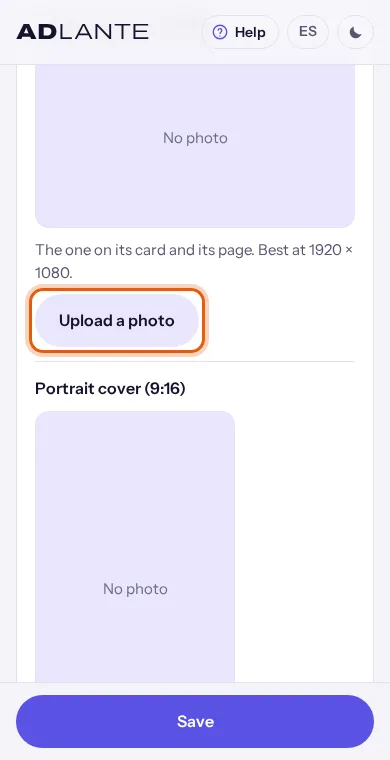
To set a cover:
Under Landscape cover (16:9) tap Upload a photo. It is the one on its card and its page; best at 1920 × 1080. Portrait cover (9:16) is the phone one, best at 1080 × 1920.
Choose a PNG, JPEG or WebP photo. If the file is of another type, it shows “That file is not a photo (PNG, JPEG or WebP).”
While it uploads, the button says “Uploading the photo…”. When it finishes, it says “Photo saved.” and the photo is already saved: you do not need to tap Save.
To change it, tap Change the photo. To remove it, tap Remove: it asks “Remove this photo?” and you confirm with Yes, remove it.
ADLANTE prepares your photo before uploading it: it makes it as small as a website needs and removes the hidden data it carries (for example, where it was taken). You do not have to crop or shrink it yourself.
A cover is never cropped. If your photo does not have the shape of the slot, it shows whole with bars, and the panel tells you: “This photo doesn’t have the shape of the slot (16:9): it shows whole, with bars. To fill the slot, upload it in that shape.”
The trailer is a short presentation video. There are two slots: Landscape trailer and Portrait trailer (for phones). They are uploaded with Upload a video the same way as a lesson video (see “Uploading a lesson video”). Two important differences:
- It lasts 15 minutes at most.
- It is public: anyone can watch it on your website, without an account. Lesson videos, on the other hand, are stored locked and only people with access can watch them. The portrait one is used on a phone held upright.
Badge and benefits
The badge is a label shown on the course card, like “Best seller” or “New”.
- Text (30 letters at most): what the label says. Without text there is no badge: the emoji and the colour alone do not count.
- Emoji (optional): a symbol or emoji. Letters and numbers are not accepted.
- Its colour: the colour of the label. The letters turn white or black by themselves so they can be read.
- Below, This is how it will look shows you the result.
- Remove the badge asks “Remove the badge?” and, if you confirm with Yes, remove it, it is removed straight away: you do not need Save.
What’s included is a list of benefits shown on the course page, in the order you choose. It holds 12 at most.
- From the list: six already written (“Lifetime access”, “On any device”, “At your own pace”, “We answer your questions”, “Practice material” and “Money-back guarantee”). Tick the ones you want.
- Add your own opens a box with Title (60 letters at most), One sentence (optional) and Its icon (16 drawings to choose from). Tap Add it. Without a title it shows “Write its title.”; with 12 already added, “12 at most.”
- Under On your website, in this order you see the ones you chose. Each has two arrows to move it up or down and a Remove. Your own ones ask before being removed. All of this is saved with Save.
“Money-back guarantee” says: “If it is not for you within the first 14 days, we give you your money back.” Tick it only if you really offer that. ADLANTE does not refund for you: you do it yourself, from Your payments.
Creating modules and lessons
Go in with Modules and lessons, from the course list or from the course page. At the top it says “The modules and lessons of “…”. Anything in draft doesn’t show on your website.” and “In total: …” with the totals. To go back to the course, tap Your course, at the top left.
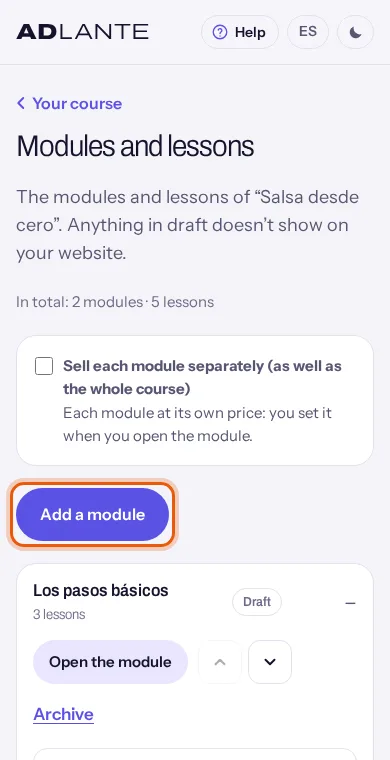
To create a module:
Tap Add a module. A box opens with Module title.
Type the title and tap Create (or Cancel to close the box). Without a title, it shows in red “You only need the title: the rest can be filled in later.”
The module appears open, with “Saved.” and the button Add a lesson.
To create a lesson:
Inside the module, tap Add a lesson. A box opens with Lesson title.
Type the title and tap Create.
The lesson appears in the list with the tags Draft and No video, and its Open button: from there you will add the video.
Modules and lessons start as drafts. A draft does not show on your website and does not count towards publishing the course. Open the module, tick Published and tap Save. Open the lesson, tick Published and tap Save. If the course says it still needs “A published lesson with its video ready” and you already have one, check that its module is published too.
What you see in the list:
- Each module is a box that opens and closes when you tap its title. When you arrive, the first one is open. It shows how many lessons it has and, when it applies, Draft or Free for everyone.
- Each lesson shows its title, its length (once it has a video) and its tags: Draft (not published), Free sample and No video.
- Open the module and Open (on a lesson) go to their page. They are explained in the next two parts.
- Each module and each lesson has two arrows, up and down. Each tap saves the order straight away: “Order saved.” That is the order the student will see. You do not drag: they are buttons, made for fingers and keyboards.
To archive a module or a lesson, tap Archive next to it. It shows “Archive the module “…”?” (“Its lessons go with it. Nothing is deleted: you can restore it whenever you like.”) or “Archive the lesson “…”?”. Confirm with Yes, archive. Archived modules stay at the bottom, under Archived; archived lessons stay in the “Archived” drop-down of their module. In both cases, Restore brings them back; to restore a lesson, its module has to be restored first. Modules and lessons are never deleted: they can only be archived.
If your plan includes it, the tick box Sell each module separately (as well as the whole course) appears at the top. Once ticked, each module can have its own price, which you type on the module page.
Today, on your website, anyone who buys buys the whole course: the Buy button is always for the course. The price of a single module is shown on the course page (“This module on its own: …”), but your student cannot buy a module separately yet.
A module page
It opens with Open the module. At the top you see its title and the course it belongs to. To go back, tap Modules and lessons, at the top left.
Under Its details:
- Title: required. If empty, it shows “You only need the title: the rest can be filled in later.”
- Description (optional): a short text, up to 2000 letters.
- Published: “Otherwise, it doesn’t show on your website.” While it is unticked, the module is a draft and its lessons are not visible.
- Free for everyone (only if your plan includes sample lessons): “Anyone with an account can watch its lessons, even without buying the course.” It is a tick box; a price of zero does not do the same, so a module is never left open to everybody by accident.
- Its price on its own (only if your plan includes selling modules separately): it is used if you ticked the box to sell each module separately in Modules and lessons.
This page has its own Save button, inside Its details. While it saves it says “Saving…” and afterwards “Saved.” If you leave with unsaved changes, the browser asks.
Under Its covers there is a landscape one and a portrait one, as in the course. They are optional. They are saved when you upload them, without Save. Today your website does not show them, so you do not need to upload them.
At the bottom, Archive this module asks first and takes you back to Modules and lessons.
A lesson page
It opens with Open on the lesson’s row. At the top it says “Lesson from “…”” with the name of its module.
Under Its details:
- Title: required, up to 120 letters.
- Description (optional): the student sees it under the video.
- A line saying “Its length will be known when you upload the video.” and, once you upload it, “Length: … (from the video)”. You never type the length: it comes from the video.
- Published: “Otherwise, it doesn’t show on your website.” An unpublished lesson is seen by nobody, not even by someone who bought the course.
- Sample lesson (free) (only if your plan includes sample lessons): “Anyone with an account can watch it for free, to try before buying.” Sample lessons also appear in the “Free lessons” section of your website.
- Its own Save button, below. It says “Saving…” and then “Saved.”
Under Its videos you upload the video: it is explained in the next part. Under Its covers there are three optional slots (Landscape (16:9), Portrait (9:16) and Square (1:1)); they are saved when you upload them, and today your website does not show them.
Subtitles only appears if your plan includes them. It has two slots: In Spanish and In English.
Tap Upload a file and choose a subtitle file: SRT, VTT, SBV (the YouTube one) or ASS all work. ADLANTE converts it by itself.
If the file is valid, it shows “Subtitles saved.” and the slot tells you how big it is. If not, “That file doesn’t look like subtitles (SRT, VTT, SBV or ASS).”
To replace them, Change. To delete them, Remove: it asks “Remove the subtitles in Spanish?” (“They are deleted from the lesson.”) and you confirm with Yes, remove it.
Today subtitles are saved, but the player in the student area of your website does not show them yet. You can upload them to have them ready; your students will not see them for now.
At the bottom, Archive this lesson asks first and takes you back to Modules and lessons. To go back without archiving, tap Modules and lessons, at the top left.
Uploading a lesson video
Before you start, keep four things in mind:
- Format. MP4, MOV or WebM. The video as it comes out of your phone or camera works: you do not need to convert it. If you choose another type of file, it shows “That file is not a video (MP4, MOV or WebM).”
- Size and length. Up to 30 GB per file and up to 2 hours per lesson. A trailer, up to 15 minutes.
- Landscape or portrait. Your students watch the lesson’s landscape video. The portrait one is only used if you have not uploaded the landscape one or it is not ready yet. Normally you only upload the landscape one.
- Hours in your plan. Every video you upload uses video hours from your plan, according to its length. If you upload the landscape and the portrait version of the same lesson, both use hours. See “The video hours in your plan”.
To upload it:
In Modules and lessons, tap Open on the lesson.
Scroll down to Its videos. You will see Landscape video and Portrait video, each with its state: “No video”.
Tap Upload a video and choose the file.
The state keeps changing. First “Waiting for its turn…” (on one page, videos upload one at a time). Then “Uploading”, with a number that keeps growing and a bar. When it ends, “Uploaded. Cloudflare is preparing it…”. At the end, Ready with its length.
While it uploads, do not close the page. A notice reminds you: “Uploading: don’t close this page until it finishes.” If your connection drops, the upload carries on from where it was when it comes back. If you close the page halfway, when you return the slot says “It stopped halfway (the page was closed). Choose the file again.” and you have to choose it again.
Cloudflare is the company that stores and plays ADLANTE’s videos. Your video goes straight from your device to it, in pieces. When the upload ends, Cloudflare prepares it so that it plays well on any phone and computer. How long it takes depends on how long the video is: from a few seconds to several minutes. The page checks by itself every so often. You can leave the page while it is being prepared: it keeps going and, when you come back, you see how it is doing.
When it says Ready, the video can already be watched, and the lesson’s length fills in by itself from the video. The course’s total length adds up by itself.
If something fails:
- “It could not be uploaded.” with the button Try again. If the page is still open, it uploads the same file again without you choosing it again.
- “It is too big to be saved.” The file is over 30 GB. Export it at a smaller size (for example, as MP4) and upload it again.
- “Cloudflare could not prepare this video. Try another file.” It is usually a damaged file or an unusual format. Check that it plays on your phone or computer, export it again as MP4 and upload it again.
- “You have used all the video hours included in your plan. Delete a video to make room…” or “This video is longer than what you have left of your video hours.” The video does not start uploading. See “The video hours in your plan”.
- A window that starts with “To use courses” and says what it costs per month: your plan does not include the Your courses tool yet, which brings the video hours. Tap Add them to your plan (if you have not paid anything yet) or Turn them on (if you already pay). The same file keeps uploading, without you choosing it again. If you do not want to, Not now.
- “Videos cannot be uploaded to your courses yet: the video hours included in your plan have not been decided.” It is not your fault: write to us in Missing something? Tell us.
To replace a video, tap Change the video. It asks “Change the video?” (“The current one is deleted from ADLANTE when the new one starts uploading.”) and you confirm with Yes, change it. To remove it altogether, tap Remove: “Remove this video?” (“It is deleted from ADLANTE.”) and Yes, remove it. A removed video cannot be recovered, but it gives its hours back.
Lesson videos are stored locked: only people with access to the course (because they bought it, or because it is free) or to that lesson (because it is a sample) can watch them. Nobody can watch them from the video’s web address.
The video hours in your plan
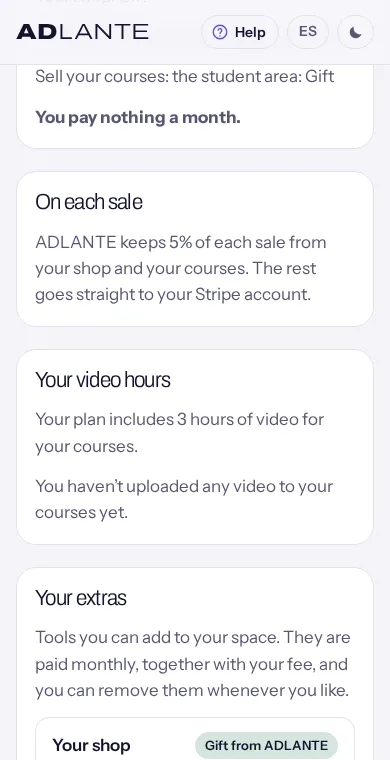
Your plan includes a number of video hours for your courses. You see them in Your plan, under Your video hours. It says “Your plan includes … of video for your courses.” and, below, “You have uploaded …; you have … left.” or “You haven’t uploaded any video to your courses yet.” How many hours they are, and what it costs if a tool has to be added, is shown on that page: this guide does not write figures because they change.
What uses hours and what gives them back:
- They use hours: every lesson video and every trailer, for as long as it lasts. Videos that failed to prepare do not count. Photos do not use hours.
- They give hours back: removing a video with Remove, or deleting a course for good (when it leaves the bin, or with Delete now), because its videos are deleted too.
- They do not give hours back: archiving a course, a module or a lesson. Their videos stay stored. A course in the bin does not give them back either until it is deleted for good.
When they run out, new videos do not upload. The page tells you with the sentences in the previous part. To carry on, remove videos you no longer use. In Your photos and videos, the drop-down In your courses shows the covers, trailers and lesson videos; they are changed from each course. If you need more hours, tell us in Missing something? Tell us: today the panel has no button to buy extra hours.
The hours come with the Your courses tool. If you have not turned it on when you upload your first video, the window with its price and the button to turn it on appears, without leaving the page. How turning on works: Your plan.
Setting the price: free or paid
The Price section of the course page has two things:
- Price of the whole course. Type it as a number; decimals with a dot or a comma. The currency is your space’s and shows in the label. If what you type is not a number, when you tap Save it shows in red “Write the price as a number…” and nothing is saved.
- Free course: “Anyone with an account can watch it without paying.” If you tick it, no price is needed. Your student taps Join for free and the course goes into their My courses.
To put it on sale you need one of the two: a price or Free course. Otherwise, in the list the course says No price and, when you choose Published and save, it is not published and it shows “To publish it, give it a price or mark it as free.”
To sell by card, your Stripe account has to be active. If the course has a price and your space cannot take payments yet, a notice appears under the price: “To sell it by card, connect your payments.” and “Until then, it cannot be paid by card on your website.”, with the button Go to «Your payments». When Stripe leaves your account Active, the notice goes away by itself. A free course, or one with no price, does not show it.
If you have already touched something on the page and have not saved, tap Save before going to Your payments. Otherwise the browser will ask before you leave the page.
- When someone pays, the money goes straight to your Stripe account. ADLANTE keeps a part of each sale and Stripe its own: how much, you see in Your plan, under On each sale. All the detail about the money is in Card payments.
- Your students need nothing from Stripe: they pay with their card.
- Your course sales appear in Your payments, next to your shop sales.
Under the Price fields, a note reminds you that, if your space cannot take card payments yet, your website says “Available soon” where “Buy” will go. Your website shows Buy when four things are true: the course is Published, it has a price, your space has the sell-courses tool turned on and your Stripe account is active. If one is missing, a greyed-out button that says “Available soon” appears instead. A free course only needs the first two (and does not need Stripe).
The four phases and putting a course on sale
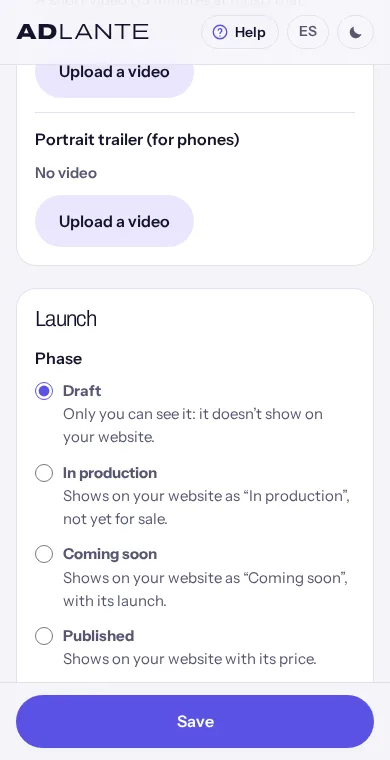
In the Launch section, the Phase field has four options. Each one says below what it does:
- Draft: “Only you can see it: it doesn’t show on your website.” It is how a course starts.
- In production: “Shows on your website as “In production”, not yet for sale.” The card carries that label and the notice “Not on sale yet.”, with no price.
- Coming soon: “Shows on your website as “Coming soon”, with its launch.” If you set a date, the card says when it launches and counts the days left.
- Published: “Shows on your website with its price.” It is the only phase in which it can be bought or joined.
With Coming soon, The launch appears, if your plan includes it:
- Day and Time: either both or neither. If you set only one it shows “Give both the day and the time (or neither).” They count in your space’s time zone. Remove the date clears both.
- When that moment arrives, the course publishes itself. Before then it must have at least one published lesson with its video ready; if not, the page warns you: “On its launch day it will be published automatically: before then, add at least one published lesson with its video ready.”
- Below there are two numbers, Announce it how many days before (1 to 120) and Feature it how many days after (1 to 180). They are saved, but today your website does not use them: they change nothing of what is seen. Leave them as they are.
To put it on sale:
Check that it has a price (or Free course) and at least one published lesson, in a published module, with its video Ready.
Under Phase, choose Published. If your space has not turned on the tool needed, a label “Paid · … a month” shows next to the name.
If something is missing, the list “To publish it, you still need:” appears below with what is missing (“A price, or to mark it as free (in “Price”).” and “A published lesson with its video ready (in Modules and lessons).”), and a link to Modules and lessons.
Tap Save, at the bottom. If everything is fine, it says Saved.
If your space has not turned on a paid tool that this step needs, everything else is saved (the phase stays as it was) and a window opens. Its title starts with “To use course sales” (or “To use courses”) and says what it costs per month. It has two buttons:
- Turn it on in “Your plan”: takes you to Your plan, with what needs turning on highlighted (“Turn it on here and you will go back to where you were.”). When you turn it on it says “Turned on. Taking you back…” and you return to the course page, which is now Published and saved: “Done: your course is published.”
- Not now: the window closes and the course stays as it was. Nothing is lost.
Publishing the course is not the same as opening your website. Even if the course is Published, if your website is still in Próximamente (Coming soon) no course shows and students cannot sign in. See “How a course appears on your website”.
If a published course is left with no ready lesson (for example, you archive the only one), it does not unpublish itself, but the page warns: “Your course is published, but anyone who opens it will find it empty:” and “It has no published lesson with its video ready. Publish one (in Modules and lessons), or move it to “In production”.” To take a course off sale, choose another phase (In production or Draft) and tap Save. People who already bought it can still watch it.
How a course appears on your website
First, open your website. A new website starts in Próximamente (Coming soon): only the main banner and “About us” show. While it is like that, no course shows and your students cannot sign in. To open it, tap Publicar (Publish) in the editor. The window “Publicar tu web” (Publish your website) opens: under “Cómo está tu web” (How is your website) there are two buttons, Próximamente (Coming soon) and Abierta (Open). Choose Abierta (Open) and, in the same window, tap the button Publicar (Publish) (or Publicar los cambios (Publish the changes), if you had already published it). Under Próximamente (Coming soon) that window says “Tu web se abre sola con tu primer curso” (your website opens by itself with your first course). Today that is not so: you open it yourself. More detail: The whole editor and From sign-up to your published website.
With the website open, the courses section shows on the home page, or on its own page if you set it that way. This is what shows:
- All the courses that are not Draft and not archived, in the order of Your courses.
- Those in In production or Coming soon show as upcoming releases: with the mark “Upcoming”, the label of their phase (“In production”, “Out on …” or “Coming soon”), no price and the notice “Not on sale yet.” Their page shows the course content if it already has published modules and lessons; if not, “The course content is being prepared.”
- Published ones show with their price (or “Free”) and a button to open their page. On the page: the cover, the trailer, the badge, “What’s included”, “About this course”, the course content with the published modules and lessons, and the Buy or Join for free button.
- Unpublished modules and lessons do not show, nor count towards the number of lessons people see.
To change how the section looks, in the editor:
In Capas (Layers), tap the row Cursos (Courses). If you do not have it, tap Añadir una sección (Add a section) and choose Cursos (Courses) (“Tus cursos a la venta.” — your courses on sale).
Change what it says with El título (The title), El texto (The text), Un botón (empty: no button), El botón de cada curso (The button on each course) (out of the box it says “View course”) and Cómo se llama en el menú (Its name in the menu).
Change its shape with the layouts Tarjetas grandes (Big cards) or En lista, con la foto a un lado (As a list, with the photo to one side). On the cards, Qué sale en cada tarjeta (What shows on each card) switches the level, lessons, hours, description, teachers, languages, free lessons and price on and off.
To see how it really looks, tap Probar (Try it).
The title, subtitle, level, price and cover of each course are not written in the editor: they come from the course. You change them in Your courses, not in the editor. The section’s default text says: “Buy them here: a whole course, a single module or individual lessons.” Today the whole course is what is bought: change it in El texto (The text).
While you have no course to show, in Editar (Edit) you will see example courses, marked with “Contenido de ejemplo: en tu web saldrá el tuyo” (sample content: your own will show on your website). On your published website only yours show; if none is in sight yet, the section shows without cards. And if your website is in Próximamente (Coming soon), this section does not show: the editor warns you (“En «Próximamente» esta sección no sale. Saldrá cuando abras tu web.” — in “Coming soon” this section does not show, it will when you open your website) and, in the same section, offers Cambiar esta frase (Change this sentence) to write the sentence that shows meanwhile on your main banner.
Under the course cards there is a fixed note about the taxes included in the price and about where what people buy can be watched. It has no field in the editor: it cannot be changed.
What you change in your courses appears on your website without publishing it again. It can take a moment: if you do not see it, reload the page. What does need publishing is what you change in the editor (the section’s texts, its shape).
The address of each course. Each course has its own address, shaped like yourname.adlante.com/cursos/course-name. To copy it: in the editor, Toda la web (Whole website) → Cómo se ve al compartir (How it looks when shared) → Cada curso, producto y página (Each course, product and page). Each course appears in a row with its address and a Copiar (Copy) button; if you tap the row, you see how its card will look when shared on WhatsApp or social media: its name and its landscape cover, if it weighs 300 KB or less (if it weighs more, your usual card shows). On each course page, your website also has a “Share” button. The cover is changed from Your courses.
There is also a separate section, “Free lessons”, which shows up by itself when some published course has sample lessons or modules that are “Free for everyone”. To watch them, the visitor needs a free account. Trailers can be watched without one.
The student area on your website
The student area lives inside your website, with your bar, your colours and your fonts. It is where your students create their account, buy and watch their courses. Three things are needed for it to show: your website Abierta (Open), at least one Published course and the sell-courses tool turned on in your plan. When they are all true, a person icon with My courses appears in your website’s bar (on a phone, only the icon). Until then, that corner says “Log in” and, when tapped, “Soon you will be able to sign in here.” If your space has Students and payments and no course is published yet, the open website shows “My school” in that corner (the area for your weekly classes) instead of My courses.
Direct links. If you want to send someone straight to their account, these are the links: yourname.adlante.com/#alumno/crear to create the account, yourname.adlante.com/#alumno/entrar to sign in and yourname.adlante.com/#alumno for their courses.
Creating the account. This is what your student does, step by step:
They tap My courses in your bar, or Buy or Join for free on a course. If they have not signed in, they go to “Your account at …” with two tabs: Create account and I have an account.
Under Create account they fill in Your name, Your email and A password (8 or more characters), and tick the box “I accept the terms and the privacy policy of …, and I am old enough to do so (or my parent or guardian allows me).” “Terms” opens the ones of their area and “privacy policy”, your website’s. If they change (the last time, on 14 Oct), anyone who already had an account is asked again when they sign in.
They tap Create my account. If something is missing, the notice appears next to the button: “Write your name.”, “Write a valid email.”, “The password must be at least 8 characters long.” or “To create your account, tick the terms box.”
An email arrives. On the page “Confirm your email” they tap the link in the email and come back; they tap I’ve confirmed it (the page also checks by itself when they return to it). If it does not arrive: Send the email again, check the spam or promotions folder, or Use a different email.
They go into My courses. The first time they sign in, your student starts appearing in your Your students list.
If they already had an account (even from another ADLANTE space, the same one works), they use I have an account and Sign in. If they forgot it, I’ve forgotten my password sends them a link to set another. If “Before you continue” appears, they just tick the terms box and tap Continue.
Joining a free course. On the course page they tap Join for free. It shows “Joining…” and, when done, “Done: it’s now in “My courses”.”
Buying a course.
On the course page they tap Buy. The page “You’re about to buy” shows the course, its price and a tick box: “I want the course now. I understand that once I start watching it, I lose the right to withdraw from the purchase within 14 days.” (The box is compulsory; without it they cannot continue: “To buy, tick the box.”)
They tap Pay by card (the button carries the price). The button says “Taking you to the payment…” and Stripe’s payment page opens, with your space’s name.
Once they pay, they return to your website. It shows “Payment received” and “Getting your course ready…”. It almost always appears within seconds. If it takes longer: “Your payment went through, but the course isn’t showing yet. It usually takes less than a minute.” with the button Check again. If a few minutes pass and it still does not show, it tells them to write to you.
If they leave the payment without paying, they see “Nothing has been charged” and the button Try again.
If the course has a price but your Stripe account cannot take payments yet, the button on the course page is greyed out (“Available soon”). If they still reach the buying page, it reads “… can’t take card payments yet. Write to them to buy the course.” If a course is not on sale right now, “This course can’t be bought right now.”
Watching the course. In My courses each course has its cover, how much they have watched and a button: Start, Continue or View. At the top, if they have already started one, “Pick up where you left off” appears with Continue watching (or “Continue at …”). Inside a course the student sees their progress, the big button to start or continue (“Start: …”, “Continue: …”), and the modules as boxes with their lessons. Each lesson has an icon: an empty circle if they have not watched it, a tick if they have, a triangle on the one they stopped at (with the minute: “You stopped at …”) and a padlock on paid ones they do not have yet.
In a lesson the student sees the video (the landscape one; if there is none, the portrait one), the buttons “‹ Previous” and “Next ›” and, if your plan saves progress, Mark as watched and “Your place is saved: next time you’ll carry on from here.” A locked lesson says “This is a paid lesson.” and “To watch it, buy the course.” with the Buy button. If the video is still being prepared: “This lesson’s video is still being prepared. Come back in a while.”
Whoever buys a course sees it in My courses from any device (phone, computer…). At the bottom of their page are their email and Sign out and, below, “Your data”: Download my data (a file with their details, what they accepted, their courses, their progress and their payments in your space) and Ask to delete it, which first asks “Ask … to delete your data?” with Cancel. If they ask, you get an email at your “Who sells” email (and so does ADLANTE, to help you): you have one month to answer them, and deleting is your decision. A course you archive is still seen by those who already had it. If your space also has Students and payments, a card “My school” appears first in My courses, with their timetable and what they owe for their weekly classes.
Your students: who they are, what they have and since when
Go to Your students: on a computer, in the menu on the left; on a phone, with See your students on the first page of your panel. Here you see the people who have created an account on your website (once they confirm their email and sign in for the first time), bought a course or joined a free one. If your plan does not include this tool yet, the page looks the same, with a “Paid · … a month” label at the top.
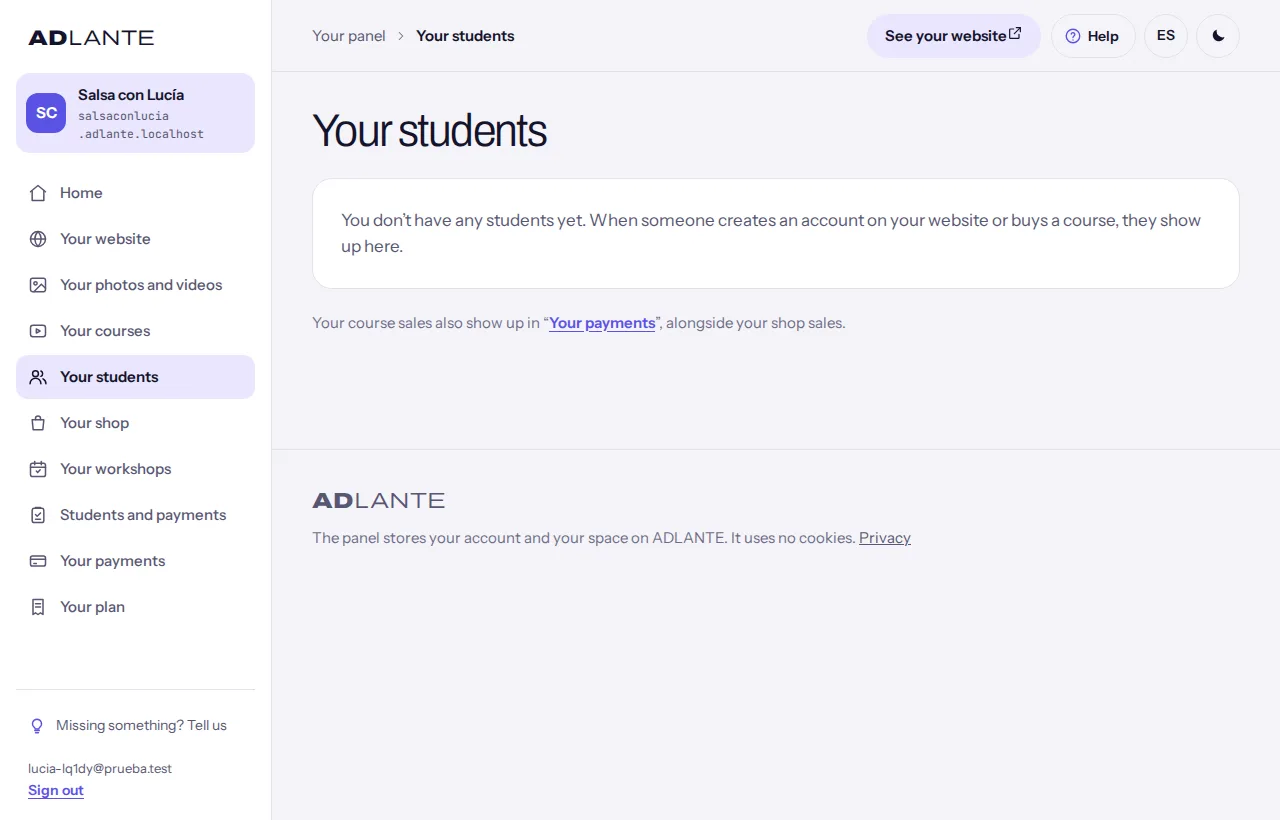
- At the top, a summary: how many students there are and how many purchases in the last 30 days. If there is more than one page, it says “In this list: …”.
- On a phone and a tablet, a list. Each student has their name with a tag: Bought (they have paid for a course or module), Free (they only have free courses) or No courses (they have an account but have not bought or joined anything yet). Below it, their email and each course they have, with what they paid or “Free” and since when (“2 days ago” or the date).
- On a wide computer, a table with five columns: Student, Email, What they have, Since (when the account was created) and Last seen (when they last signed in).
- The list comes 50 at a time, newest first. To see more, tap See more students.
- If there is nobody yet: “You don’t have any students yet. When someone creates an account on your website or buys a course, they show up here.”
- At the end there is a note: “Your course sales also show up in “Your payments”, alongside your shop sales.”
Downloading their emails. If your plan includes that tool, there is a button Download their emails (CSV). It downloads a file for your spreadsheet with each student’s name, email, sign-up date, last visit and courses. While it prepares, the button says “Preparing the file…” and afterwards “Done: “students-YYYY-MM-DD.csv”, in your downloads.” The emails are yours. If that tool is an extra you do not have, a note with its price appears instead.
What does not show. You do not show up as a student when you use View as student. Nor can you see, today, which lesson each student is on: only they see that. And the people in your weekly classes have their record in Students and payments, not here.
Your students and Students and payments are two different things. Your students (this page) is for people who buy video courses on your website: what they have, since when, and their emails. Students and payments is for your weekly classes: each student’s and family’s record, attendance, absences and fees. Each has its own guide: Students and payments. To avoid mixing them up: inside Students and payments there is a tab called Students, which belongs to the classes, not to the video courses.
View as student: see your website through their eyes
It lets you see your website as a student sees it, a student who has all your published courses, without creating another account and without buying anything.
In Your courses, tap View as student, next to New course. It only shows if your plan has the sell-courses tool turned on. If you do not see the button, check Your plan.
A new tab opens. First it says “Opening your website as a student sees it…” and, a moment later, your website appears.
At the top of your website a strip appears that says “You are viewing your website as a student” and “You don’t buy anything and your progress isn’t saved.”, with the button Exit.
Go in through My courses and open a course and a lesson, as a student would.
When you finish, tap Exit. If you do not, the session closes by itself after an hour, and then it tells you that you are no longer viewing your website as a student and to open it again from your panel.
What it does not do: it does not count you as a student (you do not show in Your students), it buys nothing and it does not save your progress. If you tap Buy or Join for free, it tells you “This is where your students buy the course (or sign up, if it’s free). Viewing your website as a student, nothing is bought.”
If it cannot open, the tab shows “Nothing to see yet”, the reason and a button to fix it:
- “Your website is not published yet: publish it to view it as a student.” with Open the editor.
- “Your website is in “Coming soon” mode: once you open it, your students will be able to sign in and you will be able to view it as one of them.” with Open the editor.
- “Your students will be able to sign in once you publish your first course.” with Go to your courses.
- Any other failure shows with the button Try again.
The link in that tab works only once and is only yours: it lasts two minutes to open and the session lasts an hour. If you copy it and send it to someone, it does not work for them. To show your website to another person, send them your website’s address.
In “Probar” (Try it), inside the editor, there are no student accounts. There the My courses icon opens View as student in another tab and, if it cannot, tells you why: “Tus alumnos podrán entrar aquí cuando publiques tu primer curso.” (your students will be able to sign in here when you publish your first course), “Tus alumnos todavía no pueden entrar aquí: tu espacio no tiene la zona del alumno.” (your students cannot sign in here yet: your space does not have the student area) or “Tus alumnos podrán entrar aquí cuando abras tu web.” (your students will be able to sign in here when you open your website).
Archive, restore and delete
There are two ways to take a course off your website, and both ask first:
- Archiving hides it and loses nothing. You restore it whenever you like.
- Deleting sends it to the bin for 30 days. After that it is deleted for good, with its videos and photos.
To archive a course:
In the list, tap Archive on its row (or, in the course, Archive this course, under Archive or delete the course).
The window “Archive “…”?” appears: “It stops showing on your website and in this list. Nothing is deleted: you can restore it whenever you like, from “Archived”.”
Tap Yes, archive it. To leave it as it was, Cancel. Afterwards it says “Archived. You’ll find it below, under “Archived”.”
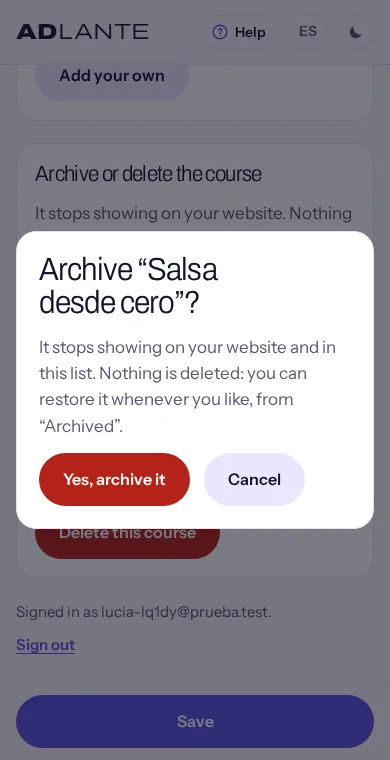
To restore it: in the list, under Archived, tap Restore. It says “Restored.” and the course comes back with the phase it had. If you open an archived course, the page says “This course is archived: it doesn’t show on your website.” and has its Restore button.
To delete a course:
Tap Delete in the list (or Delete this course on the course page).
It shows “Delete “…”?”: “It goes to the bin: it stops showing on your website and you can restore it for 30 days. After that it is deleted for good, with its videos and photos.”
Tap Delete to confirm or Cancel. Afterwards it tells you the course is in the bin and until which day you can restore it.
In The bin, at the end of the list, each course says “Deleted for good on …”. Restore brings it back “as it was” (“Restored: “…” is back as it was.”). Delete now deletes it without waiting: it asks “Delete “…” for good?” (“It can’t be restored: its videos and photos are deleted too.”) and you confirm with Delete. It says “Deleted for good.” If you open a course that is in the bin, the page says “This course is in the bin: it is deleted for good on …. Restore it to change it.”
A course with students is not deleted: it is archived. If it has students, Delete in the list opens a window saying the course “has students” (“It has 1 student, who has it in “My courses”: it can’t be deleted. If you archive it, it stops showing on your website and in this list, and your student can still see it.”), with the button Yes, archive it. On the course page there is no delete button: it says “It has students: it can’t be deleted (they have it in “My courses”). If you don’t want it on your website, archive it.” And under Archived, a course with students carries “It has students: it can’t be deleted.” The students of an archived course can still see it in My courses.
If someone is paying for the course at that very moment, the deletion stops: “Someone is paying for it right now. Please try again in a while.”
Modules, lessons, photos and videos. Modules and lessons can only be archived (see “Creating modules and lessons”). A photo or a video is removed with Remove: it asks “Remove this photo?” or “Remove this video?” (“It is deleted from ADLANTE.”) and it cannot be recovered. A level in the list, a badge or a benefit also ask before being removed.
If you delete or archive a course you have already sold and you have doubts, do not rush: if you refund the full amount of a purchase in Your payments, that student no longer has the course. It is explained in Card payments.
Questions that keep coming up
Do I have to hit “Save” in every box? When I leave it says my changes won’t be saved.
No. On a course page there is one Save, at the bottom, which saves all sections at once. When you touch something it says “You have unsaved changes.” and, when you tap it, everything is saved. If something is wrongly written, nothing is saved and it is marked in red in its box. The warning when you leave only appears if something is really left unsaved, or a video is uploading. Covers and trailers are saved when you upload them. The module page and the lesson page each have their own Save.
Does my course not show as “In production” until it has modules or lessons?
It does not need them. A course in In production or in Coming soon shows on your website even with no modules at all; its page says “The course content is being prepared.” Only Published asks for a price (or Free course) and at least one published lesson, in a published module, with its video ready. One thing though: your website has to be Abierta (Open), not in Próximamente (Coming soon).
I published my course and I do not see it on my website. What do I check?
In order: 1) that the course is in the Published phase (or In production or Coming soon, if you only want to announce it) and not archived; 2) that your website is Abierta (Open): in the editor, Publicar (Publish) and “Cómo está tu web”; 3) that the Cursos (Courses) section is in your website and switched on (in Capas (Layers), with its eye); 4) that you published your website after opening it; 5) that you reload the page, because it can take a moment.
Where do I see my students, and how do I test what they see?
Their names, emails and what they have are in Your students. To test what they see, use View as student, in Your courses: it opens your website in another tab exactly as a student with all your published courses sees it, without creating another account. At the top it says “You are viewing your website as a student”, with Exit. You do not appear in Your students, you buy nothing and your progress is not saved. You need your website published and open and some course published; if something is missing, it tells you and takes you to fix it.
The “Log in” button on my website doesn’t work: can’t I create an account?
While your website is in Próximamente (Coming soon), or you have no Published course, or your plan does not have the student area, that corner says “Soon you will be able to sign in here.” When the three things are true, it is replaced by itself with My courses, with a person icon. Inside the editor, in Probar (Try it), there are no student accounts: there My courses opens View as student in another tab and “Entrar” (Log in) tells you what is missing.
How do I change the sentence about courses? (the “Coming soon” notice)
It is written where it is seen: in the editor, tap the sentence on your main banner and change it, in Spanish and in English. You can also do it from the Cursos (Courses) section: while your website is in Próximamente (Coming soon), its group “Mientras tanto” (Meanwhile) has a button Cambiar esta frase (Change this sentence).
On my paid course I see “To sell it by card, connect your payments”.
It shows in Price, on a course with a price, while your space still cannot take card payments (because you have not connected Stripe, or the sign-up is half done). Go to «Your payments» takes you to connect it (Card payments). When Stripe leaves your account Active, the notice goes away by itself. A free course, or one with no price, does not show it.
On my website, my course says “Available soon” instead of “Buy”. Why?
Because something is still missing. Your website shows Buy when the course is Published, has a price, your plan has the sell-courses tool and your Stripe account is active. If one is missing, a greyed-out button that says “Available soon” appears.
Why do my students have to create an account? The shop doesn’t need one.
On purpose: a course is watched afterwards, from any device, and for that the student has to sign in with their account (My courses). The shop does not ask for an account: a name and an email are enough.
Does someone who buys a course leave my website to pay?
For courses, yes, for a moment: when they tap the pay button they go to Stripe’s payment page, with your space’s name, and when they finish they come back to your website, to “Payment received”. It tells them beforehand: “We’ll take you to Stripe’s secure payment page, and then back here.”
Where do I see what I have been paid?
In Your payments you see every card payment, including your courses’. Each leads to what was paid for, with “See the course”. Also in Your students: each student who bought carries the tag Bought and what they paid. Prices and what ADLANTE keeps from each sale are in Your plan.
How do I refund someone who paid by card?
In Your payments, on the payment, Refund. The money goes back to their card within a few days and the payment shows as “Refunded”. It cannot be undone, and ADLANTE’s commission is not refunded. If you refund the full amount of a course, that person no longer has it in My courses. All in Card payments.
Can I give a course to someone without them paying?
Today there is no button to give it to one specific person. What you can do is tick the course as Free course (anyone with an account can join with Join for free), or mark lessons as Sample lesson (free) or modules as Free for everyone, which anyone with an account can watch.
Can I see which lesson each student is on?
Not today. In Your students you see who they are, which courses they have, since when and when they last signed in (Last seen). Progress by lesson is only seen by each student, in their My courses.
Which video does my student see, the landscape or the portrait one?
The lesson’s landscape one. The portrait one is only used if there is no landscape one or it is not ready. Normally you upload only the landscape one and save video hours. The trailer is different: the portrait one shows on a phone held upright.
Can I run out of video hours? How do I get more?
Yes. You see them in Your plan, under Your video hours. When they run out, new videos do not upload: the page says it with “You have used all the video hours included in your plan…”. Remove the ones you do not use with Remove. Today the panel has no button to buy more hours: tell us in Missing something? Tell us.
Do my students see the subtitles I upload?
Not today. Subtitles are saved on the lesson, but the player in the student area does not show them yet.
I changed the course title: does its web address change?
No. The address is made from the title you typed when you created the course and never changes, so a link already sent keeps working. You see it, to copy it, in Toda la web (Whole website) → Cómo se ve al compartir (How it looks when shared) → Cada curso, producto y página (Each course, product and page).
What happens if I archive a course that people have already bought?
It stops showing on your website and in your list, but those who had it can still watch it in their My courses. You restore it from Archived. A course with students cannot be deleted, only archived.
How many courses, modules and lessons can I have?
Up to 200 unarchived courses, 60 modules in each course and 150 lessons in each module. If you reach it, it says “You have reached the maximum allowed here.” Archived ones do not count.
How do I send a student the link to create their account?
With yourname.adlante.com/#alumno/crear (to create the account) or yourname.adlante.com/#alumno/entrar (if they already have one). Your website has to be Abierta (Open) and have some course published. To send one specific course, use its own address: Toda la web (Whole website) → Cómo se ve al compartir (How it looks when shared) → Cada curso, producto y página (Each course, product and page) → Copiar (Copy).
What is the difference between “Your students” and “Students and payments”?
Your students is for people who buy video courses on your website. Students and payments is for your weekly classes: who comes, who pays their fee and who owes something. They are different tools, each with its own price in Your plan. They sound alike and are nothing alike. Guide to classes: Students and payments.